Connect to the C3 Central MCP Server
This page explains how to connect C3 Central MCP Server to your coding assistant. After installation, your assistant can access C3 AI documentation, generate Types and Transforms, and apply platform-specific best practices directly in your code editor.
Prerequisites
Before installation, verify the following requirements:
- VS Code 1.102 or higher with GitHub Copilot, Cursor 1.2.1 or higher, or Claude Code
- Node.js installed and available on your system
- C3 Agentic AI Platform 8.6 or higher (required only for C3 AI application development)
Authenticate with the server
You must authenticate with the C3 Central MCP Server before installation.
- Go to https://mcp.c3.ai.
- Select your preferred authentication method.
- Complete the login process using your C3 AI Developer Portal credentials.
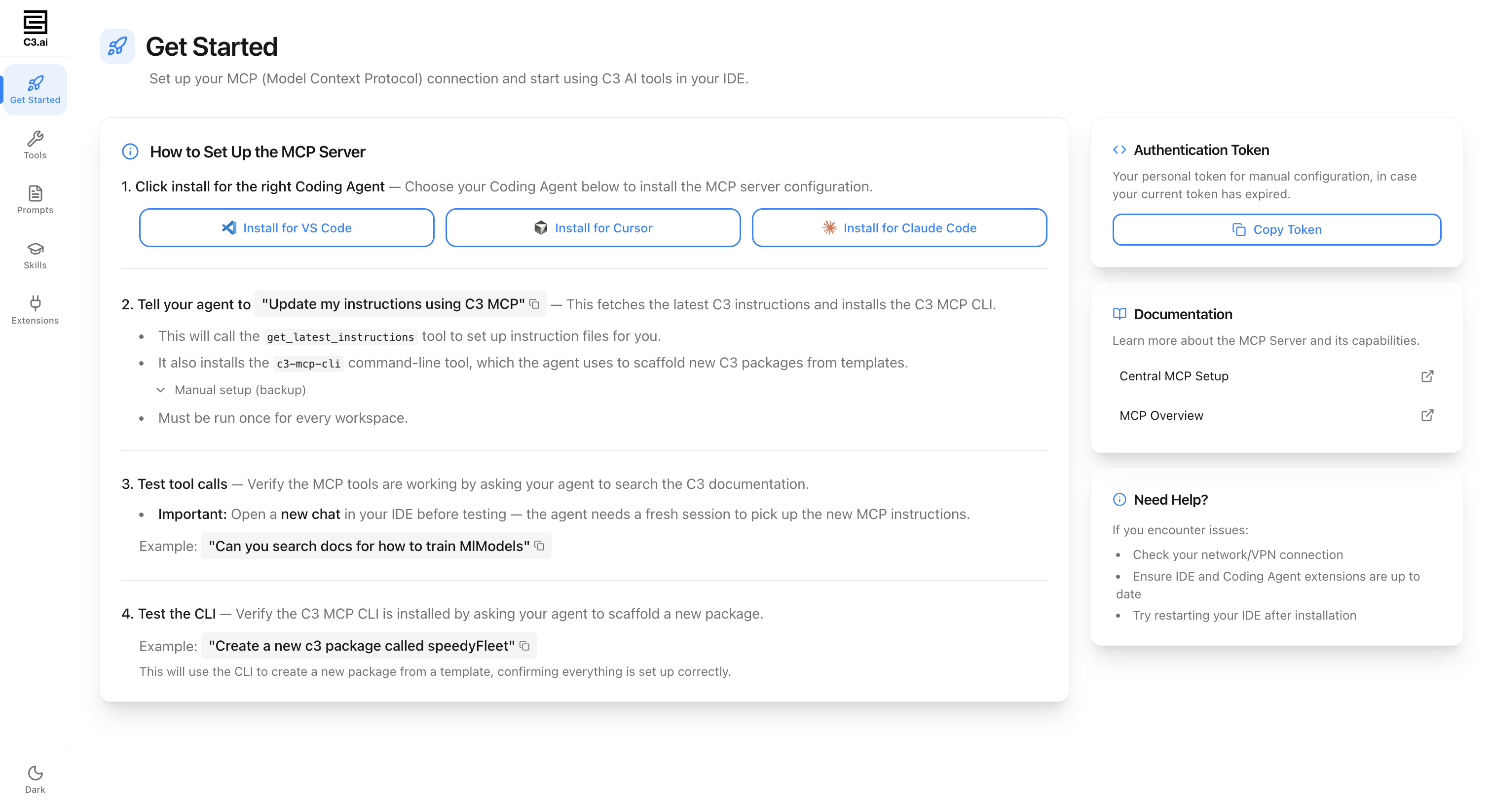
After successful authentication, the configuration page displays installation options for your coding assistant. The page also includes an Authentication Token section where you can select Copy Token for manual configuration.
Install the server
VS Code and Cursor
The process is identical for VS Code and Cursor.
On the configuration page, select Install for VS Code or Install for Cursor.
Your editor launches automatically and displays an installation prompt.
Review the configuration fields:
- Name: C3AI-MCP
- Type: HTTP
- URL: Server endpoint (for example,
https://mcp.c3.ai/mcp/server)
Select Install to complete the setup.
Claude Code
On the configuration page, select Install for Claude Code.
A dialog displays a terminal command. Select Copy Command.
Open your terminal and paste the command:
Command Lineclaude mcp add \ --transport http \ C3AI-MCP-Server \ https://mcp.c3.ai/mcp/server \ --header "Authorization: C3Bearer <your-token>"Run the command to complete the setup.
Verify installation
After installation, confirm the server is running.
VS Code
- Open the Command Palette in your editor:
- Windows/Linux:
Ctrl+Shift+P - macOS:
Cmd+Shift+P
- Windows/Linux:
- Search for MCP: Open User Configuration.
- Verify the C3 Central MCP Server appears in the configuration with the correct URL.
Cursor
- Open the Command Palette in your editor:
- Windows/Linux:
Ctrl+Shift+P - macOS:
Cmd+Shift+P
- Windows/Linux:
- Search for View: Open MCP Settings.
- A UI opens showing the status and number of tools and prompts available from the C3 Central MCP Server.
Claude Code
- Run
claude mcp listin your terminal. - Verify that
C3AI-MCP-Serverappears in the list of configured servers.
Troubleshoot
Installation prompt does not appear: Ensure your coding assistant is the correct version. VS Code requires version 1.102 or later. Cursor requires version 1.2.1 or later. For Claude Code, verify the claude CLI is installed and available on your PATH. If using VS Code, close and reopen the editor, then revisit the installation URL.
Server fails to start: Verify Node.js is installed and accessible from your command line. Confirm your app is running and the base path responds at https://<cluster-name>/<env>/<app>/mcp.
Authentication errors (401/403): Reauthenticate at https://mcp.c3.ai. Verify your authentication token is valid and includes the proper Authorization header with a C3Bearer token.
Tools are not available: Confirm the server status shows as active in your editor settings. Verify your app registers tools with the MCP server. Check that tool access is enabled in your MCP configuration.
Configuration not taking effect: For VS Code, ensure your config file is at {project-root}/.vscode/mcp.json and your workspace is opened at the project root. For other editors, verify the MCP configuration location is correct.
Next steps
You can also expose tools and prompts from your own C3 application through an Application MCP Server. Central MCP is not a prerequisite for App MCP. Each server works independently, and your coding assistant can connect to both at the same time.
If you want your coding assistant to query live application data, run code against your environment, or execute tests on your behalf, connect to your Application MCP Server.
See App MCP Overview.