Model Context Protocol (MCP) Overview
The Model Context Protocol (MCP) is an open framework that connects AI coding assistants with external tools, data sources, and services. It defines a common format for structured requests and responses, allowing coding assistants to act on real system data.
C3 AI uses MCP in two ways:
- C3 Central MCP Server: Provides C3 platform tools to all developers.
- Application MCP Servers: C3 applications that include the
mcpServerpackage to expose custom business tools.
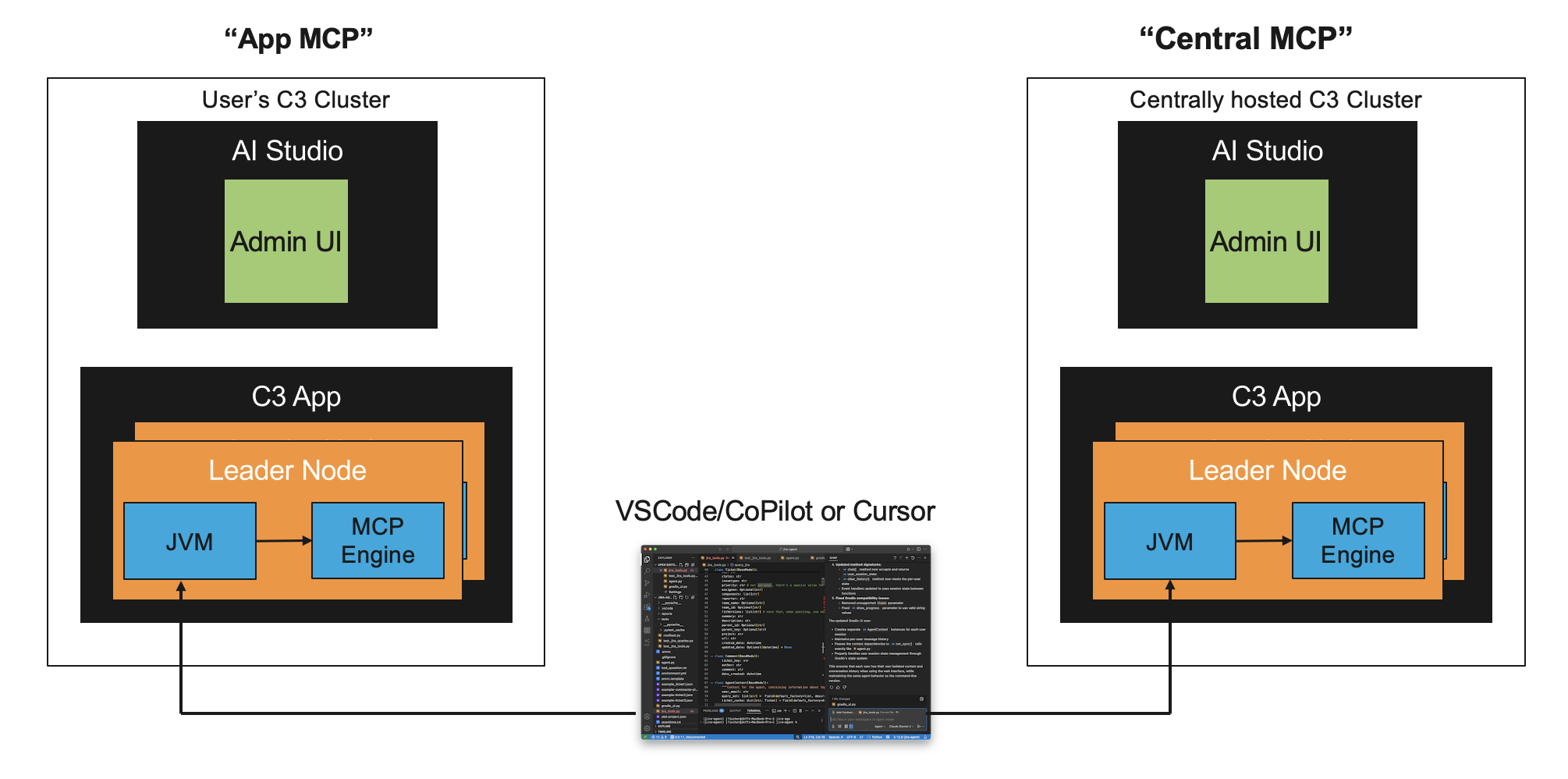
C3 Central MCP is the source of C3 platform knowledge. It provides documentation search, Type generation, coding instructions, skills, and reusable prompts that apply to any C3 project. Application MCP acts on your running application. It exposes tools that can query your data, run code in your environment, execute tests, and make configuration changes on your behalf.
Both options run the same mcpServer package. C3 Central MCP is the platform-hosted instance at https://mcp.c3.ai. Application MCP Servers are your own C3 applications running the same package. A single coding assistant can connect to both at the same time.
To learn more, see App MCP Overview.
Choose your MCP server
Most C3 developers connect to both. Use the following guide to decide where to start:
| Your goal | Use | Start here |
|---|---|---|
| Learn C3 AI, generate Types, Transforms, or code scaffolding from the IDE | C3 Central MCP | Connect to the C3 Central MCP Server |
| Apply C3 coding standards and instruction files to an IDE project | C3 Central MCP | Configure and Use C3 Central MCP Server |
| Install extensions (GitHub, Atlassian, Figma, Playwright, etc.) alongside C3 tools | C3 Central MCP | Configure and Use C3 Central MCP Server |
| Expose your own application's business logic as tools agents can call | Application MCP | App MCP Overview |
| Publish reusable prompt templates scoped to your application | Application MCP | Manage MCP Prompts |
| Monitor, audit, or debug tool invocations made against your app | Application MCP | MCP Monitor |
Get started
For a step-by-step walkthrough that connects Central MCP, connects App MCP, and runs a full write-test-fix loop from your IDE, see C3 AI MCP Quickstart.
The quickstart covers the typical developer journey from first connection to a passing test. After completing it, explore the reference pages listed in the table above for deeper configuration.
Architecture
- MCP Host: Your code editor application (VS Code, Cursor, or Claude Code).
- MCP Client: The protocol layer inside your editor that sends structured requests to MCP servers.
- MCP Server: Any server that implements the MCP protocol. This includes the C3 Central MCP Server and any C3 application.
C3 Central MCP Server
The C3 Central MCP Server is a server that C3 AI maintains for all developers. You connect to it to get C3 platform help.
Capabilities
The C3 Central MCP Server provides tools, prompts, skills, and extensions to all developers learning or building C3 applications.
- Tools: Search C3 documentation, generate C3 Types and Transforms, answer C3 platform questions, and test tools directly from the web portal.
- Prompts: Access predefined workflows for common C3 development tasks such as creating calculated fields, writing unit tests, and setting up React applications.
- Skills: Discover and use reusable capabilities that provide specialized knowledge and workflows, such as vault encryption, type generation, and video creation.
- Extensions: Install additional MCP servers (Atlassian, GitHub, Figma, Lucid, Chrome DevTools, Playwright) alongside the C3 MCP Server to extend your coding assistant.
Connect to Central MCP
See Connect to the C3 Central MCP Server for step-by-step instructions.
Application MCP Servers
An Application MCP Server is your C3 application when it includes the mcpServer package. This exposes custom business logic as tools that your coding assistant can access.
The mcpServer package provides Mcp.Server (REST endpoint) and Mcp.Engine (tool call handler), and requires the genaiPlatform package. When your app is running, it automatically exposes the following MCP endpoints:
| Endpoint | URL | Purpose |
|---|---|---|
| VS Code installer | https://<cluster>/<env>/<app>/mcp/vscode | Opens VS Code and auto-configures the MCP server connection |
| Cursor installer | https://<cluster>/<env>/<app>/mcp/cursor | Opens Cursor and auto-configures the MCP server connection |
| JSON config | https://<cluster>/<env>/<app>/mcp/json | Returns raw JSON config for project-scoped or manual setup |
| MCP server | https://<cluster>/<env>/<app>/mcp/server | The actual MCP protocol endpoint your IDE connects to (do not open this in a browser) |
Example custom tools
- Check inventory levels for SKU-123
- Calculate supply chain risk score
- Analyze sensor data for anomalies
Prerequisites
- Your app declares a dependency on the
mcpServerpackage - Your app is running
Create and enable tools
It is strongly recommended your app exposes at least one tool so the MCP server provides useful functionality.
# Create a custom tool
inventory_tool = c3.GenaiCore.Tool.C3Method.createFromMethodName(
    c3.InventoryManager,
    "checkStockLevels"
)

# Enable it for MCP
inventory_tool.withEnabledInMcpServer(True).upsert()
To connect your coding assistant to your Application MCP Server, follow the same steps in Connect to the C3 Central MCP Server.
Connect to multiple servers
Connect to both C3 Central MCP and your Application MCP when you need:
- C3 platform guidance (from Central MCP)
- Custom business tools (from your Application MCP)
Your coding assistant aggregates tools from both servers and calls whichever tool makes sense for your request.