Manage MCP Prompts
The Prompts page lets you manage prompt templates available through your MCP server. Prompts are predefined text templates that coding assistants can invoke through the / command in the IDE. Each prompt can include arguments that agents fill in at call time.
The system writes published prompts to seed data, where they persist across environment restarts and deployments. You cannot edit or unpublish published prompts.
Navigate to the Prompts page
Select MCP > Prompts in the left sidebar.
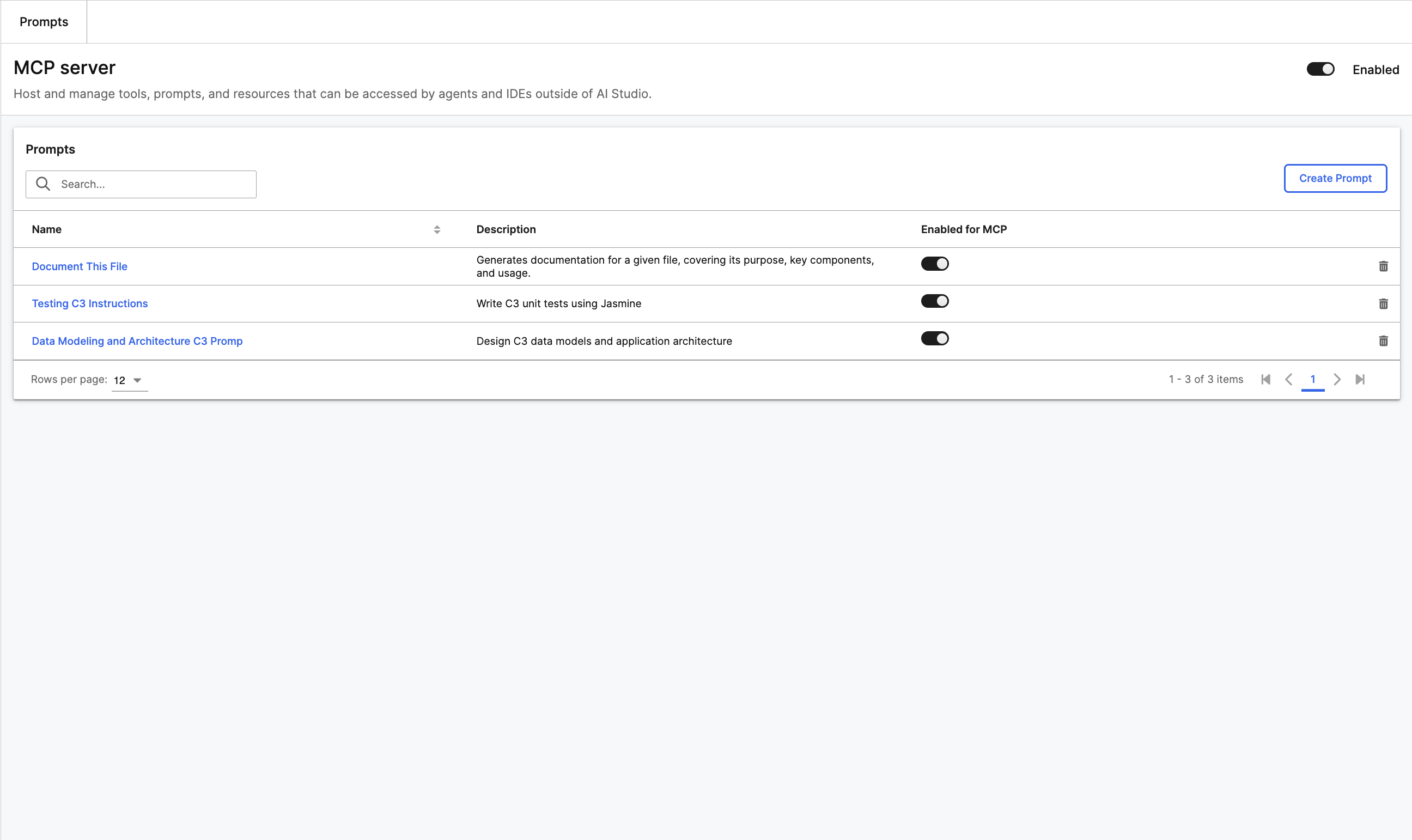
The grid lists each prompt by name, description, and MCP enabled status. Use the search bar to find prompts. Select any prompt name to open its detail page. You can also toggle Enabled for MCP directly from each row or select the delete icon to remove a prompt. If no prompts exist yet, select Create Prompt to get started.
Create a prompt
Only App Admin can create prompts.
Select Create Prompt
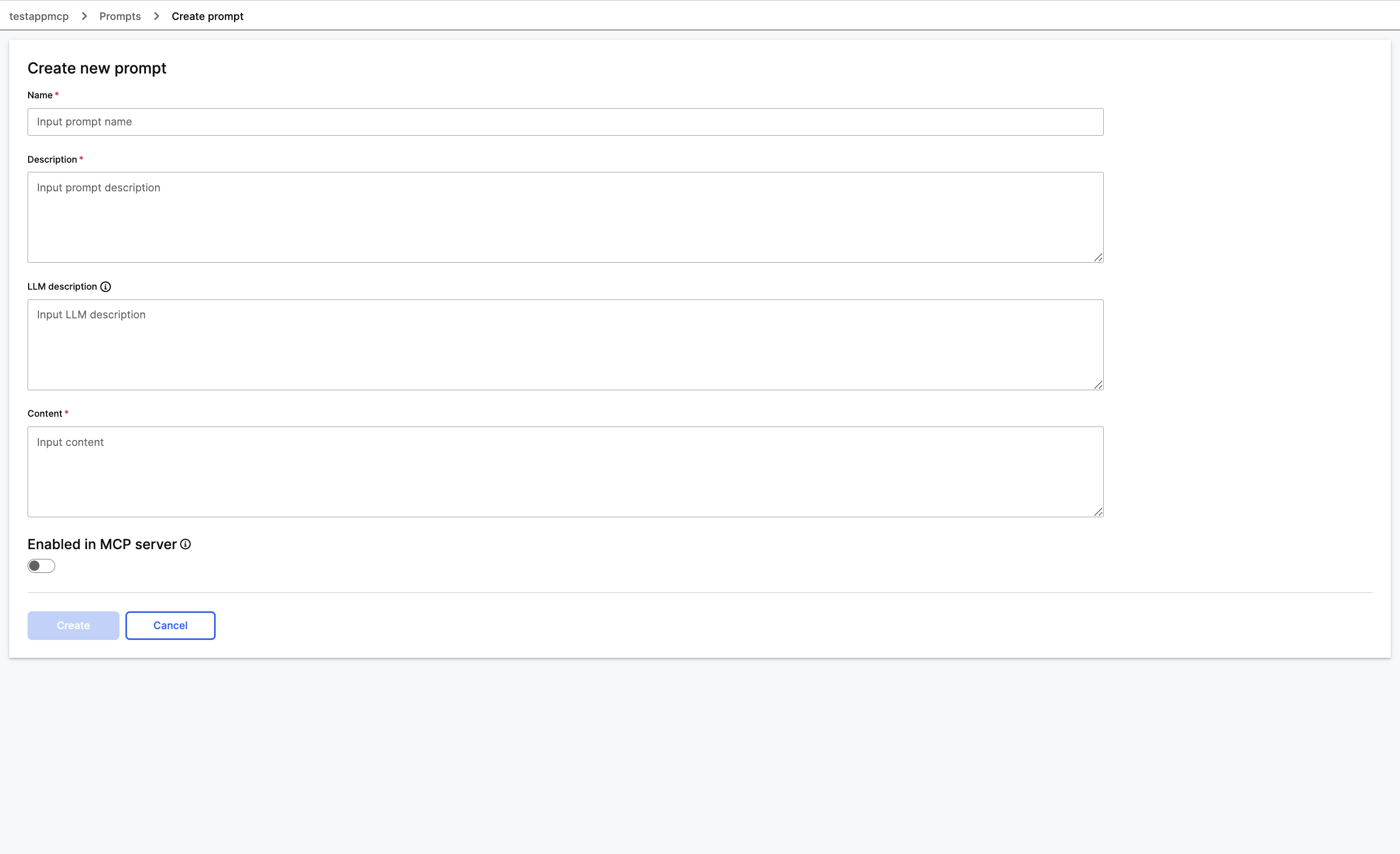
Fill in the form:
- Name (required): The slash-command name that IDEs display. Must be unique. Choose descriptive names like
GenerateUnitTestsorOptimizeSqlQuery. - Description (required): A user-facing summary that agents display when browsing available prompts. One to two sentences.
- LLM description (optional): Instructions for the model about when and how to apply this prompt. Agents use this to decide whether the prompt fits their current task.
- Content (required): The template text that the system sends to the LLM when an agent invokes the prompt. Use
{argument_name}(single braces) to define arguments that agents provide at call time. - Enabled in MCP server: Toggle to activate the prompt immediately. Disabled by default.
- Name (required): The slash-command name that IDEs display. Must be unique. Choose descriptive names like
Select Create to save.
Your application stores the prompt as a Mcp.Prompt instance.
Use prompt arguments
Define template variables in your content using Python single-brace format: {argument_name}.
Analyze the following {language} function and identify potential bugs:

{function_code}

Focus specifically on: {focus_areas}
When an agent invokes this prompt, it supplies values for each placeholder:
language: "Python"function_code: "def divide(a, b): return a/b"focus_areas: "null safety and division by zero"
The MCP server substitutes these values and returns the rendered prompt.
Edit a prompt
Select a prompt name from the grid to open its detail page.
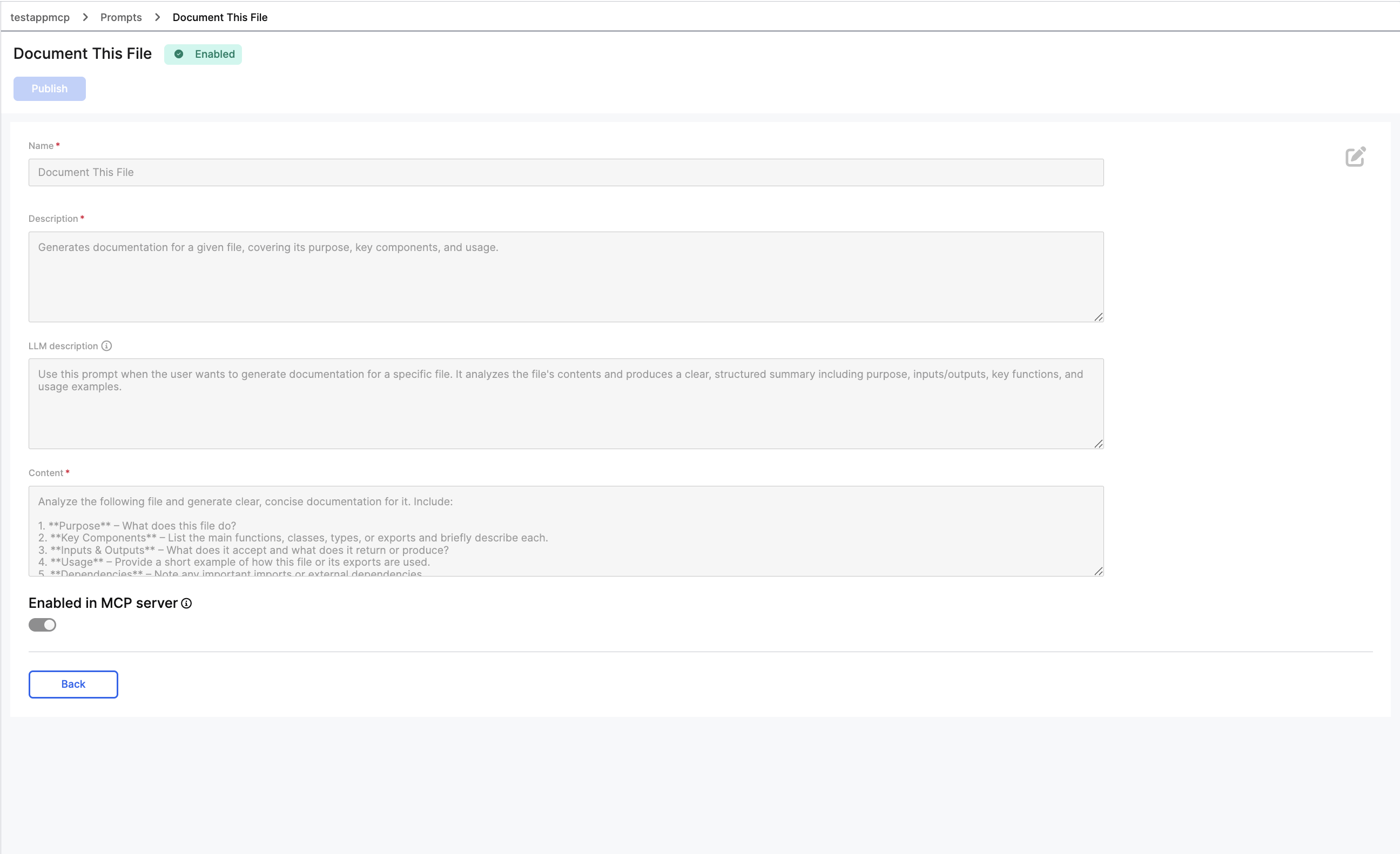
The detail page displays the prompt status badge (Enabled or Disabled) and a Publish button. An edit icon (pencil) appears in the top right. Select the edit icon to modify the name, description, LLM description, or content. Select Back to return to the grid.
If the prompt is currently enabled, a confirmation modal appears before you can edit. You cannot edit published prompts.
Publish a prompt
Publishing writes the prompt to your application's seed data through McpServerUi.Prompt.UiHelper#publishPrompt, making it persistent across all environment restarts and deployments.
After publishing, a prompt cannot be edited or unpublished. Confirm the prompt content is correct before publishing.
- Open the prompt detail page
- Select Publish
- A confirmation modal warns that all connected agents can access the prompt and you can no longer edit or unpublish it.
- Select Publish to confirm, or Cancel to go back.
Requires App Admin role and development mode.
Enable or disable a prompt
You can toggle a prompt's MCP availability in two ways:
- From the prompts grid, use the Enabled for MCP toggle directly.
- From the prompt detail page, use the Enabled in MCP server toggle.
Only App Admin can change this. Enabled prompts appear in the MCP server's /prompts/list response and agents can invoke them through the / command in the IDE.
Delete a prompt
From the prompts grid, select the delete icon (trash) in the prompt row. You cannot delete published prompts.
Template examples
Code review prompt
Name: ReviewCodeForSecurity
Description: Review code for common security vulnerabilities
Content:
Review the following {language} code for security vulnerabilities:

{code}

Check specifically for:
- Input validation issues
- SQL injection risks
- Authentication and authorization problems
- Sensitive data exposure

For each finding, provide: severity (Critical/High/Medium/Low),
description, affected line(s), and recommended fix.Query optimization prompt
Name: OptimizeSqlQuery
Description: Diagnose and optimize slow SQL queries
Content:
The following SQL query is running slowly
(current execution time: {current_time_ms}ms):

{query}

Current indexes on affected tables:
{existing_indexes}

Provide:
1. Root cause of the performance problem
2. Recommended index additions
3. Rewritten query with optimizations applied
4. Estimated improvement