Manage MCP Tools
The Tools page shows all tools registered in your application and lets you control which ones are available through MCP. From here, you can create new tools, test them, and toggle their MCP availability.
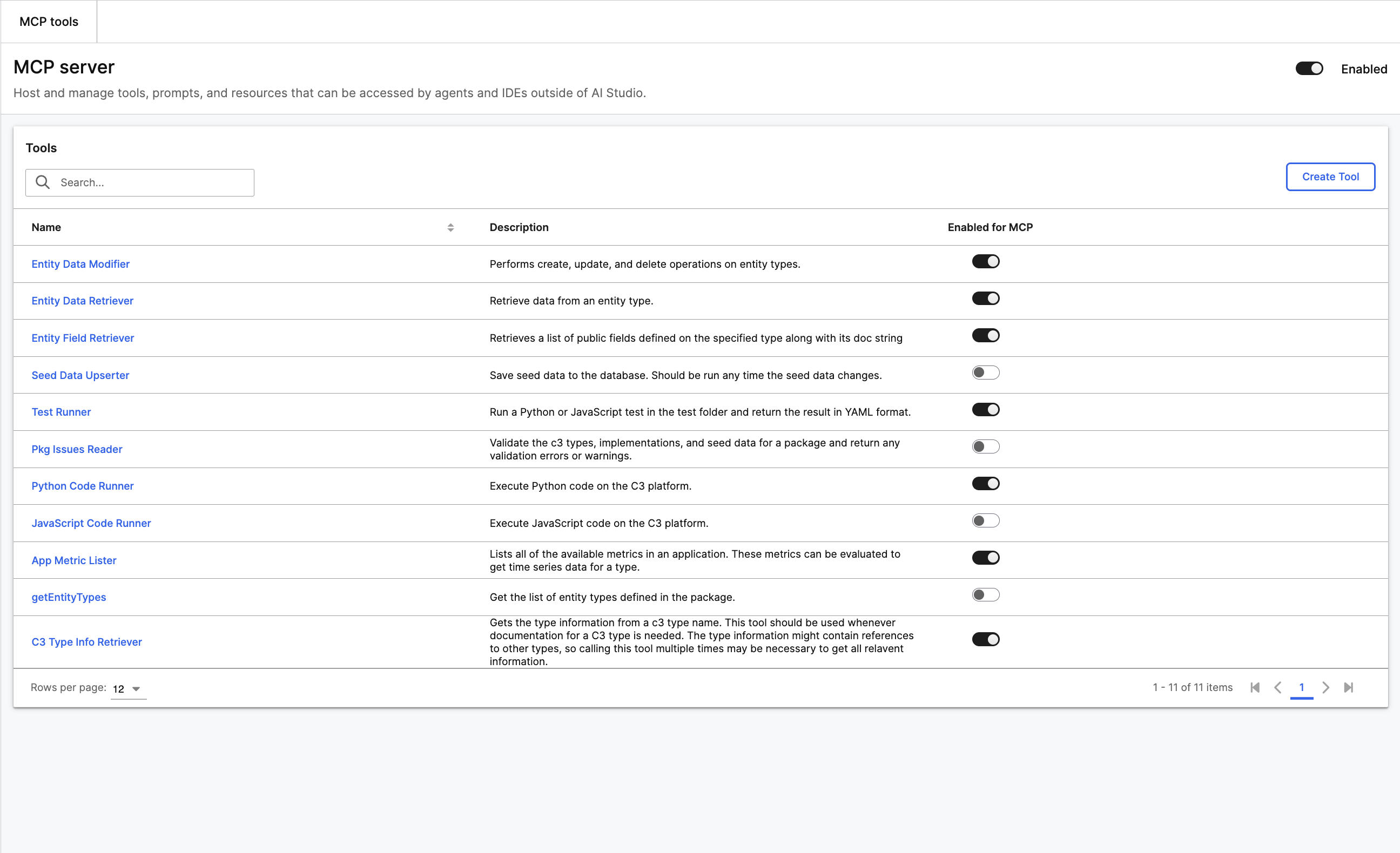
At the top of the page, the MCP server header displays the server name and a global on/off toggle. When you disable the server, no agents can connect regardless of individual tool settings. Only the App Admin role can change this.
Tool types
App MCP supports two tool types:
- Python Tool: A custom function implemented in Python with access to your C3 application's APIs.
- C3 Action Tool: Wraps an existing C3 type method into a callable tool.
A Semantic Search Tool type is available when your environment includes a Postgres vector store.
Your application stores all tool types as GenaiCore.Tool instances.
Navigate to the Tools page
Select MCP > Tools in the left sidebar.
The grid lists each tool by name, description, and MCP enabled status. Only stored tools appear in the grid — draft tools are not displayed. Use the search bar to find tools by name or description. Select any tool name to open its detail page. You can also use the Enabled for MCP toggle in each row to enable or disable a tool.
Create a tool
Select Create Tool on the Tools page. This redirects you to the Tool Gallery under Agents > Gallery > Tools, where you build and configure the tool. For the full creation flow, see:
After creating and storing the tool in the Gallery, it appears in the MCP Tools grid. If you leave the tool as a draft, it does not appear and cannot be enabled for MCP. Return to MCP > Tools to enable it.
View tool details
Select any tool name in the grid to open its detail page.
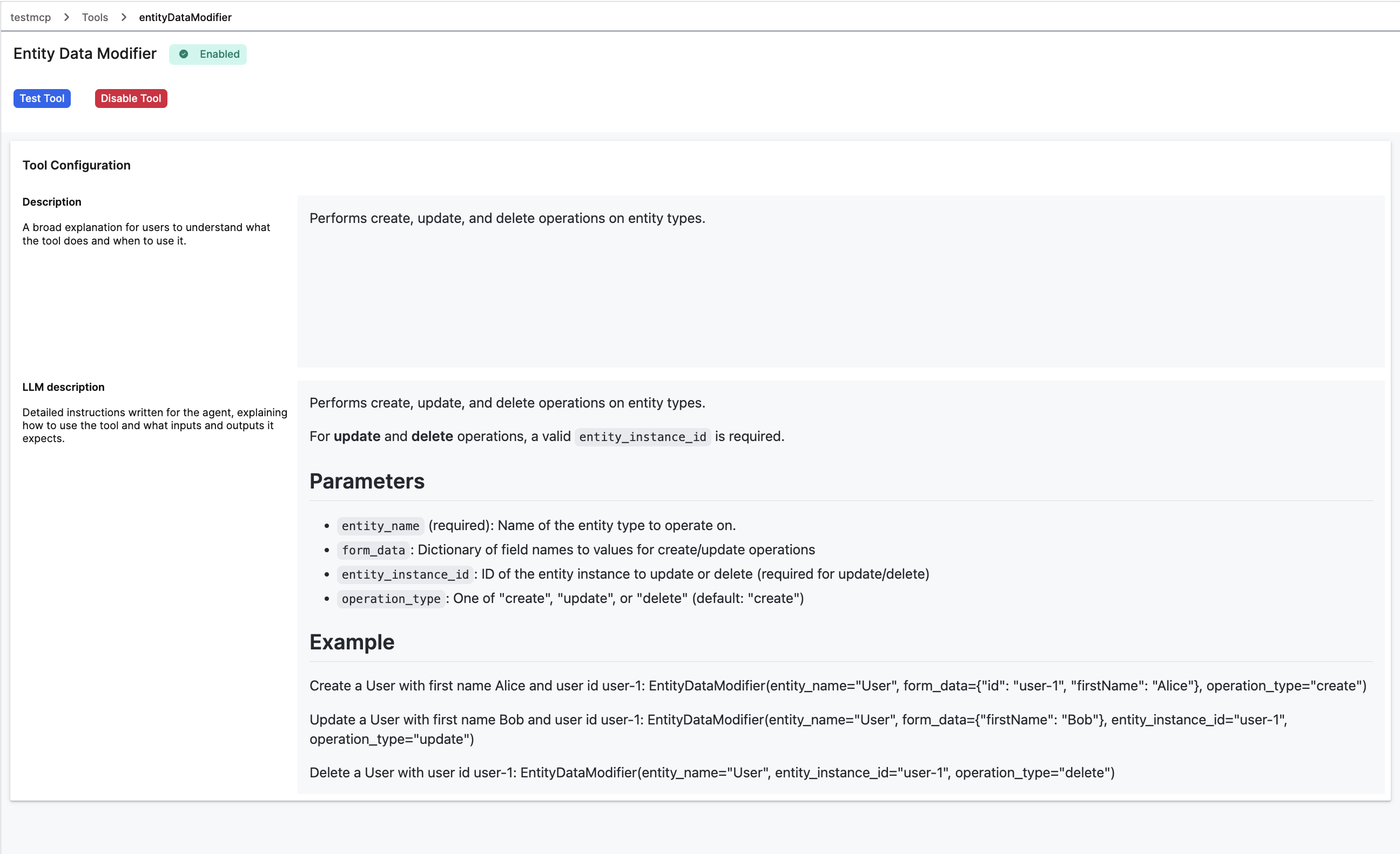
The detail page displays the tool's current MCP status and its configuration:
- Description: A user-facing explanation of what the tool does.
- LLM description: Instructions that the system passes directly to the agent in the tool's JSON schema. This text determines how accurately agents invoke the tool.
- Parameters: Lists all input parameters with their name, type, and whether each is required.
- Example: Shows sample invocations with real parameter values.
From this page, you can enable or disable the tool for MCP, or select Test Tool to verify it works correctly.
Test a tool
Select Test Tool from the tool detail page. This redirects you to the Tool Workbench in the Gallery, where you can run test invocations with input parameters and inspect results.
For the full testing workflow, see Tool Workbench.
Enable or disable a tool
You can toggle a tool's MCP availability in two ways:
- From the tools grid, use the Enabled for MCP toggle directly.
- From the tool detail page, select Enable Tool or Disable Tool.
Only App Admin can change this. Enabled tools appear in the MCP server's /tools/list response and agents can invoke them. Disabled tools remain in your application, but agents cannot see them.
Assign tools to toolkits
If your administrator enables toolkit filtering in Mcp.ServerConfig, you can assign tools to Mcp.Toolkit groups. Each user then sees only tools in their assigned toolkits.
To assign a tool, open its detail page and select from the Toolkit dropdown.