Move an Application to a Production Cluster
You built and checked your application on one cluster in C3 Code. Now the application must run on a separate cluster, such as a production or customer cluster.
Deploying inside C3 Code sends your code to the staging and production copies in the same environment. To run the application on a different cluster, you move its built artifact across with C3 AI Studio's Release Management tools. An artifact is the packaged version of your application that a cluster runs. The artifact is already built, so you start an application from it on the target cluster instead of building again. The move has four steps: download the artifact, register the artifact on the target cluster, start an application from it, then open the running application.
Two prerequisites must be in place on the target cluster before you start. The C3.ArtifactHubAdmin role lets you move artifacts, and a multi-node environment runs an application across several machines.
Download the artifact from the source cluster
On the cluster where you built the application, open C3 AI Studio from your workspace and download the artifact as a single ZIP file:
- Deploy the application in C3 Code, if you have not already, so the platform builds the artifact.
- In your workspace, select Configure > C3 AI Studio.
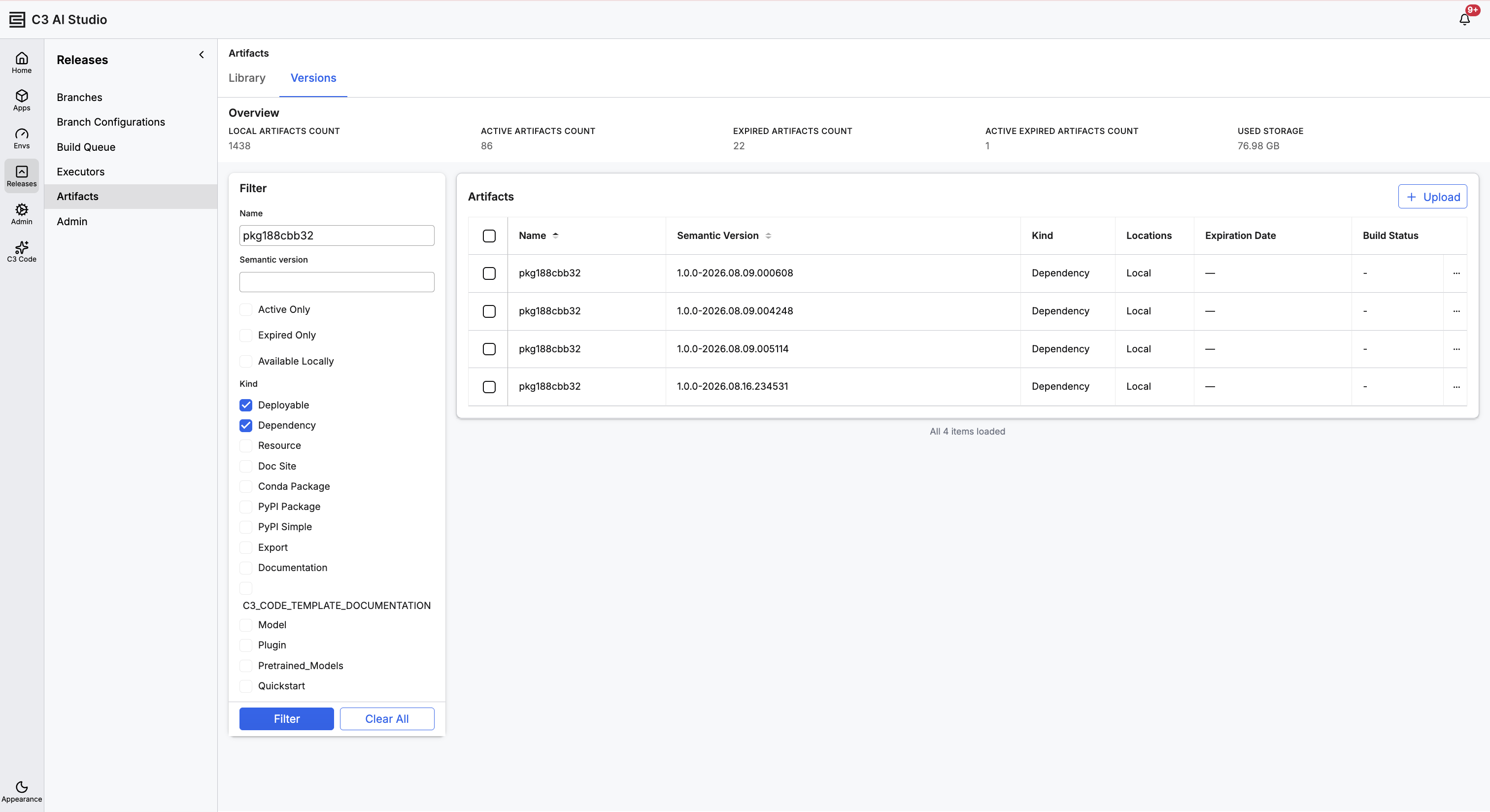
- In C3 AI Studio, select Releases, then Artifacts. The grid lists each artifact by package name, version, and kind.
- Filter the grid by package name or version to find your artifact.
- Select the artifact's checkbox, then select Download at the top right of the grid.
- In the Download Artifacts dialog, set Zip Expiration to keep forever, or long enough to register the artifact first. Select Download.
The Artifacts page lists your artifacts, with a Filter panel to narrow the grid to the one you need:
The Download Artifacts dialog sets how long the downloaded ZIP stays available:
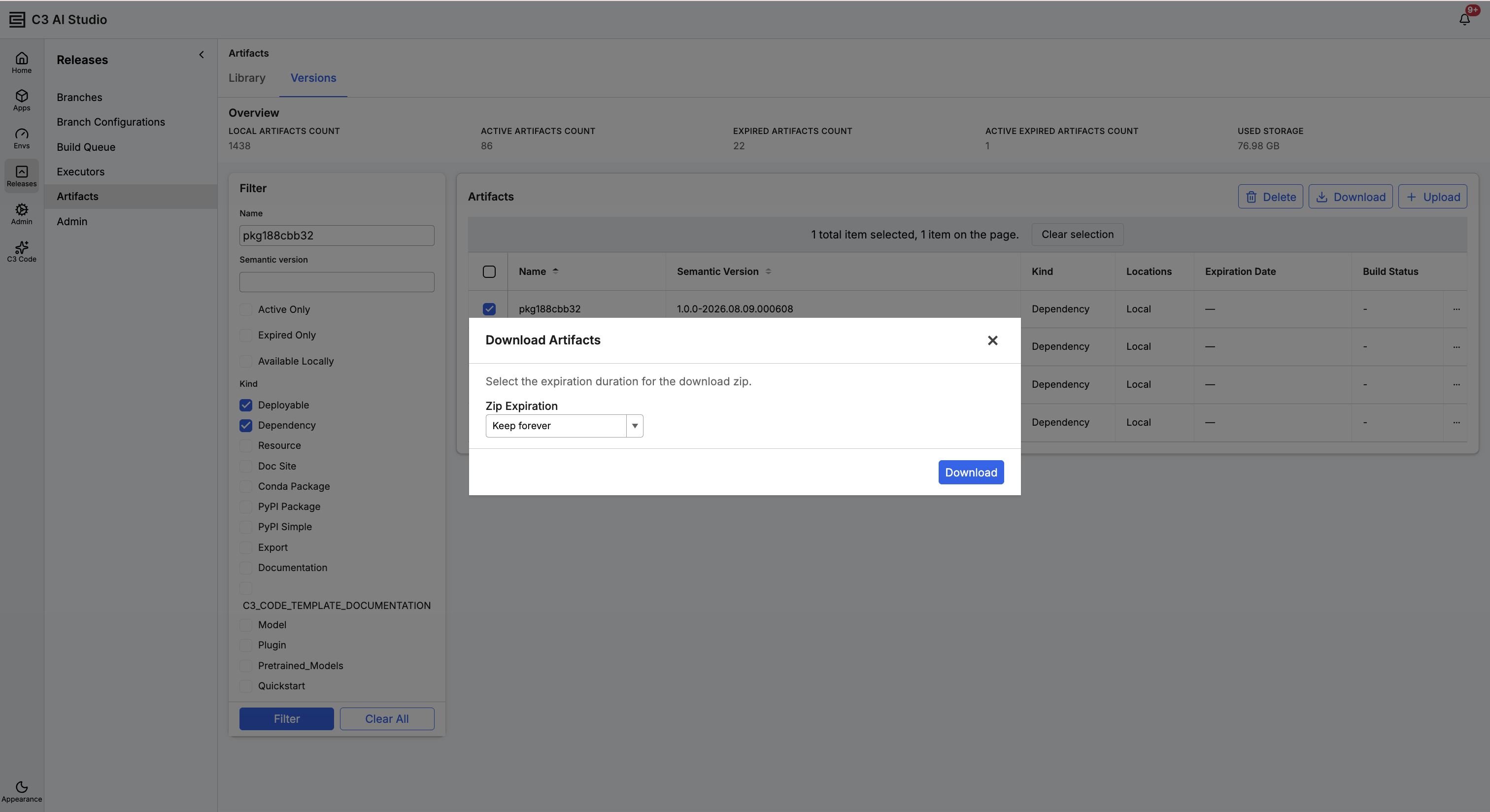
Studio downloads one ZIP file. Upload that ZIP unchanged, because a modified ZIP fails to register.
Register the artifact on the target cluster
On the target cluster, open C3 AI Studio and upload the ZIP to the same artifacts grid:
- In C3 AI Studio on the target cluster, select Releases, then Artifacts.
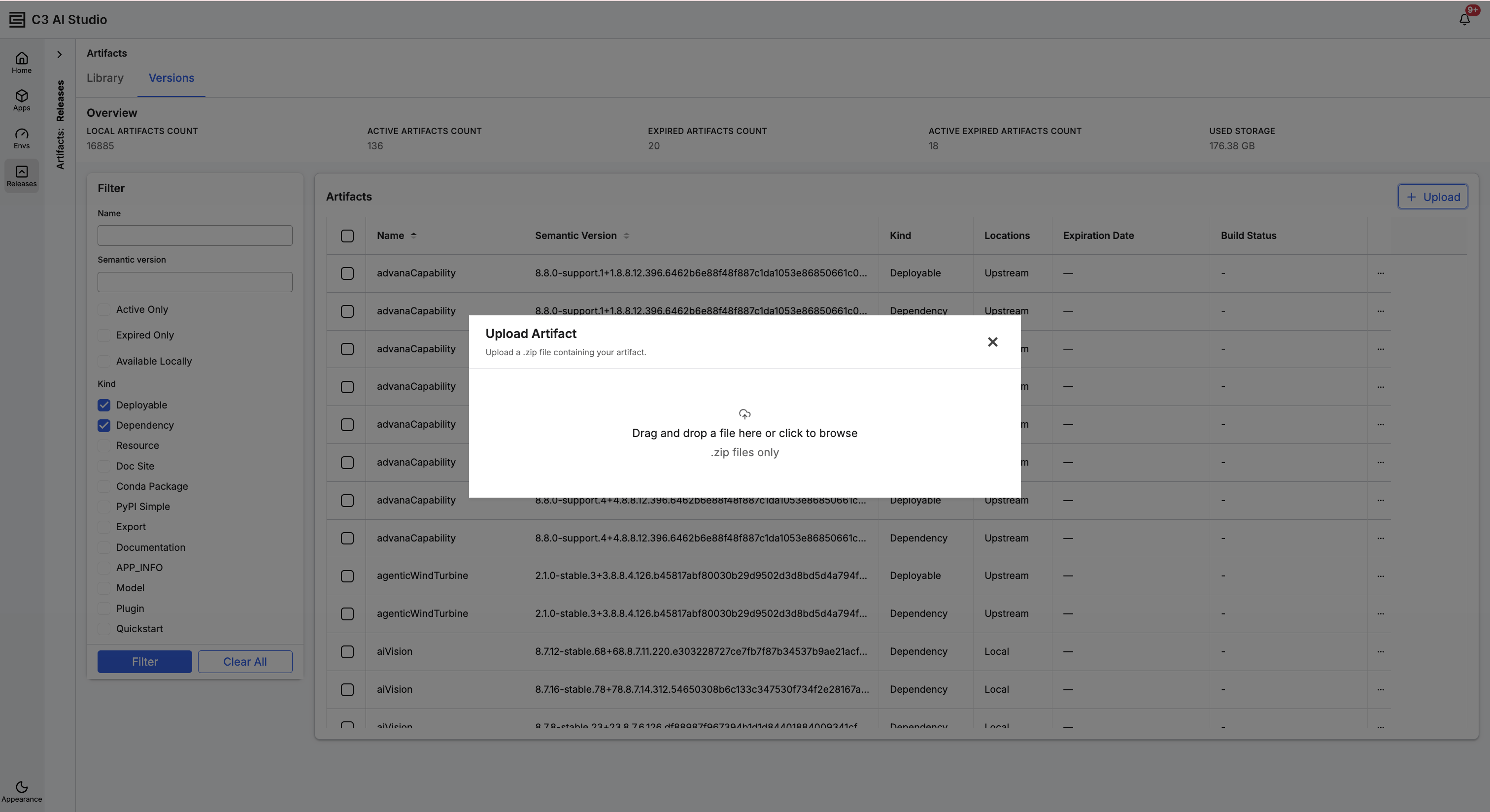
- Select Upload at the top right of the grid. The Upload Artifact dialog opens.
- Drag the ZIP you downloaded into the dialog, or select it to browse for the file.
The Upload Artifact dialog takes a single ZIP file, exactly as you downloaded it:
The package is now available on the target cluster. If the artifact does not appear after the upload, its expiration date has passed. Register the artifact again with a later date, or with keep forever selected.
Start the application on the target cluster
Create an application instance that runs the package you registered. The instance runs in a multi-node environment:
- Create a multi-node environment, when the target cluster has none for this application. On the Environments page, select the plus (+), enter a name, and select Multi node environment for the environment type.
- Find the package version on its package page in Release Management, shown at the top of that page, and copy it.
- Select Create Application, then Start from an existing package, and complete the form:
- Environment: the multi-node environment for this application.
- Application name: a unique name for the application.
- Package: your package, from the dropdown. A package missing from the dropdown is not registered on this cluster yet. Register it with the steps in Register the artifact on the target cluster.
- Package Version: under Advanced Settings, paste the version you copied.
- Submit the form to start the application instance.
Open and upgrade the application
Starting the instance stands the application up on the target cluster. Your users open the application at its URL, the same way they open any C3 application. When the platform moves to a new version, upgrade the application so it keeps running on the current platform.
Where to go next
These pages cover the Release Management tools these steps use, and the deployments C3 Code manages inside your environment: