Continuous Deployment
A build pipeline keeps a deployment up to date without manual deployment. You point a branch at one or more deployments, and C3 Code checks that branch on a schedule and rebuilds when the branch has new work.
You set up a build pipeline on the application Settings tab, and choose how often C3 Code checks the branch.
Use a build pipeline when several people merge into one branch and a team depends on staging staying current. You point staging at the main branch and set a check every fifteen minutes, and merged work reaches that team without a manual deploy.
Before you set up a build pipeline
Two requirements come first:
- A connected repository: a pipeline builds from Git rather than from a workspace, so the continuous deployment section stays disabled until the application has a repository.
- A deployment to point at: a pipeline updates a deployment that already exists, so deploy to staging or production by hand at least once first.
Connect GitHub covers connecting your account and linking a repository, and Deploy to Staging and Production covers the deploy procedure itself.
Set up a build pipeline
Create the build pipeline from the application Settings tab, choosing a branch and the deployments that branch feeds:
- Select Applications, open your application, then select the Settings tab.
- Under Continuous Deployment Configuration, select Create new.
- Select a Branch. The list shows every branch in the connected repository.
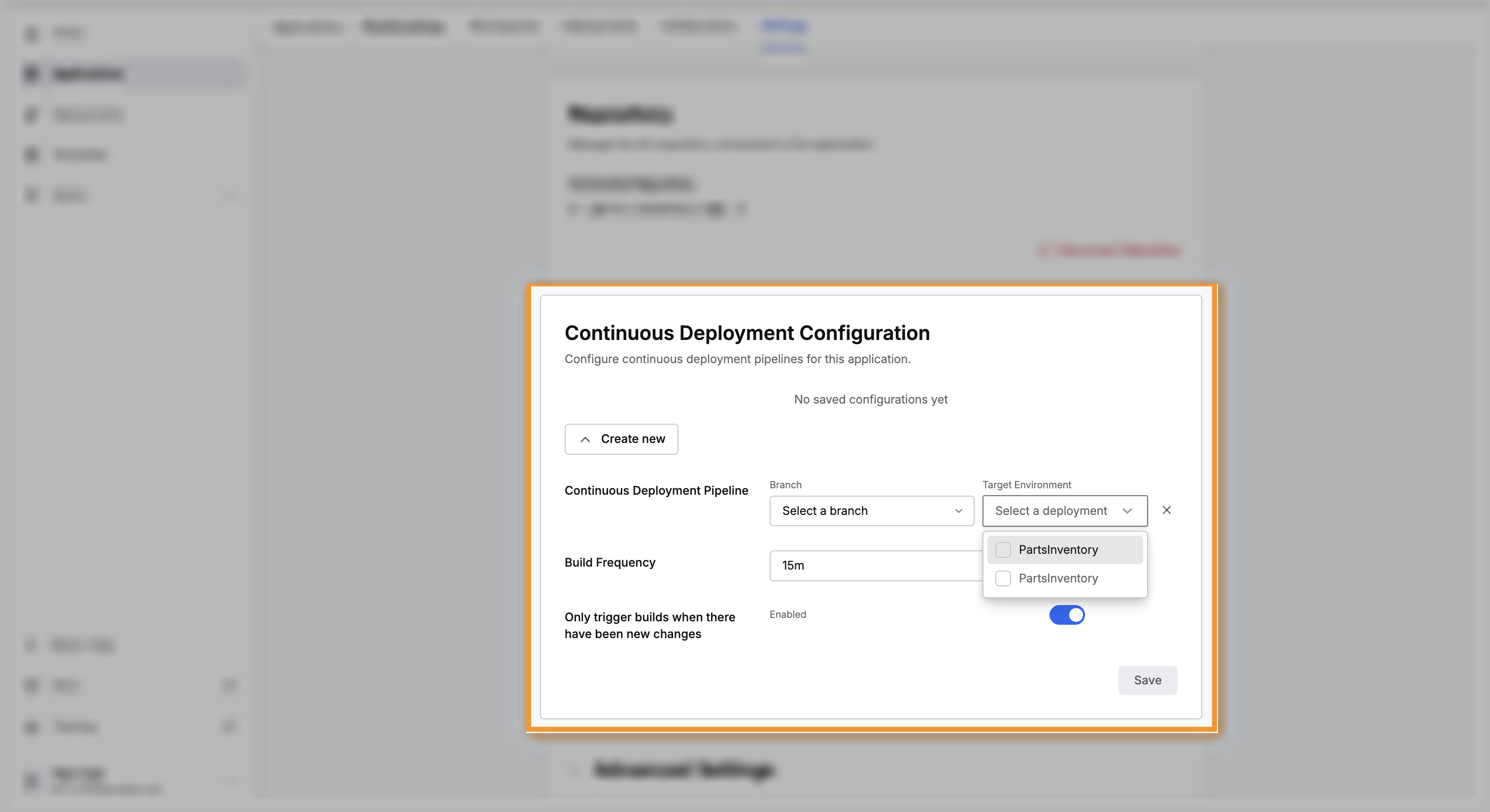
- Select one or more deployments under Target Environment.
- Set the Build Frequency.
- Select Save.
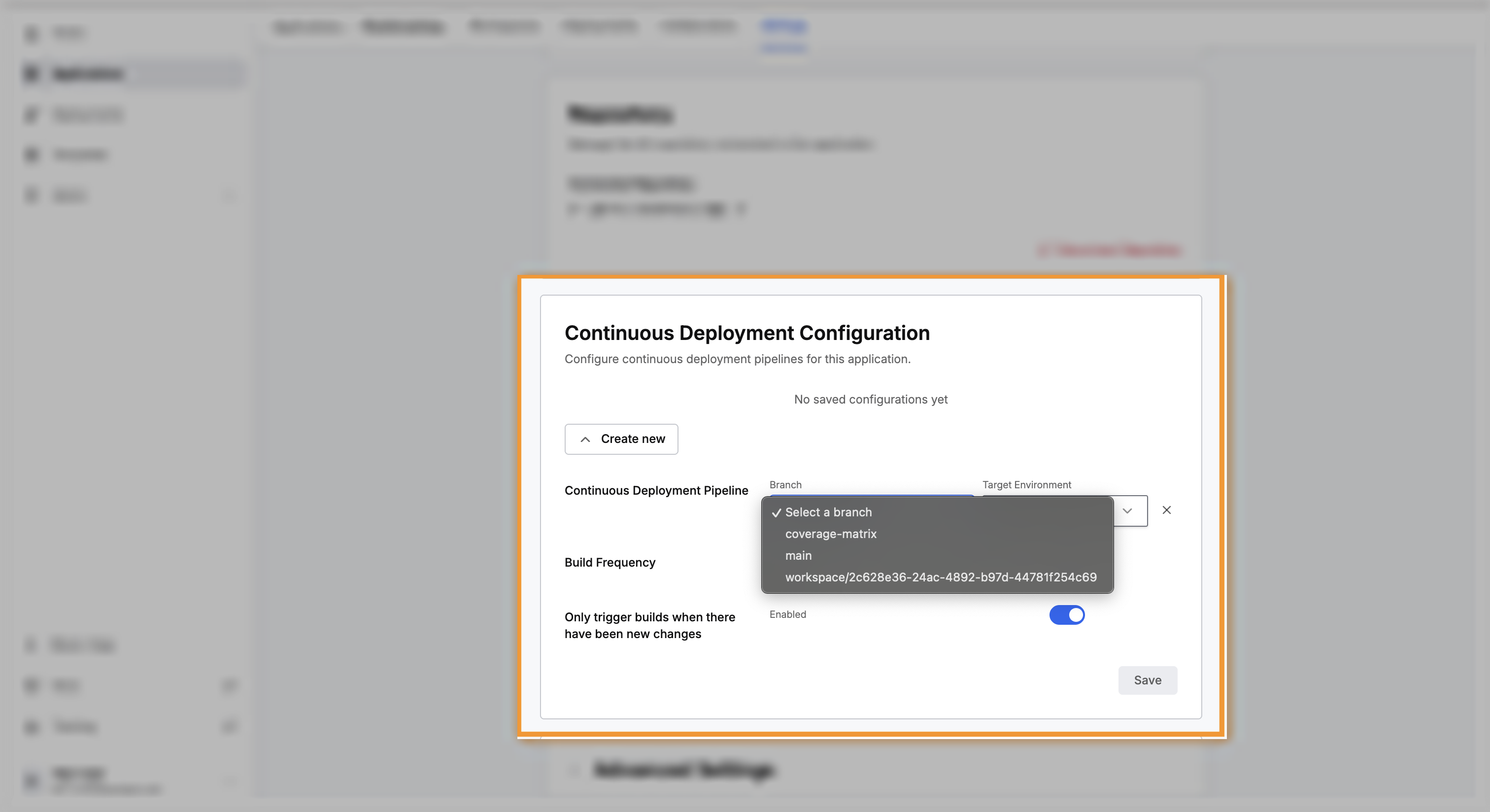
Target Environment accepts more than one deployment, so a single branch can feed several deployments at once. Add rows to point different branches at different deployments, and use the remove control at the end of a row to delete that pipeline.
Understand what starts a build
C3 Code checks the branch on the schedule you set, and starts a build when the branch has new work. Pushing is what makes your work available to C3 Code, and the next scheduled check is what starts the build.
The Build Frequency decides how long a change waits before a build starts, not how soon the change is live. Push at 10:01 with a 15-minute frequency, and the next check at 10:15 starts the build. The build itself takes as long as the application needs, and an application with a large test suite can take hours.
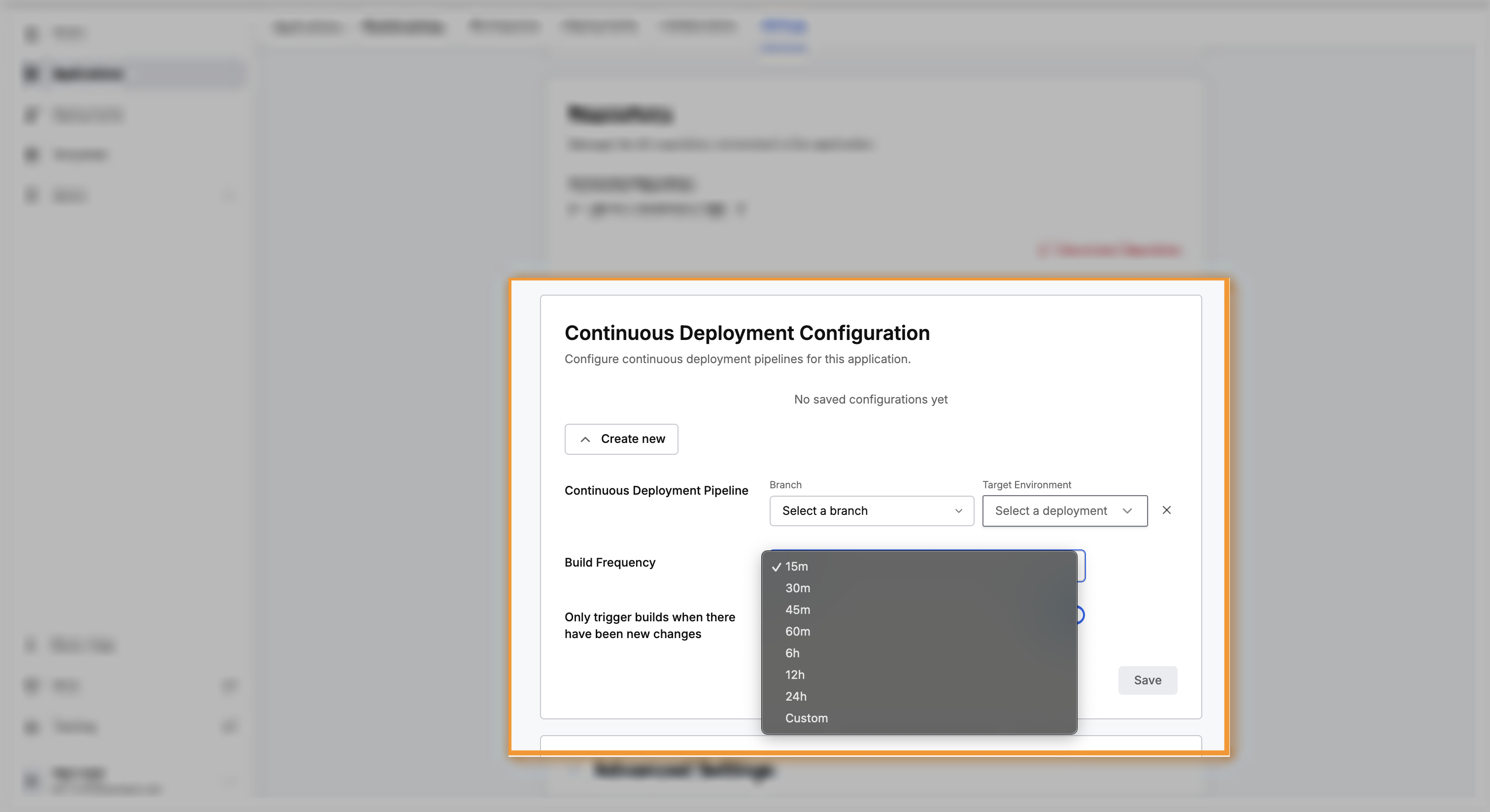
Select from the listed frequencies, or choose Custom and enter a number with a unit, such as 30m or 2h. Choose a short interval for a deployment your team watches during the day, and a long interval for a deployment that should change predictably.
Only trigger builds when there have been new changes
This toggle decides what happens at each check:
- Enabled, the default: a build runs when the branch has new work since the last build. A quiet branch produces nothing.
- Disabled: a build runs at every interval, whether or not anything changed.
Leave the toggle enabled. Rebuilding an unchanged branch uses build capacity and restarts the deployment on the same code.
Understand what gets built
A build pipeline builds from Git, so what ships is what you pushed. Two consequences follow, and both are the opposite of deploying by hand:
- Only committed and pushed work ships: a pipeline reads the branch, so a deployment fed by a pipeline always runs code your team can see.
- Your workspace plays no part: a build runs whether your workspace is running, stopped, or hibernating. Work you do in a running workspace changes nothing until you push.
Manual deployment turns off for a deployment fed by a build pipeline, so every change reaches it through the pipeline. Your other deployment stays available for manual deploys.
Before you leave a build pipeline running
A pipeline uses the Git credentials of the account that created it, so the pipeline depends on that account staying active. Set up pipelines for shared deployments from an account that will outlast the project.
Decide when to deploy by hand instead
Deploying by hand suits two cases better:
- You are working alone and changing the application quickly, so deploying by hand is immediate.
- You need the change live now, rather than at the next interval.
To show a colleague work in progress, share a preview link rather than deploying at all.
For adding people and sharing a preview link, see Share with Collaborators.
Where to go next
These pages cover the deployments a pipeline updates: