Connect GitHub
Connect GitHub when you want your code outside your workspace, where your team can reach it.
Connecting has two parts. You connect your own GitHub account once, then link a repository to each application you want to store there.
Your account connection is personal, so every colleague connects an account of their own. The repository belongs to the application, so every workspace in that application uses the same repository.
What connecting GitHub gives you
A connected repository provides five capabilities:
- A copy of your code outside C3 Code.
- Two people building on the same application at once, each on a branch of their own, merging when the work is done.
- Review by people outside your workspace, who can also add changes of their own.
- Deployment on a schedule, which builds from GitHub.
- Access to your code in an editor of your own.
A second workspace needs a repository. Create Workspace stays disabled until the application has one connected.
Every workspace already keeps a history of changes, so you can save your work and compare versions before connecting GitHub. Connect at any point, and C3 Code copies the application you have built so far into the repository.
Connect your account
Open your settings and choose one of two ways to connect:
- Open Settings from your profile menu.
- Find GitHub under Git Providers. The status reads Not connected.
- Select either Connect via OAuth or Connect via Fine-Grained Token.
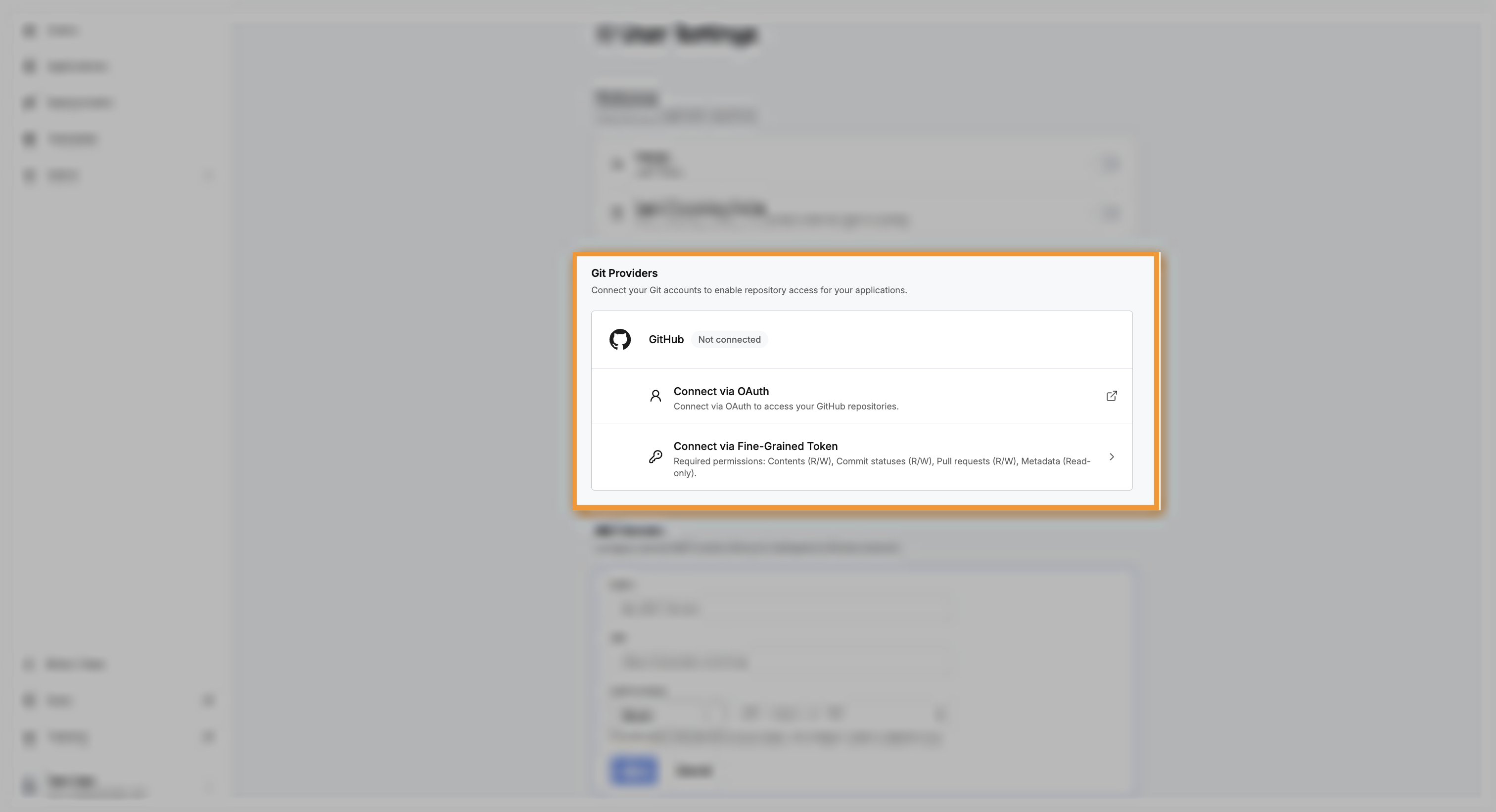
Connect via OAuth sends you to GitHub, where you approve C3 Code once. GitHub returns you to the settings page with the connection made. Choose this route when your organization allows it. Connecting this way also lets the agent read your repositories, issues, and pull requests while the agent builds.
Connect via Fine-Grained Token takes a token you create in GitHub. A token is a password for programs, and a fine-grained token grants only the permissions you select. Choose this route when your organization asks for token access, or when the approval screen is unavailable to you.
Create the token in GitHub with these four permissions:
- Contents: read and write
- Commit statuses: read and write
- Pull requests: read and write
- Metadata: read-only
Paste the token into C3 Code and save. Either route changes the status to Connected, and a Disconnect action appears.
The connection belongs to your account. Every colleague connects an account of their own, and a repository your colleague linked remains inaccessible until you connect your own.
Link a repository to your application
With your account connected, link a repository from the Git status control in any workspace, or from the Repository section of the application Settings tab.
Create the repository through C3 Code, which copies your current workspace code into the repository.
For saving, branching, and reviewing your code, see Review Code and Manage Branches.
Fix a connection problem
The Git status control shows only a link to Settings: your account has no GitHub connection yet. Select Go to Settings and connect an account.
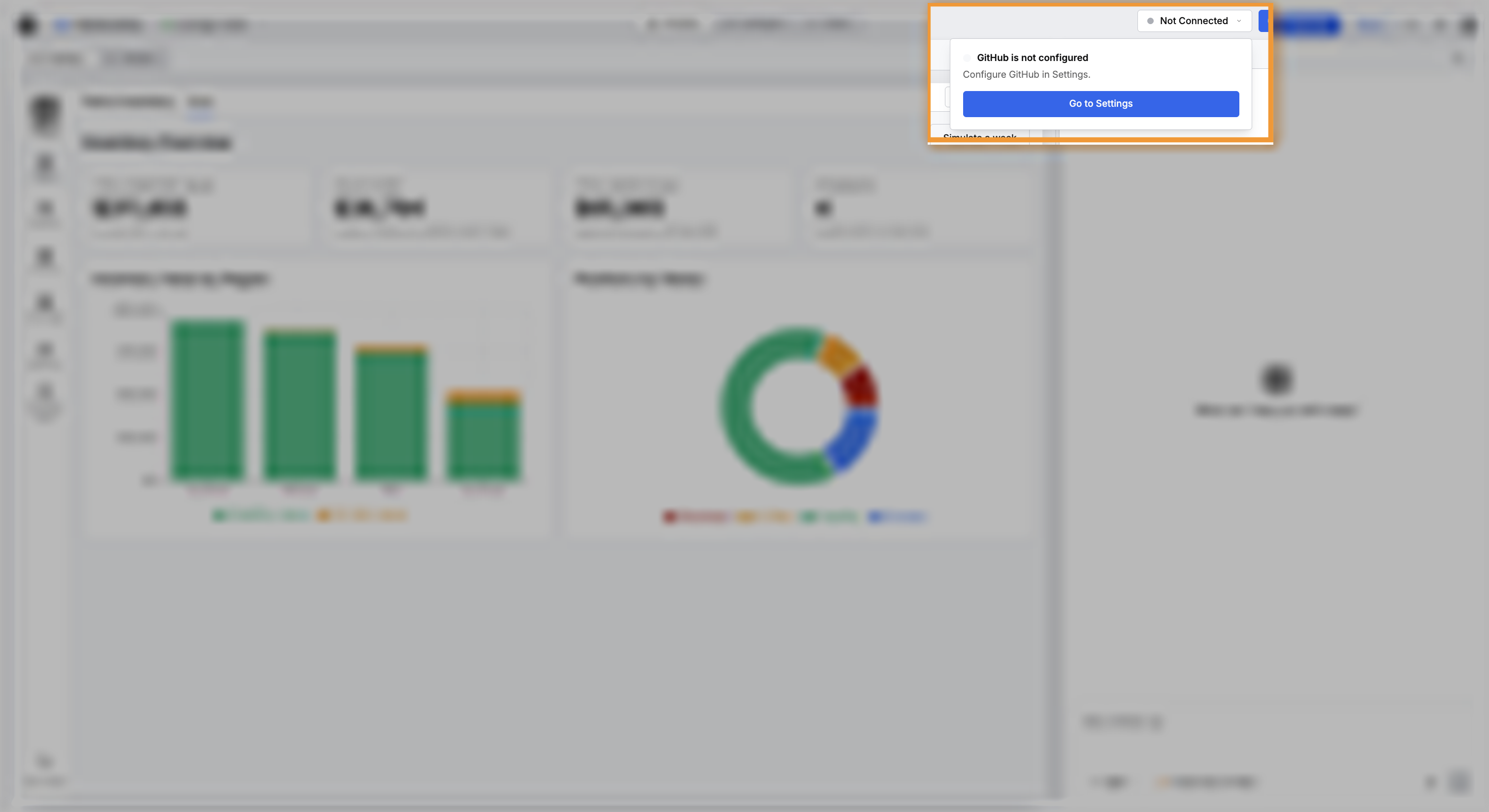
A push fails and the application already has a repository: a colleague linked that repository with their own account, and your account is still unconnected. Connect your account in Settings, then push again.
A push fails after connecting with a token: the token is missing a permission, or the token has expired. Create the token again in GitHub with all four permissions, then save the token again in Settings.
Where to go next
These pages cover working with the repository you linked: