Share with Collaborators
Sharing works at two levels, and the level decides what a collaborator can do:
- Share the application with people who will build it. An application collaborator can create a workspace and prompt the agent.
- Share a workspace with people who only need to watch. A workspace collaborator opens a preview link and views the running application.
Each person builds in a workspace of their own, and shares finished work through branches, so one workspace serves one person building at a time.
Choose the level and the role
Find the row that matches the access you intend, then use that level and role. Both levels offer roles named Admin and User, and those names carry a different meaning at each level. For the platform roles underneath these, see Roles in the C3 Agentic AI Platform.
| Level | Role | What that person can do |
|---|---|---|
| Application | Admin | Manage everyone's workspaces, add and remove collaborators, change roles, delete the application |
| Application | User | Open workspaces and build in the application |
| Workspace | Admin | Control that workspace, the settings, and the collaborators |
| Workspace | User | View that workspace's preview |
The two User roles differ most. An application User builds in the application. A workspace User views the preview.
Add a collaborator at the application level when you want that person to contribute, and at the workspace level when you want that person to review.
Add an application collaborator
Add the person from the application's Collaborators tab:
- Select Applications, then open your application.
- Select the Collaborators tab.
- Select Add collaborator.
- Search for an existing user, or type an email address to invite a new user.
- Set the role to User or Admin.
- Confirm.
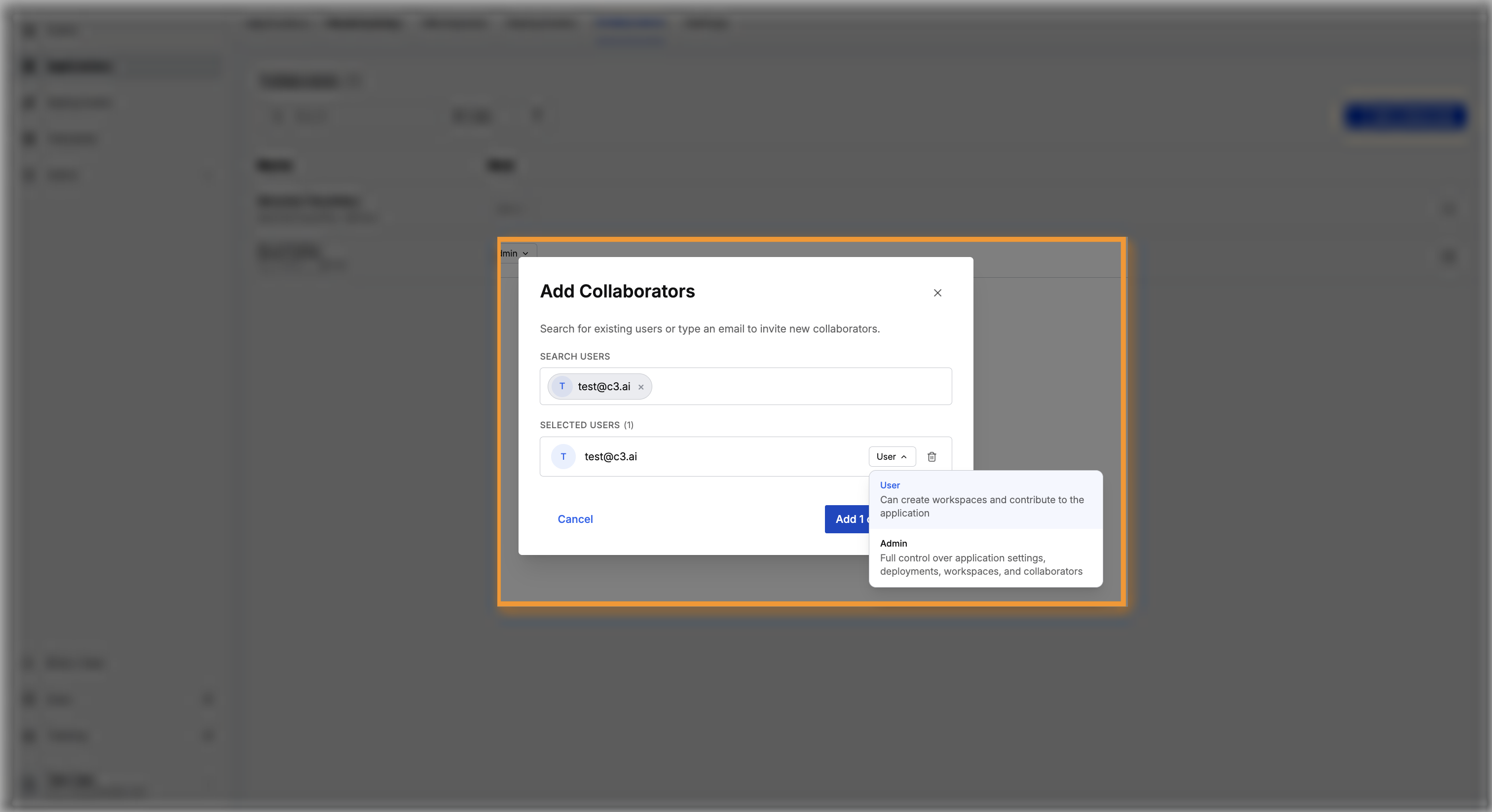
Adding a collaborator grants that person permission to create and use workspaces, and C3 Code sends that person an email.
The Collaborators tab lists everyone with access, and the role each person holds. Change a role from the dropdown in the row, or remove a collaborator with the delete control.
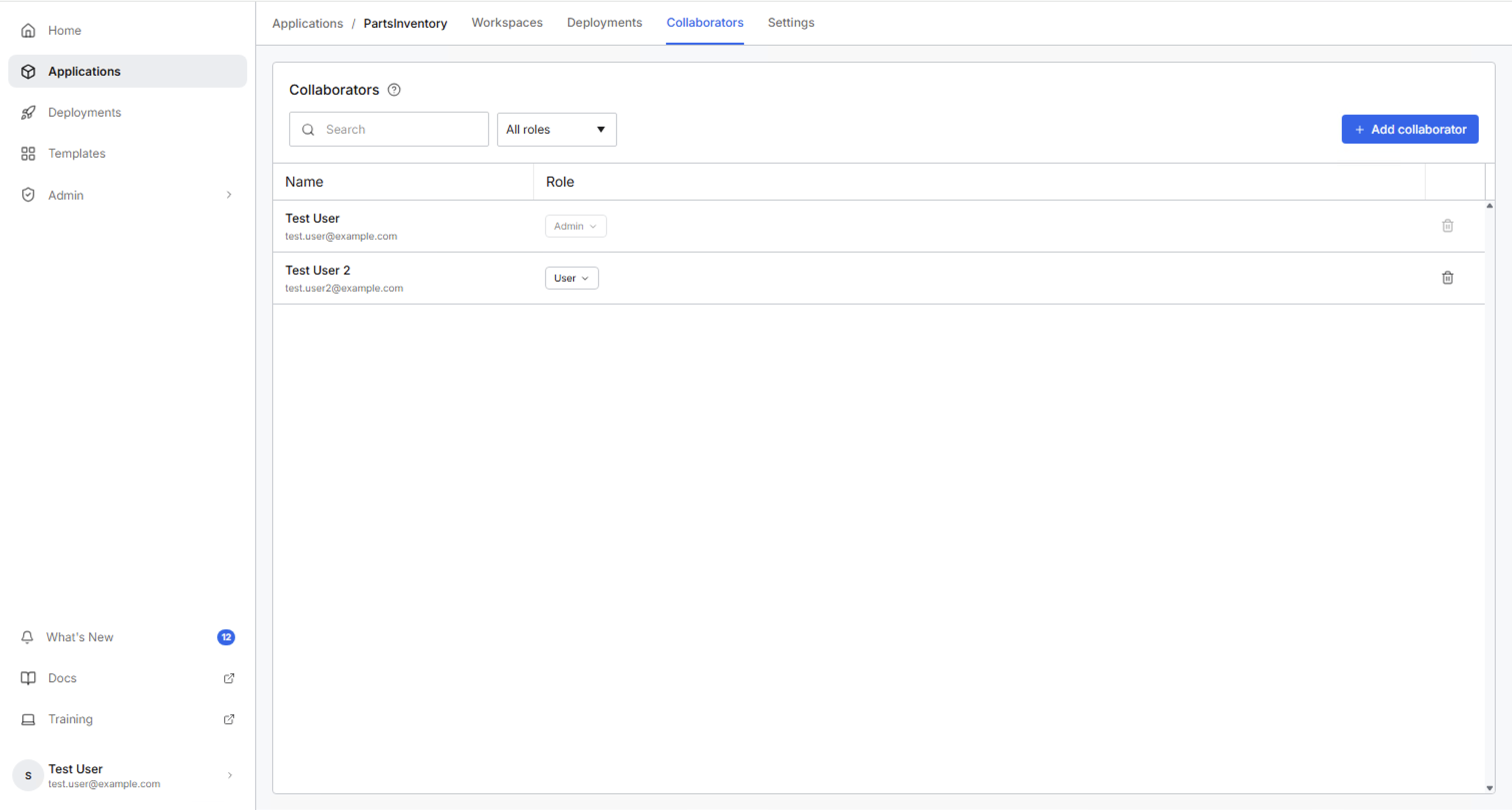
Removing a collaborator revokes access to the application and to its workspaces. The ability to create workspaces elsewhere remains, because C3 Code grants it once when you first add a collaborator and never revokes it.
Add a workspace collaborator
Add a collaborator to a single workspace from Workspace settings > Collaborators, or from the Share Preview modal. Remove that person from either place.
Both routes add the person as a workspace User, which grants access to the preview and nothing more. Add that person at the application level to allow editing.
Share a live preview
A preview link points at a running workspace, so whoever opens the link sees the application in its current state.
Share the link from the workspace header:
- Select Share in the workspace header.
- Copy the Preview URL, or open the URL to check what the recipient will see.
- To give access at the same time, enter an email address and select Share.
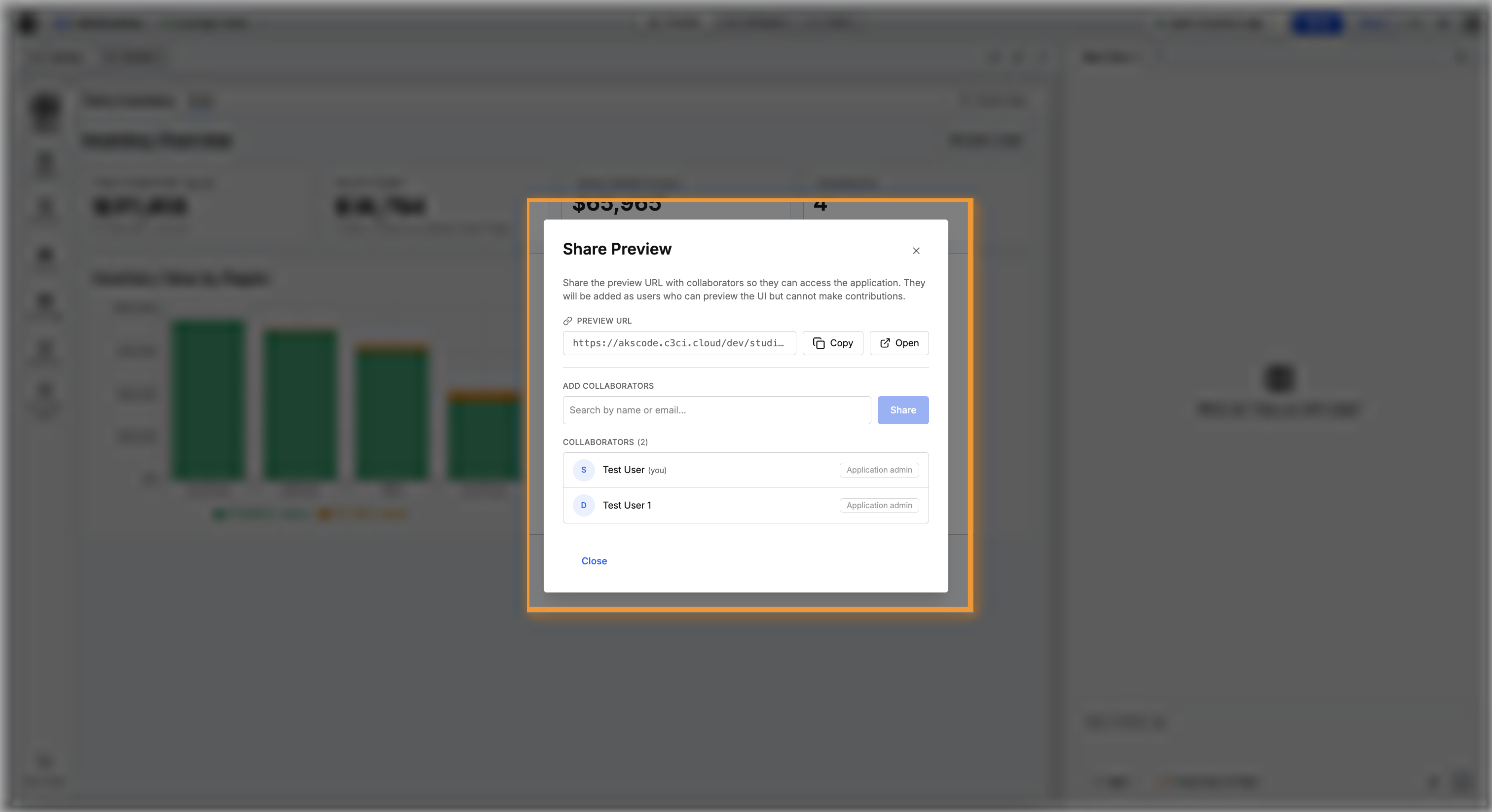
The recipient sees the application full screen, without the workspace interface around it.
A preview link has four properties:
- A preview link is private: whoever opens the link needs access to your C3 AI environment, and a place on the workspace's collaborator list.
- A preview link is live: the link shows the current running state, so whatever you prompt next appears in the recipient's browser.
- A preview link belongs to one workspace: each workspace has a link of its own, showing that workspace's branch and that workspace's data.
- A preview link works only while the workspace runs: a workspace that hibernates has no working preview until a user starts that workspace again.
Send a preview link for a quick review. Deploy to staging when your team needs a copy that stays available.
For the deploy procedure itself, see Deploy to Staging and Production.
Where to go next
These pages cover working alongside the people you added: