Contact Support
When you need help from the C3 Code team while building or running an application, Contact support sends them a message from inside the product. Open the form from the navigation, or from the Contact support button in the header of a workspace or a deployment. Then write a subject and a message, attach any files that help, and send.
Open Contact support
Contact support opens from two places, and both open the same form:
- Navigation: select Contact support, grouped with Docs and Training. This option shows on any page with the navigation, such as the home page, an application, or a deployment.
- Page header: on the Workspace detail page or the Deployment detail page, select Contact support, the life buoy icon in the header. In a narrow browser window, the Workspace detail page moves this button into the Settings menu.
The Workspace and Deployment detail pages show your running application, so opening the form there keeps you in that context.
Send a support request
The Contact support form asks for a subject, a message, and optional attachments. C3 Code sends every request to the configured support inbox, so the form needs no email address from you.
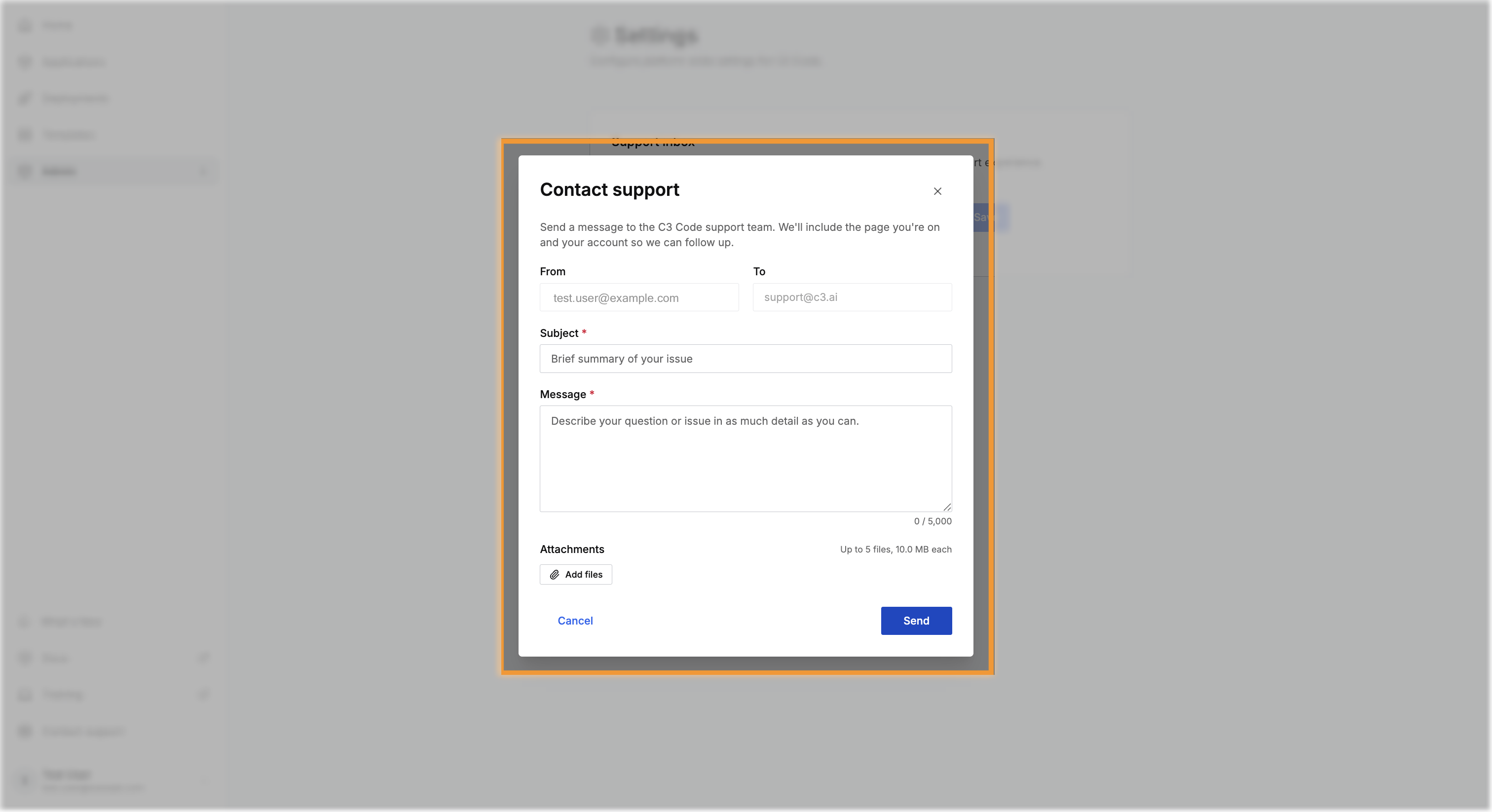
Complete the form, then send your request:
- Enter a Subject that summarizes your issue in one line.
- Describe your question or problem in the Message field, up to 5,000 characters.
- Optionally select Add files to attach up to five files, 10 MB each and 25 MB in total, such as a screenshot or a log.
- Select Send.
C3 Code attaches the page you are on and your account details, so the support team can follow up without asking you for them.
After you send, C3 AI Support replies by email to confirm your request. The email carries a support ticket number and a link to the conversation on the C3 AI Support website. Reply to the email or open the link to add details or check for updates.