My Usage and Cost
The My Usage and Cost page shows what you have spent and how much of each quota you have used. A quota is your limit for applications, workspaces, deployments, and a monthly LLM budget. Open your profile menu and select My Usage and Cost.
The page leads with your total spend and your resource quotas. Three sections then break down where the cost comes from: token cost and usage, compute runtime and cost, and a per-workspace total. When you reach a limit, you request more from this page, and the My Requests page tracks each request until a decision arrives.
Read your total spend
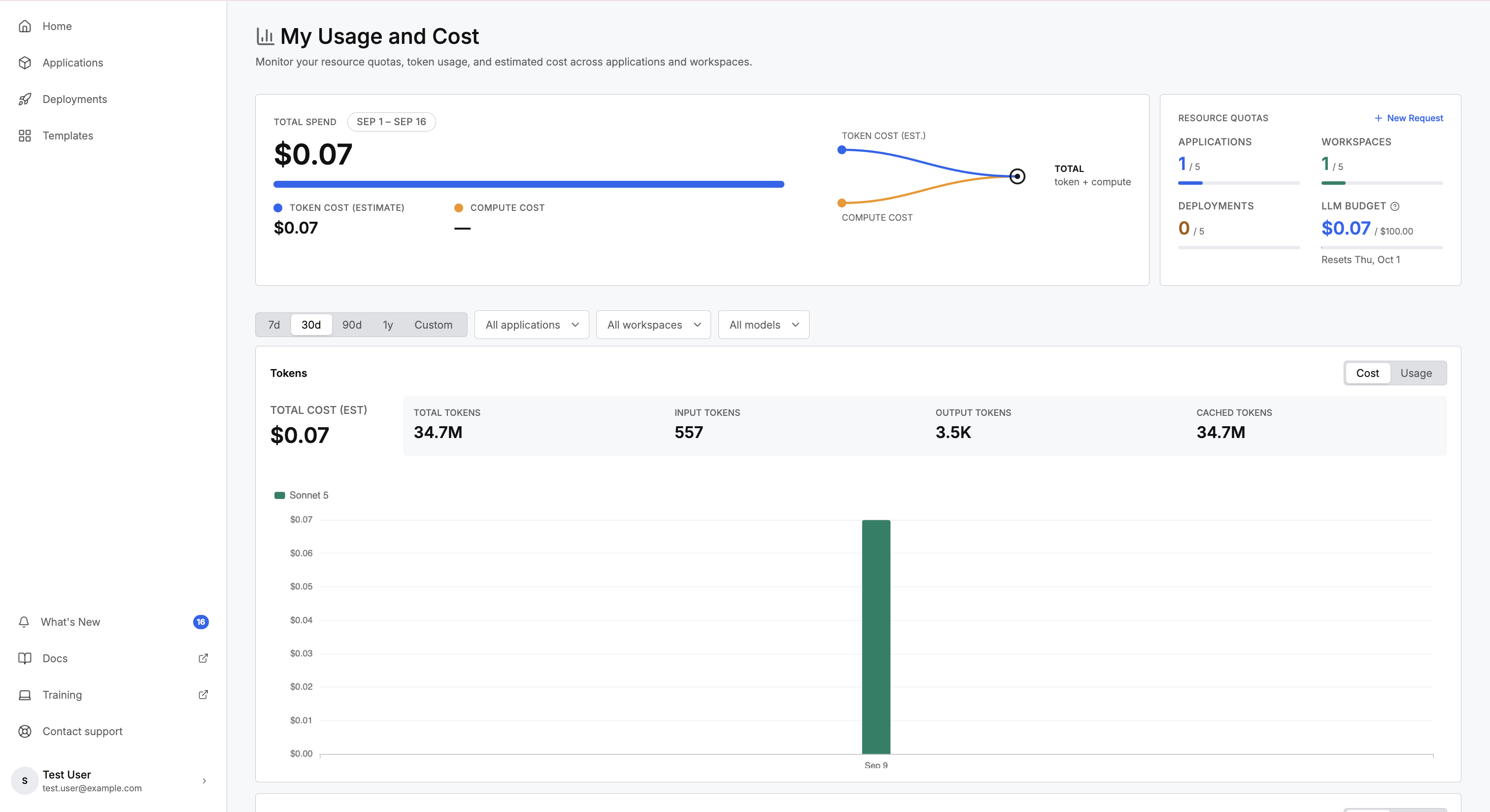
The Total Spend card shows your cost for the current month, combining token cost and compute cost into one figure. The date chip names the month-to-date range the figure covers, and a progress bar tracks it.
Two readings split the total:
- Token Cost (estimate): what your token usage costs.
- Compute cost: what the vCPU and vGPU runtime behind your workspaces costs.
The period buttons lower on the page change the breakdown sections, not this card. Total spend always covers the current month.
Check your resource quotas
The Resource Quotas card shows your usage against a limit for four resources:
- Applications: applications you own.
- Workspaces: workspaces you own.
- Deployments: deployments you own.
- LLM Budget: your estimated LLM spend for the current month, shown in dollars against a monthly budget that resets on the date the card names.
Reaching a limit stops the matching action, and C3 Code names the quota you reached. Select New Request on this card to ask an administrator for more.
The Workspaces card can show unused quota while creating a workspace still fails. C3 Code explains the reason. Ask an administrator to raise your limit, and mention what the card showed. Deployments work the same way.
Look for a workspace or a deployment you no longer need before requesting more. Removing one frees the space immediately, whereas a request waits for review.
Workspaces are the quota people reach first. Add a second workspace when two people build at the same time, or when one large change should not disturb what already works.
For working in more than one workspace, see Use Multiple Workspaces for One App.
Filter the cost and usage views
Four controls narrow the three breakdown sections below the quotas: token cost and usage, compute, and the per-workspace total. The controls leave the total spend and the quotas unchanged.
- Time range: 7 days, This month, 30 days, 90 days, 1 year, or a range you set. The page opens on This month, so the breakdown sections match the total spend.
- All applications: narrows to the applications you pick.
- All workspaces: narrows to the workspaces you pick.
- All models: narrows to the models you pick.
Token cost and usage
The Tokens card carries two views, and the Cost and Usage toggle switches between them. Cost shows the estimated dollar cost, and Usage shows the token counts. Both plot the range you selected as a chart, with one color for each model.
Cost leads with Total Cost (est.). Usage leads with four token figures:
- Total Tokens: every token in the range.
- Input Tokens: tokens sent to the model.
- Output Tokens: tokens the model produced.
- Cached Tokens: everything else, which is reasoning together with cache reads and writes.
How usage counts toward your LLM Budget
Your LLM Budget is a dollar limit, not a token count. The estimated cost of your token usage counts toward it, so the Total Cost (est.) on the Tokens card and the amount spent against your LLM Budget track together.
Total Tokens counts every token, including the cached-token group that reasoning and cache traffic dominate, so it runs into the millions. The LLM Budget instead tracks what that usage costs in dollars, weighted by model, so a lighter model spends less of your budget than a heavier one for the same raw token count.
Use the model filter to see which models are spending your budget. Moving routine work to a lighter model stretches the same budget.
Compute cost and runtime
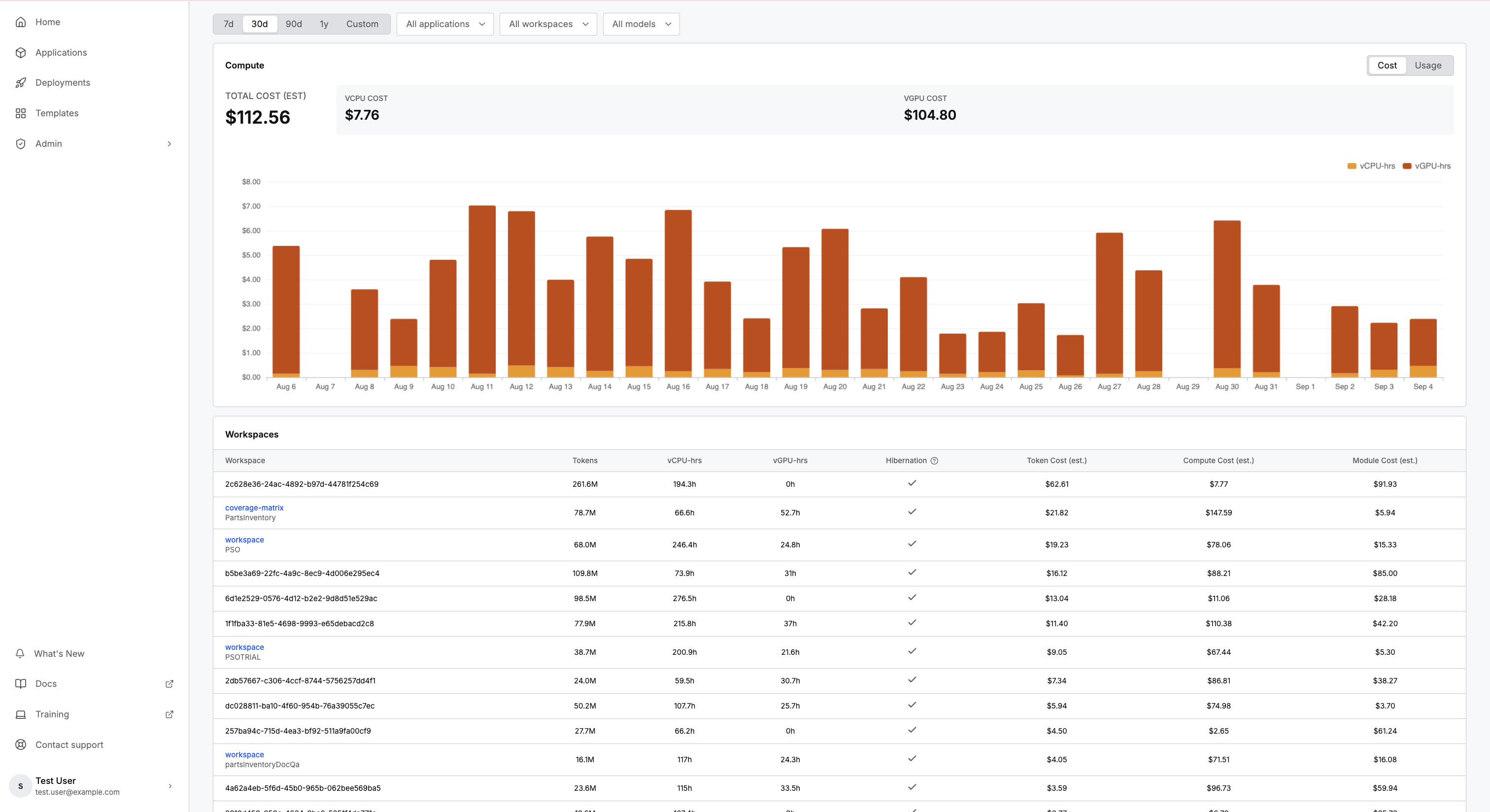
The Compute card reports the runtime behind your workspaces, with the same Cost and Usage toggle. Cost shows vCPU Cost and vGPU Cost, and Usage shows vCPU Hours and vGPU Hours. A chart plots the range you selected.
vCPU is the processor time your workspaces use, and vGPU is the graphics-processor time. Together they make up the compute cost that feeds your total spend.
C3 Code calculates compute cost once per day, so your most recent usage can take up to 24 hours to appear on this card.
Cost by workspace
The Workspaces table breaks the cost down by workspace, so you can find the workspace that drives your cost. Each row carries:
- Tokens, vCPU-hrs, and vGPU-hrs: what the workspace used.
- Hibernation: whether the workspace hibernates when nobody uses it.
- Token Cost (est.): the estimated cost of the workspace's token usage.
- Compute Cost (est.): the estimated cost of the workspace's vCPU and vGPU time.
- Module Cost (est.): the estimated cost of the platform modules the workspace runs.
A total row sums each column.
Request more resources
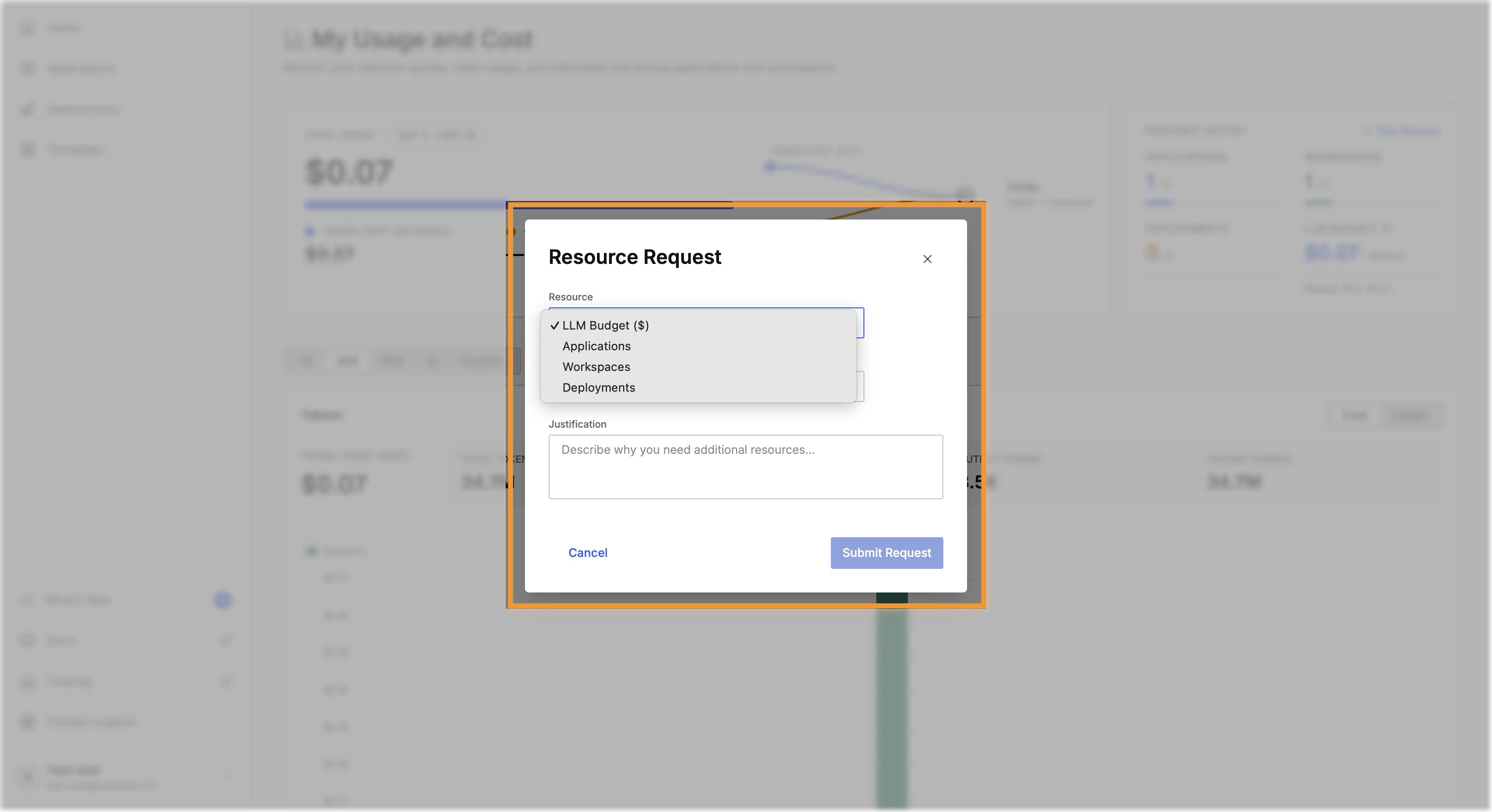
Submit a request from this page when you reach a limit:
- Select New Request.
- Choose the Resource: LLM Budget ($), Applications, Workspaces, or Deployments.
- Enter the Additional Amount you need.
- Write a Justification. An administrator reads the justification and decides the outcome.
- Select Submit Request.
An administrator can approve a different amount than you requested, so state what you need and why, instead of inflating the number.
Track your requests
The My Requests page lists every request you have submitted, with the current status of each. Filter by All, Pending, Approved, or Rejected, or search by resource.
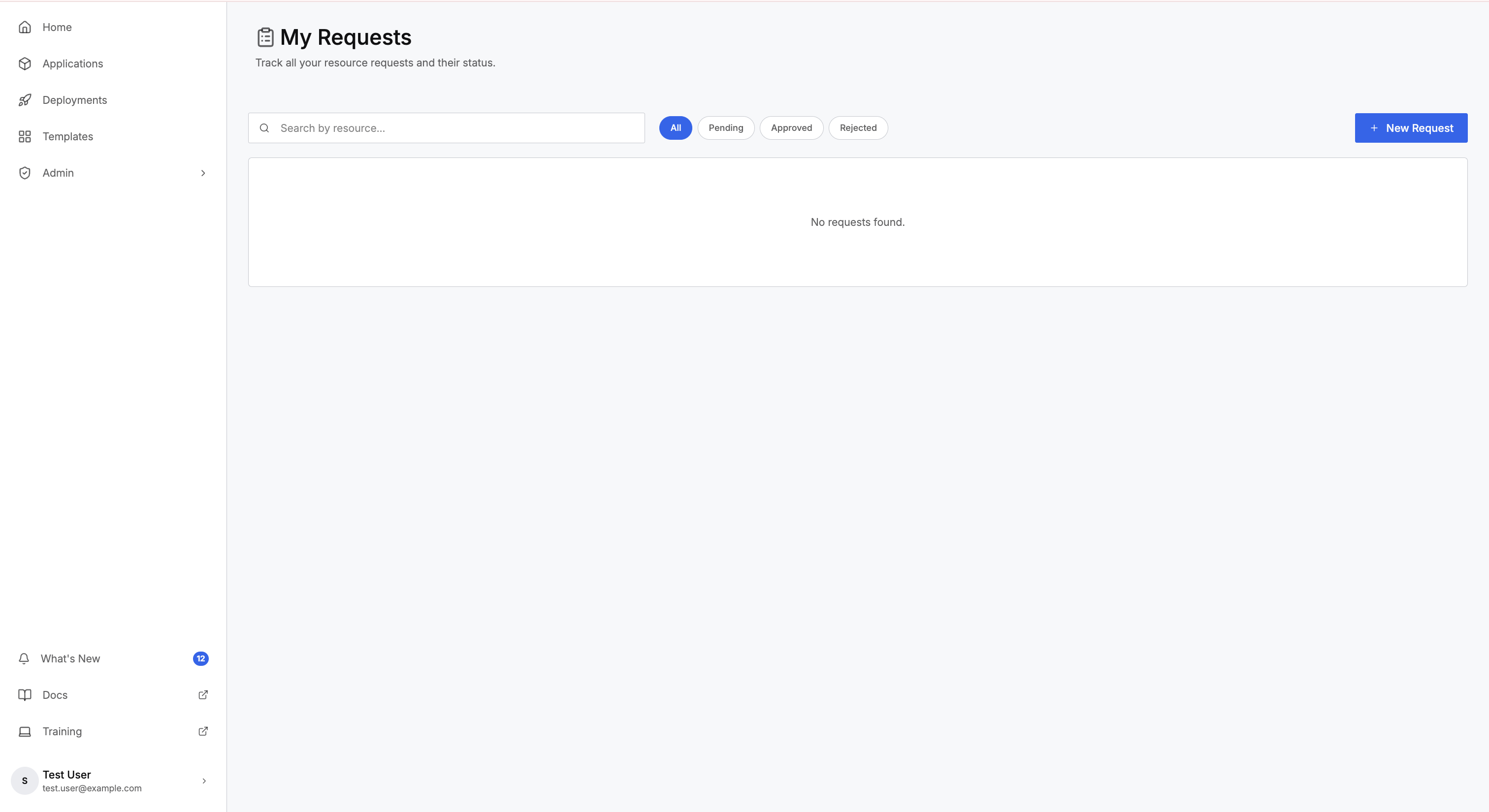
A request ends in one of four states:
- Pending: awaiting administrator review.
- Approved: granted. The approved amount appears on the request, and may differ from the amount you requested.
- Rejected: declined. An administrator can attach a comment explaining why.
- Cancelled: you withdrew the request before review.
Cancel a request you no longer need, instead of leaving the request pending.
Where to go next
These pages cover requesting more and freeing what you already have: