Request Access and Resources
Access to an application and room to build come from two different people. The person who owns an application decides who can open that application, and an administrator sets your quota.
Ask the owner directly for access, because C3 Code has no form for that request. Ask for more quota through the request form on the My Usage and Cost page, where an administrator approves or declines the request.
Joining a colleague's application with no workspaces remaining takes two separate requests. The application owner adds you to the application, and an administrator raises your workspace quota.
Work out which request you need
C3 Code supports three kinds of request, each with a different route:
- Access to an application another person owns: ask the person who owns that application to add you as a collaborator.
- More budget for the current month: the agent reports how much of your LLM budget you have used, and offers a link to request more. An administrator approves the request.
- More applications, workspaces, or deployments: one of your counts on the My Usage and Cost page has reached a limit, and an administrator can raise that limit.
Get access to an application
Ask the person who owns the application to add you, and tell that person which role you need:
- User: create workspaces and contribute to the application.
- Admin: additionally manage all workspaces in the application, deploy, and add other administrators.
That person adds you from the application's Collaborators tab. Being added grants permission to create and use workspaces, and C3 Code sends you an email. The application then appears in your Applications list.
For adding people and sharing a preview link, see Share with Collaborators.
See what you have used
Four quotas govern what you can create. Check all four on the My Usage and Cost page before assuming you need more:
- Applications: how many applications you own.
- Workspaces: how many workspaces you own.
- Deployments: how many deployments you own.
- LLM Budget: your estimated LLM spend this calendar month, in dollars.
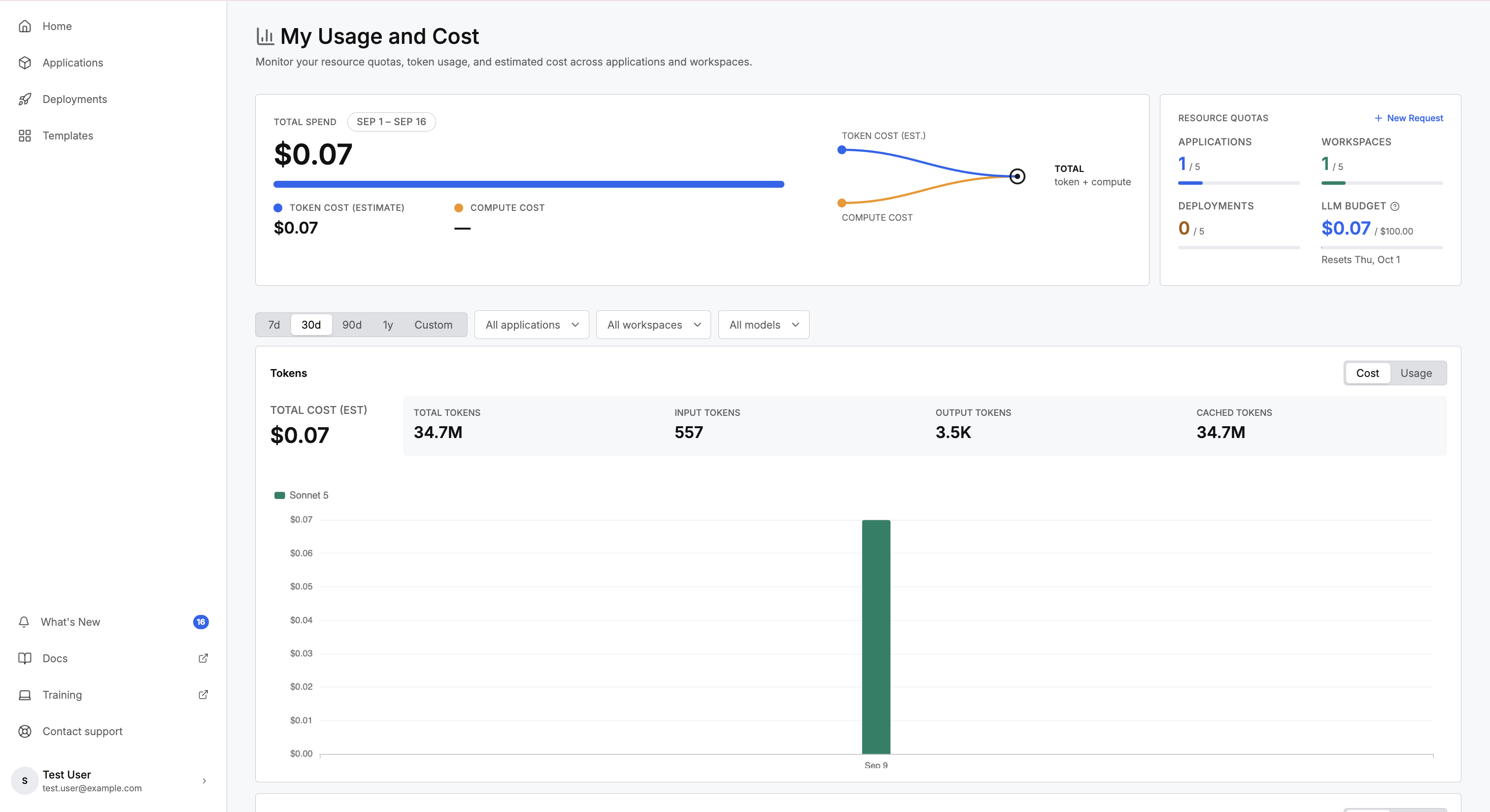
Creating a workspace or a deployment can still fail when the card shows room. C3 Code explains the reason, and an administrator can raise the limit.
Look for a workspace or a deployment you no longer need before filing a request. Removing one frees the space immediately, whereas a request waits for review.
For seeing what you have used against each quota, see My Usage and Cost.
Submit a request
Fill in the request form with the resource you need, the amount, and your reason:
- Open the My Usage and Cost page.
- Select New Request.
- Choose the Resource: LLM Budget ($), Applications, Workspaces, or Deployments.
- Enter the Additional Amount you need.
- Write a Justification.
- Select Submit Request.
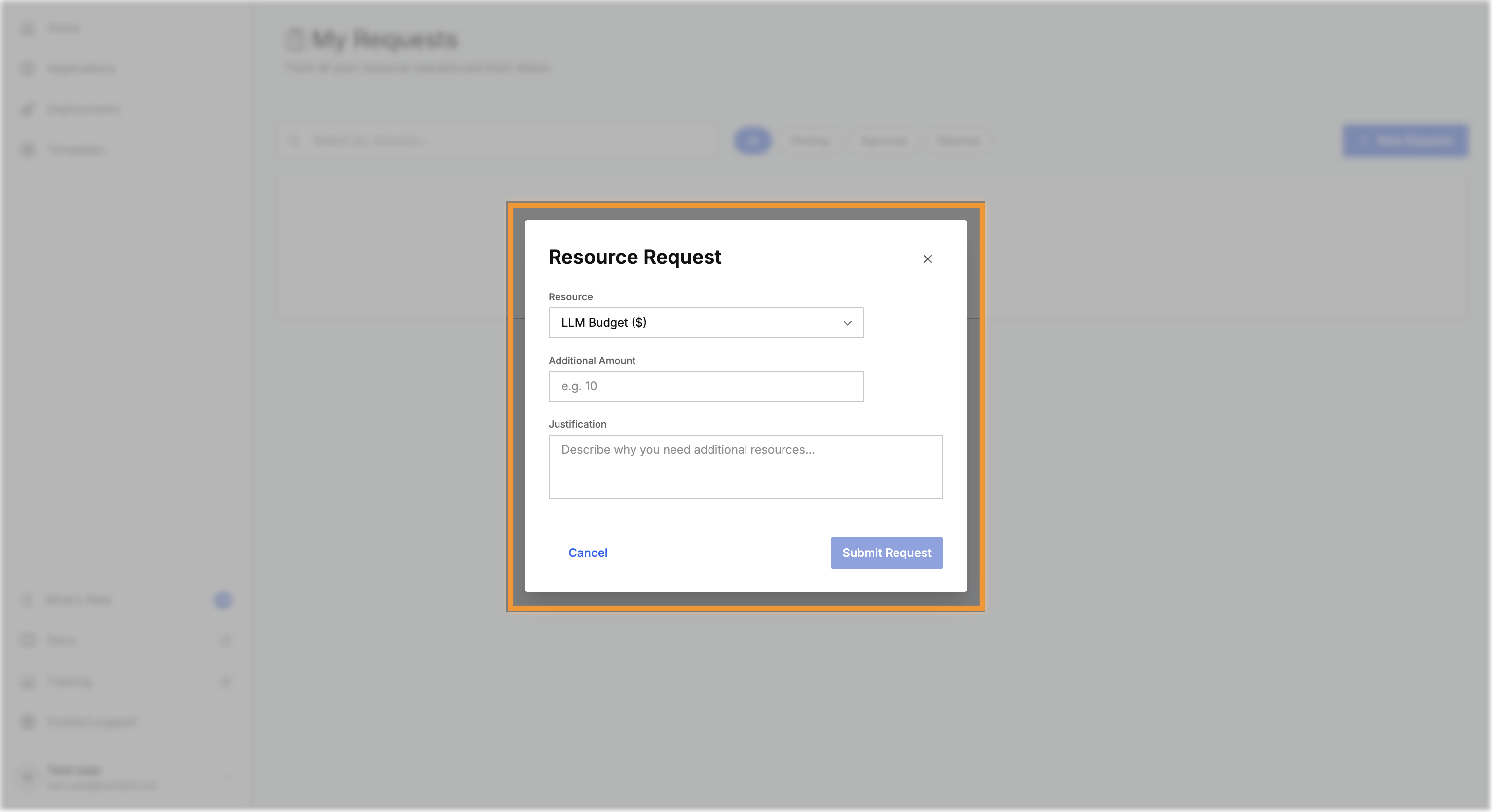
An administrator reads the justification and decides. State what you are building, and why the current limit blocks that work, because a request naming both reaches a decision faster.
Track the outcome
Your requests appear on the My Requests page with a status. Filter by All, Pending, Approved, or Rejected.
A request ends in one of four states:
- Pending: awaiting review.
- Approved: granted. The approved amount appears on the request.
- Rejected: declined, usually with a comment explaining why.
- Cancelled: you withdrew the request before review.
An administrator can approve a different amount than you requested, so read the approved amount on the request. A partial approval also shows as approved.
Cancel a request you no longer need, instead of leaving the request pending.
Where to go next
These pages cover setting up and working within your quota: