Manage Your Deployments
The Deployments page lists every deployment you can reach. Use the page to see what is running, open a deployment, control whether a deployment stays up, and determine what to do when a deploy fails.
Select Deployments to open the page.
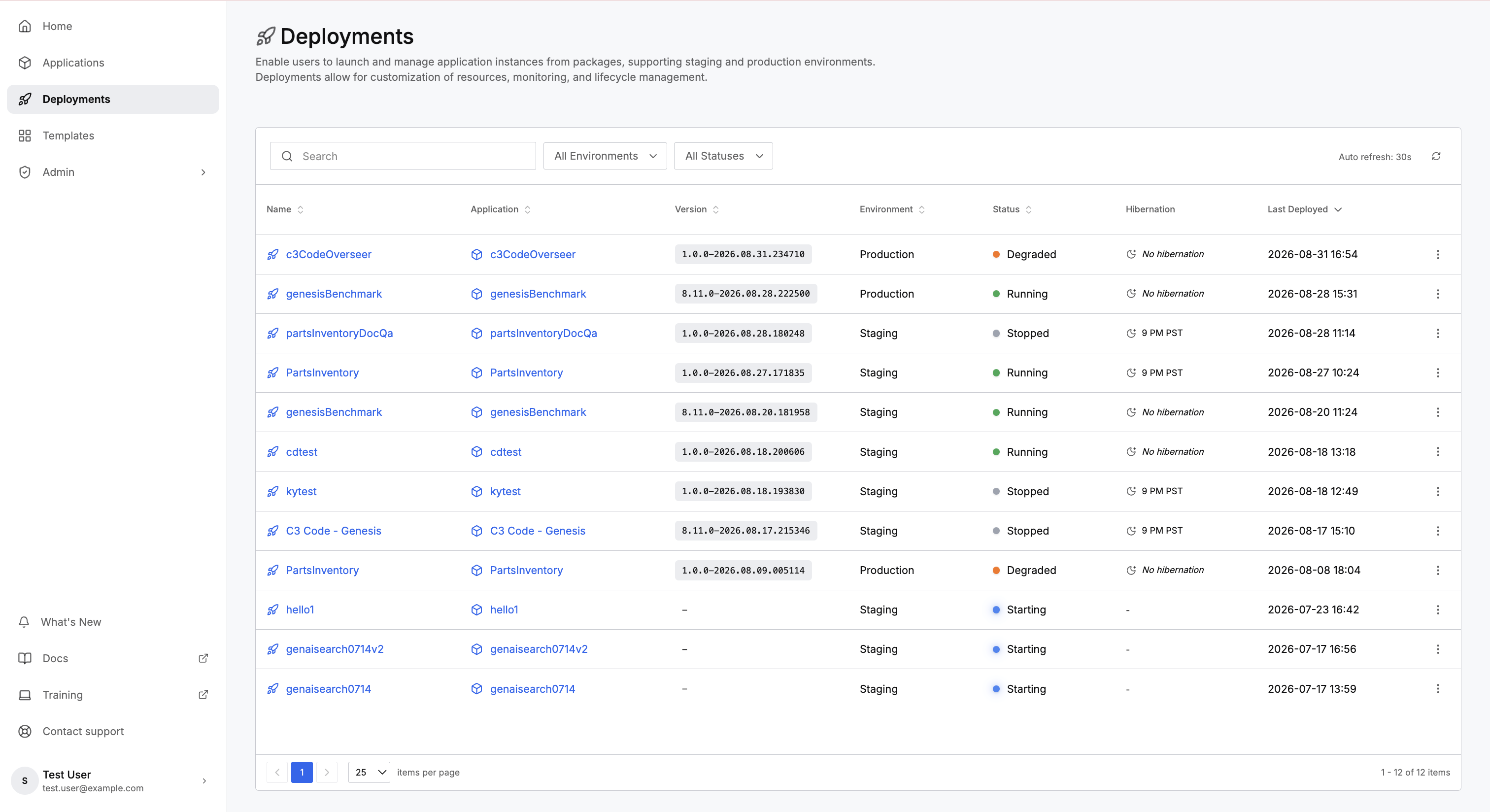
Filters
Four controls narrow the list:
- Search: filters by name as you type.
- All Environments: filters to staging or to production.
- All Statuses: filters to a single state.
- Auto refresh: keeps the list current, because a deployment can change state on its own. A refresh control updates the list immediately.
Columns
Each row is one deployment:
- Name: the deployment name. Select the name to open the deployment.
- Application: the application this deployment belongs to. Select the application to open the application.
- Version: the version this deployment is running, stamped at deploy time.
- Environment: staging or production.
- Status: the current state, with a color indicator.
- Hibernation: the scheduled hibernation time, or a note that this deployment stays up.
- Last Deployed: when the most recent successful deploy finished. This column tracks successes only, so a recent failure leaves the earlier time in place.
States
A deployment reports one state at a time:
- Starting: the deployment is coming up, which follows a deploy or a resume.
- Running: the application is serving, and links to the application work.
- Hibernating: C3 Code idled the deployment to free resources. Resume the deployment to restore the application.
- Stopped: a user stopped the deployment, and the deployment stays down until you resume it.
- Degraded: the deployment is running without being healthy. Open the deployment to read the reason before deploying again.
- Error: the deployment failed. Open the deployment to read the error behind the failure.
- Failed to Start: the deploy failed before C3 Code created the deployment, so nothing is running.
Every state has a route forward. Starting resolves on its own. Hibernating and Stopped exit through Resume. Degraded, Error, and Failed to Start exit through a new deploy from a running workspace.
Actions
Each deployment offers these actions:
- Stop: shuts the deployment down. The deployment stays down until you resume it, and uses no resources meanwhile.
- Resume: restarts a stopped or hibernating deployment on the version that deployment was already running. Newer code reaches the deployment through a deploy.
- Rename: changes the deployment name, and leaves the application and the staging or production setting unchanged.
- Launch App: opens the deployed application in a new tab.
- Deployment settings: opens this deployment's settings, including the hibernation controls.
- Delete deployment: removes the deployment and returns it to your quota.
Returning to earlier code means deploying that code again, because deployments only move forward.
For the deploy procedure itself, see Deploy to Staging and Production.
Hibernation
Staging hibernates on a schedule. Production keeps running.
The Hibernation column shows the scheduled time for deployments that hibernate. Open Deployment settings to keep a deployment out of hibernation before a demonstration or a review. Restore the schedule afterward so the deployment stops using resources.
Hibernation preserves the deployment. A hibernating deployment resumes on the same version, holding the same data.
Open a deployment
Select a deployment name to open that deployment. The deployment opens on an Overview tab, and you can open further tabs for the C3 AI Studio tools that run against that deployment, including the logs.
Deployment Details reports the name, the version, staging or production, the current status, and when the last deploy finished. This panel also carries the rename control.
Activity reports what the deployment has logged. Activity counts Errors, Warnings, and Informational entries, then lists the most recent entries with a time and a message. The section refreshes on its own, and View all opens the full log.
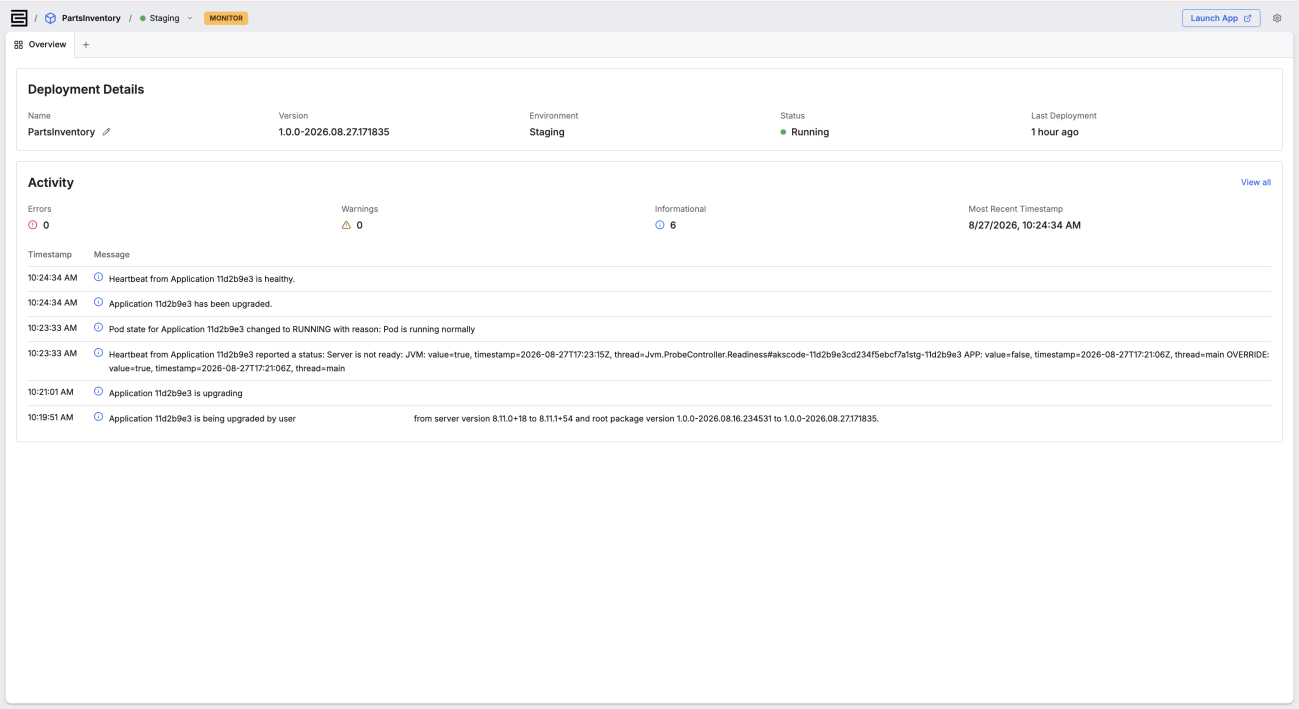
Read the Activity counts before calling a deployment healthy. A Running status tells you the deployment is serving, and the counts tell you how the application inside that deployment is behaving.
Recover from a failed deploy
When the most recent deploy failed, the deployment reports the failure and tells you what still exists. What you do next depends on which case applies.
The deployment exists and the last attempt failed: what you deployed before may still be serving. Fix the cause, then deploy again from a running workspace.
The deployment reports Failed to Start: the deploy failed before C3 Code created the deployment, so there is nothing to keep. Delete the deployment, or deploy again from a running workspace.
Select View error details to open Deployment Failure Details, which pairs the last successful deploy with the failed attempt, and shows the error text. Copy the error text and give it to the agent.
Where to go next
These pages cover deploying, scheduling, and configuring a deployment: