Application Settings
The application Settings tab holds everything you configure for one application. Each group on the tab governs a different area: the application itself, its repository, the deployments a build pipeline feeds, and the workspaces this application starts.
Open the tab by selecting Applications, opening your application, then selecting Settings.
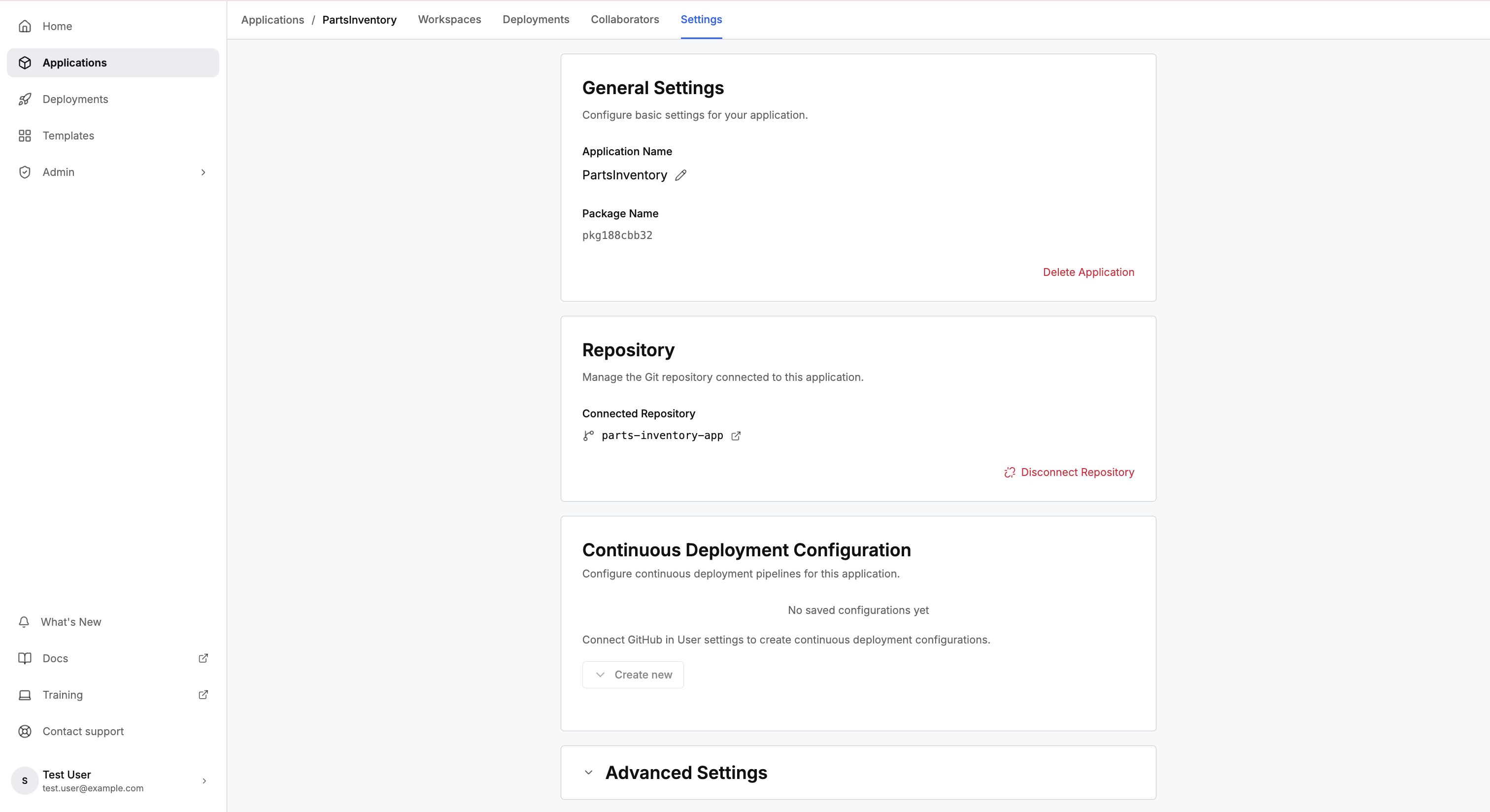
General settings
This section holds two values and one action that cannot be undone:
- Application Name: editable. Select the pencil icon to rename the application.
- Package Name: read-only. A package name is generated for the application at creation, and appears in file paths inside every workspace. Renaming the application leaves the package name unchanged.
- Delete Application: removes the application, every workspace, and every deployment.
Repository
This section shows the connected Git repository, or offers Connect repository when the application has none.
The link belongs to the application, so every workspace shares one repository, and each workspace works on a branch of its own. Connect a repository from this section, or from the Git status control in any workspace.
Continuous deployment needs a repository, and that section reports the requirement until you connect one.
For saving, branching, and reviewing your code, see Review Code and Manage Branches.
Continuous deployment configuration
This section lists your saved pipelines, and offers Create new to add a pipeline. The section becomes available once you connect a repository.
For rebuilding a deployment from a branch on a schedule, see Continuous Deployment.
Advanced settings
Expand Advanced Settings to reach two groups. Both groups shape workspaces, so a change in either group leaves a running staging or production deployment unchanged.
Workspace resources
These fields set the processing power, memory, and disk behind each workspace. Changes apply to new workspaces, so a workspace you already have keeps the values that workspace started with.
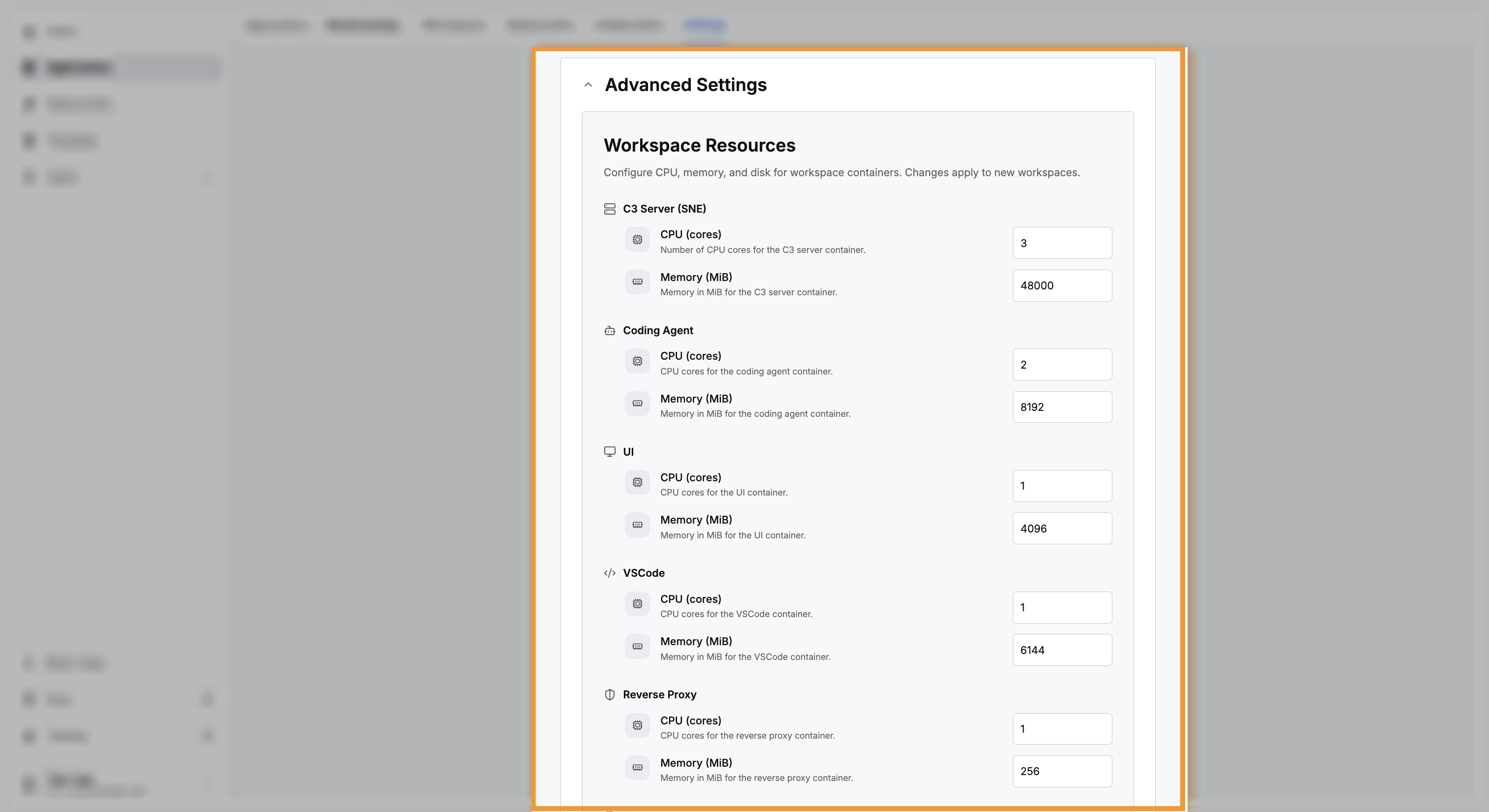
Each part of a workspace is sized on its own:
- C3 Server (SNE): the server that runs your application. Defaults to 3 CPU cores and 48000 MiB.
- Coding Agent: the agent that reads and writes your code. Defaults to 2 cores and 8192 MiB.
- UI: the part that serves your preview. Defaults to 1 core and 4096 MiB.
- VSCode: the editor behind Code. Defaults to 1 core and 6144 MiB.
- Reverse Proxy: routes requests to the other parts. Defaults to 1 core and 256 MiB.
- Storage: how much disk each workspace keeps. Defaults to 100 GiB.
Raise the C3 Server memory for an application with a large data model. Raise the coding agent allocation when the agent runs slowly on a large codebase. Leave the reverse proxy unchanged.
Workspace initialization lambda
This field holds JavaScript that runs once in every new workspace for this application, immediately after the workspace starts and the starting data loads. Leave the field empty to run nothing.
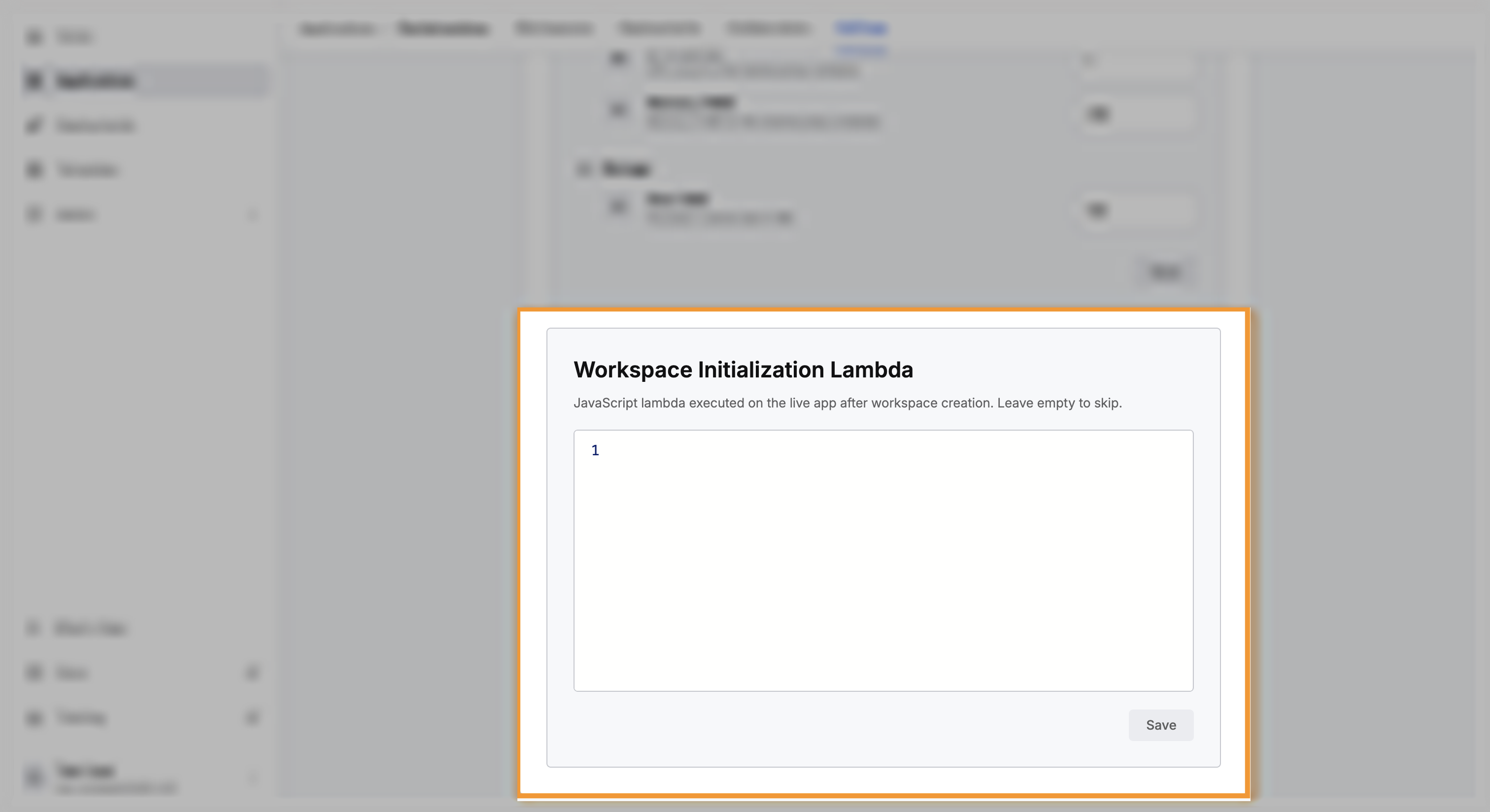
A new workspace opens holding only the records your data files carry. Use this field for setup that has to happen after that. The common cases are setting a configuration value or an API key, and creating test data.
For an example of test data creation, an inventory application can raise the opening purchase orders in this field rather than storing them as rows:
InventoryPosition.getReorderList(14).each((position) =>
  PurchaseOrder.createForPosition(position.id, position.avgWeeklyDemand * 4)
);
Calling your own methods keeps related records consistent, whereas a fixed data file leaves consistency to you. Code also suits any record dated relative to today, because the code runs as the workspace starts.
Use a data file for fixed rows. Filling in this field adds a short wait to workspace startup.
For working in more than one workspace, see Use Multiple Workspaces for One App.
For stopping, resuming, and diagnosing a deployment, see Manage Your Deployments.
Where to go next
These pages cover deploying and the compute behind each workspace: