Preprovisioning Pools
Creating a new Application or Workspace requires provisioning resources, which may take several minutes. Preprovisioning Pools helps skip that wait by preparing the resources ahead of time:
| Upon creation | Without a pool | With a pool |
|---|---|---|
| What C3 Code does | Starts building from scratch | Hands over a pre-built workspace |
| How long the user waits | Several minutes | A few seconds |
| What happens next | N/A | Another pre-built workspace starts up for the next user |
As an administrator, you manage pools from the Preprovisioning Pools page. There you check how full each pool is, create, size, and delete pools, recover from errors, and clear stale copies after an upgrade.
C3 Code keeps two kinds of pool. A Template Pool keeps ready applications built from a template, for the moment someone creates a new application from that template. An Application Pool keeps ready workspaces for one Git-connected application, for the moment someone adds a workspace to it. A scheduled job called the reconciler tops each pool back up to its target size and clears copies that have sat too long. When someone creates an application or a workspace, C3 Code claims a ready copy from the matching pool and transfers it to them. If no ready copy is waiting, creation falls back to the normal build, with no difference the developer notices.
Open the Preprovisioning Pools page
Open the Admin section from the left navigation and select Preprovisioning. The page is available to administrators.
Read pool health
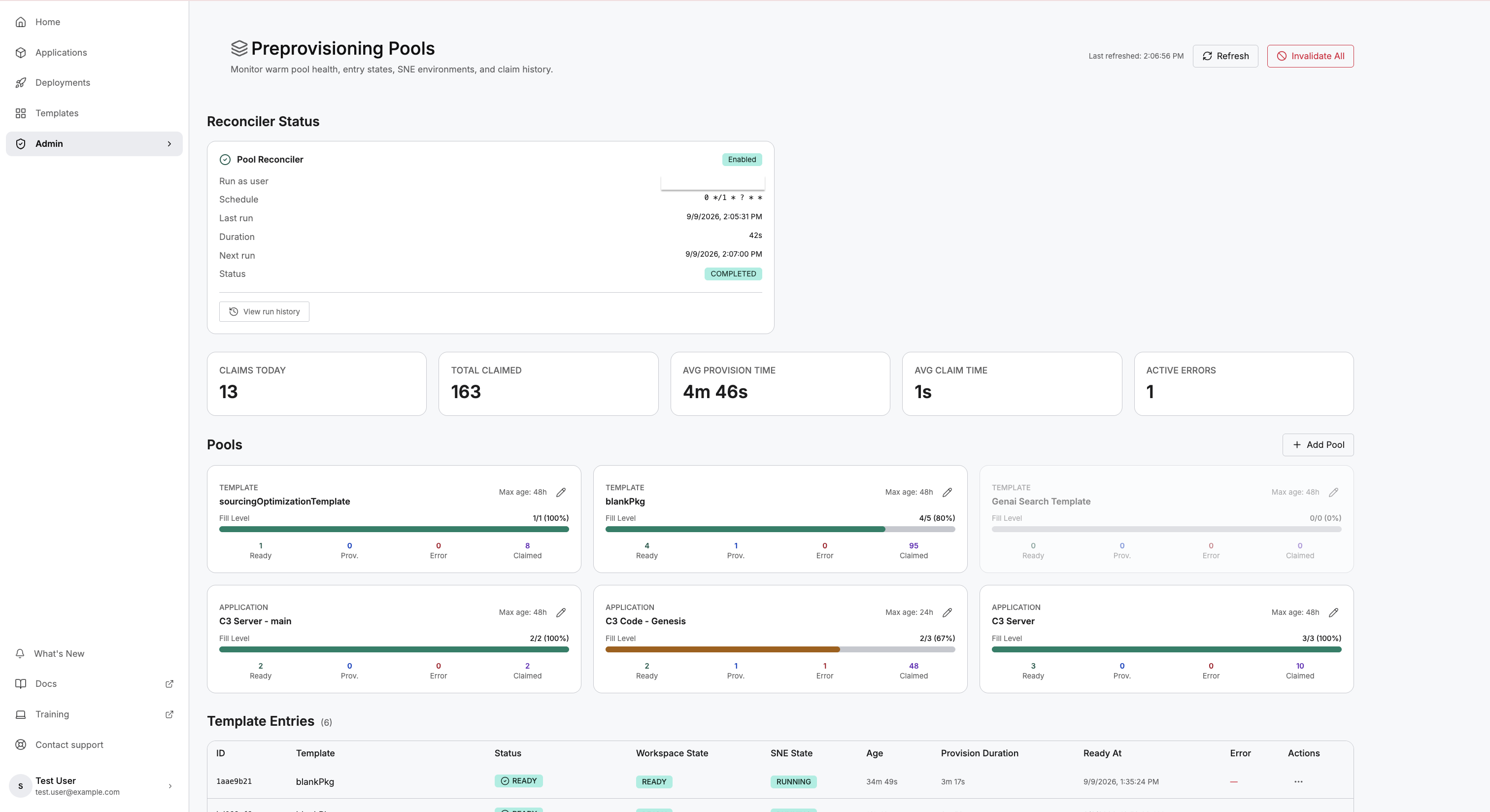
The page opens with the reconciler's status, five summary figures, and a card for every pool, followed by the individual entries and a record of past claims.
Confirm the reconciler is running
The pools only stay full while the reconciler runs, so start here. The Reconciler Status card shows Enabled when the job is active, names the schedule it runs on, and reports its last run, next run, and last status. A recent Last run and a Status of COMPLETED mean the pools are being maintained. Select View run history to see every past run, newest first, with the error attached to any run that failed. The dialog also totals the completed and failed runs, and filters the list to Failed, Completed, or Skipped runs.
If the card reports that the reconciler is not configured, the pools will not refill until a platform administrator initializes it.
Check provisioning capacity
Every copy runs on its own single-node environment, so C3 Code caps how many copies build at once. The Provisioning Throttle card shows that cap:
- Max concurrent provisioning: 20% of the cluster's maximum concurrent computes, rounded up.
- Derived from: the cluster value the cap is calculated from.
- Provisioning now: copies building right now. Each one holds a slot.
- Available slots: free slots the reconciler can start pending copies in.
- Waiting for capacity: copies queued as PENDING_START until a slot frees up.
A growing Waiting for capacity figure means demand is outrunning the cap, and pools will take longer to fill. Free slots are shared out in turn across pools, so a pool with a large backlog doesn't hold up a small or newly created one: every pool with copies waiting gets a slot before any pool gets a second. The card's badge reads Accepting while slots are free, At capacity when none are, and Paused while the reconciler is not running, because nothing starts until it is.
Read the summary figures
The five figures across the top tell you, at a glance, whether preprovisioning is paying off:
- Claims Today: copies handed to developers so far today.
- Total Claimed: copies handed to developers across all pools since preprovisioning began.
- Avg Provision Time: how long, on average, a copy takes to build and become ready.
- Avg Claim Time: the average time C3 Code takes to hand a ready application or workspace to the developer creating one. This covers only the hand-over, so the developer skips the build that the Avg Provision Time above measures.
- Active Errors: copies currently in an error state across all pools. Anything above zero is worth investigating.
Read a pool card
Each pool has a card under Pools, labelled TEMPLATE or APPLICATION with the template or application it serves. The card leads with Fill Level: the number of ready copies against the target you set, shown as a count and a percentage. A pool below its target stands out at a glance. Five counts break down the copies behind that figure:
- Ready: copies built and waiting to be claimed right now.
- Pending: copies queued by the reconciler and waiting for a provisioning slot.
- Prov.: copies still building.
- Error: copies that failed to build.
- Claimed: copies handed to developers from this pool so far.
The card also shows the pool's Max age and an edit control for changing its settings. The card of a disabled pool appears faded.
Inspect individual entries
Below the cards, Template Entries and Application Entries list every copy in each pool, so you can trace a stuck or failed one. Each row carries its Status in the pool lifecycle, its Workspace State, and its SNE State. The SNE State is the state of the single-node environment (SNE), the isolated C3 server behind the copy. The remaining columns report the copy's Age, how long it took to provision, when it became ready, and any error.
Each table has a search box and a status filter at its top, and page controls at its foot:
- Search by name or ID: finds copies whose name or ID contains what you type.
- All statuses: shows only the copies in one status: Ready, Provisioning, Error, or Expired.
- Items per page: shows 50, 100, or 200 copies at a time.
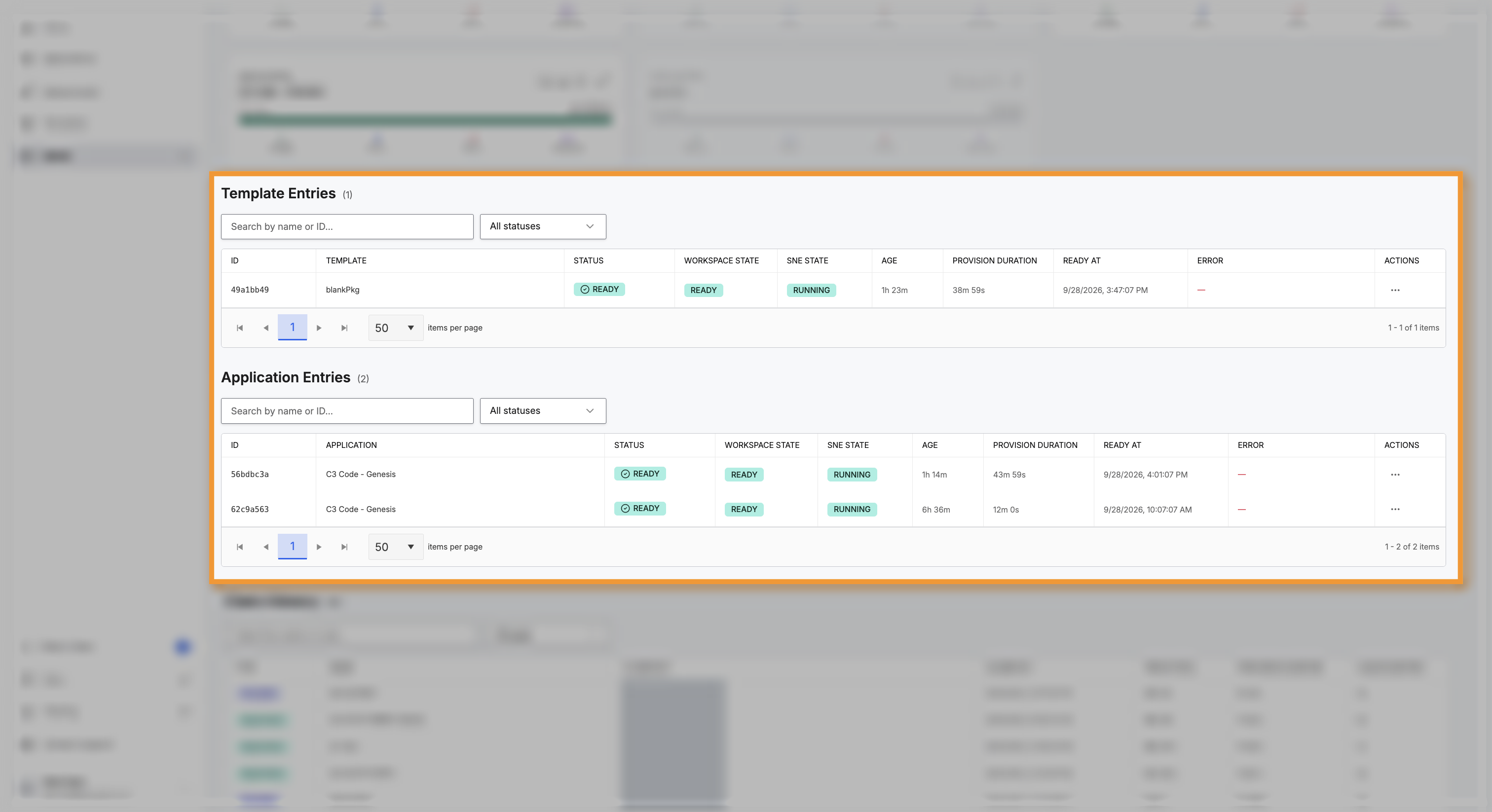
Open the Actions menu on a row and select Remove to remove that copy. The Actions menu becomes available once a copy finishes provisioning or fails.
A copy moves through a fixed set of states, shown in the Status column. The tables list only copies still in a pool, so a claimed copy moves to Claim History:
- PENDING_START: queued, waiting for capacity. The reconciler starts it when a slot frees up under the provisioning throttle.
- PROVISIONING: the copy is building.
- READY: built and waiting in the pool.
- CLAIMING: being handed to a developer.
- CLAIMED: transferred to a developer and no longer in the pool.
- ERROR: the copy failed and needs attention.
- EXPIRED: too old, and cleared by the reconciler.
Review claim history
The Claim History section is the record of every claim across all pools. Read it to confirm developers are drawing on the pools you enabled, and to spot a pool that builds copies nobody claims.
Each row is one claim:
- Type: the pool type the copy was claimed from. Template marks an application claimed from a Template Pool, and Application marks a workspace claimed from an Application Pool.
- Name: the name the developer gave the claimed application or workspace.
- Claimed By: the developer who claimed it.
- Claimed At: when the claim happened.
- Time in Pool: how long the copy waited as ready before it was claimed.
- Provision Duration: how long the copy took to build.
- Claim Duration: how long the hand-over to the developer took.
Search by name or user, or filter by type, to find a specific claim.
Create, size, or delete a pool
Create a pool when people often start from the same template or application:
- Many people start new applications from one template: create a Template Pool for that template.
- Many people add workspaces to one application: create an Application Pool for that application.
Each ready copy runs while it waits, so it costs compute before anyone uses it. Keep one or two ready, and add more only if people still wait.
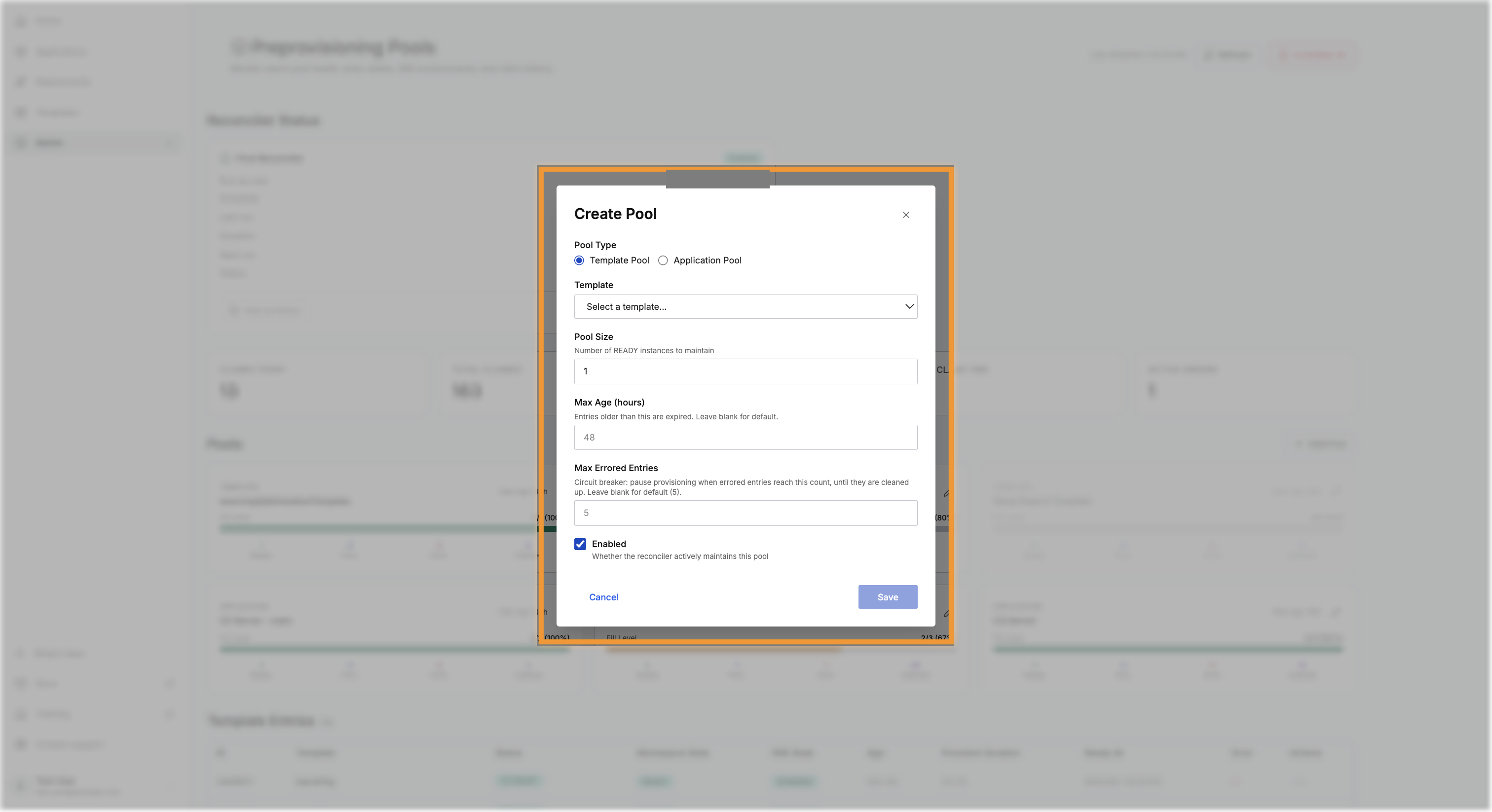
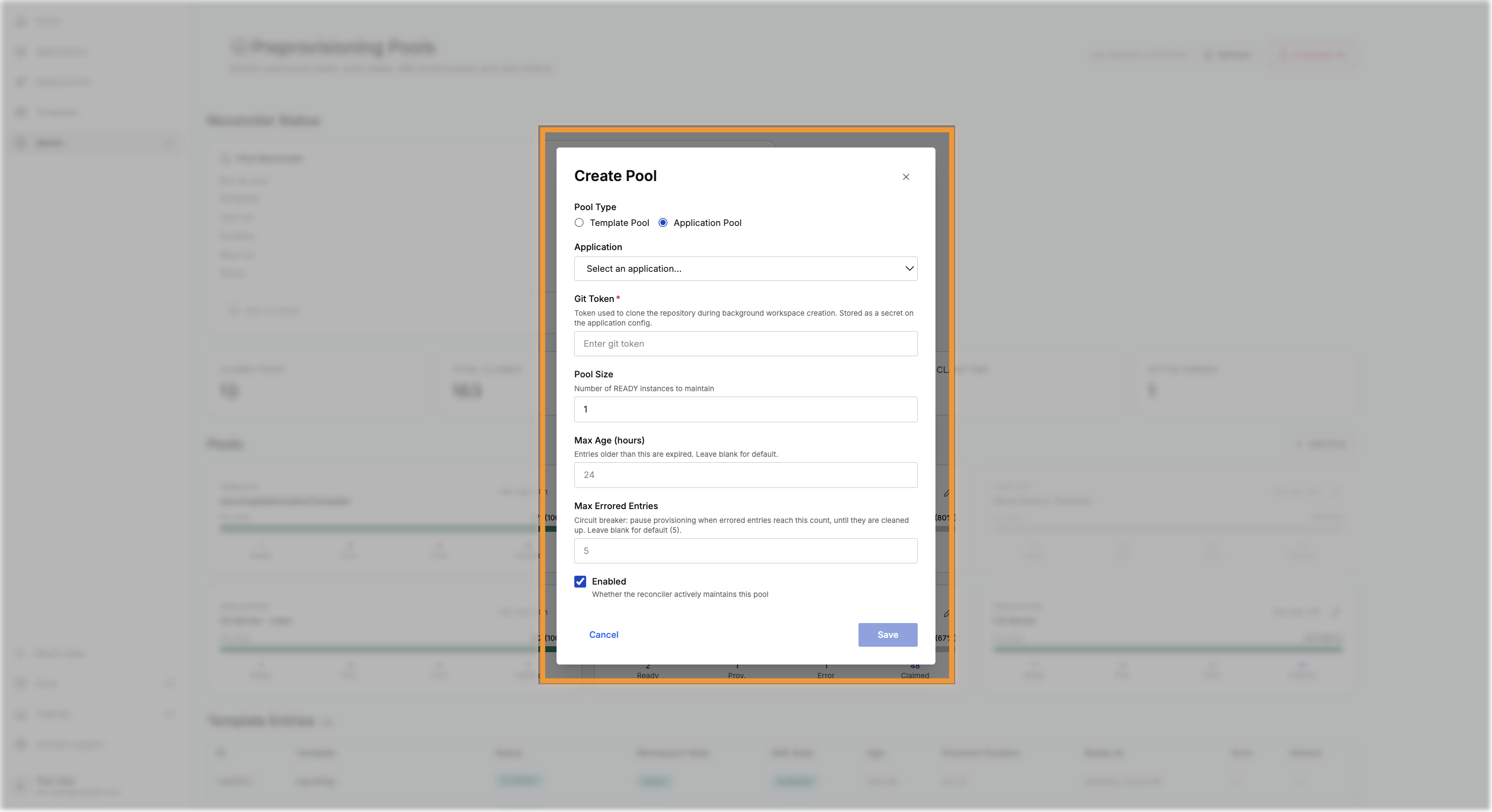
Select Add Pool to open the Create Pool dialog, or the edit control on a pool card to change an existing pool. Four settings are common to both kinds of pool:
- Pool Size: the number of ready copies to keep waiting. This is the target the reconciler fills toward.
- Max Age (hours): how long a ready copy may sit before the reconciler expires it and builds a fresh one. This keeps a warm copy from drifting out of date. Leave it blank to use the default: 48 hours for a Template Pool, 24 hours for an Application Pool.
- Max Errored Entries: how many failed copies a pool tolerates before it pauses new builds until you clear them. This keeps a systemic failure from piling up broken copies. Leave it blank to use the default of 5.
- Enabled: whether the reconciler actively maintains this pool. The box is checked by default when you create a pool, so the reconciler starts building copies on its next run. Clear the box to create a pool that does not keep anything ready yet.
Create a Template Pool
A Template Pool keeps ready applications built from one template. Select Template Pool, choose the Template to keep warm, then set the pool size and the options above.
Create an Application Pool
An Application Pool keeps ready workspaces for one Git-connected application. Select Application Pool, choose the Application, and provide a Git Token. C3 Code uses the token to clone the application's repository when it builds each ready workspace in the background, and stores it as a secret on the application. The remaining settings match a Template Pool.
Delete a pool
Delete a pool when nobody claims from it anymore. Select the edit control on the pool card, then select Delete Pool.
C3 Code terminates the ready copies still waiting in that pool, and leaves every claimed application and workspace untouched. Claim History keeps its record of past claims. If a copy fails to shut down, the reconciler keeps retrying until the copy is gone.
After you delete a Template Pool, you can create a new pool for the same template.
Size a pool to demand
Size each pool to how often people claim from it, not to how many users you have. A template nobody starts from needs nothing kept ready. The pool cards give you the signals to tune against:
- Fill Level below the target means the reconciler has not refilled the pool to its target yet. Claims still succeed while copies remain, so the wait returns only once the pool empties and the next developer falls back to a full build. Raise the pool size or investigate slow provisioning.
- A full pool with few claims means ready copies are sitting idle and holding compute. Lower the pool size.
- A rising Error count drains a pool quietly, with no other symptom until people start waiting.
Keeping copies ready holds compute while they wait, so a pool is a trade between a shorter wait and a higher steady cost. For the compute each workspace holds, see Application Settings.
Recover from provisioning errors
When a pool's Error count reaches its Max Errored Entries, the reconciler stops building new copies for that pool, and the card reports the halt. This keeps a repeating failure from piling up broken copies, and provisioning resumes once you clear the failed copies.
Clear a failed copy from the Actions menu on its row in the entries table. Removing it terminates its underlying environment, and the reconciler builds a fresh replacement on its next run if the pool is enabled and below its target. The reconciler also clears errored copies on its own after a short time, so a pool recovers without intervention once the underlying problem is fixed.
Refresh pools after an upgrade
After a platform upgrade, the copies already waiting in the pools may still run the configuration from before the upgrade. Select Invalidate All to drain them: it permanently terminates every unclaimed copy across all pools and leaves the copies already claimed by developers untouched. Type INVALIDATE to confirm. The reconciler then repopulates the pools with fresh copies on its normal schedule. Run this once after each upgrade.