Manage User Roles and Quotas
Roles and quotas together decide what a person can do in C3 Code. Roles decide which tools that person reaches, and roles are assigned outside C3 Code. Quotas decide how much that person can create; you set quotas here, and you decide the requests users file when they reach a limit.
A user can be unable to create a workspace even though the My Usage and Cost page shows room. Creating a workspace or deployment checks two limits: the C3 Code quota, and a limit on the underlying services. Raising the quota alone leaves the second limit in place.
Roles decide access
C3 Code treats any one of these four roles as administrative, and any one of the four opens the administration area:
- Cluster administrator (
C3.ClusterAdmin) - Environment administrator (
C3.EnvAdmin) - Application administrator (
C3.AppAdmin) - C3 Code administrator (
C3.Code.Admin)
Your platform administrator assigns these roles. No screen in C3 Code grants one.
Keep these four separate from the collaborator roles on an application. An application Admin manages that application's workspaces and collaborators, and an application User builds in the application. Neither role opens the administration area.
Manage C3 Code covers the split between what administrators control and what you control, and Share with Collaborators covers adding people and sharing a preview link.
Quotas decide capacity
Every user carries four quotas. Check the four in the Usage section before deciding on a request:
- Applications: how many applications that person can own.
- Workspaces: how many workspaces that person can own.
- Deployments: how many deployments that person can own.
- Tokens: how many tokens that person can use per calendar month.
The token quota counts input and output only, weighted by model, and excludes reasoning and cache traffic. That is why a user's total token figure runs far above the quota figure.
The Usage section reports usage across all users, filtered by user, application, workspace, and model, together with estimated token cost.
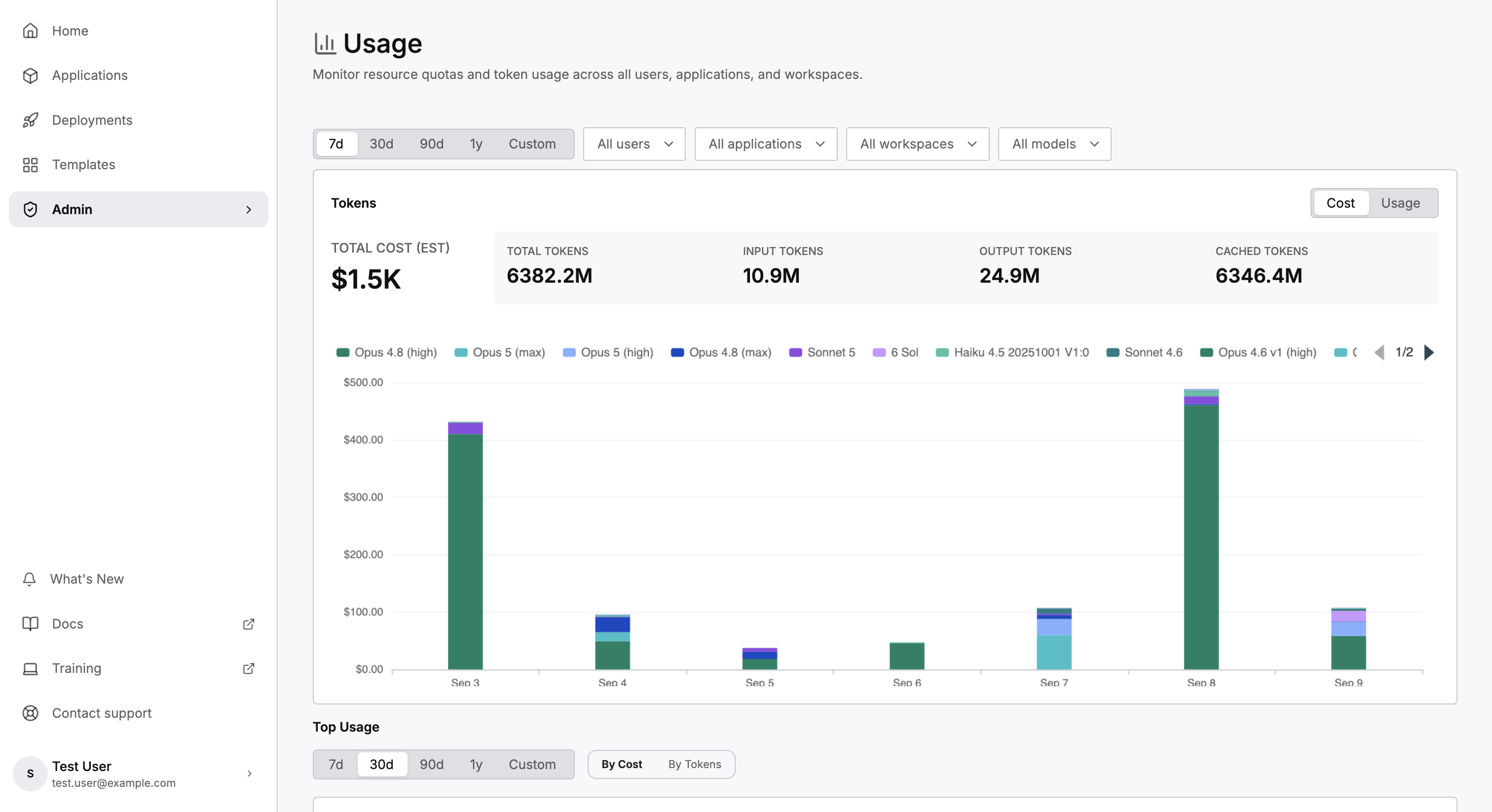
Use that breakdown to see where usage concentrates before judging whether a request is reasonable. Usage concentrates heavily, so a few users and a few workspaces usually account for most of the total.
For seeing what you have used against each quota, see My Usage and Cost.
Creating a workspace or deployment checks two limits
Each workspace runs a set of services, and each deployment runs a larger set. Creation checks both the C3 Code quota and the limit on those services, so reaching either limit stops the user.
A user under their workspace count can still be stopped, because the workspaces and deployments that user created elsewhere in the same C3 AI Studio count against the same limit. Those in a different Studio or cluster do not.
Raise a workspace or deployment quota through the Requests section, or through the quota controls, not by editing configuration. Raising the quota alone leaves the user unable to use what you granted, because the limit on the underlying services remains unchanged. The supported route raises both together.
Approving a request already takes that route, so a grant made from the Requests section stays consistent with no further step.
The application quota has no second limit. Creating an application checks the application count alone.
Granting more of either quota commits more compute, because each new workspace and deployment starts services of its own. Check what that capacity requires before approving a large increase.
For the compute behind workspaces and deployments, see Application Settings, Preprovisioning Pools, and Manage Your Deployments.
Review and decide requests
Users submit requests from the My Usage and Cost page. The Requests section lists each request with the requester, the resource, the amount, the current status, and who approved the request.
Filter to Pending to see what needs a decision. Each request carries the justification the user wrote.
Five rules govern a decision:
- You can only decide a pending request: a request already approved, rejected, or cancelled is final.
- The approved amount adds to the existing quota: approving 1,000 tokens raises the limit by 1,000, rather than setting the limit to 1,000.
- You can approve a different amount than requested: C3 Code records the approved amount separately, so a partial grant is a supported outcome.
- Approval applies the new quota immediately: C3 Code also emails the requester.
- A rejection can carry a comment: use the comment. A user who reads a rejection with no explanation files the same request again.
Users can also cancel their own requests, so a request that disappeared was withdrawn.
Check the Usage section before approving a token increase. A user working through most of a quota on the heaviest model may need guidance on model choice more than a larger allowance.
For requesting more quota from an administrator, see Request Access and Resources.
Where to go next
These pages cover capacity, adoption, and what your users see: