Check C3 Code Health
When users report that a template fails to launch or that the agent cannot reach a model, the Health page shows you where to look. The page checks the environment C3 Code runs on in six sections. The sections cover the C3 server, its configuration, the work queue, the capacity pools that keep compute ready, the container images, and every template. The page marks each check Healthy, Warning, or Critical, so you find the failing part before you open any log.
The page only reads. Refresh reads every check again, and the filters and expandable rows change only what you see. Opening the Admin section needs administrator access.
Open the Health page
Open the Admin section and select Health. The page reads every check when it opens, and Last refreshed shows the time of that read. The page does not update on its own, so select Refresh after you change something and want to see the new state.
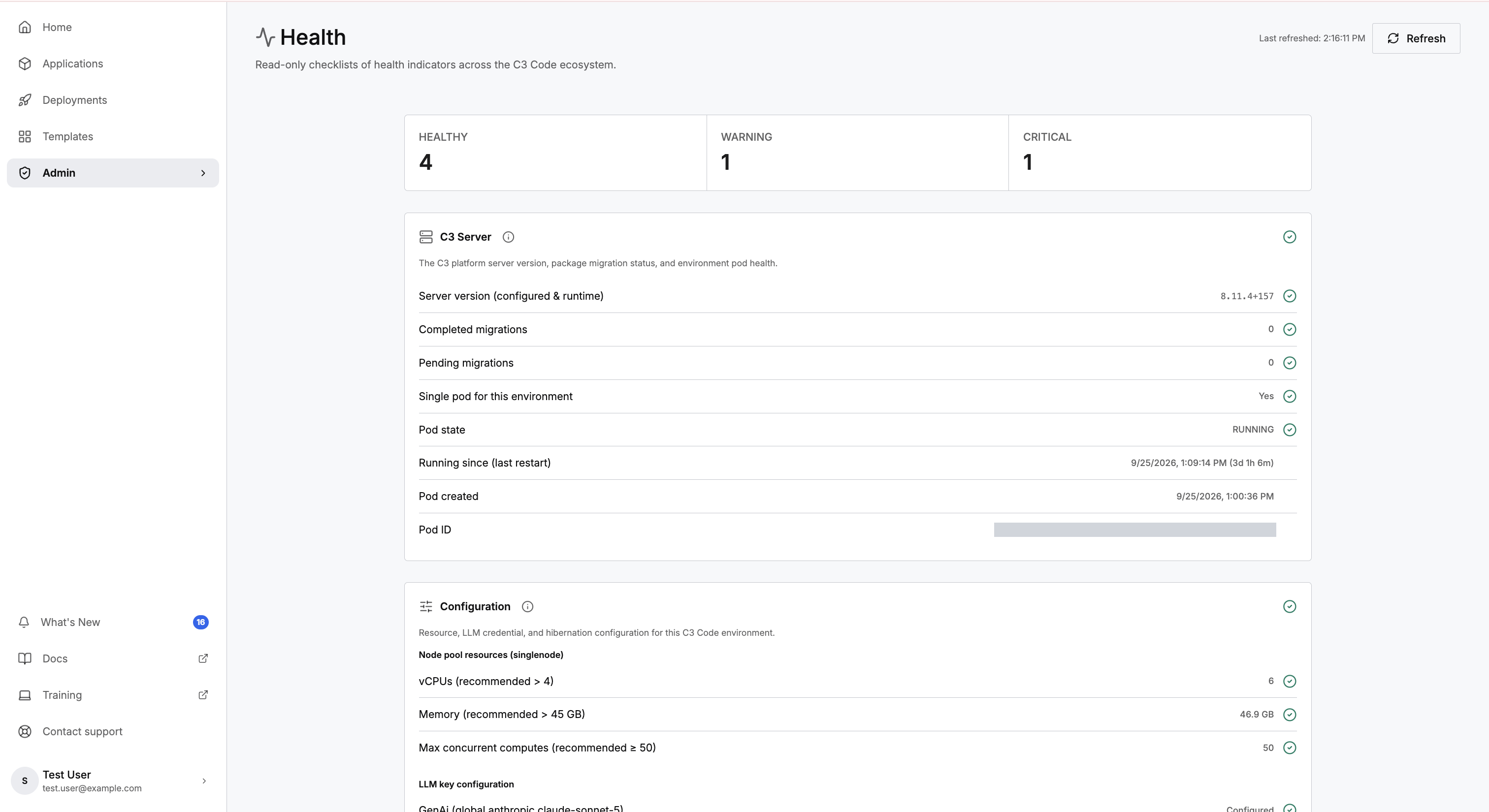
Read the summary tiles and statuses
The three tiles at the top count the six sections by status: Healthy, Warning, and Critical. A section the page could not read counts toward no tile, so the tiles can add up to fewer than six.
Each check, and each section, carries one of four statuses:
- Healthy: the check passed.
- Warning: the part still works, but needs attention, such as a version mismatch or a resource below its recommended size.
- Critical: something C3 Code depends on is missing or failed, such as a template file or a capacity pool.
- Unknown: the page could not read the value.
A section takes the most severe status among its checks, so one Critical row makes the whole section Critical. Select the info button beside a section title to open a description of every check in that section and each value the check can report.
Find the check for a problem
Start from what users report, then read the section that covers it:
- Users cannot create an application from a template: read Templates. A template marked Cannot launch has no packaged file, so creating an application from it fails.
- The agent cannot reach a model: read LLM key configuration in Configuration. A provider marked Not configured has no credentials, so the coding agent cannot call it.
- Work waits before it runs: read Runtime Health for waiting work, then the Max concurrent computes row in Configuration for the limit behind it.
- You just upgraded the platform: read C3 Server for a version mismatch or pending migrations. Then refresh the pools of ready applications and workspaces, as described in Preprovisioning Pools.
- New applications and workspaces start slowly: read Capacity Pre-Provisioners for missing or unready pools. Then check the pools of ready applications and workspaces on the Preprovisioning page.
C3 Server
C3 Server checks the server behind the environment: the version it runs, its package migrations, and the pod that runs it. A pod is the Kubernetes unit that runs the server process.
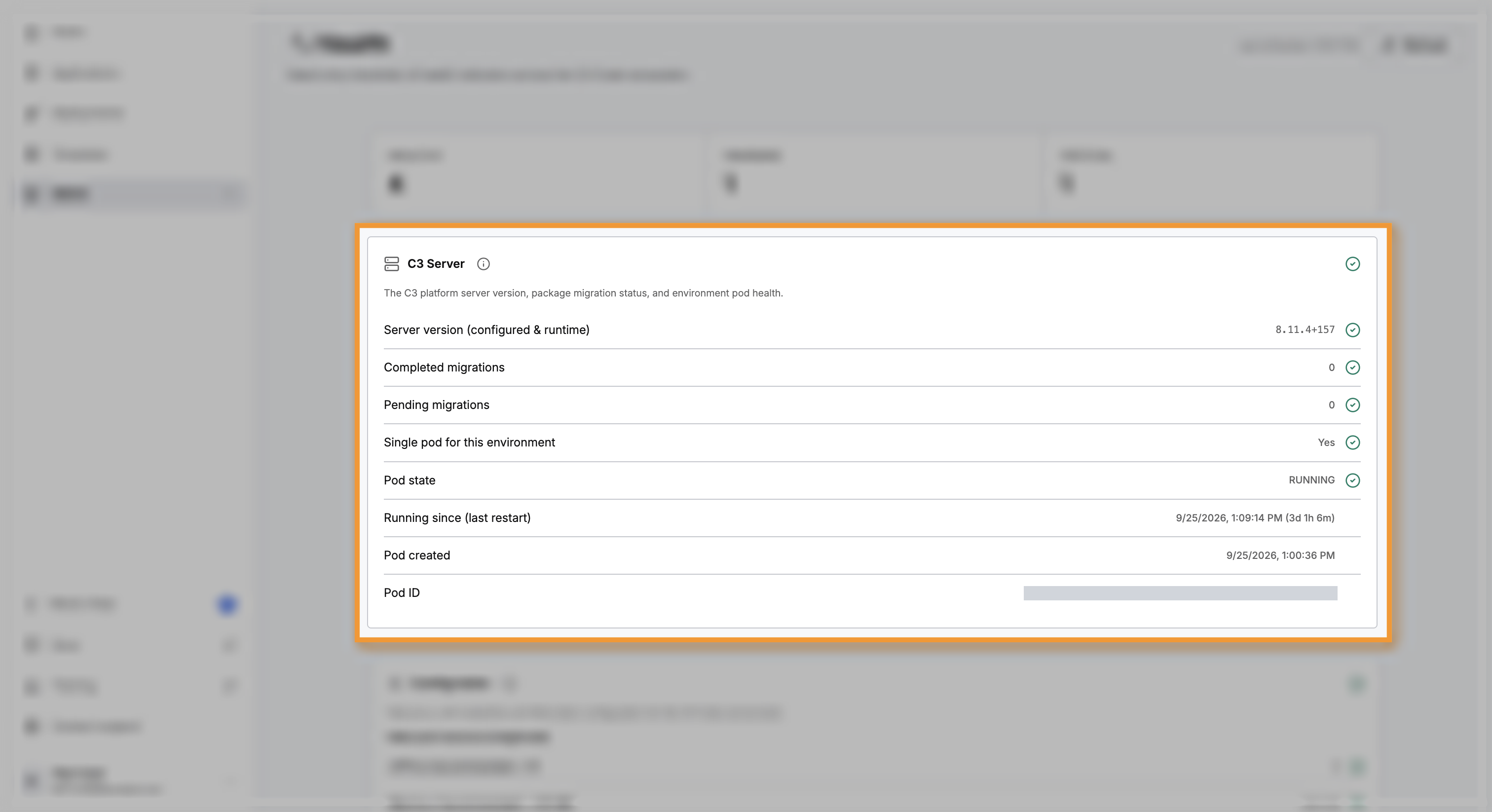
- Server version (configured & runtime): the version the server runs, checked against the versions the application and the environment are configured to run. A mismatch is a Warning, and the row names each version. A mismatch means a restart or a configuration update is pending.
- Completed migrations: how many package migrations the platform has run. A package migration is an update step the platform runs when it upgrades. Any count is Healthy.
- Pending migrations: migrations still waiting to run. Any pending migration is a Warning, because the platform has not finished upgrading.
- Single pod for this environment: C3 Code expects exactly one pod behind the environment. More than one pod is a Warning. A pod the page cannot read, or zero pods, is Critical.
- Pod state: RUNNING is Healthy, and any other state is a Warning.
- Running since (last restart) and Pod created: when the server last started and when its pod was created. These are for reference and do not affect the status.
Configuration
Configuration checks the resources, model credentials, hibernation settings, and services that C3 Code depends on. If the page cannot read the node pool, the LLM providers, or the microservices at all, the section is Critical.
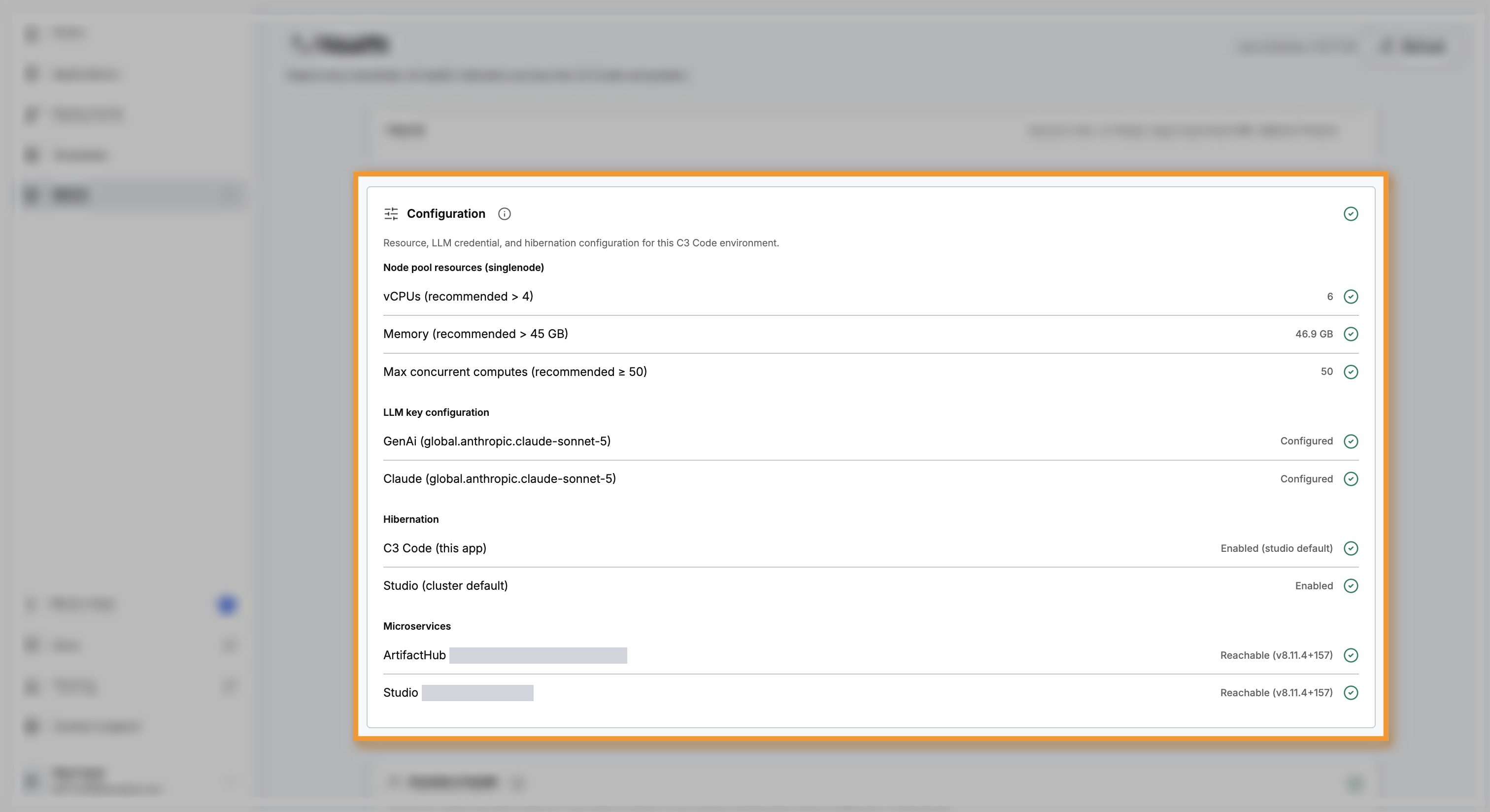
- Node pool resources: the compute behind the environment. A value below its recommended minimum is a Warning, and the three minimums are:
- vCPUs: more than 4.
- Memory: more than 45 GB.
- Max concurrent computes: at least 50. This is the number of background actions that can run at the same time.
- LLM key configuration: one row for each large language model (LLM) provider the coding agent uses. Configured means credentials exist. Not configured is a Warning, because the agent cannot call that provider. The page reports only whether credentials exist and never displays them.
- Hibernation: whether hibernation is on for C3 Code and for the Studio default. Enabled (studio default) means C3 Code follows the Studio setting. This row is for reference and does not affect the status.
- Microservices: each service C3 Code depends on, such as Artifact Hub and Studio. Reachable shows the version the service reported. Unreachable is a Warning, because the service did not answer.
Runtime Health
Runtime Health shows whether background work is waiting for a free slot. C3 Code runs background actions in a fixed number of slots, and an action waits when every slot is busy.
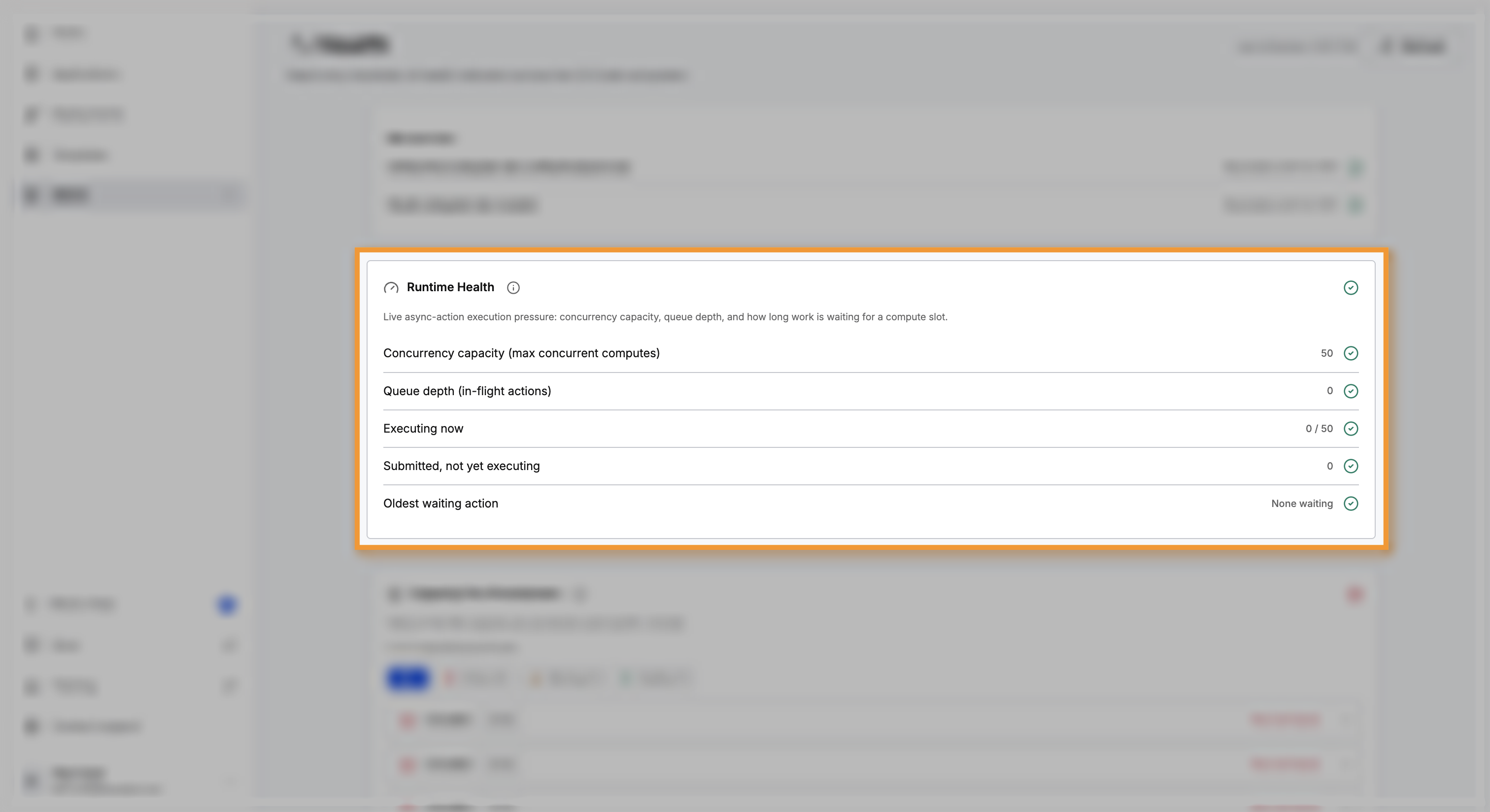
- Concurrency capacity (max concurrent computes): how many actions can run at the same time.
- Queue depth (in-flight actions): actions that have not finished, running and waiting together.
- Executing now: actions running now, out of the capacity.
- Submitted, not yet executing: actions waiting for a slot.
- Oldest waiting action: how long the oldest waiting action has waited, or None waiting.
The section is Healthy while nothing waits, and a Warning once any action is waiting. It becomes Critical when actions wait while every slot is busy, or when one action has waited longer than two minutes.
Capacity Pre-Provisioners
Capacity pre-provisioner pools are Kubernetes pools that keep compute ready for C3 Code. The pool names share a prefix, which the section description shows. A line reports how many of the expected pools the page found, and finding fewer than expected makes the section Critical.
Capacity pre-provisioner pools keep cluster compute ready. They are separate from the pools of ready applications and workspaces on the Preprovisioning page. See Preprovisioning Pools.
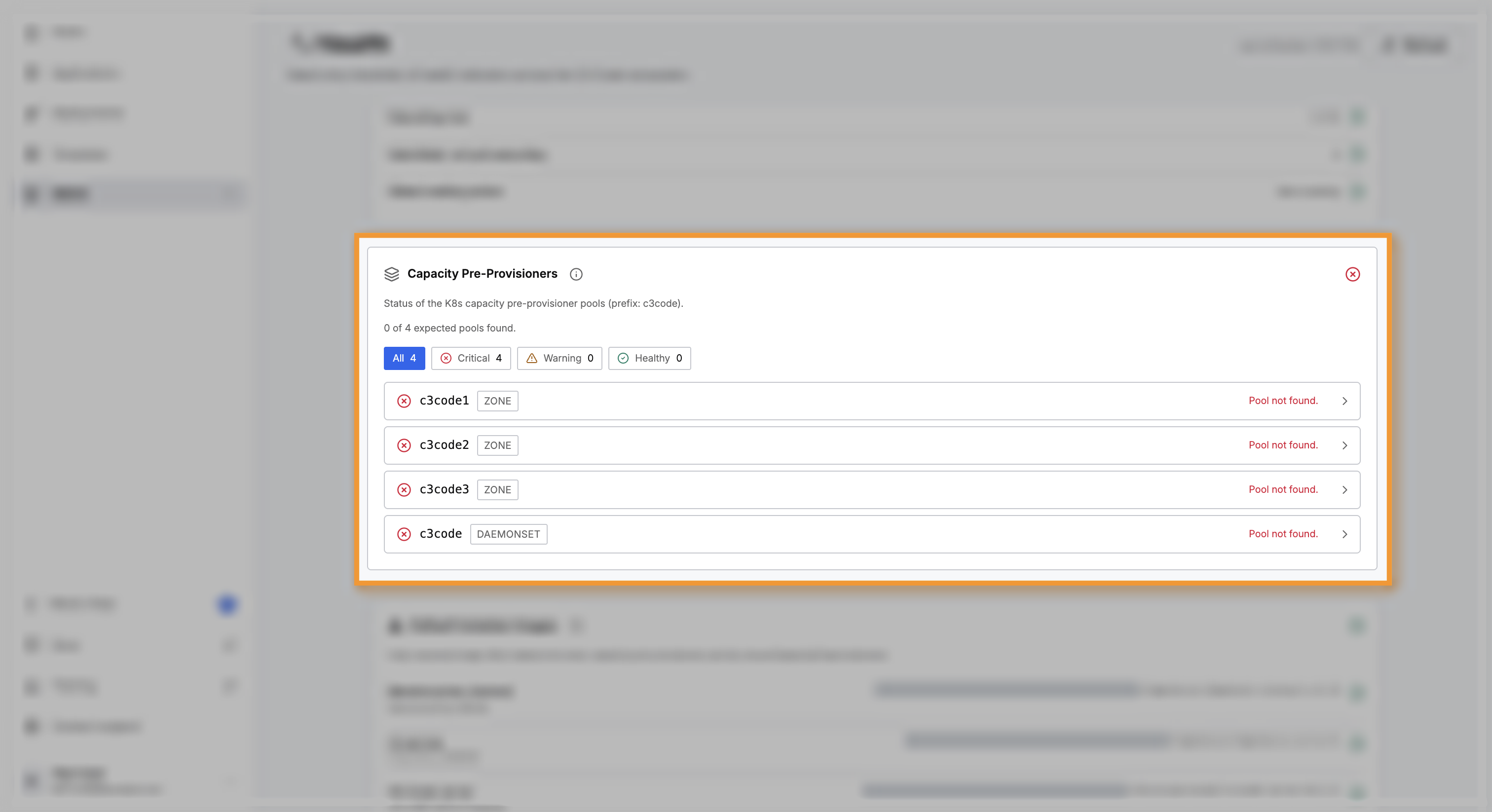
Each row is one pool, sorted with the most severe status first:
- ZONE marks a pool that serves one cloud zone. DAEMONSET marks the pool that caches container images on each node.
- The row status reads Healthy, Pods not ready, Degraded, or Pool not found. Pods that are still starting are a Warning. A missing pool, a read error, or degraded pods is Critical.
- Expand a row to see the ready pods, the zones, and any pending or degraded pods.
- A drifted label means the pool's live settings differ from the settings C3 Code expects, which is a Warning. Select the label to open Configuration Drift, which compares the Expected and Actual value of each setting.
Select All, Critical, Warning, or Healthy to show only the pools with that status. Setting up and repairing these pools takes a cluster administrator.
Default Container Images
Default Container Images lists the container images that every capacity pre-provisioner pool uses, each with its full image address. Five of them run the parts of a workspace: the reverse proxy, the UI service, the VS Code server, the coding agent, and the C3 server. The pause image and the image puller prepare the pool's nodes.
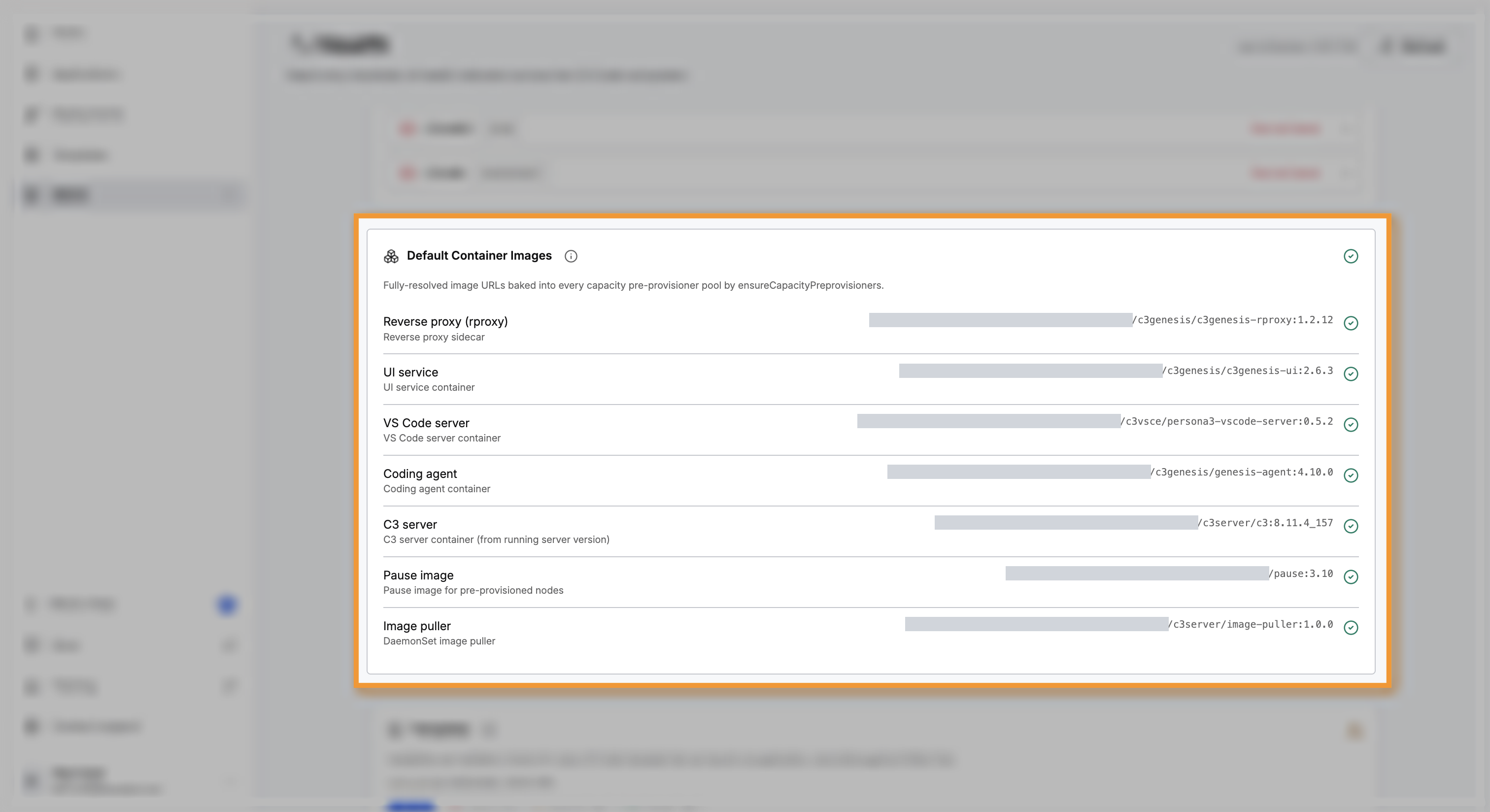
An image that fails to resolve is Critical, because a pool cannot be set up without it.
Templates
Templates checks every template that can create an application, against Artifact Hub. Artifact Hub is the platform's store of packaged artifacts, where synced templates and their dependencies come from. Last synced shows when a template was last updated, which normally reflects the most recent sync from Artifact Hub.
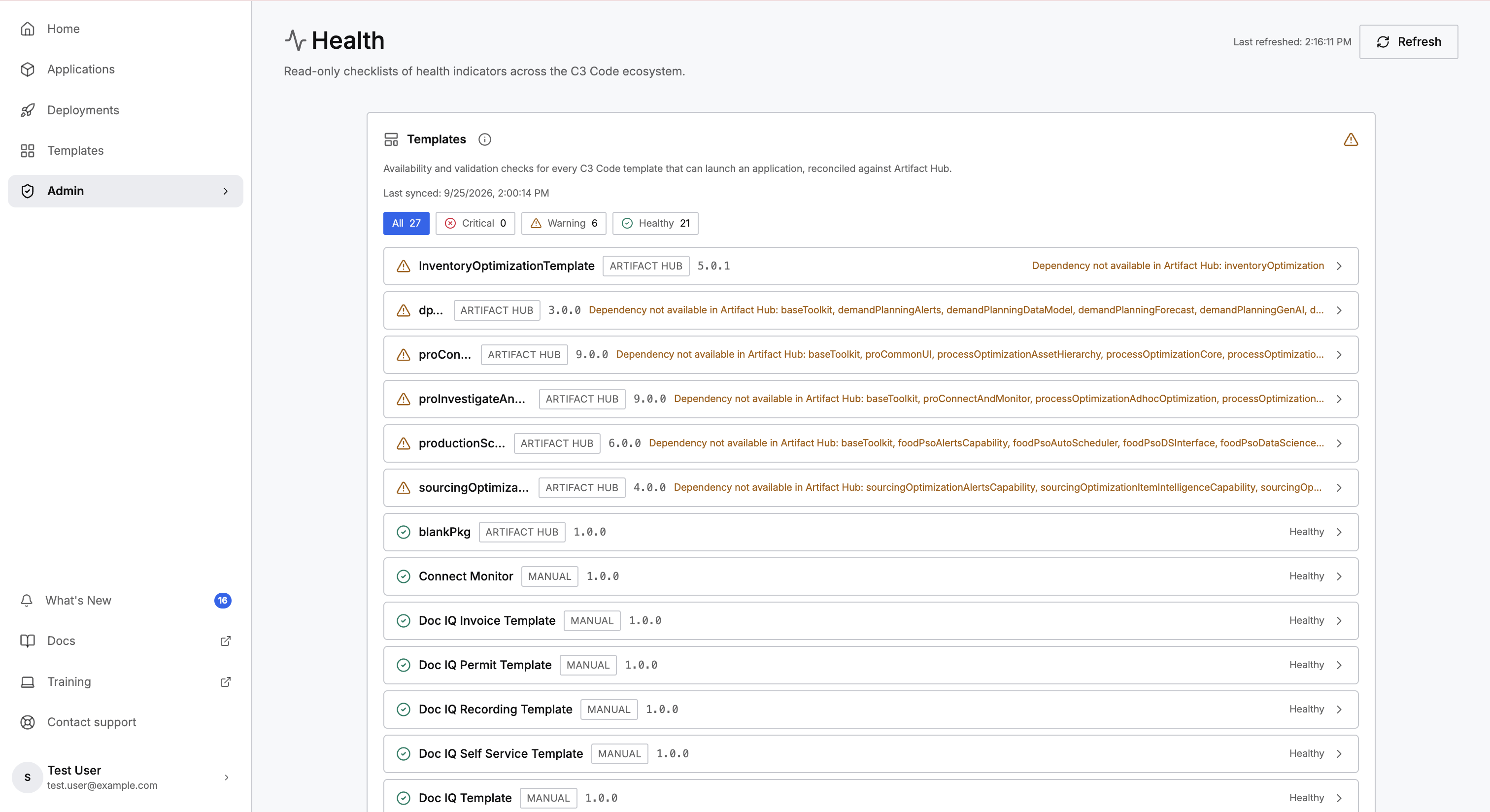
Each row shows the template name, where the template comes from, its version, and its status. The source label reads one of three values:
- ARTIFACT HUB: synced from Artifact Hub.
- CURATED: added by hand, with a set file address.
- MANUAL: added by hand, with the packaged file at its default location.
The status reads one of three values:
- Healthy: the template is ready to create applications.
- Needs attention: a Warning. The template still launches, and the row names the issue that needs attention. Examples are a missing required field, a newer version in Artifact Hub, or a dependency that Artifact Hub does not hold.
- Cannot launch: Critical. The packaged file is missing, so creating an application from the template fails.
Expand a row to see the Zip and Fields checks, and the resolved file address and artifact reference, which you can copy. The row also lists each dependency, marked as available or not available in Artifact Hub.
The section is also a Warning when Artifact Hub lists a template that has no matching template in C3 Code. The section names each one, and notes that a sync may not have run yet. Select All, Critical, Warning, or Healthy to show only the templates with that status.
For creating an application from a template, see Start from an Application Module.