Administer C3 Code
The administration area gives you one view across every user, application, and workspace. Use it to read token usage and cost, and to see where people encounter difficulty. You also check how quickly new applications start, decide the requests that need your approval, and set where support messages are sent.
You reach the area by holding one of the four administrator roles, so confirm your access first. Two of the analytics views stay empty until you start them, so start those early.
Confirm you hold administrator access
C3 Code treats you as an administrator when you hold any one of these four roles:
- Cluster administrator (
C3.ClusterAdmin) - Environment administrator (
C3.EnvAdmin) - Application administrator (
C3.AppAdmin) - C3 Code administrator (
C3.Code.Admin)
Any one of the four passes the check. The four form no hierarchy, so an environment administrator and a C3 Code administrator reach the same tools.
Being an Admin collaborator on a C3 Code application is separate. That role covers one application's workspaces and collaborators, and opens none of the administration area.
Hold none of the four roles, and the administration pages return you to the home page with no permission message. The absence of an administration area in your navigation is the only indication.
Ask your platform administrator to assign one of the four roles if you need access.
Manage C3 Code covers the split between what administrators control and what you control, and Share with Collaborators covers adding people and sharing a preview link.
What the administration area covers
Five sections make up the area, and each section answers a different question.
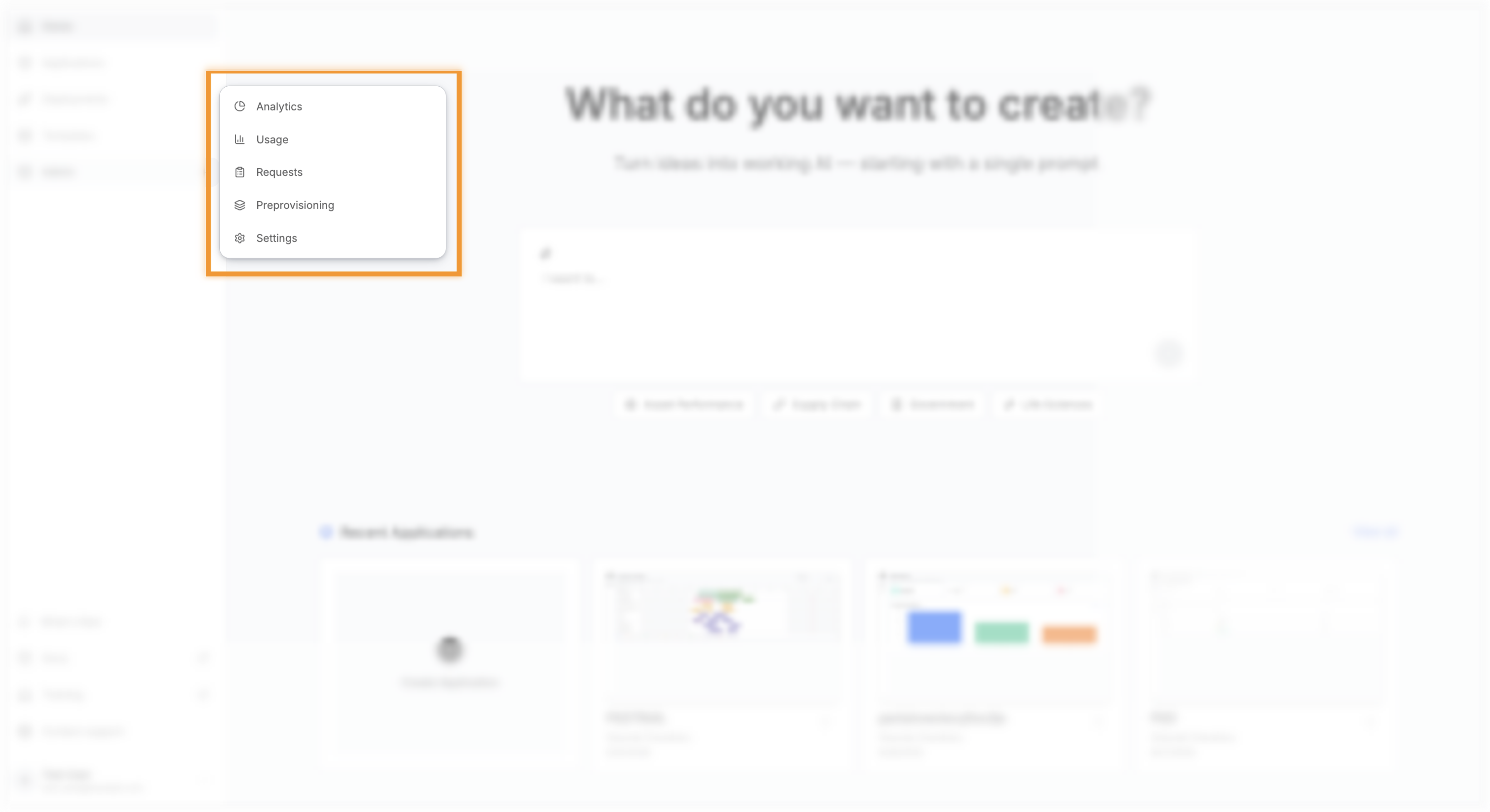
Analytics reports how people use C3 Code and how well C3 Code works for them, with separate views for product adoption, conversation quality, and per-user activity.
Usage reports token usage across every user, application, and workspace, together with an estimated cost. Use this section to see what is being used and by whom.
Requests lists the resource requests your users submitted, and you approve or reject those requests in this section.
Preprovisioning manages the pool of resources kept ready for new applications and workspaces to claim, which decides how long a user waits after selecting Create.
Settings sets the support inbox — the address that receives the messages users send from Contact support.
Where to go next
These pages cover the settings and reports behind each section: