Deploy to Staging and Production
Deploying puts your application where other people can use it, in one of two places.
Staging is the copy you and your colleagues use to check the application. Your users never see staging, and staging hibernates on a schedule. A user with access to the deployment resumes it before the next use.
Production is the copy your users use. Production runs all the time, without manual start or monitoring, and it handles more people at once than staging.
Both take the same steps, so you learn the procedure once and change only which deployment receives the code. Deploying takes three steps: check your application, deploy to staging, then send the same code to production. Each deploy stamps a version, and there is no rollback control. To go back, check out the earlier code in your workspace and deploy again.
Check your application before you deploy
Confirm all three of the following before you deploy:
- The application runs correctly in Preview. A workspace with a build error produces a deployment that fails immediately.
- Your deployment quota has room. The My Usage and Cost page shows the count under DEPLOYMENTS.
- No deploy to the same deployment is already running. C3 Code rejects a second deploy to staging or production while the first deploy is still running.
You can deploy without saving your work to GitHub first. C3 Code packages the files exactly as those files stand in your workspace, including edits you have not saved. Commit before you deploy when you need to know later which change produced a running version. An unsaved edit leaves no record to trace back to.
Deploy to staging
Start the deploy from the workspace header, then confirm which deployment receives the code:
- Select Deploy in the workspace header. The Deploy Application popover opens with Staging already selected.
- Confirm Staging is selected.
- Select Deploy.
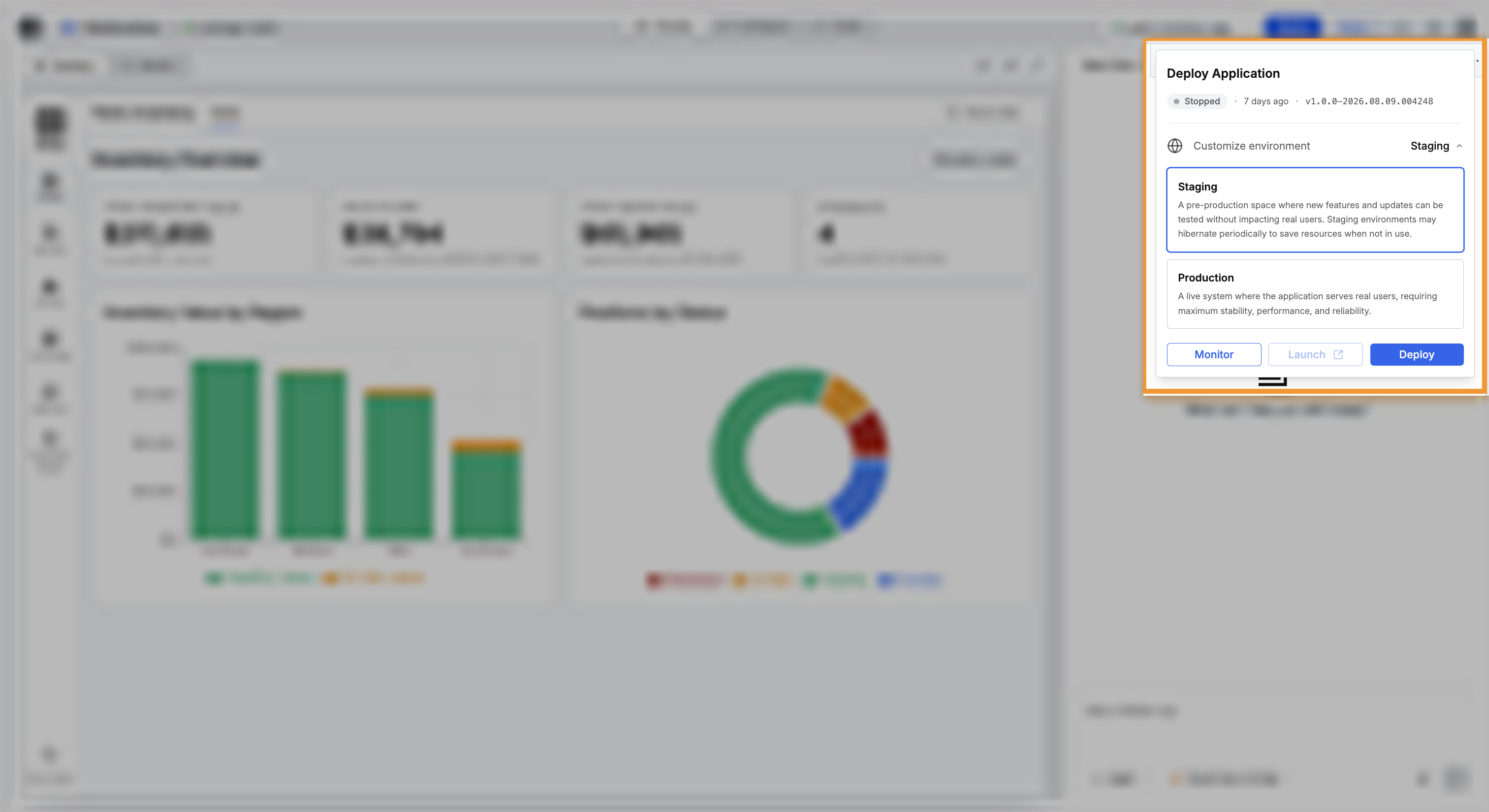
C3 Code checks your application first. When the check finds problems, the Package Issues Detected modal groups those problems by file. Select Fix with C3 AI Assistant to pass the problems to the agent, or continue when only warnings remain.
Follow the three phases
The Deploy Application popover reports a status badge, a version stamp, and three phases in order:
- Building: the workspace builds the user interface.
- Generating Artifacts: C3 Code turns the built application into the files C3 Code deploys.
- Deploying to Staging: staging starts and loads the packaged application.
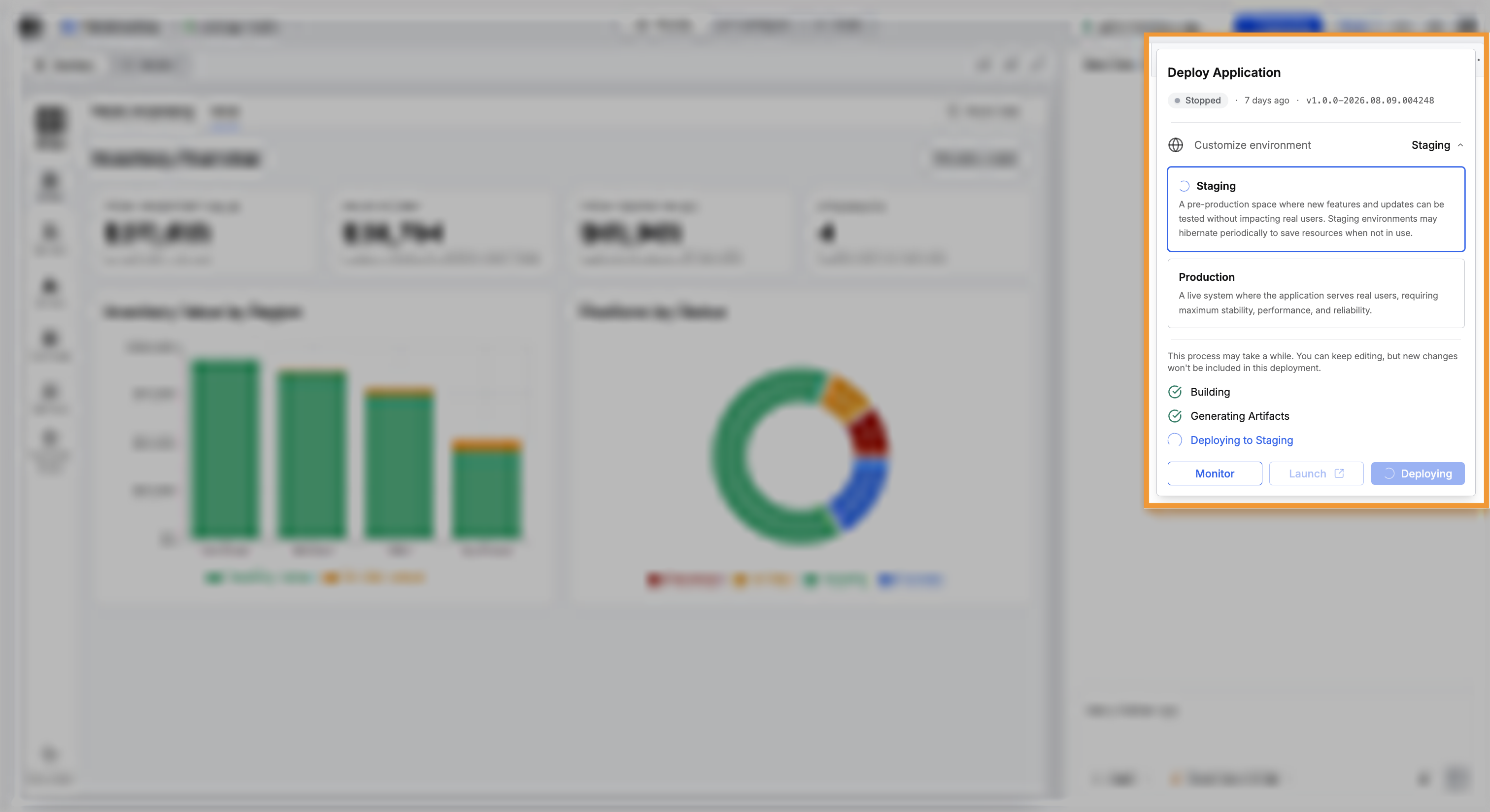
You can keep working while a deployment runs. Changes you make after selecting Deploy stay in your workspace, and your next deploy carries those changes.
Select Monitor to follow progress. Launch appears once the deployment finishes, and opens the running application.
Once a deployment exists, that deployment runs on its own and keeps using resources whether or not you are working. Stop a deployment, resume a deployment after hibernation, and read activity and errors from the Deployments page rather than from the workspace. See Manage Your Deployments.
Send the same code to production
Production takes the same steps against the other deployment. Check staging first, then deploy again with Production selected:
- Confirm staging runs the version you want your users to have.
- Select Deploy in the workspace header.
- Select Production.
- Select Deploy, then clear any package issues the check reports.
Staging and production deploy the same way. Afterward, production keeps running while the application sits idle, and handles more people at once than staging.
What happens when you deploy again
Each application has one staging deployment and one production deployment. Deploying again to the same deployment upgrades the version already running.
Two workspaces deploying to staging still give you one staging. The second deploy replaces the first, so confirm which deployment you selected before continuing.
Deploying again has three consequences:
- A deploy replaces the running application: staging or production now serves the version you just deployed.
- A deploy keeps every version: each deploy stamps a version built from the package version and the time, so no deploy overwrites an earlier version.
- A deploy records each attempt: each deploy records the workspace the code came from and the version produced. The deployment shows the last successful deploy alongside the most recent failed attempt.
The first deploy creates the deployment. Every later deploy upgrades that same deployment.
Go back to earlier code
Running earlier code again means deploying that code again. Check out the branch or commit carrying the earlier code in a workspace, then deploy from that workspace. C3 Code stamps a new version, and that new version carries the older work.
Deployments only move forward, so keep staging on a branch you can rebuild from. Recovery then costs one deploy.
Where to go next
These pages cover keeping a deployment current and diagnosing one that fails: