Manage the Model Catalog
As a C3 AI Agentix administrator, you decide which large language models (LLMs) your users and agents use. The Models section of the LLM Service admin page holds that decision. Open it when a provider outage breaks one model or a provider releases a new model. Also open it to keep an expensive model out of everyday use.
The LLM Service is the component that holds your provider credentials and forwards each model request to its provider. The model catalog is every model the LLM Service can reach. In the Models section, you complete these tasks:
- Choose which catalog models your users can pick, and check that each one responds.
- Refresh the catalog with Sync, select additional provider credentials to sync, or add a model by hand.
- Verify prompt caching for a model that a routing profile uses.
- Set the model and reasoning effort new chats start with, and the judge model that scores conversations.
- Set the app-wide write access baseline that every agent inherits.
- Turn user API access on or off, and choose whether new users get it by default.
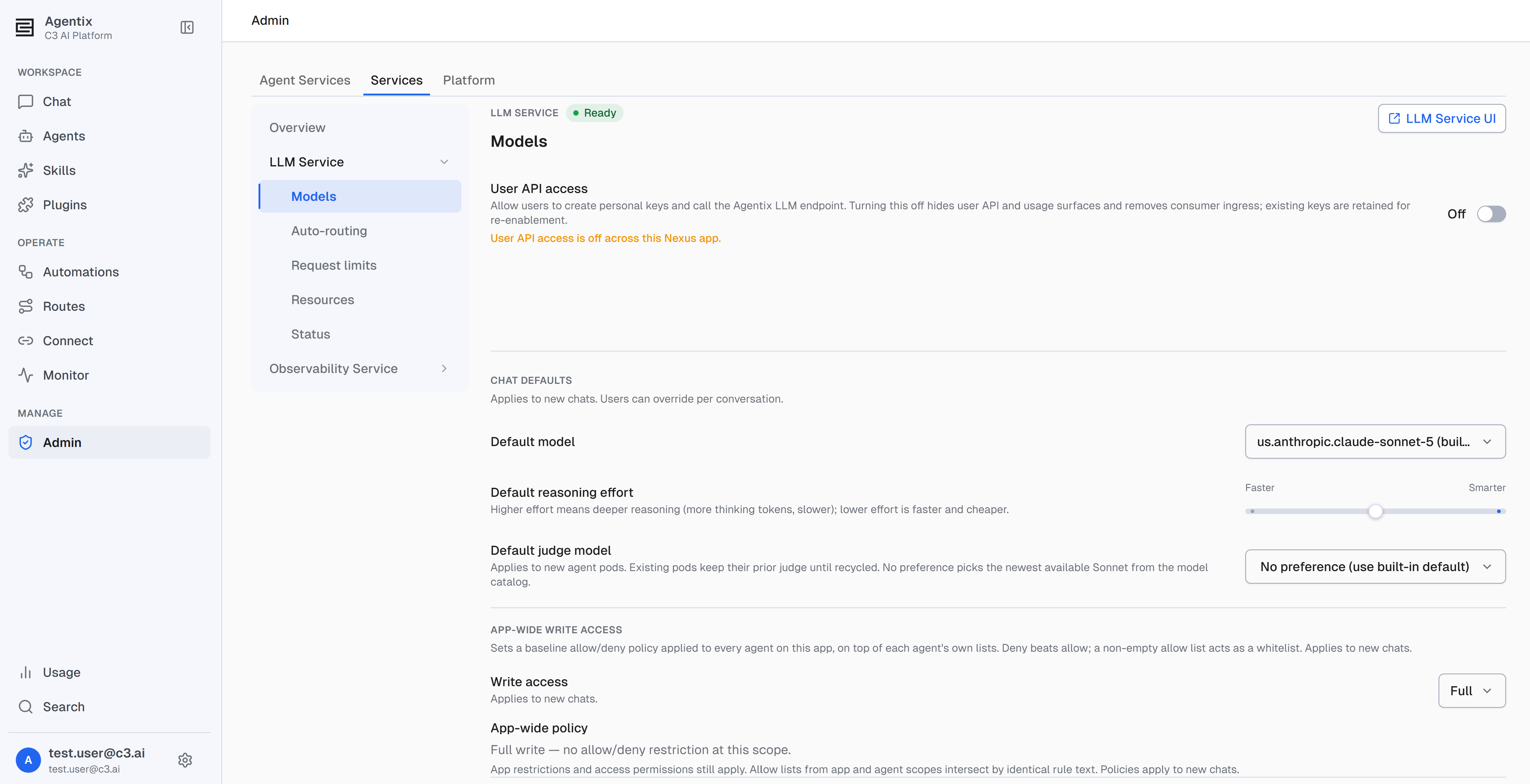
To open the section, select Admin from the left navigation, then under Services select LLM Service > Models. The LLM Service UI button in the page header opens the LiteLLM admin console, the LLM Service's own interface, in a new browser tab.
Choose which models users can pick
Each model in the catalog has an Enabled switch. A model that's on appears in the chat model picker for your users and agents. A model that's off stays in the catalog, and nobody can select it. Turn off a model that's too expensive, unapproved, or failing. Turn it on again when the reason has passed.
The counts line shows how many models and providers the catalog holds. It also shows how many of those models are available to users, such as 25 of 304. Models that are on sort to the top of the table, and Search models filters the table by model name, provider, or mode.
Enable or disable a model
Select a model's Enabled switch to change its availability:
- Turn off a model: the change takes effect immediately, and the status reads Off.
- Turn on a model: C3 AI Agentix first sends a test request to that model only, and the status reads Checking before enabling…. The switch turns on only when the model responds. When the model fails the check, the switch stays off and the page reports that the model couldn't be safely enabled.
When the model you turn off is saved as the default model or the default judge model, a Disable default model? dialog asks you to confirm. Select Confirm to clear that default and turn off the model. New chats and new agent pods then use the built-in default instead.
The LLM Service manages embedding models itself, for the features that need them. Their Enabled switch stays off and locked, because chat can't use an embedding model.
Read the model table
Each row is one model as the LLM Service reaches it, so the same model through two regions appears as two rows. The prefix of the model name shows the region: us. routes requests within the United States, and global. lets the provider route them to any region.
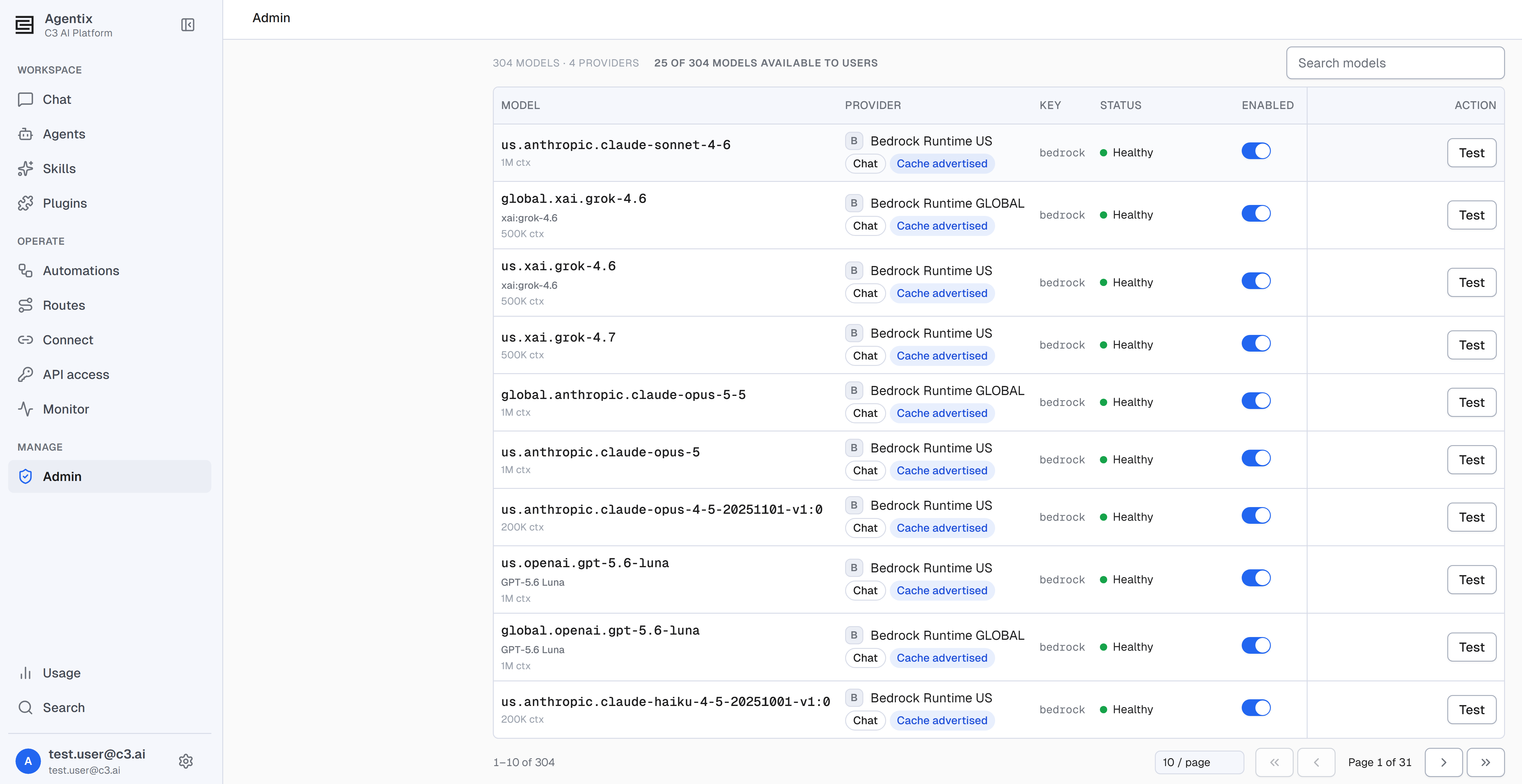
The table has these columns:
- Model: the model name, its family name when one applies, and its context window. The context window is the maximum input a model accepts, counted in tokens, for example 1M ctx. A token is the unit a model reads text in, roughly three quarters of a word.
- Provider: the provider and region, such as Bedrock Runtime US. Badges show the request format the model accepts (Chat, Responses, or Embedding) and its prompt caching status.
- Key: the name of the stored credential the LLM Service uses to call the model.
- Status: the result of the most recent check on the model.
- Enabled: whether users can pick the model.
- Action: Test, and Verify cache for models a routing profile uses.
C3 AI Agentix checks only models that are on. A model that's off shows Off as its status. It often shows a dash in the Provider and Key columns, because the LLM Service hasn't checked it yet.
Check that models respond
Select Test on a row to send one short request to that model. Select Test all to test every model that's on, three at a time. A progress bar reports how many models passed and how many need attention, and you can keep searching and paging while it runs. Select Stop testing to stop sending new tests. Tests that already started still finish.
A test result never changes whether a model is on or off. Turn off a failing model yourself after you read its status. Point to a status to see the provider's message when one exists.
The most common statuses are these:
| Status | Meaning |
|---|---|
| Healthy | The model responded to the test request. |
| Not tested | No test has run since the last Sync or since you turned the model on. |
| Credential rejected | The provider refused the stored credential. Check the credential in the LLM Service. |
| Rate limited | The provider is limiting requests. Some providers report how many seconds to wait. |
| Timed out or Provider unreachable | The provider didn't answer in time. Test again later. |
| Unavailable, Not found, or Incompatible | The provider doesn't offer this model, or the model doesn't accept the request format C3 AI Agentix uses. |
| Proxy unavailable | The LLM Service itself didn't answer. Check its status on the Status section of the LLM Service page. |
| Test error | The test couldn't run. Test again, and check the LLM Service if the error repeats. |
When a model that's on fails a check, the status message at the top of the section reports how many models need attention.
Refresh the catalog with Sync
Select Sync when a provider releases new models, when you change a provider credential, or when a model you expect is missing. Sync checks your provider credentials again and asks each provider which models it offers. It then registers any new models and checks the catalog. Select Sync to start it:
- A Sync completed message appears within a few seconds, and Sync clears the earlier Test results.
- A catalog check then runs in the background, and the status message reports its progress, for example "Checking model catalog: 294 of 304 models checked."
- When the status message reads Model catalog ready, the table shows the refreshed catalog.
Sync keeps every model's Enabled setting, so a model you turned off stays off. While the catalog check runs, the models that are on stay available to your users.
When Sync finds a credential with missing required fields, it reports the provider and the missing fields under Incomplete credentials. It reports unset optional fields under Optional credential details not set.
Sync models from additional credentials
Each provider has one primary credential, and Sync always registers the models that the primary credential reaches. Your environment can store more than one credential for a provider, for example one per region or per Azure deployment. You choose which of those additional credentials Sync also reads.
The Model sync — additional auth slots panel lists each provider with its credential type, its primary credential, and every additional credential configured in the environment. Each additional credential is called an auth slot. To sync models from an auth slot:
- Turn on the switch for each auth slot you want Sync to read.
- Select Save & sync. The panel saves your selection and starts a Sync.
- Reload the page after the catalog check finishes to see the new models.
Reset discards selections you haven't saved. An auth slot adds models only when the LLM Service holds a working credential for it and the provider can list models for it. When the catalog gains no models after a Sync, check the credential for that auth slot in the LLM Service.
Add a model by hand
Add a model by hand when you need a model that Sync leaves out, for example a model with a custom name. Select + Add model and fill in the dialog:
- Model name: the name users see in the model picker, for example
gpt-4o. - LiteLLM model: the model string the LLM Service sends to the provider, for example
openai/gpt-4oorbedrock/us.anthropic.claude-haiku-4-5-20251001-v1:0. - Credential: the stored credential the LLM Service calls the model with. A model added with None appears in the catalog but fails its check, because the provider rejects a request with no credential.
Select Add model. The new model appears in the table turned off. Turn on the model to run its check and make it available. The Models section offers no way to remove a model after you add it, so confirm the names before you select Add model.
Verify prompt caching for a routed model
Prompt caching lets a provider reuse the start of a repeated prompt at a lower cost. The cache badge in the Provider column reports what C3 AI Agentix knows about caching for each model:
- Cache verified · automatic or Cache verified · explicit: a verification run confirmed that caching works. Point to the badge to see the minimum prompt length that caching needs.
- Cache advertised: the provider reports caching support, but nobody has verified it on this model.
- Caching not supported · verified: a verification run confirmed that caching doesn't work.
- Cache check inconclusive or Cache evidence stale: run a new verification to get a current result.
- Cache not evaluated: no information exists, usually because the model is off.
A routing profile is a saved set of rules in the Auto-routing section that picks the model for each request. Verify cache appears only on models that a routing profile uses. Select Verify cache to run a short verification on that model. Each verification sends real requests to the provider, so it adds a small cost. To make Verify cache available on another model, add that model to a routing profile in the Auto-routing section.
Set chat defaults
The Chat defaults panel sets the model and reasoning effort every new chat starts with. Users can still change both in any conversation. Choose a Default model:
- Auto (recommended): C3 AI Agentix chooses a model and reasoning effort for each message, based on how demanding the message is.
- Built-in default: the option labeled with a model name and (built-in default). New chats use the model that ships with C3 AI Agentix.
- A specific model: every new chat starts with that model. The list shows models that are on and available in chat.
When you choose a specific model, set Default reasoning effort with the slider. Higher effort gives the model more time to reason, which makes answers slower and more expensive. When Default model is Auto (recommended), the effort reads Auto (routed per turn) instead.
Set the default judge model
The judge model scores conversations for automatic evaluation. Default judge model sets the judge for new agent pods, which are the running instances that serve each chat. Pods that already run keep their judge until they restart. The built-in default uses the newest Sonnet model in your catalog. The list shows every model that's on, including models that the Default model list leaves out.
Each change saves immediately and confirms with a message, such as Default judge model saved.
Set app-wide write access
Write access controls whether agents can change data in the applications they connect to. App-wide write access sets a baseline for every agent on this C3 AI Agentix application, and each agent's own rules apply on top of it. When the two disagree, the stricter rule wins. Choose a Write access mode:
- Full: the baseline adds no restriction, and each agent's own rules decide. Choosing Full clears any allow and deny rules saved at the app level.
- Scoped: the baseline limits writes with a Deny list and an Allow list. A deny rule blocks a write even when an allow rule matches. An empty allow list allows every write that no deny rule blocks.
- Read-only: the baseline blocks every write to connected applications, whatever an agent's own rules allow.
The mode saves as soon as you choose it, and it applies to new chats. The App-wide policy summary states the result in one sentence, for example "Read-only — all writes are blocked."
Add allow and deny rules
In Scoped mode, select Add rule on the Deny list or the Allow list. In the dialog, enter a full Type name, or * for every Type. A Type is the C3 AI definition of one kind of record, such as a work order. Then select the Methods the rule covers. The method options include All (*) and the action classes create, update, remove, exec, config, and file. Enter any other method or pattern in Method or pattern.
To add many rules at one time, select Bulk add and enter one rule per line. When an allow list holds only rules that match nothing, the summary reports that every write is blocked, so fix the listed invalid entries.
Control user API access
User API access lets your users create personal keys and call the C3 AI Agentix LLM endpoint from their own tools. It's on by default. Two switches at the top of the Models section control it.
Turn user API access on or off
Turn off User API access to stop all personal API use across this C3 AI Agentix application. A Turn off user API access? dialog asks you to confirm. Select Turn off:
- The API access page disappears from the left navigation, and the Usage page hides its LLM API tab.
- Existing personal keys stop working, and C3 AI Agentix keeps them so they work again when you turn access back on.
Turning access back on needs no confirmation and can take a few minutes. The switch reads Starting… while C3 AI Agentix prepares model routing. Select Cancel startup to stop and leave access off. The status message reads Model routing is ready when users can call the endpoint again.
Choose default access for new users
The Default access for new users switch decides who gets personal API access while User API access is on:
- On: every user has personal API access unless an administrator revokes it for that user.
- Off: only users with the
Agentix.LlmApiUserrole or an individual grant have access. Administrators need a grant too, which you give from the Users tab of the API access page.
The change takes effect within a few seconds.
Permissions
Every action on LLM Service sits on the Admin page, which requires Agentix.AppAdmin or a platform administrator. Find the action you want to take, then check the role it requires:
| Action | Role required |
|---|---|
| View the Models section | Agentix.AppAdmin, or a platform administrator |
| Turn on or turn off a model, run Test, Test all, Sync, or Verify cache, add a model, or change auth slots | Agentix.AppAdmin, or a platform administrator |
| Change chat defaults, the default judge model, or app-wide write access | Agentix.AppAdmin, or a platform administrator |
| Change User API access or Default access for new users | Agentix.AppAdmin, or a platform administrator |
Agentix.AgentAdmin alone doesn't open the Admin page, so it can't view or change anything on LLM Service.
For the full role ladder, see Roles and Permissions.
See also
- Administer C3 AI Agentix: What each area of the Admin page does.
- Manage Agent Services: The agent pods that serve each chat, and the fleet controls for them.
- Monitor Usage and Cost: Token usage and cost across agents, including the models they run on.
- My Usage: The page where each user tracks their own usage, including the LLM API tab.
- Roles and Permissions: The full role ladder, including
Agentix.LlmApiUser.