Manage Agent Services
Each chat runs inside its own cloud pod, which hosts the chosen agent and holds that conversation's state for as long as it's active. This pod is called an agent service. A busy environment can have dozens or hundreds of these running at once: some active, some idle, some winding down.
As the administrator, you monitor the fleet of agent services, step in when one fails or hangs, and control how much idle capacity stays warm, which is the difference between a chat opening immediately and waiting through a cold start.
Most of what goes wrong here shows up as a service stuck in Creating or Starting.
Lifecycle of a service
Starting a chat is what creates an agent service; the New Agent Service link on this page takes you to the agent gallery to do exactly that.
A service moves through six states as it's used.
- Creating: the row exists, but its pod hasn't started deploying yet.
- Starting: the pod is deploying and booting, not yet healthy.
- Ready: the pod is healthy and warmed, waiting in the pool, not yet bound to a conversation.
- Active: a conversation is running on it right now.
- Stopped: the pod is gone, but its workspace stays intact.
- Terminated: the service and its workspace are gone for good.
While a Stopped service is being resumed, its status pill briefly reads Resuming, a display-only label for that transition. It settles into Active on success, or back to Stopped on failure.
The distinction worth understanding before you touch anything is Stopped versus Terminated: one is reversible, the other permanent. See Stop, resume, or terminate a service.
View the Agent Services
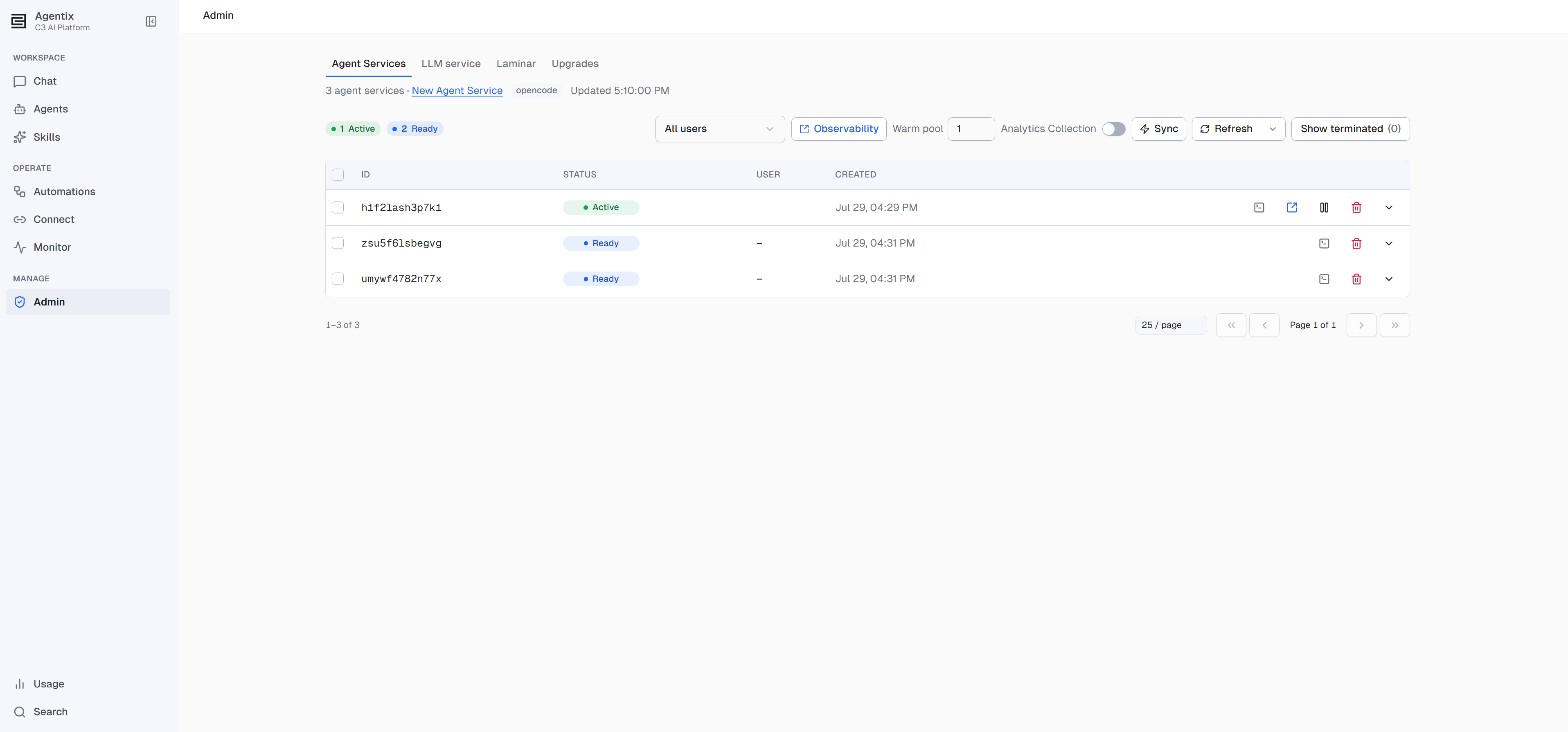
Open Admin from the left navigation. Agent Services, under Agents, opens first. Every user's services appear in a table with ID, status, owner, and creation time columns. A row of status pills summarizes how many services are in each state, showing only the states that currently have at least one service.
- Filter by user: the User control defaults to All users; pick a specific one to narrow the table to their services.
- Show terminated brings destroyed services back into view, useful for confirming a termination happened or auditing what was cleaned up and when. While it's off, the button's count shows how many terminated services are hidden.
- Set a refresh interval, or select Refresh, to keep the table current.
- Select the checkboxes on multiple rows to Terminate them together in one confirmation.
- Expand a row to list that service's chat sessions, or select View service details for its pod status.
Observability links out to the tracing service in a new tab, once it has finished starting and has a reachable URL. Until then, the button stays disabled, with a tooltip explaining what it's waiting on.
When recent deploys are failing across the fleet, a banner names a likely cause automatically. You don't have to open individual services just to find the pattern. See Diagnose a fleet-wide problem for the patterns it looks for.
View service details
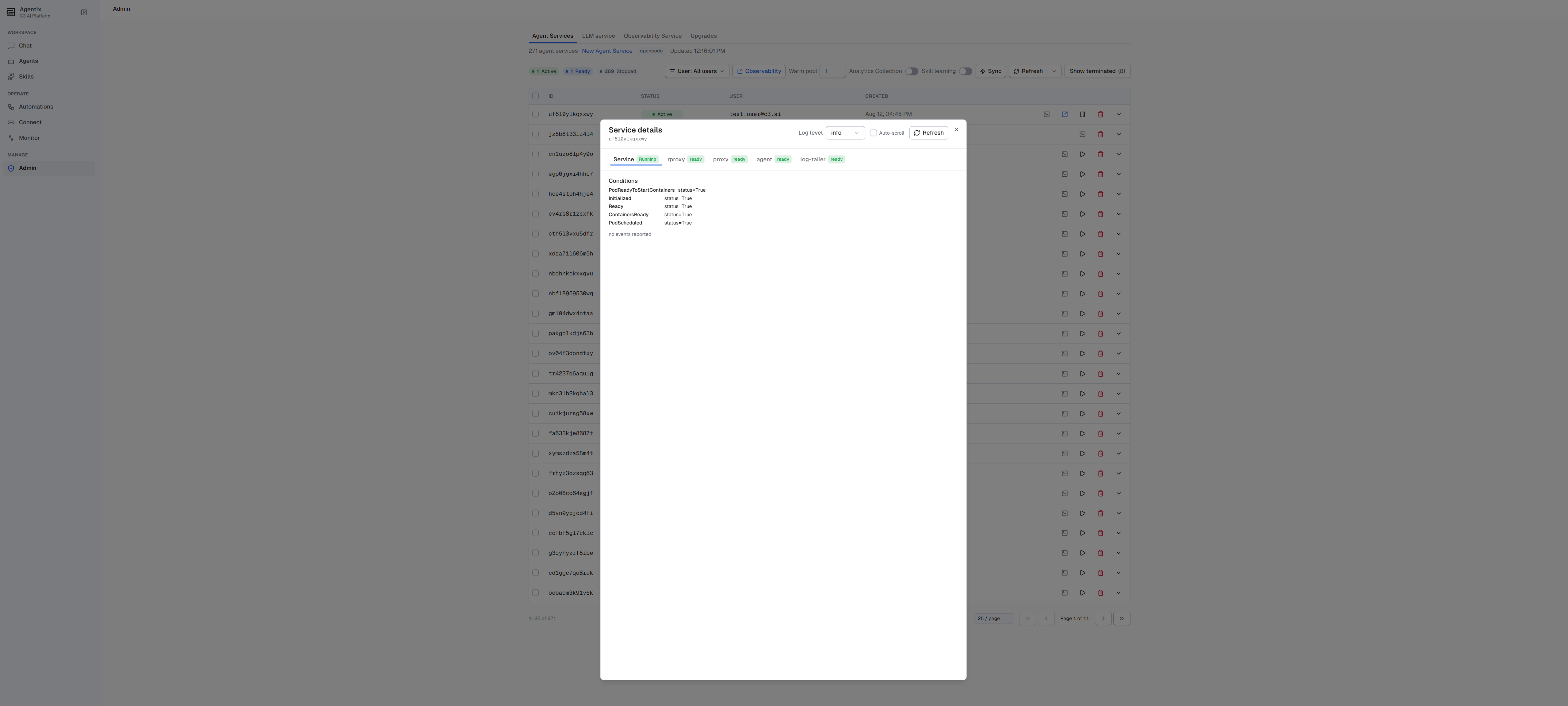
Select View service details on a row (disabled while a service is still Creating, before it has a pod to inspect) to open a dialog with:
- A Service tab: the pod's conditions, its recent Kubernetes events, and, while the service is still coming up, its startup log. A service whose pod has been reclaimed by the platform, for example during a node failure or a platform redeploy, shows a specific notice instead of a confusing blank state.
- One tab appears per container in the pod, for example the agent process and any supporting container it runs alongside. Each shows that container's state, its restart count, and its raw logs. A restarting container carries a small warning so it stands out among healthy ones.
- A Log level control that raises or lowers verbosity for every container in that pod at once, and an option that keeps a container's live log tab scrolled to the newest line.
The dialog polls for updates every five seconds; select Refresh to force an update immediately.
Stop, resume, or terminate a service
Select a service, or several through the row checkboxes, to act on it.
| Action | What it does | Reversible |
|---|---|---|
| Open | Opens the service's chat. | — |
| Stop | Removes the running pod but preserves its workspace. | Yes, through Resume. |
| Resume | Recreates a stopped service from its preserved workspace. | — |
| Terminate | Permanently destroys the service and its workspace. | No. |
Every action asks for confirmation first. Use Stop when you may need the service again. Use Terminate only when you are certain it's finished.
On a deployment backed by AWS Bedrock AgentCore, active services skip Stop entirely: stopping there would only scale the Kubernetes pod down, leaving the AWS-billed runtime session running behind it. Terminate is the only action that ends it.
Diagnose a fleet-wide problem
When chats in one application feel slow to open, check the fleet table for a cluster of services stuck in Creating or Starting instead of Active. Open one of those services for its pod events: a failing image pull, not the agent itself, is a common cause.
Beyond the failure banner, the fleet table itself is your first diagnostic tool. A spike in Creating or Starting services, or a cluster of Stopped ones where you expect Active, usually means something upstream is wrong. An image pull, cluster capacity, or a bad config change can affect many services at once, instead of just one conversation going wrong on its own. Open an individual service's View service details for the pod conditions, events, and container logs that confirm the cause.
The automatic banner looks for six patterns across recent terminations:
- A stale config seed.
- A missing image tag.
- A failing Helm install or upgrade.
- Pods stuck mid-transition.
- An out-of-memory kill.
- A crash loop.
Size the warm pool
C3 AI Agentix keeps a pool of pre-started Ready services on hand specifically so a new chat starts immediately instead of waiting through a cold start.
The Warm pool field sets how many pre-started services to keep ready. Press Enter or select elsewhere to save it.
- The pool refills itself every five minutes, and stops idle services on the same cycle.
- Select Sync to refill it immediately instead of waiting.
- Setting the pool to 0 terminates any idle pool services straight away.
Sizing the pool trades cost against speed: a larger pool means faster chat starts, at the cost of more idle capacity running. Start with a size that matches your typical concurrent-user count, then adjust as you observe real start-time and cost data.
When a user's service starts
A user's agent service starts only when they open Chat. Opening the application or browsing any other page, such as Agents, Usage, API Access, or Admin, starts no service for them. On Chat, the user gets their existing service if one is running or resumes their stopped one. Otherwise they claim a Ready service from the warm pool, or start one cold when the pool is empty.
The warm pool is what makes that first chat fast. For a deployment used mainly through the LLM router or API Access, where most people never open Chat, set Warm pool to 0 to run no idle services. The first chat then waits through a cold start.
Turn on analytics collection
Analytics Collection, also on this page, turns on product analytics and feature flags for the deployment. It's off by default.
If you turn Analytics Collection on, reload the page afterward. Browser-side analytics only take effect on a fresh load, not immediately after the toggle.
Cap skill learning for the deployment
Skill learning sets a deployment-wide ceiling on the nightly skill-learning loop. No individual user's own preference can exceed this ceiling. It's off by default, so the loop mines nothing until you turn it on.
Because this control is one switch, turning it on sets the deployment ceiling to Review first, so every learned skill waits for review before it applies. If your deployment's ceiling is already Apply automatically, where skills apply without review, it stays there while the switch is on. The switch only ever raises an off deployment to the reviewed tier; it never silently drops an automatic one back down. Turn off the switch at any time to stop mining entirely, regardless of where the ceiling was set.
Permissions
The Agent Services page sits on the Admin page, so every action on it requires Agentix.AppAdmin or a platform administrator. That role covers these actions:
- Viewing every user's services, the status pills, and each row's sessions.
- Opening the View service details dialog.
- Stopping, resuming, or terminating any user's service.
- Setting the warm-pool size, forcing Sync, and toggling Analytics Collection or Skill learning.
Agentix.AgentAdmin alone doesn't open this page.
For the full role ladder, see Roles and Permissions.