Explore Types in the Object Model
Use the Object Model tab of Data Fusion to find the Types in your application and its dependency packages. Dependency packages are the packages your application depends on. You can browse Types as cards or as a table and search them. You can also filter Types by package or by field and relationship counts, sort Types by name, and star the Types you use often.
To work with the entity relationship diagram (ERD), see Manipulate ERD Views with Object Model. To inspect one Type, see Inspect a Type in the Object Model.
Open the Object Model
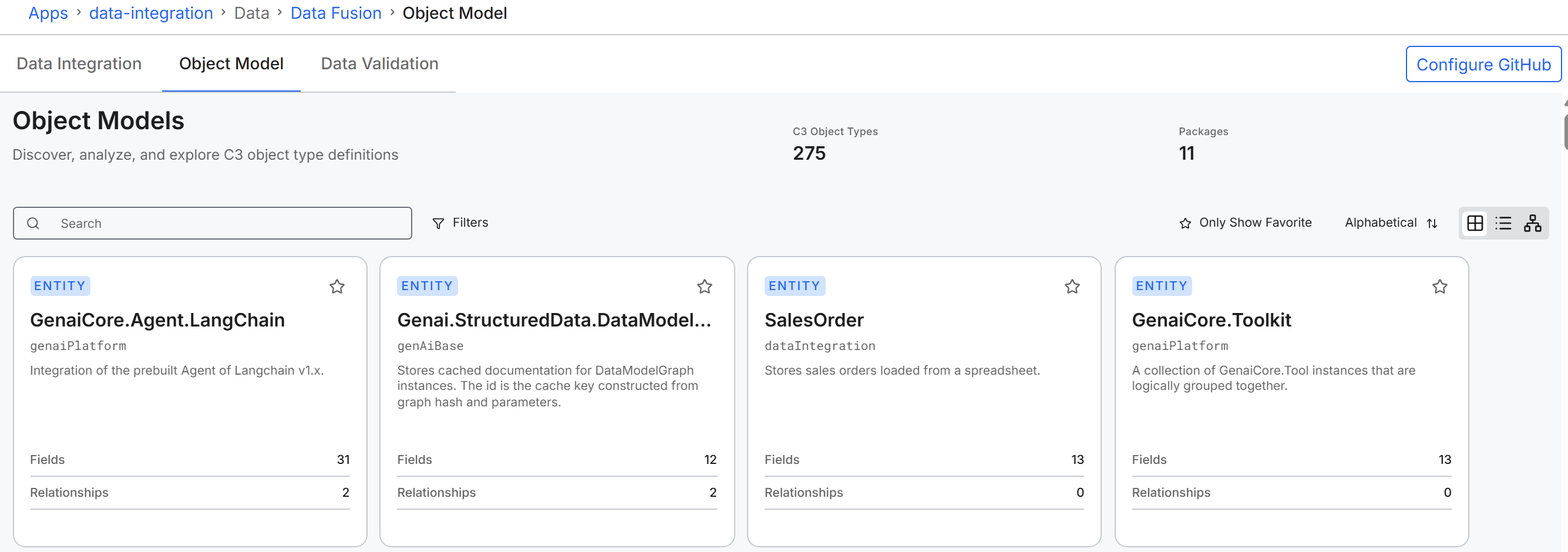
The Object Model opens to the Grid view. To open the Object Model:
In C3 AI Studio, open your application, select Data > Data Fusion, and then select the Object Model tab.
The C3 Object Types and Packages counts reflect your current search and filters.
Switch between views
The view switch in the toolbar has three buttons: Grid view, List view, and Diagram view. Your search and filters stay applied when you switch between the Grid view and the List view. The Diagram view uses its own package Filter; see Manipulate ERD Views with Object Model.
Browse Types in the Grid view
The Grid view shows each Type as a card. Each card shows:
- A star to mark the Type as a favorite.
- The Type name and the package it belongs to.
- A short description.
- A Fields count of the Type's stored fields.
- A Relationships count of the Type's reference fields to other Types.
Select a card to open the Type Detail panel. For the panel, see Inspect a Type in the Object Model.
Browse Types in the List view
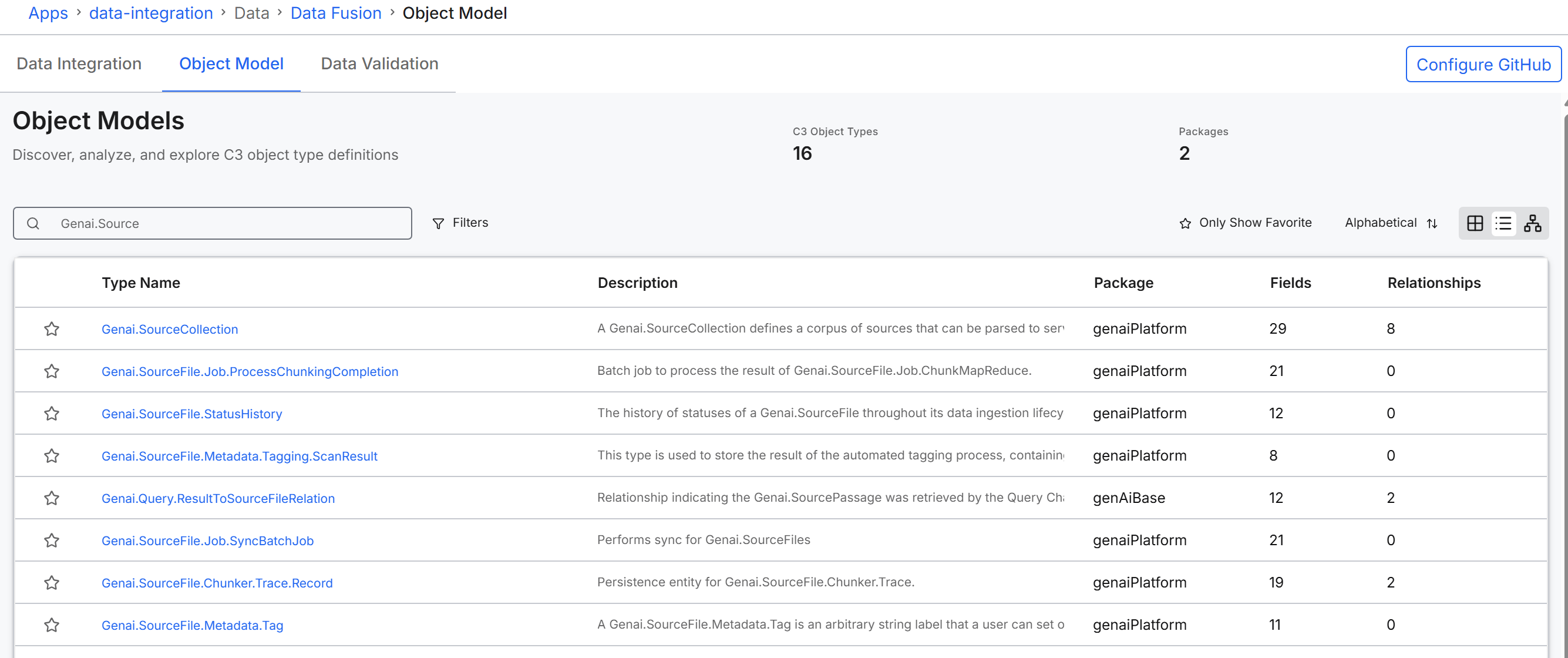
The List view shows the same Types as a table, one row per Type. The table has a star column and these columns:
- Type Name: The name of the Type.
- Description: A short description.
- Package: The package the Type belongs to.
- Fields: The number of stored and calculated fields. This count can be higher than the card's Fields count, which includes stored fields only.
- Relationships: The number of reference fields the Type has to other Types.
Select a row to open the Type Detail panel. Select the Type name in a row to open the full Type Detail page.
To change the row order, use Alphabetical, as described in "Sort Types by name" in this topic.
Search for Types
Type in Search to narrow the Types shown. Search matches any part of a Type name, package name, or description, and ignores case. The Grid view and List view update shortly after you stop typing.
To clear the search, delete the text in Search.
Filter Types
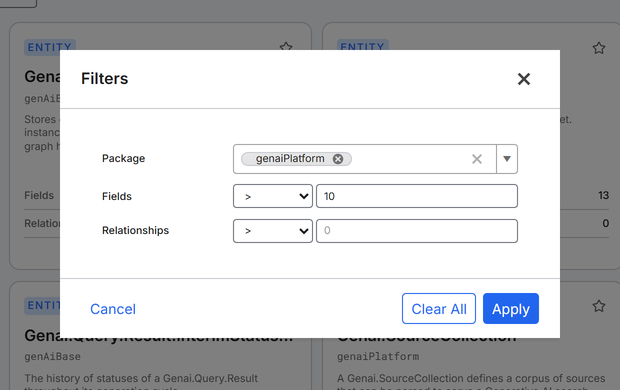
Filter Types by package, by number of fields, or by number of relationships. To filter Types:
- Select Filters. The Filters dialog opens.
- Set one or more filters:
- Package: In Select package..., select one or more packages.
- Fields: Select an operator (
>,<,==,>=, or<=) and enter a number. The default operator is>. - Relationships: Select an operator and enter a number, as for Fields.
- Select Apply.
While filters are active, select Clear Filters in the toolbar to remove them.
In the Filters dialog, Clear All clears the dialog's selections and keeps it open. To remove the active filters, select Apply after Clear All. Cancel closes the dialog without changing the active filters.
Sort Types by name
By default, Types appear in load order, without sorting. The Alphabetical button in the toolbar sorts the Grid view and the List view by Type name. Each selection moves to the next order:
- First selection: A to Z.
- Second selection: Z to A.
- Third selection: the default order.
Mark Types as favorites
On application server version 8.11 and later, you can star the Types you use often and show only those Types. To mark a Type as a favorite, select the star (Add to favorites) on its card or row. To unmark the Type, select the star again.
To show only your favorites, select Only Show Favorite in the toolbar. Select Only Show Favorite again to show every Type.
Favorites are saved with your user account, so they stay the same across browser sessions. On earlier server versions, the stars and Only Show Favorite do not appear.
If no Types appear
The Grid view and List view show a message when no Types are listed:
- Loading types...: The Types are still loading. Wait for the list to appear.
- Error loading types: The Types did not load. The message includes the error. Reload the page to try again.
- No types found: No Types are available to the Object Model in this application.
- No types match current filters: No Type matches your search, filters, or Only Show Favorite selection. Clear Search, select Clear Filters, or turn off Only Show Favorite.