Inspect a Type in the Object Model
Select any Type in the Object Model tab of Data Fusion to review it in the Type Detail panel. The panel shows the Type's overview, fields, methods, and relations. From the panel, open the full Type Detail page. The page's Objects tab charts the Type's data and lists the Type's saved records.
To find a Type first, see Explore Types in the Object Model. For the entity relationship diagram (ERD), see Manipulate ERD Views with Object Model.
Open the Type Detail panel
In C3 AI Studio, open your application, select Data > Data Fusion, and then select the Object Model tab. Then open the panel from any view:
- In the Grid view, select a Type card.
- In the List view, select a row.
- In the Diagram view, select a node.
To close the panel, select Close drawer. To mark the Type as a favorite, select the star in the panel header (application server version 8.11 and later).
Review the panel tabs
The panel has four tabs:
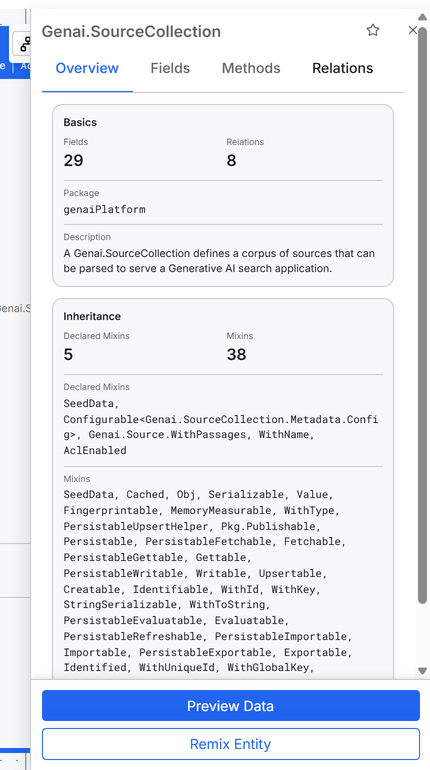
- Overview: Two cards. Basics shows the Fields and Relations counts, the Package, and the Description. Inheritance lists the Declared Mixins, which the Type declares, and all Mixins it inherits. A mixin is a Type whose fields and methods another Type takes on.
- Fields: One card per field, with the field name, Data Type, and Description. Use Search to find a field by name. Badges mark required fields (
REQUIRED), calculated fields (CALCorSTORED CALC), and foreign keys (FK). - Methods: One card per method, with the method name and its Return Type. Static methods show the
staticbadge. The tab shows "No methods found" when the Type has no methods. - Relations: One card for each Type that this Type references or that references this Type. Each card shows the related Type's name, package, and description, and a Relationship Detail such as
ONE TO MANY. The tab shows "No relations found" when the Type has no relations.
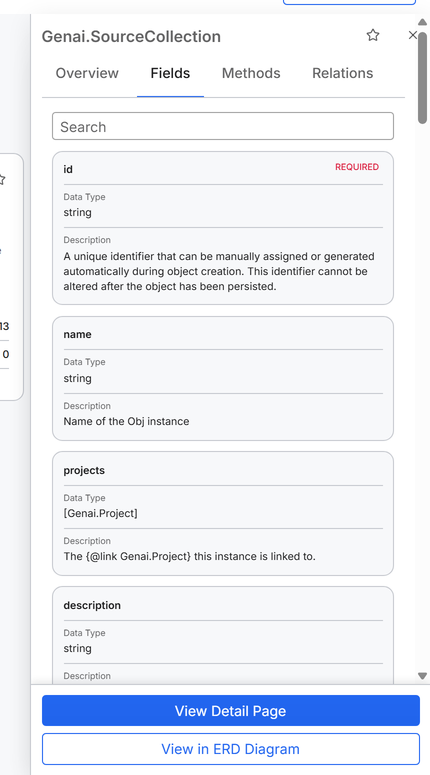
The Relations count on the Overview tab counts only this Type's references to other Types. The Relations count can be smaller than the number of cards on the Relations tab, which also lists Types that reference this Type.
Act on the Type from the panel
The panel's buttons depend on the view you opened it from.
In the Grid view and List view, the panel has these buttons:
- View Detail Page: Opens the full Type Detail page.
- View in ERD Diagram: Switches to the Diagram view and centers the Type. The panel stays open.
In the Diagram view, the panel has these buttons:
- Preview Data: Closes the panel and opens the preview drawer on its Preview Data tab, which lists saved records of the Type.
- Edit Entity, Remix Entity, or View Entity: Opens the Type's source in the code editor. The label matches what you can do. Edit Entity shows for Types in your root package, which is the package your application is built from. Remix Entity shows for Types in a dependency package that you can save an edited copy of. View Entity opens the code read-only. For the rules, see Add and Update Entities in the Object Model.
Open the full Type Detail page
The Type Detail page shows the same details in a wider layout and adds the Objects tab. To open the Type Detail page, select View Detail Page in the panel. In the List view, you can also select the Type name in a row.
Select Type Explorer in the breadcrumb to return to the Grid view. Select View in Diagram to open the Type in the Diagram view.
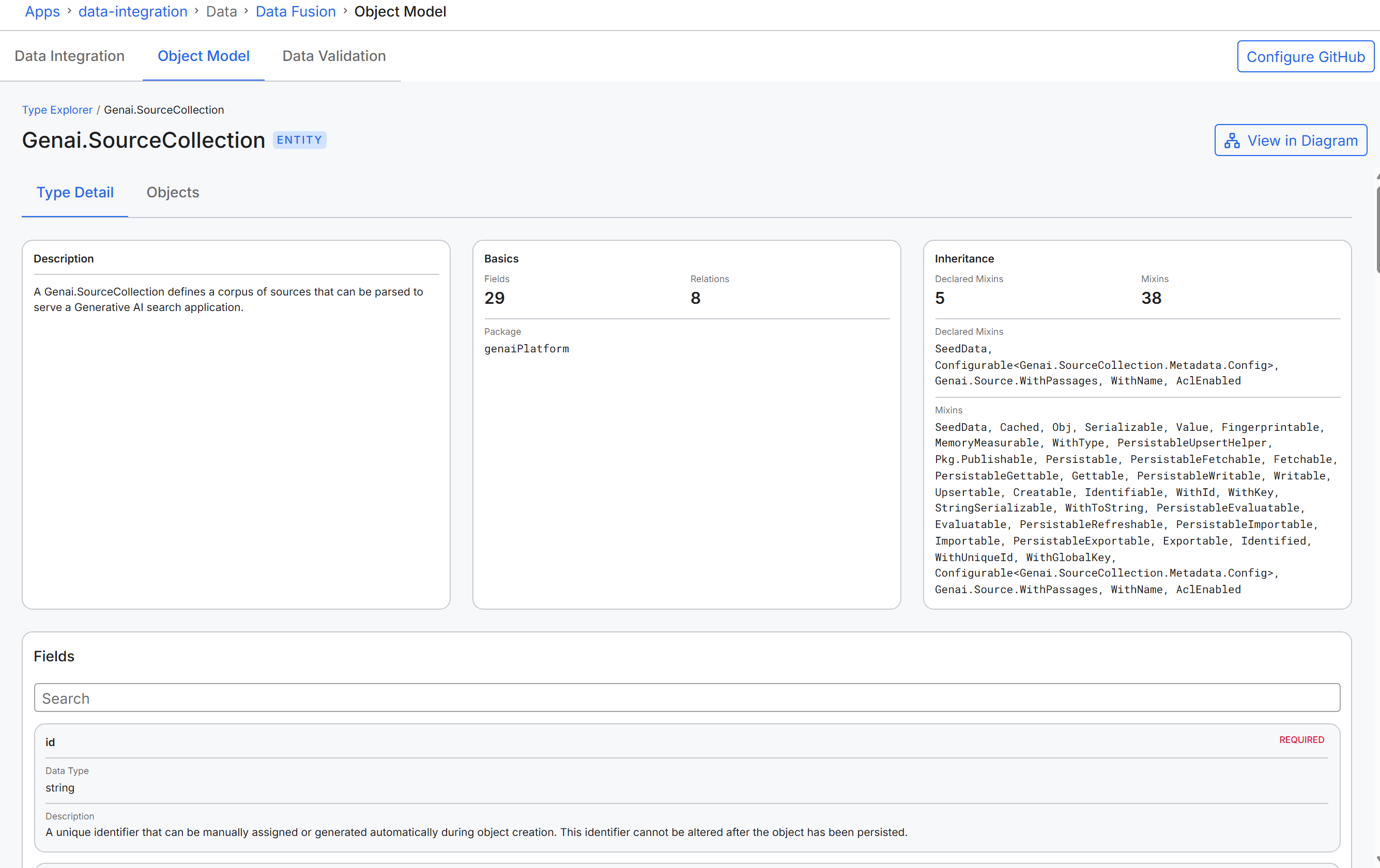
The page has two tabs:
- Type Detail: The Description, Basics, and Inheritance cards, then a searchable Fields list and a Methods section.
- Objects: A chart dashboard of the Type's data and a grid of the Type's saved records.
Chart a Type's data in the Objects tab
On application server version 8.11 and later, the Objects tab starts with a chart dashboard. A large language model (LLM) generates the charts from a sample of the Type's records. On earlier server versions, the tab shows only the grid of saved records.
The dashboard calls the LLM through a completion client. By default, the dashboard uses the default-completions client. To set up a completion client, see Set Up LLMs and Embedders Via UI.
The first time the Objects tab opens for a Type in your application, the tab creates the Type's chart dashboard. The tab then generates the charts with one call to the configured LLM. Later visits show the saved dashboard. Wait for the dashboard to load. If the dashboard has no charts, it shows No Charts Available.
Each chart card has two actions:
- Refresh chart data: Runs the chart's description through the LLM again and redraws the chart with current data.
- Reconfigure chart: Opens the Generate Chart dialog with the chart's current description.
If a chart's data cannot load, the card shows Chart data unavailable. If the chart cannot be drawn, the card shows Unable to display chart. Both cards show a Regenerate button.
Change or regenerate a chart
Change what a chart shows by editing its description. To change or regenerate a chart:
- On the chart card, select Reconfigure chart, or select Regenerate on a chart that failed.
- In the Generate Chart dialog, describe the chart in Chart Description. For example, enter
Show a pie chart of objects by status. - Select Generate. Generate is unavailable while Chart Description is empty. To close the dialog without changes, select Cancel.
The LLM reads your description, queries the Type's records, and redraws the chart on the dashboard.
Browse saved records in the Objects tab
The All Objects grid lists the saved records of the Type, one row per record. The grid's columns come from the Type's stored fields.
- To sort the rows, select a column header.
- To find records, type in the grid's search field. The grid shows rows of the current page with a matching value in any visible column.
- To change the number of rows per page, select 50, 100, or 200. The default is 100.
- To choose the columns, select Config Columns.
- To see one record in full, select its row. The Object Details view opens.
A reference field shows the referenced record as JSON, such as its id. If the Type has no saved records, the grid shows "No instances found for this type".