Add and Update Entities in the Object Model
The entities in the Object Model tab of Data Fusion are the entity Types that make up your application's data model. Each entity Type defines a kind of data your application stores: its fields, its relationships to other entities, and the methods that act on it. Add an entity when your data model needs a Type it does not have yet, for example:
- A Type for a part of your business, such as
Customer,Order, orAsset. - A target Type that receives records from a data integration pipeline.
- A Type with built-in behavior, such as time series or machine learning features, which you get by starting from an entity template.
You add, edit, remix, and delete entities in the Diagram view of the Object Model, which shows your data model as an entity relationship diagram (ERD). For the Diagram view, see Manipulate ERD Views with Object Model.
Before you begin
Data Fusion writes the entities you add or change into your application's root package. The root package is the package your application is built from. Dependency packages are the packages your application depends on.
Data Fusion saves the entities you add, edit, or delete in this environment only, not in your GitHub repository. An application redeployed from the repository does not have them, so push your changes to GitHub. For the steps, see Promote and Version a Data Fusion Pipeline.
Before you add or change entities, check the following:
- Your application must not be in production or test mode: in those modes, Add new entity is unavailable, its tooltip starts with "Cannot add entities in", and the code editor opens read-only.
Add an entity
Start from a template that already includes the behavior you need, or start from scratch.
The Select an entity template list shows these templates, sorted by name:
| Template | Choose the template when | Mixes |
|---|---|---|
| Entity with Feature Evaluatable | You want to derive machine learning features from the entity's data. | FeatureEvaluatable |
| Sample Time Series Complex Partitioning | The entity holds a time series that needs complex partitioning. | FeatureEvaluatable |
| Simple Calc | You want to start from an entity that already has calc fields. | None |
| Simple Relational | You want a plain relational entity with a few string and double fields to adapt. | None |
| Simple Timeseries consisting of IntervalDataPoints | You store a time series as interval data points. | IntervalDataPoint |
| Timed Interval Relation | You relate two entities over a period with a start and end timestamp. | TimedIntervalValue |
| Timeseries header | You need one header entity that represents a collection of time series. | IntervalDataHeader |
Each template mixes in the Type in the Mixes column, which provides its behavior. For what each mixed-in Type provides, see its documentation. The list includes every entity template available in your application, so it can differ with the packages your application uses.
To add an entity:
In C3 AI Studio, open your application, select Data > Data Fusion, and then select the Object Model tab.
In the view switch, select Diagram view.
In the entity toolbox, select Add new entity. The code editor opens on Select an entity template.
Select a template, or select Create entity from scratch to start from an empty Type.
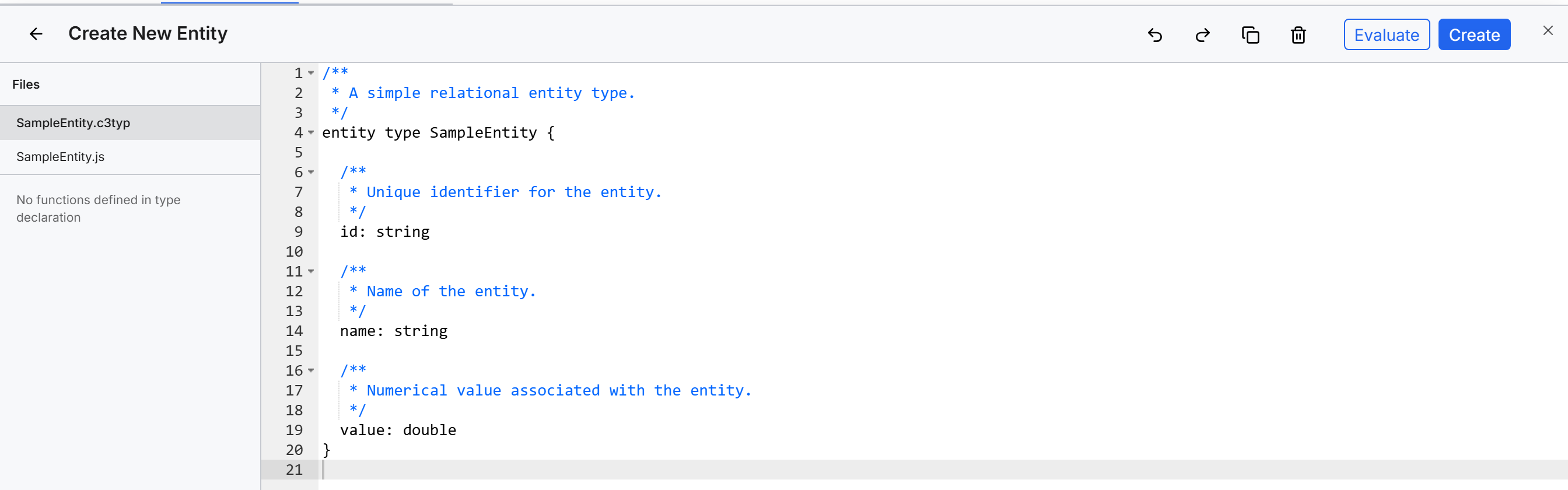
The Create New Entity editor opens. The editor's Files list holds the Type's declaration file (
.c3typ) and its implementation file (.js).In the
.c3typfile, set the Type's name in the declaration and define its fields and methods. Implement the methods in the.jsfile.Optional: Select Evaluate to check the declaration for errors without saving it.
Select Create.
The Entity Created dialog confirms that Data Fusion added the Type to your root package. The dialog also says that the new entity will appear in the diagram shortly. Select Return to Object Model Canvas to close the editor, or Continue Editing to keep working. If the declaration has an error, the editor shows a message such as "Failed to parse the type declaration for" followed by the Type name.
If you close the editor with unsaved changes, the Code Has Changed dialog opens. Select Save Changes to keep your changes or Discard Changes to drop your changes.
Edit an entity
You can edit an entity in your root package, including an entity marked final (a Type that cannot be remixed). To edit an entity:
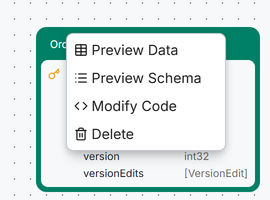
- In the Diagram view, right-click the entity, or hover over it and select Actions.
- Select Modify Code. The code editor opens with the Type's files.
- Edit the files.
- Select Save.
The Entity Updated dialog confirms the change. Select Return to Object Model Canvas to close the editor, or Continue Editing to keep working.
Remix an entity from a dependency package
To change an entity from a dependency package, remix it: save an edited copy in your root package. The menu shows Remix Code for an entity in a dependency package that is not marked final. To remix an entity:
- In the Diagram view, right-click the entity, or hover over it and select Actions.
- Select Remix Code. The code editor opens with the Type's files.
- Edit the declaration. The declaration must use the
remix typesyntax, or the save fails. - Select Save.

The Entity Remixed dialog confirms that Data Fusion saved the remix in your root package.
For other entities, such as a dependency entity marked final, the menu shows View Code. View Code opens the code editor read-only.
Delete an entity
Delete an entity Type that you no longer need from your root package.
Selecting Delete removes the entity Type at once. No confirmation dialog appears.
To delete an entity:
- In the Diagram view, right-click the entity, or hover over it and select Actions.
- Select Delete.
Data Fusion removes the Type's definition from your root package and removes the node from the diagram. The message Deleting <Type name>... appears, followed by Successfully deleted <Type name>.
Delete is unavailable for entities in a dependency package, for entities marked final, and in production or test mode. The disabled item shows the tooltip "Cannot delete types outside the root package or final types".