Overview of ERD Node Grouping
The Diagram view of the Object Model tab in Data Fusion shows your data model as an entity relationship diagram (ERD). Each entity Type appears as a box, called a node. A node group is a named container that holds related nodes, so they move, collapse, and save together.
Groups make a large diagram easier to scan. Each group draws a labeled container around its nodes, and a collapsed group takes the space of one compact container. To create and change groups, see Manage ERD Node Groups.
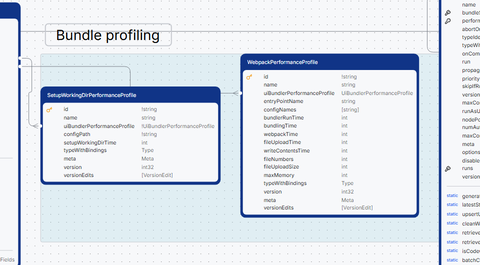
When to group nodes
Choose a grouping approach that matches how your team reads the data model. Common approaches:
| Grouping approach | Example groups | Use this approach when |
|---|---|---|
| By business domain | Customers, Orders, Billing, Identity | Reviewers work through one part of the business at a time. |
| By role in the model | Core entities, Reference tables, Audit tables, External mappings | You want the main entities to stand apart from lookup and history Types. |
| By stage of work | New schema, Legacy, Migration staging | You are changing the data model and want to show what is new and what stays. |
With any approach, collapse the groups you are not working on to focus on the rest of the diagram.
What you can do with a group
The Diagram view supports these group actions:
- Name a group: Each group shows its title on its edge. Type a name when you create the group, and double-click the title to rename it later.
- Move a group: Drag the group. The group's nodes move with the group.
- Arrange nodes in a group: Drag a node inside its group to reposition it.
- Add a node: Drag a node that is not in a group onto a group.
- Remove a node: Select Remove from Group in the node's context menu. Dragging a node does not take it out of its group.
- Fit to contents: A group sizes itself to fit its nodes. The group grows or shrinks as you move, add, or remove nodes.
- Collapse and expand: Collapse a group to a compact container that lists its entity Type names. Expand the group to show every node.
- Color a group: Choose a background color for the group.
- Ungroup: Remove the group. The group's nodes stay in the diagram where they were.
A group holds nodes only. A group cannot contain another group, and a node belongs to one group at a time.
How groups are saved
Groups are saved as part of a view. A view is a saved set of diagram settings, node positions, groups, and package filter selections. When you create or change a group, the views list shows an Edited badge. Your changes stay in your browser until you select Save view.
When you save the view, it keeps each group's nodes, name, color, and collapsed or expanded state. Saved views belong to the application, so everyone who opens the view sees the same groups. To discard unsaved group changes, select Reset view. For saving and resetting views, see Manipulate ERD Views with Object Model.