Authenticate Streaming Sources
You are adding a streaming source in Data Fusion. The C3 Agentic AI Platform needs permission to read from your message broker. A message broker is a service that holds records in topics or streams until a consumer reads them. Apache Kafka, Azure Event Hubs, and Amazon Kinesis are message brokers.
A connector is the connection to one broker, and the connector wizard creates it. The connector appears on the Data Fusion canvas as a Cloud Message Source System node. Each topic or stream you read from becomes a source collection, a canvas node that receives the records and starts your pipeline.
To connect, choose the method your broker supports, gather the connection details and credentials it needs, and enter them in the connector wizard. The Credential fields by connector section lists the exact fields for each broker.
Find the Authentication step
Open the connector wizard from Data > Data Fusion, then select Add Data Source and pick a connector. The wizard for a streaming connector has four steps, then opens a dialog to choose the stream:
- Connector: choose the broker, such as Kafka.
- Destination: name the connector and give the broker location, such as the Kafka bootstrap endpoint, the bootstrap broker URL of your Kafka cluster.
- Authentication: enter the credentials. Azure Event Hubs also asks you to choose an Authentication Method; Kafka and Kinesis have one sign-in method each.
- Review & Test: check the values, then select Next.
- Select Message Stream: name the source collection, and choose the Media Type, the format of the records, such as
application/jsonortext/csv. Choose the topic or stream in Stream. Select Save & Close to add the connector and the source collection to the canvas.
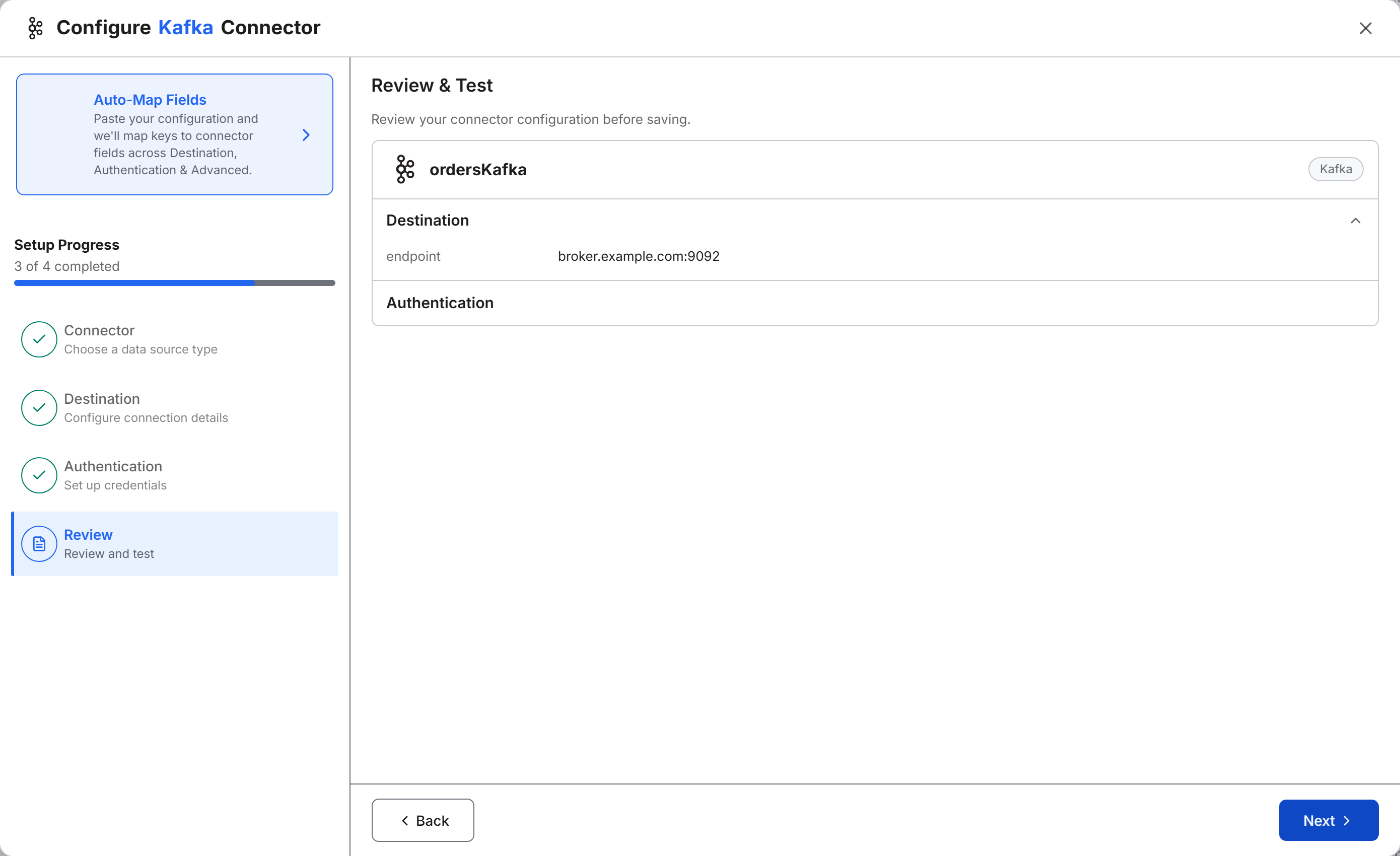
The Review & Test step has no Save & Test button. The platform first contacts the broker when Select Message Stream lists the topics or streams. If the platform cannot reach the broker or the credentials are wrong, the dialog shows an AI Error Analysis summary. The summary names the likely cause, such as an unreachable endpoint or an incorrect secret. Select Back to return to the Review & Test step of the wizard. From there, go back to the step that holds the value the summary names and correct it.
The Stream field also accepts a typed name. Azure Event Hubs with a Shared Access Key can show an empty list even when the credentials work. In that case, type the event hub name in Stream.
The wizard hides secret values, such as API secrets, secret keys, and shared access policy keys. A shared access policy is a named access rule on an Event Hubs namespace, with its own key. To check a secret as you type it, select Show password.
Replace a stored credential
To replace a key or secret after you save a source collection, edit the credentials from the stream dialog:
- On the canvas, select the Cloud Message Source Collection node. The Select Message Stream dialog opens.
- Select Edit Credentials. An edit wizard opens on the Destination step. The edit wizard has three steps: Destination, Authentication, and Review.
- Enter the broker location again, such as the Kafka Endpoint. The wizard does not show the stored value.
- Select Continue. On the Authentication step, enter the new credentials, such as ApiKey and ApiSecret.
- Select Continue, then select Next on the Review & Test step.
- In Select Message Stream, select Save Changes.
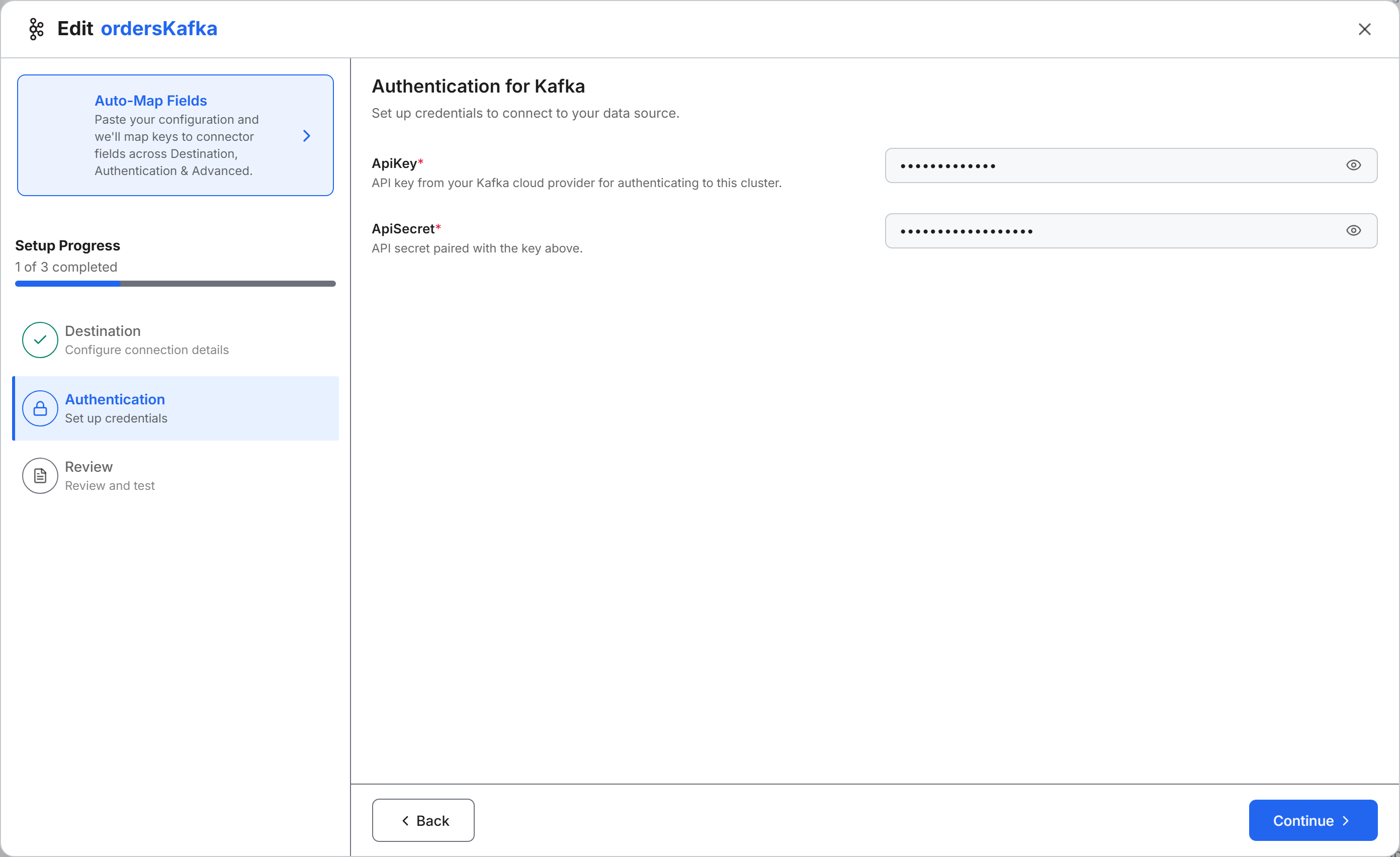
Data Fusion stores the credentials per topic for the whole application. Every source collection in the application that reads the same topic uses the new credentials. Source collections that read other topics keep their old credentials, so repeat these steps for each topic.
Authentication strategies
Every method that the wizard offers for streaming connectors uses a stored secret and follows one of two strategies:
| Strategy | What it is | You provide | Connectors and methods |
|---|---|---|---|
| Access keys and tokens | A long-lived secret that the broker or its cloud provider issues and that grants access by itself | A key and secret, or a shared access policy name and key | Kafka (API key and secret), Kinesis (AWS access key and secret), Azure Event Hubs Shared Access Key |
| Registered application identity | A non-human account that you register in Microsoft Entra ID, formerly Azure Active Directory | A tenant ID, an application (client) ID, and a client secret | Azure Event Hubs Active Directory |
The wizard offers no keyless sign-in, such as an assumed AWS Identity and Access Management (IAM) role or an Azure managed identity, and no single sign-on. Some Kafka connections need a setting the wizard does not have. These settings are Kerberos, a Simple Authentication and Security Layer (SASL) mechanism other than PLAIN, and a Transport Layer Security (TLS) client certificate. For these settings, create the connector in code instead of the wizard. The Brokers and connectors section of Configure Streaming Sources names the Kafka settings that code supports.
Choose an access key or an application identity
Pick the method that matches your broker:
- Azure Event Hubs: use Active Directory where you can. The credential belongs to an application you control, not to a person, so it survives staff changes. You can also limit the credential to the namespace you need. Use Shared Access Key when an app registration is not practical.
- Kafka or Kinesis: use the one key-and-secret method. The secret grants access by itself, so treat it like a password and replace it on a schedule.
Whatever the method, enter secrets only on the Authentication step of the connector or with setCredentials from the C3 AI Console. Never put secrets in transforms, package files, or committed source. Credentials stay in the environment where you enter them and do not promote with the package, because publishing removes the fields marked secret. Enter the credentials again in each environment. When a key expires or the provider revokes it, the source collection stops receiving new records. If records stop arriving, check that the key is still valid, and replace it as Replace a stored credential describes.
Gather connection details and credentials
Collect these before you open the wizard:
- A connector name: letters, digits, and underscores, not starting with a digit. No other source system in your application, whether streaming, file, or database, can use the same name.
- The broker location: the Kafka bootstrap endpoint; the Event Hubs resource group, namespace, and region; or the Kinesis AWS region. You choose the topic or stream itself in Select Message Stream.
- Network access: the environment that runs your application must reach the broker endpoint through any firewall, private network, or IP allowlist.
- A broker identity with read access: the credential must be able to list the topics or streams and read records from the one you choose. On Kafka, it also needs Read permission on the consumer group that the platform uses, as the Kafka section below describes. Select Message Stream shows the list. Azure Event Hubs with a Shared Access Key can show an empty list, and you type the event hub name instead. The connector never writes to the broker.
- The credential for your chosen method:
- Kafka: an API key and secret.
- Kinesis: an AWS access key and secret.
- Azure Event Hubs: a shared access policy name and key, or an app registration's tenant ID, client ID, and client secret.
Credential fields by connector
Each connector asks for these fields. The labels match what the wizard shows, and every field listed is required.
| Connector tile | Authentication methods | Credential fields |
|---|---|---|
| Kafka | One sign-in method | ApiKey, ApiSecret |
| Azure Event Hub | Active Directory, Shared Access Key | Active Directory: AccountId, ActiveDirectoryId, SecretKey, AccessKey. Shared Access Key: AccountId, SharedAccessPolicyName, SharedAccessPolicyKey |
| Kinesis | One sign-in method | SecretKey, AccessKey |
Apache Kafka
Destination fields: Endpoint (required), the bootstrap broker URL that your provider lists for SASL-secured clients, such as broker.example.com:9092.
Kafka signs in with an API key and secret over SASL with the PLAIN mechanism and TLS encryption. Any Kafka broker that accepts this sign-in works, whether a managed cloud service or your own cluster:
- ApiKey (required): the API key from your Kafka provider for your Kafka cluster. On a self-managed broker, the API key is the SASL username.
- ApiSecret (required): the API secret paired with that key.
The key needs Describe and Read permission on each topic you read, and Read permission on the consumer group that the platform uses. That group is the source collection's cloudConsumer value, or $Default when it has none. The wizard has only the Endpoint, ApiKey, and ApiSecret fields, with no setting for another security protocol or SASL mechanism.
Azure Event Hubs
Destination fields: ResourceGroupName, the Azure resource group that holds the Event Hubs namespace; Namespace, the Event Hubs namespace name; and Region, the namespace's Azure region. All three are required.
Azure Event Hubs offers two values for Authentication Method:
- Active Directory: an application registered in Microsoft Entra ID.
- AccountId (required): your Azure subscription ID.
- ActiveDirectoryId (required): the Microsoft Entra tenant ID.
- SecretKey (required): the client secret of the app registration.
- AccessKey (required): the application (client) ID of the app registration.
- Shared Access Key: a shared access policy on the Event Hubs namespace.
- AccountId (required): your Azure subscription ID.
- SharedAccessPolicyName (required): the name of the shared access policy.
- SharedAccessPolicyKey (required): the key of that policy.
Amazon Kinesis
Destination fields: Region (required), the AWS region of the Kinesis stream, such as us-east-1, chosen from a list.
Kinesis signs in with a static AWS access key and has one sign-in method, with these fields:
- SecretKey (required): the AWS secret access key paired with the access key ID in AccessKey.
- AccessKey (required): an AWS access key ID with permission to read from the Kinesis stream.
The key needs the Kinesis permissions ListStreams, DescribeStream, GetShardIterator, and GetRecords.