Configure Streaming Sources
Your upstream system publishes events continuously to a message broker, such as Apache Kafka, and your application needs them as they happen. A streaming source in the C3 Agentic AI Platform reads each message as the broker delivers it. The streaming source maps the message to a record of an entity Type, a Type whose records your application stores in its database. You can build a streaming pipeline in Data Fusion or in code. Data Fusion offers connector tiles for Kafka, Kinesis, and Azure Event Hubs.
When to use a streaming source
Use a streaming source when:
- The data arrives as a continuous flow of messages on a message broker, such as Apache Kafka, Amazon Kinesis, or Azure Event Hubs.
- You want each message to reach the application soon after the broker publishes it.
- Each message is small but messages arrive at a high rate, as with IoT telemetry, clickstreams, or transaction events.
If the data arrives as files in storage, use a file source. If the data lives in a relational database, use a SQL source. For those sources, see Configure File Sources and Configure SQL Sources.
Parts of a streaming source
A streaming source has three parts:
- Source system: the broker connection. The CloudMessageSourceSystem Type represents the source system and holds the broker endpoint and credentials. In Data Fusion, a source system is the connector you add with Add Data Source.
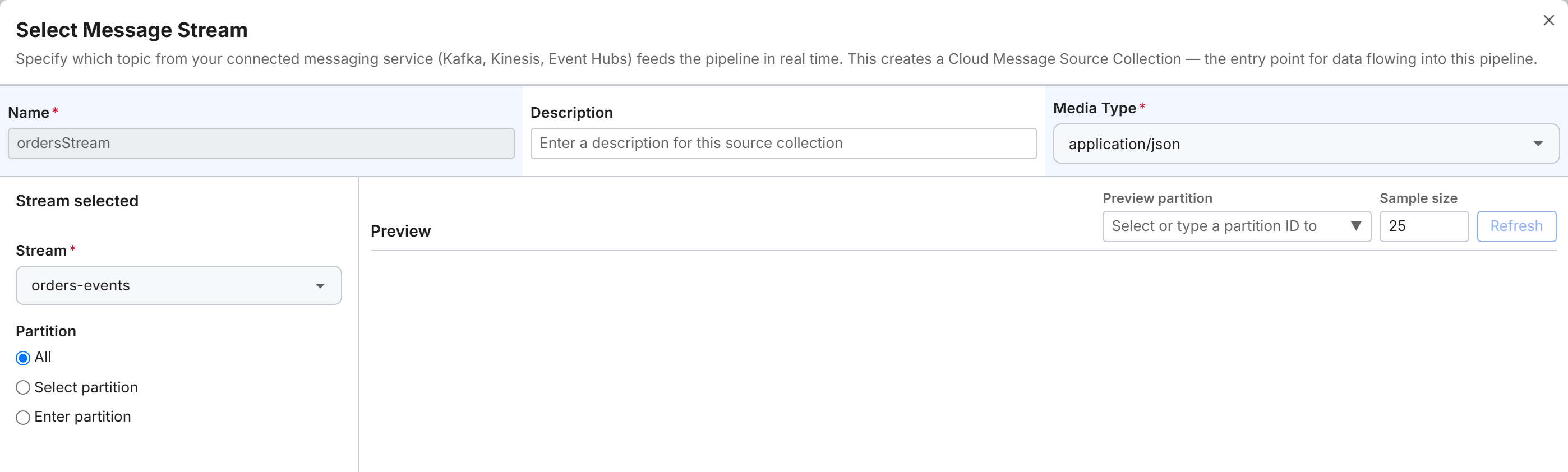
- Source collection: one topic, stream, or queue on that broker, such as a Kafka topic or an Amazon SQS queue. The CloudMessageSourceCollection Type represents a source collection. For Kafka, Kinesis, and Event Hubs, Data Fusion creates the source collection in the Select Message Stream step, where you choose the stream and its partitions.
- Source Type: a user-defined Type that describes the payload of one message. Data Fusion calls the Source Type the source schema.
The platform reads each message, turns it into a record of the Source Type, runs the transform, and stores the result in your target entity Type. A transform maps the fields of the Source Type to the fields of the target entity Type.
To read messages in Avro format, override the content type in the source collection's config:
var config = CloudMessageSourceCollection.forName('<collection name>').config();
config.setConfigValue('contentTypeOverride', MediaType.AVRO, ConfigOverride.APP);
For each stream partition, the platform records the sequence number of the last message it processed and resumes from the next message. The platform tracks sequence numbers this way for stream brokers such as Kafka, Kinesis, and Event Hubs.
Process messages on arrival
Each source collection has a processMode setting with three values:
MANUAL: Waits for you to start processing.ON_SCHEDULE: Processes on a schedule.ON_ARRIVAL: Processes messages as the broker delivers them.
Run streaming collections with ON_ARRIVAL. The platform sends incoming messages only to collections that are registered with the broker and in ON_ARRIVAL mode. MANUAL and ON_SCHEDULE suit file and SQL sources, which process data in batches.
In Data Fusion, select Execute pipeline on the collection node to switch the collection to on-arrival processing. The button then reads Pause on arrival; select it to pause processing. The message "Pipeline paused successfully" appears. On Data > Data Monitoring, the Source Collections grid then shows the collection as Inactive with the process mode Manual. In code, call startOnArrivalMode() or stopOnArrivalMode() on the collection.
To check a streaming collection from the C3 AI Console, fetch it by name first, for example with var cmsc = CloudMessageSourceCollection.forName('<collection name>'). Then use these calls:
cmsc.registered()returnstruewhen the collection is registered with its broker.cmsc.readObjs(ObjsOperSpec.make({ limit: 10 })).collect()reads a sample of records without running the transform. Thelimitcaps the number of records read; one message can hold several records. For Kafka, Kinesis, and Event Hubs, the read leaves the messages on the stream, and the collection must read a single partition.
On queue brokers such as Amazon SQS and Google Cloud Pub/Sub, the read receives the messages and can consume them. Keep the limit in the ObjsOperSpec small.
For how on-arrival processing compares with the manual and scheduled modes, see Select a Pipeline Execution Type.
Choose a key-value or relational target entity
Streaming events are often append-only and carry a timestamp. A key-value store holds high volumes of such data efficiently and is recommended for regular-interval time-series data. To store a target entity Type in the key-value store, declare it with the @db(datastore='kv') annotation in your package. The diagram view of the Object Model in Data Fusion then shows a Key-Value tag on the Type.
For low-rate streams, or for events that update the same record repeatedly, use a standard relational entity Type.
Brokers and connectors
The platform supports six message brokers:
- Apache Kafka: topics reached with the Kafka client protocol. In code, the credentials also support Simple Authentication and Security Layer (SASL) mechanisms and Kerberos.
- Amazon Kinesis: Kinesis data streams, accessed with AWS credentials.
- Amazon SQS: SQS queues, accessed with AWS credentials.
- Azure Event Hubs: Event Hubs namespaces, accessed with a shared access key or an Active Directory identity.
- Azure Service Bus: Service Bus topics.
- Google Cloud Pub/Sub: Pub/Sub subscriptions, accessed with Google Cloud credentials.
In Data Fusion, select Add Data Source to open the Configure Connector sheet. The Cloud Message Brokers / Streaming category has three tiles: Kafka, Kinesis, and Azure Event Hub. Set up Amazon SQS, Azure Service Bus, and Google Cloud Pub/Sub in code with the CloudMessageSourceSystem and CloudMessageSourceCollection Types. For the code pattern with these Types, see Ingest a Kafka Message Stream Programmatically, which builds a Kafka pipeline.
For the fields and credentials each streaming connector needs, see Authenticate Streaming Sources.
Set up your first streaming pipeline
The Kafka quickstart builds a streaming pipeline in Data Fusion with an Apache Kafka cluster as the example. Open Data > Data Fusion; the Data Integration tab holds the pipeline canvas. The quickstart takes these steps:
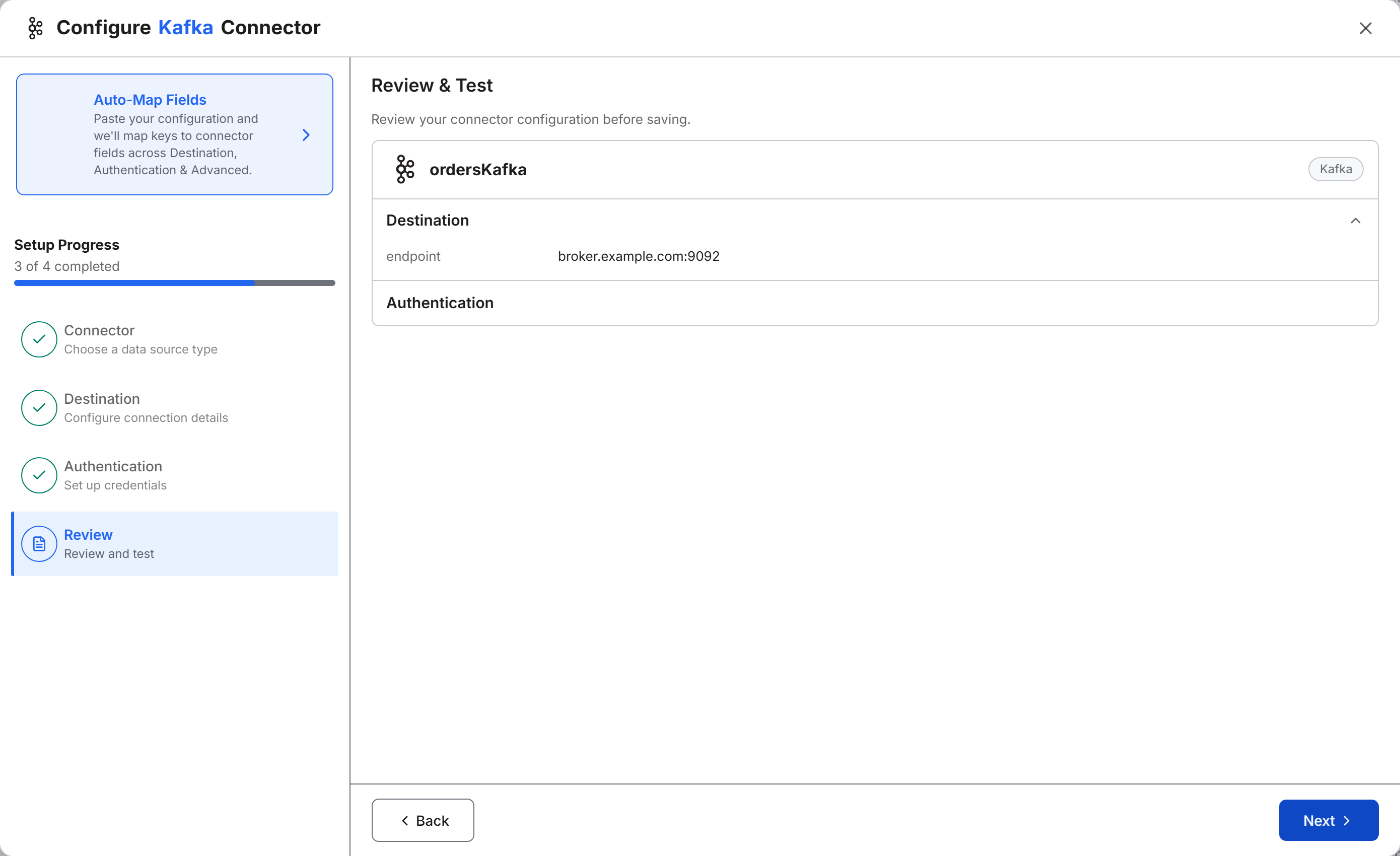
Select Add Data Source, then the Kafka tile. Enter the bootstrap broker URL in Endpoint on the Destination step, and the API key and secret in ApiKey and ApiSecret on the Authentication step.
On the Review step (panel title Review & Test), select Next. Streaming connectors have no Save & Test button. Instead, Data Fusion uses your endpoint and credentials to list the broker's streams. A successful list confirms that the connection works.
In Select Message Stream, enter a Name, choose the Media Type and the Stream, and choose the partitions under Partition. To let Data Fusion infer the source schema from the messages in the next step, choose one partition with Select partition or Enter partition. Infer fails with the default All. Select Save & Close. Data Fusion saves the connector and the source collection.
Define the source schema for one message, and map its fields to a target entity Type in the transform.
Select Execute pipeline on the collection node. The collection now processes messages as they arrive.
The Kinesis and Azure Event Hub tiles follow the same steps; only the Destination and Authentication fields differ. To add another stream to an existing streaming connector, select Add Source Collection in the connector node's menu, then Create New. Data Fusion runs the connector wizard again before the Select Message Stream step.
For every step, see Connect with Streaming Source System. To build the same pipeline in code from the Console, see Ingest a Kafka Message Stream Programmatically.
Use file or SQL sources for history and batches
Some pipeline jobs suit file or SQL sources better than a streaming source:
- History: a broker keeps messages only for its retention period. To load older data, ingest it from files or run a change data capture (CDC) sync against the database that holds the history.
- Batches: to process data in scheduled batches, use a file or SQL source.
- Aggregations across messages: a transform processes one message at a time. To compute windows or aggregations across messages, store the messages first and aggregate them in the application.
See also
- Data Integration Overview
- Connect with Streaming Source System
- Authenticate Streaming Sources
- Ingest a Kafka Message Stream Programmatically
- Select a Pipeline Execution Type
- Monitor Your Data Pipeline
- Configure File Sources
- Configure SQL Sources
- CloudInboundMessage and CloudOutboundMessage, for custom stream consumers and producers