Configure File Sources
Your data arrives as files in cloud storage or on your computer. A file pipeline in the C3 Agentic AI Platform reads those files and maps each row to a record of an entity Type. An entity Type is a Type whose records your application stores in its database. The pipeline reads the files through a file connector for your storage service. You build the pipeline in Data Fusion or define it as package files. You can also set the pipeline to process each file as soon as it lands.
When to use a file source
Use a file source when:
- A vendor or upstream system drops files into a storage location, such as an Amazon S3 bucket.
- You need to load historical data from files as a one-time batch.
- An external extract, transform, and load (ETL) system writes intermediate files that your application consumes.
Built-in parsers read CSV and other delimited text, JSON, Parquet, Avro, ORC, and Excel workbooks (.xlsx). For any other format, write your own parser Type. You choose the parser, built-in or your own, in the source collection's configuration; see Configure a Source Collection.
If the data lives in a relational database, use a SQL source. If the data arrives as messages on a message broker, use a streaming source. For those sources, see Configure SQL Sources and Configure Streaming Sources.
How a file pipeline moves data
Three objects define what a file pipeline reads:
- Source system: the storage location the platform reads from, such as an Amazon S3 bucket. The FileSourceSystem Type represents a source system. In Data Fusion, a source system is the connector you add with Add Data Source. A source system for cloud storage needs credentials for that cloud provider.
- Source collection: a named set of files inside the source system. The FileSourceCollection Type represents a source collection. Each collection has an inbox URL, the folder where the collection's files arrive. In Data Fusion, a source collection appears as a File Source Collection node.
- Source Type: a Type you write that mixes in (includes) the
SourceType. The Source Type has one field for each column in the file, so it describes one row. Data Fusion calls the Source Type the source schema. You can write the Type yourself, or start from the columns that Data Fusion detects in a sample file and set each column's data type.
Each row of a file moves through these stages:
- The source collection reads a file from its inbox URL and turns each row into a record of the Source Type.
- A transform maps each source record to a record of another Type. A transform is either a projection, which maps fields with expressions, or a transformer, which runs JavaScript code. Data Fusion labels the two kinds Projection and Transformer.
- The platform stores the records of your target entity Type in the application's database.
A pipeline can transform directly from the Source Type to your entity Type. You can also add a canonical Type, an intermediate Type that several sources map into, between the two. A second transform then maps the canonical Type to your entity Type. Add a canonical Type when several sources feed one entity Type or when the file layout changes often. A layout change then touches only the first transform.
File connectors in Data Fusion
In Data Fusion, select Add Data Source to open the Configure Connector sheet. The sheet's File systems category lists five file connectors. Each connector creates a file source system, and each offers its own authentication methods:
| Connector tile | Reads from | Authentication methods |
|---|---|---|
| S3 | Amazon S3 buckets | Access Key or IAM Role |
| Google Cloud Storage | Google Cloud Storage buckets | Private Key, filled from a service account JSON key file |
| Azure Blob | Azure Blob Storage containers | SAS Token or Service Principal |
| OneDrive/SharePoint | OneDrive and SharePoint document libraries, through Microsoft Graph | Tenant ID, client ID, and client secret |
| Google Drive | Google Drive folders | Service account fields: account ID, account email, access key, and secret key |
Box is not a file connector. The Box tile sits under File & API Integration and creates a SQL source system, so a Box pipeline follows the SQL source steps. The OneDrive and Google Drive tiles under File & API Integration also create SQL source systems; use the tiles under File systems for file pipelines.
For the fields each connector needs and how to get the credentials, see Authenticate File Sources.
Build your first file pipeline
You can build a file pipeline on the Data Fusion canvas, or define it as package files and run it from the C3 AI Console. Use Data Fusion to build and inspect a pipeline visually; use package files to keep the pipeline in source control with the rest of your application.
Build the pipeline in Data Fusion
Open Data > Data Fusion. The Data Integration tab holds the pipeline canvas. A file pipeline takes five steps:
- Select Add Data Source and choose a tile under File systems. Complete the wizard steps Connector, Destination, Authentication, and Review. On Review, select Save & Test: the wizard saves the connector and its credentials, then tests the connection.
- Select the Set file path placeholder under the new source system, then choose Structured source collection. In Set Source File Path, name the File Source Collection and choose the folder where your files arrive.
- In Describe Incoming Data, name the source schema, review the detected columns, and set each column's data type.
- Choose Projection or Transformer. In Map & Clean Fields, select or create the target entity Type, then map the source fields to the target fields.
- Set the Integration Schedule in the collection's Edit properties dialog, and run the pipeline with Execute pipeline. Check the loaded records with View Data on the Entity Type node.
The other file connectors follow the same steps as Amazon S3; only the fields on the Destination and Authentication steps differ. For each step in detail, with an Amazon S3 bucket as the example, see Connect with File Source System.
Upload files from your computer
To load files from your computer, upload them while you set the collection's folder. In Set Source File Path, select Upload files in the toolbar, then select or drop the files in the Upload files dialog. Select Start Upload. The files go to the folder shown in Upload to.
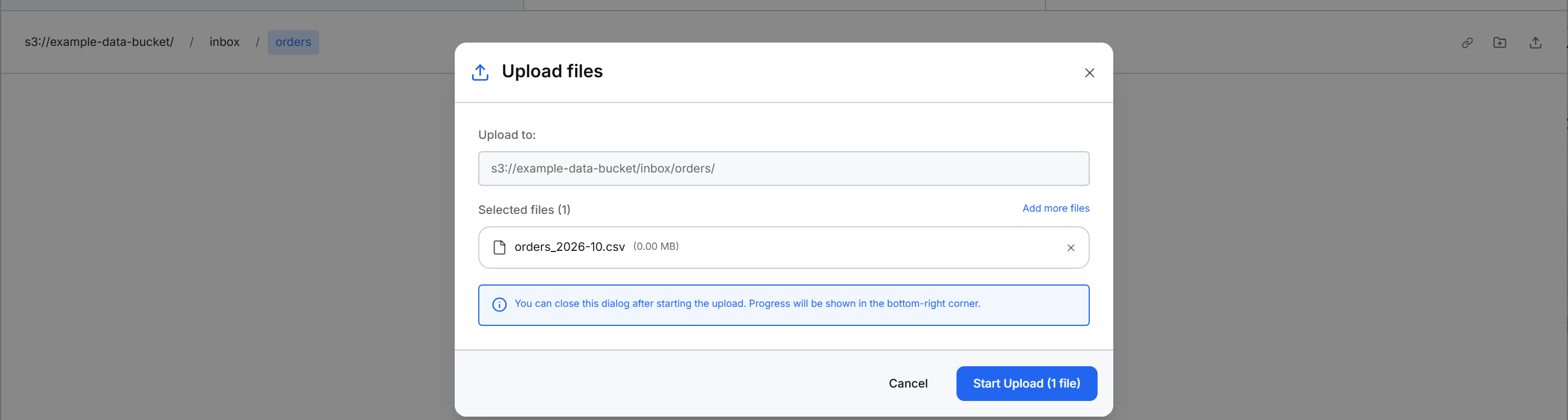
You can keep uploaded files in the application's own storage instead of an external bucket. Choose the application's storage when you add the connector, in step 1. On the Destination step, open the Use Existing Bucket tab and choose a mount under Platform Buckets. A mount is a storage location already connected to the application. For a mount under Platform Buckets, the wizard skips the Authentication step. For a bucket under User Buckets, the wizard also skips Authentication unless you turn on Override credentials for selected mount to enter a region and credentials.
Define the pipeline as package files
A file pipeline defined in your package has five parts. You write the five parts in your IDE as package source, which the platform syncs to the application:
- A source system that points at the storage location. For a cloud bucket, declare a file source system whose
rootUrlOverridefield holds the bucket URL, such ass3://<your-bucket>/. The platform addresses each supported file system by its URL scheme, for examples3://,gcs://, orazure://. To use the application's own storage with no external credentials, use the built-in file source system namedCanonicalinstead. This name is unrelated to canonical Types. - Credentials for a cloud bucket. Set the credentials at runtime by calling
setCredentialson the source system; credentials are secrets and never go in package files. - The Source Type, which describes one row of the file.
- A transform that maps the Source Type to your entity Type.
- A file source collection whose required
sourceSystemfield references the source system from part 1.
You then sync and process the files in the collection's inbox URL from the Console. For the complete code with an Amazon S3 bucket, see Ingest Files from Amazon S3 Programmatically. For how the programmatic route compares with Data Fusion, see Integrate Data Programmatically.
Process files as soon as they arrive
For Amazon S3 and Google Cloud Storage buckets, a source collection can process each file as soon as it lands in the collection's inbox URL. In Data Fusion, the Integration Schedule offers only Manual and On Schedule. To process files on arrival, call startOnArrivalMode() on the file source collection from the Console. The call sets the collection's processMode to ON_ARRIVAL and registers for new-file events on the inbox URL. Setting processMode alone does not register for those events. To turn processing on arrival off, call stopOnArrivalMode().
For how manual, scheduled, and on-arrival processing compare, see Select a Pipeline Execution Type.