Authenticate File Sources
You are adding a file source in Data Fusion. The C3 Agentic AI Platform needs permission to read your storage. Each file connector accepts one or more ways to supply that permission. Choose the method your storage supports, gather the location and credentials it needs, and enter them in the connector wizard. Use Credential fields by connector to find the exact fields, and use platform storage when you need no credentials at all.
A connector is the connection the wizard creates to one storage location. The connector appears on the Data Fusion canvas as a File Source System node, and every pipeline that reads from that location starts from it.
Find the Authentication step
Open the connector wizard from Data > Data Fusion, then select Add Data Source and pick a connector. The wizard for a file connector has four steps:
- Connector: choose the storage service, such as S3 or Azure Blob Storage.
- Destination: name the connector and give the storage location, such as the bucket and region.
- Authentication: choose an Authentication Method, where the connector offers more than one, and enter the credentials.
- Review: check the values, then select Save & Test or Save & Close.
On the Destination step, the Bucket field has two tabs:
- Use Existing Bucket: lists User Buckets, which other connectors in your application already registered, and Platform Buckets, which are the application's own storage. When you pick an existing bucket, the wizard removes the Region field and the Authentication step, because that bucket already has its credentials. To enter different credentials for the selected bucket, turn on Override credentials for selected mount; the mount is the selected bucket.
- Add Bucket: enter a new path, such as
my-bucket/. The path must end with/and must not include a prefix such ass3://; the platform adds the prefix for you.
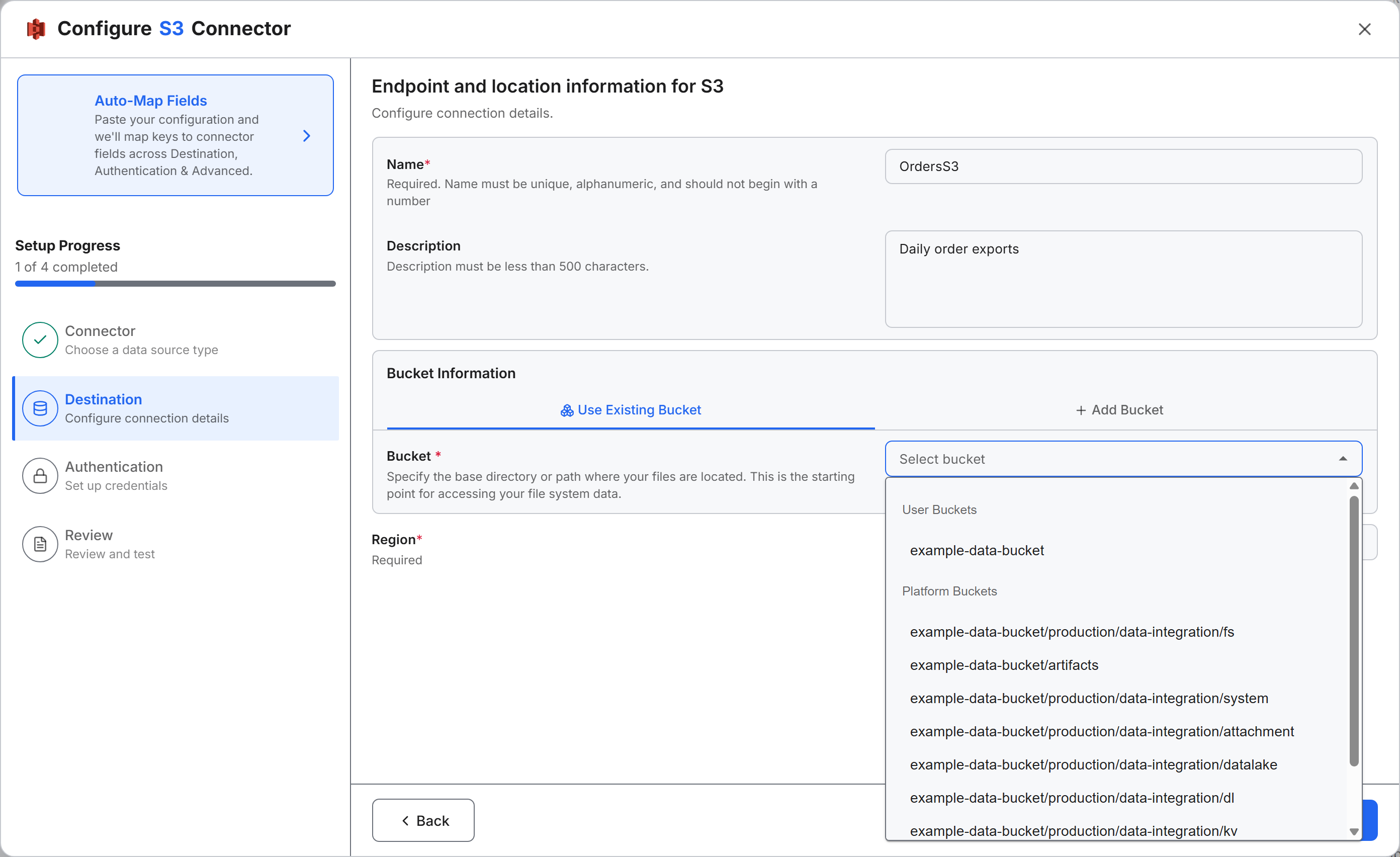
The wizard checks the location and credentials against the storage service when you run Save & Test. Save & Test saves the connector and its credentials first, then tests the connection. A successful test shows Connection test successful. If the test fails, the connector stays saved. The wizard shows an AI Error Analysis summary of the likely cause, such as a wrong bucket path, a missing permission, or an incorrect secret.
To correct a connector after a failed test, or to change the credentials of a saved connector, use the edit wizard:
- Close the wizard.
- On the canvas, select the connector's File Source System node. The edit wizard opens on the Connector step.
- In the step list, select the step that holds the value the summary names, and correct it. Stored secrets show as a masked value: to replace one, select the Edit credential button next to it and enter the new value.
- Select Save & Test, then Save Changes.
The wizard also offers Auto-Map Fields, a card at the top of the step list from the Destination step onward. Paste a JSON configuration, or upload a .json file, and the wizard suggests which connector field each key belongs to. Review the suggested mappings, then fill the fields.
Authentication strategies
Every authentication method across the file connectors follows one of three strategies. The connector's Authentication Method names differ, but the trade-offs stay the same:
| Strategy | What it is | You provide | Methods that use it |
|---|---|---|---|
| Access keys and tokens | A long-lived secret that the storage provider issues and that grants access by itself | An access key and secret, or a shared access signature (SAS) token | S3 Access Key, Azure Blob Storage SAS Token |
| Assumed role | No stored secret: the platform signs in with an AWS Identity and Access Management (IAM) role | Nothing, or the Amazon Resource Name (ARN) of the role to assume | S3 IAM Role |
| Registered application identity | A non-human account that you register with the provider, such as a Google service account or a Microsoft Entra ID (formerly Azure Active Directory) app registration | The account's ID and its secret or private key | Azure Blob Storage Service Principal, Google Cloud Storage Private Key, and the single method of Google Drive and of OneDrive and SharePoint |
Platform storage needs no credentials, because the files live in the application's own storage. To use platform storage, see Use platform storage without credentials.
Choose an authentication strategy
Pick the strategy that matches where your storage lives and what your provider lets you issue:
- Storage in Amazon S3, with an IAM role available to the platform: use the S3 IAM Role method, so that you store no long-lived secret. Read the caution under Amazon S3 before you use a role on a shared cluster.
- Storage in Azure, Google, or Microsoft 365: use a registered application identity. The credential belongs to an application you control, not to a person, so it survives staff changes and you can limit it to one location.
- Only an access key or a SAS token available: use Access Key or SAS Token. Treat the secret like a password and replace it on a schedule. A SAS token stops granting access when it expires, so enter a new token before that date.
- A one-time load or a quick test: upload the files to platform storage and skip credentials.
Whatever the strategy, enter secrets only on the Authentication step of the connector or with setCredentials from the C3 AI Console. Never put secrets in a pipeline's transform steps, package files, or committed source. Credentials stay in the environment where you enter them and do not promote with the package, because publishing removes the fields marked secret. Enter the credentials again in each environment. Run Save & Test again after you replace a credential.
Gather credentials and connection details
Collect these before you open the wizard:
- A connector name: letters, digits, and underscores, not starting with a digit. No other source system in your application, whether file, SQL, or streaming, can use the same name.
- The storage location: the bucket, container, drive, or site. Add any qualifier the connector asks for, such as a region, a Google Cloud project ID, a SharePoint endpoint, or a shared drive ID.
- An identity with the right permissions: the account that the credential represents must be able to list and read the location. A source collection is the part of a pipeline that picks up files from the connector. The source collection reads new files from its inbox folder. By default, after the source collection processes a file, it moves the file from the inbox to its archive location. This separate folder keeps processed files out of later syncs. That move also needs write and delete permission. Read-only access is enough only when the source collection does not archive its files or is marked external; both are source collection settings.
- The credential for your chosen strategy: a key and secret, a SAS token, a service account JSON key, or an app registration's ID and secret. For an assumed role, your cloud administrator sets up the role. You need only the role's ARN when the platform must assume a role other than its own.
Credential fields by connector
Each connector asks for the fields in this table. The labels match what the wizard shows.
| Connector | Authentication methods | Credential fields |
|---|---|---|
| Amazon S3 | Access Key, IAM Role | Access Key: SecretKey, AccessKey (both required). IAM Role: IamRoleArn, ExternalId, SessionDuration (optional) |
| Azure Blob Storage | SAS Token, Service Principal | SAS Token: SasToken, AccountId, AccountName (all required). Service Principal: ActiveDirectoryId, SecretKey, AccountName, AccessKey (all required) |
| Google Cloud Storage | Private Key (only option) | Client ID, Service Account Email, Private Key (PKCS8), Private Key ID (all required) |
| Google Drive | One sign-in method | Account Id, Account Email, Secret Key, Access Key (all required) |
| OneDrive and SharePoint | One sign-in method | Tenant ID, Client Secret, Client ID (required); Scopes, Refresh Token (optional) |
| Box | O Auth, O Auth JWT, O Auth Client | See Box |
Amazon S3
Destination fields: Bucket, from Use Existing Bucket or Add Bucket, and Region, such as US West (Oregon) | us-west-2.
S3 offers two values for Authentication Method:
- Access Key: the static credentials of an IAM user.
- SecretKey (required): the AWS secret access key.
- AccessKey (required): the AWS access key ID.
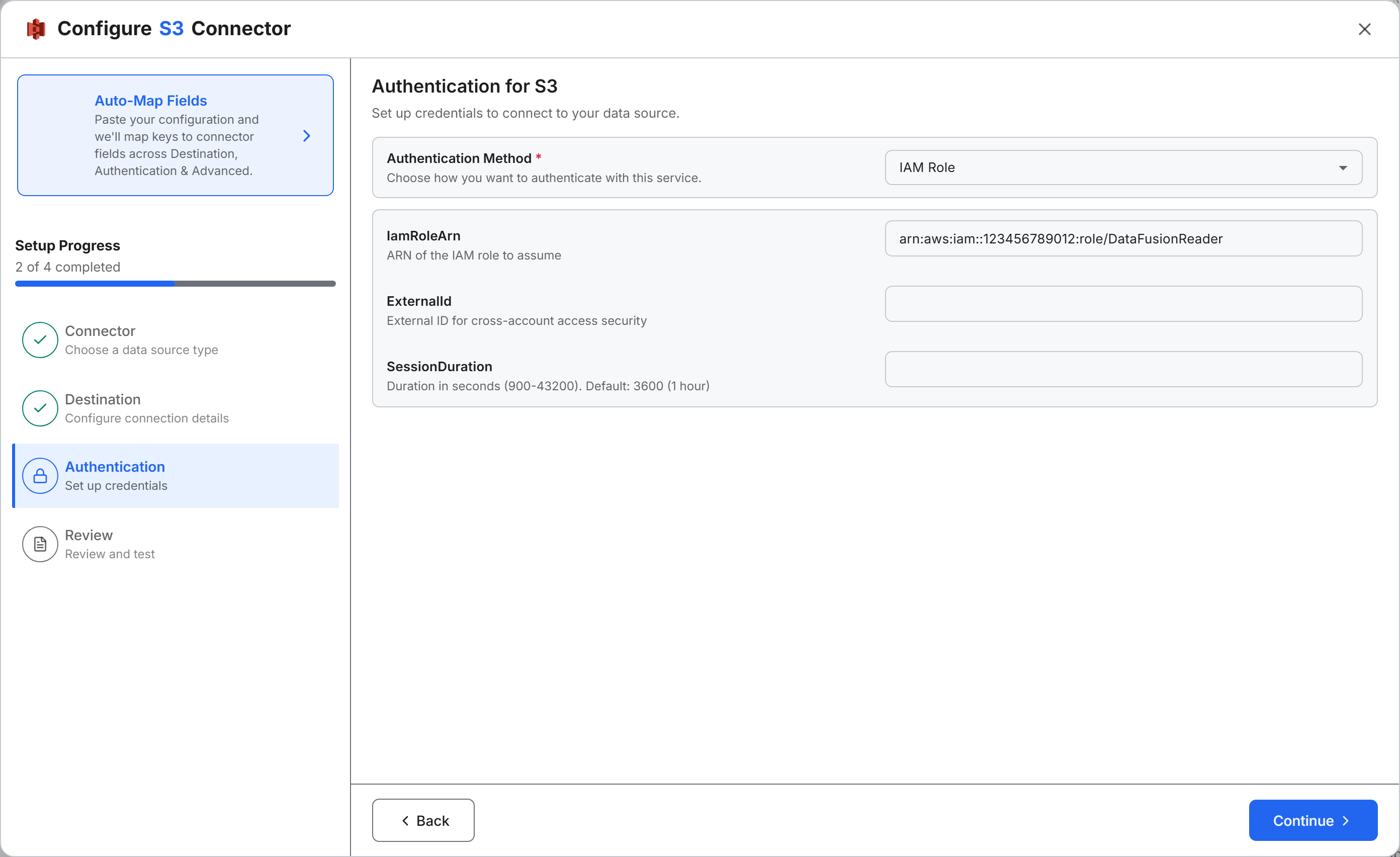
- IAM Role: the platform signs in with an IAM role instead of a stored key. All three fields are optional.
- IamRoleArn: the ARN of the IAM role to assume. If you leave it blank, the connector uses the AWS identity of the environment that runs your application, with whatever access that identity has. Leave IamRoleArn blank only if your C3 AI administrator confirms what that identity can access.
- ExternalId and SessionDuration: the wizard shows these fields, but the connection does not apply their values. Leave ExternalId and SessionDuration blank.
The platform assumes the role with the cluster's own AWS identity and does not send an external ID. Scope the role's trust policy and permissions to this bucket, and confirm with your C3 AI administrator before you use a role on a shared cluster.
Azure Blob Storage
Destination fields: Bucket, which is the blob container, and Region.
Azure Blob Storage offers two values for Authentication Method:
- SAS Token: a shared access signature that grants access to the storage account.
- SasToken (required): the SAS token string.
- AccountId (required): your Azure subscription ID.
- AccountName (required): the storage account name.
- Service Principal: an application registered in Microsoft Entra ID.
- ActiveDirectoryId (required): the Microsoft Entra tenant ID.
- AccessKey (required): the application (client) ID of the app registration.
- SecretKey (required): the client secret of the app registration.
- AccountName (required): the storage account name.
Google Cloud Storage
Destination fields: Bucket (required), Region, and Project ID, the Google Cloud project ID from the service account key file.
Google Cloud Storage signs in with a Google Cloud service account. A service account is a non-human account that you create in the Google Cloud console and download a JSON key for. The Authentication Method dropdown has one option, Private Key, with these fields:
- Client ID (required): the
client_idvalue. - Service Account Email (required): the
client_emailvalue. - Private Key (PKCS8) (required): the
private_keyvalue. - Private Key ID (required): the
private_key_idvalue.
Instead of typing the fields, select Upload JSON Key File and choose the service account's .json key file. The wizard fills the four fields and the Project ID from the file.
Google Drive
Destination fields: Bucket (required), the folder path ending in /, without a gdrive:// prefix; and Shared Drive ID, copied from the shared drive's URL. Enter a shared drive ID to read from that shared drive, and share the drive with the service account. Without a shared drive ID, the connector reads the service account's own drive.
Google Drive also signs in with a Google Cloud service account, and has one sign-in method. Copy each field from the service account's JSON key file:
- Account Id (required): the
client_idvalue. - Account Email (required): the
client_emailvalue. - Secret Key (required): the
private_keyvalue. - Access Key (required): the
private_key_idvalue.
OneDrive and SharePoint
One connector serves both OneDrive and SharePoint. The connector signs in with a Microsoft Entra ID app registration through Microsoft Graph, the Microsoft 365 API.
Destination fields:
- Bucket (required): for OneDrive, the drive name, such as
documents/; for SharePoint,SiteName/DriveName/. The path must end with/. - SharePoint Endpoint: your tenant endpoint, such as
yourcompany.sharepoint.com. Required for SharePoint, optional for OneDrive. - Login Endpoint and Graph Endpoint, both optional, for Microsoft national clouds.
The connector has one sign-in method, with these fields:
- Tenant ID (required): the tenant ID of your app registration.
- Client ID (required): the application ID of the app registration.
- Client Secret (required): the client secret of the app registration.
- Scopes: the API permission scopes to request. The default is
offline_access. - Refresh Token: required for OneDrive, optional for SharePoint.
SharePoint works with application permissions alone: tenant ID, client ID, and client secret. OneDrive reads a user's drive, so it also needs a delegated refresh token, a long-lived token that lets the connector read that user's drive. The wizard cannot get this token for you. Get the refresh token through the Microsoft identity platform authorization code flow, then paste it into Refresh Token.
Box
The Box tile sits under File & API Integration, not under File systems. The Box tile creates a SQL source system, so a Box pipeline follows the steps in Configure SQL Sources. The wizard has the steps Connector, Destination, Authentication, Advanced, and Review, and Destination asks only for a Name and a Description.
Box offers three values for Authentication Method:
- O Auth: OAuthClientId, OAuthClientSecret, and OAuthAccessToken (required), plus ImpersonateUserMode and InitiateOAuth.
- O Auth JWT: the O Auth fields, plus OAuthJWTCert and OAuthJWTCertType (required), OAuthJWTCertPassword, and OAuthJWTCertSubject.
- O Auth Client: the O Auth fields, plus SubjectId and SubjectType (required).
Use platform storage without credentials
Platform storage is the application's own file storage, so it needs no credentials. Use platform storage for one-time loads and quick tests:
- In the connector wizard, select a bucket under Platform Buckets on the Destination step. The wizard skips the Authentication step.
- On the canvas, use the Canonical node, a built-in file source system that every application has by default. This Canonical node is unrelated to canonical Types.
To add files to platform storage from the Canonical node:
- On the Canonical node, select the Open menu button, then select Add Source Collection. On a new file source system with no collections, select its Set file path placeholder node instead.
- In Choose type of source collection, select Structured source collection. Set Source File Path opens.
- Select the Upload files icon above the file list. A separate Upload files dialog opens for the folder that is open in the file list.
- Select or drag the files into the dialog, then select Start Upload.