Share Models from C3 AI Model Registry Service Across Clusters
The C3 Agentic AI Platform supports sharing models across multiple clusters. For example if there are two clusters, a development cluster and a production cluster, you can use the model registry service to share models between the two clusters. The typical use case is training and testing models in the development cluster and deploying the models in a production environment.
There are two options for sharing models across clusters:
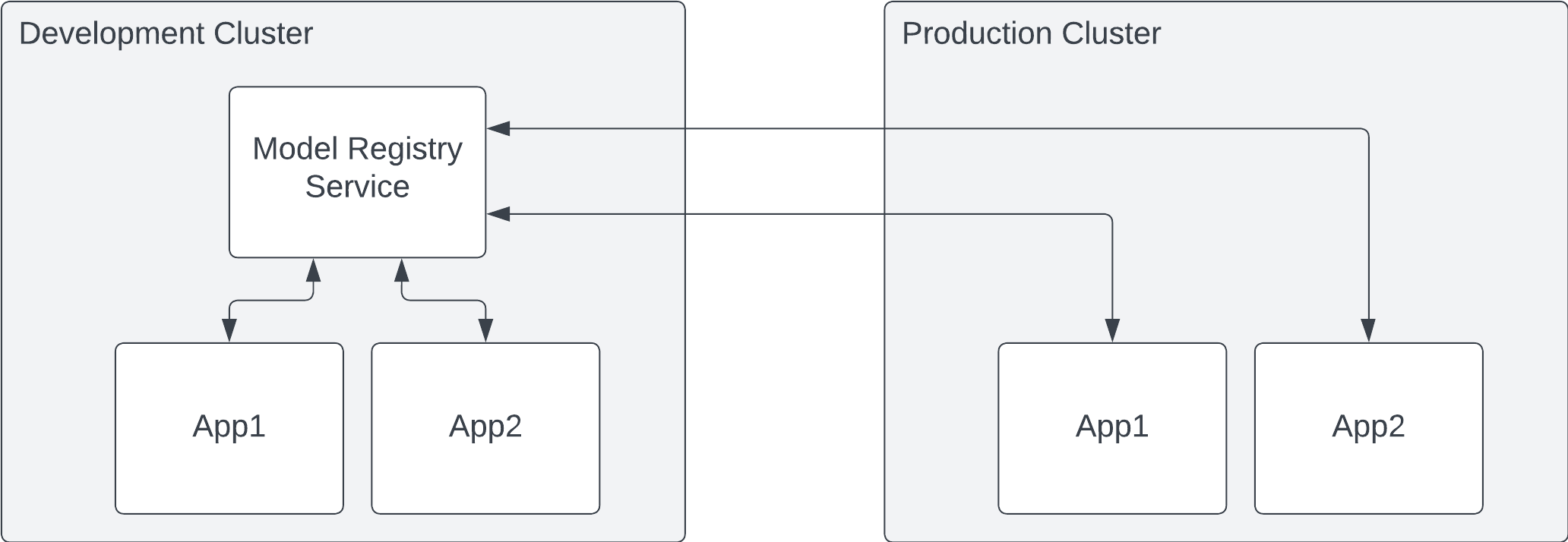
Connect to a remote C3 AI Model Registry Service hosted in a separate cluster - This option is useful when moving models from a Development Cluster to a Production Cluster, especially when the Production Cluster does not have a dedicated C3 AI Model Registry Service. In this instance, the HTTPS connectivity between the clusters allows the application in the cluster without a C3 AI Model Registry Service to connect to the hosted C3 AI Model Registry Service to obtain the desired models.
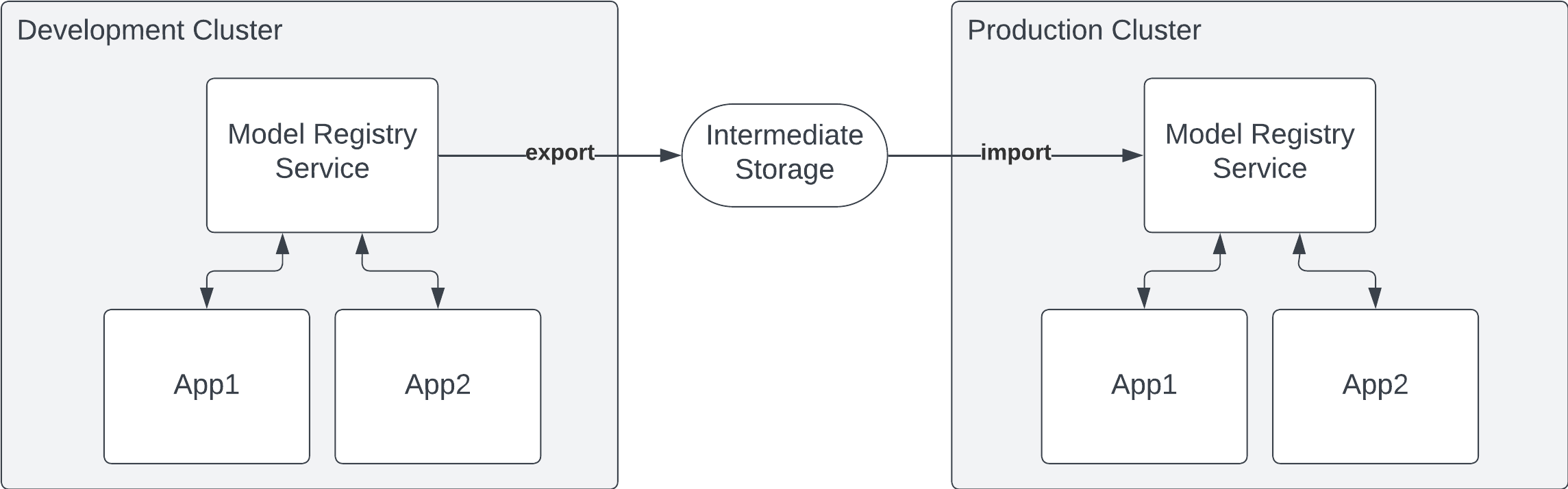
Export and import models between C3 AI Model Registry Services instances in separate clusters - This option is useful when there is no network connectivity between the clusters, such as in an air-gapped configuration. In this instance, the models can be exported as a ZIP file and imported into the C3 AI Model Registry Service in the other cluster.
Prerequisites
The instructions in this topic assume the C3 AI Model Registry Service is part of a cluster-level C3 AI Studio installation in at least one of the clusters.
To perform these actions, you need to be a C3 AI Cluster Administrator (ClusterAdmin) or C3 AI Studio Administrator (StudioAdmin) to access the C3 AI Console of the c3/modelregistry microservice application that is part of C3 AI Studio. You can also access this C3 AI Model Registry Service application if the C3 AI Cluster Administrator or C3 AI Studio Administrator adds you as an Application Administrator (AppAdmin) of the C3 AI Model Registry Service.
Additionally, to connect to a remote C3 AI Model Registry Service in a separate cluster, you must have Application Administrator access in the application into which you are moving models, and are able to coordinate access with the Application Administrator of the C3 AI Model Registry Service.
Connect to a remote C3 AI Model Registry Service in a separate cluster
Connecting to a remote C3 AI Model Registry Service instance hosted in another cluster requires HTTPS connectivity between the clusters. Once this is established, connecting the C3 AI Model Registry Service in the host (or Development) cluster and desired application in the Production cluster requires coordination between the Application Administrator of the C3 AI Model Registry Service and the Application Administrator of the desired application.
The following steps outline the actions and coordination necessary to share models across clusters in this situation.
Step 1 - Provide the public key and application ID of the connecting application
To connect to the hosted C3 AI Model Registry Service, the public key and application ID of the connecting application is required.
As the Application Administrator of the connecting application, go the the C3 AI console and run the following example code snippet to view the public key of the application.
C3.app().publicKeyContentAlternatively, you can copy the public key (without viewing) by running the following code snippet:
copy(C3.app().publicKeyContent)The application ID is <cluster>-<env>-<app>. Find this by viewing the C3 AI console for the application and copying the string next to id:. Or, run the following code snippet and copy the resulting string:
C3.app().idProvide the public key and the application ID to the Application Administrator of the hosted C3 AI Model Registry Service.
Step 2 - Grant access to the hosted C3 AI Model Registry Service
Using the application ID and public key of the connecting application, the Application Administrator of the hosted C3 AI Model Registry Service can grant access to the C3 AI Model Registry Service, allowing the connecting application to access the hosted C3 AI Model Registry Service.
As the Application Administrator of the hosted C3 AI Model Registry Service, run the following code snippet in the C3 AI console of the C3 AI Model Registry Service, adding the provided public key and application ID for the connecting application.
var pk = `<paste the public key>`;
ModelRegistryService.allowAccess('<app id>', pk)
Provide the application ID and application URL of the C3 AI Model Registry Service to the Application Administrator of the connecting application so they can complete configuration of the application to establish connection.
Step 3 - Configure the connection to the hosted C3 AI Model Registry Service
Using the application ID and URL of the hosted C3 AI Model Registry Service, the Application Administrator of the connecting application can configure the application to connect to the hosted C3 AI Model Registry Service.
As the Application Administrator of the connecting application, run the following code snippet in the C3 AI console of the connecting application, adding the provided application ID and URL of the hosted C3 AI Model Registry Service.
ModelRegistry.setServiceAppId('<app ID of Model Registry Service>', '<Url of Model Registry Service>')
/// Example: ModelRegistry.setServiceAppId('cluster-env-modelregistryservice', 'https://c3ai.c3dev.cloud/env/modelregistryservice/')
To verify the application is connected to the hosted C3 AI Model Registry Service, run any of the ModelRegistry methods, such as, ModelRegistry.list(). See the following example code snippet.
// List the models in the C3 AI Model Registry Service
ModelRegistry.list({filter:"..."})Export and import models between C3 AI Model Registry Services instances
For clusters that do not have network connectivity, models from the source C3 AI Model Registry Service can be exported as a ZIP file or to an intermediate location, such as a configured file system (for example, AWS S3, Azure Blob Store, Google Cloud Storage). The models can then be imported to any C3 AI Model Registry Service in another cluster.
Step 1 - Export models from source C3 AI Model Registry Service
The Application Administrator of the source C3 AI Model Registry Service specifies the list of models to export. A Uniform Resource Identifier (URI) uniquely identifies models in the C3 AI Model Registry Service. The URIs can be used to create a ModelRegistry.ModelDependency object to save the list of models to export.
Identify models in the C3 AI Model Registry Service
To list all unique entry URIs in the C3 AI Model Registry Service, run the following code snippet:
c3.ModelRegistry.list().objsTo filter or search the unique URIs in the C3 AI Model Registry Service with a filter, run the following code snippet, specifying uri and keyword.
Create ModelRegistry.ModelDependency object to contain identified models
Run the following code snippet, listing the URIs for the desired models that should be compiled into the ModelRegistry.ModelDependency object.
var uris = [
    'ModelRegistry-platform-env-modelregistryservice/rel/manufacturer/demo/2',
    'ModelRegistry-platform-env-modelregistryservice/rel/manufacturer/demo/2'
    ]
Run the following code snippet to create the ModelRegistry.ModelDependency object.
var modelDep = ModelRegistry.ModelDependency.make({uris:uris})Export the models in the ModelRegistry.ModelDependency object as ZIP file
Using the ModelRegistry.ModelDependency object, the administrator can export the models.
var url = ModelRegistryService.exportModels(models = modelDep)The output is the URL of the ZIP file, which has the following structure: export/uuid.zip.
Optional - Move the models to a location accessible by the other C3 AI Model Registry Service
In some cases, the location where the models were exported is not accessible to the C3 AI Model Registry Service that imports the models.
See Upload Files for an example of how to move files from the export location.
Step 2 - Import into Model Registry Service
As an Application Administrator of the C3 AI Model Registry Service in the target cluster, run the following code snippet in the C3 AI Console, adding the ZIP file URLs that contain the exported models in the location parameter.
ModelRegistryService.importModels(location=["gcs://c3--cluster/env/app/fs/import/test"])After importing the models, run the following ModelRegisty.list code snippet to find the models.
ModelRegistry.list({filter:"..."})