Use provided code samples in Jupyter
You can use code samples provided by C3 AI in your notebooks. You can search for the code samples, insert them directly in your notebook, and modify them according to your needs.
To view code samples in C3 AI-managed Jupyter, you must specify tutorials as a root package in your application. Alternatively, you can specify tutorials as a dependency package for your application by modifying your .c3pkg.json file.
For more information on getting started with creating an environment and application, see Get Started with a Data Science Development Environment.
View code samples
Code samples are located in a tab within C3 Jupyter.
Navigate to
https://{c3_cluster_url}/{env_name}/{app_name}/jupyter/to open your JupyterLab environment.On the left of the screen, select the option with the search icon.
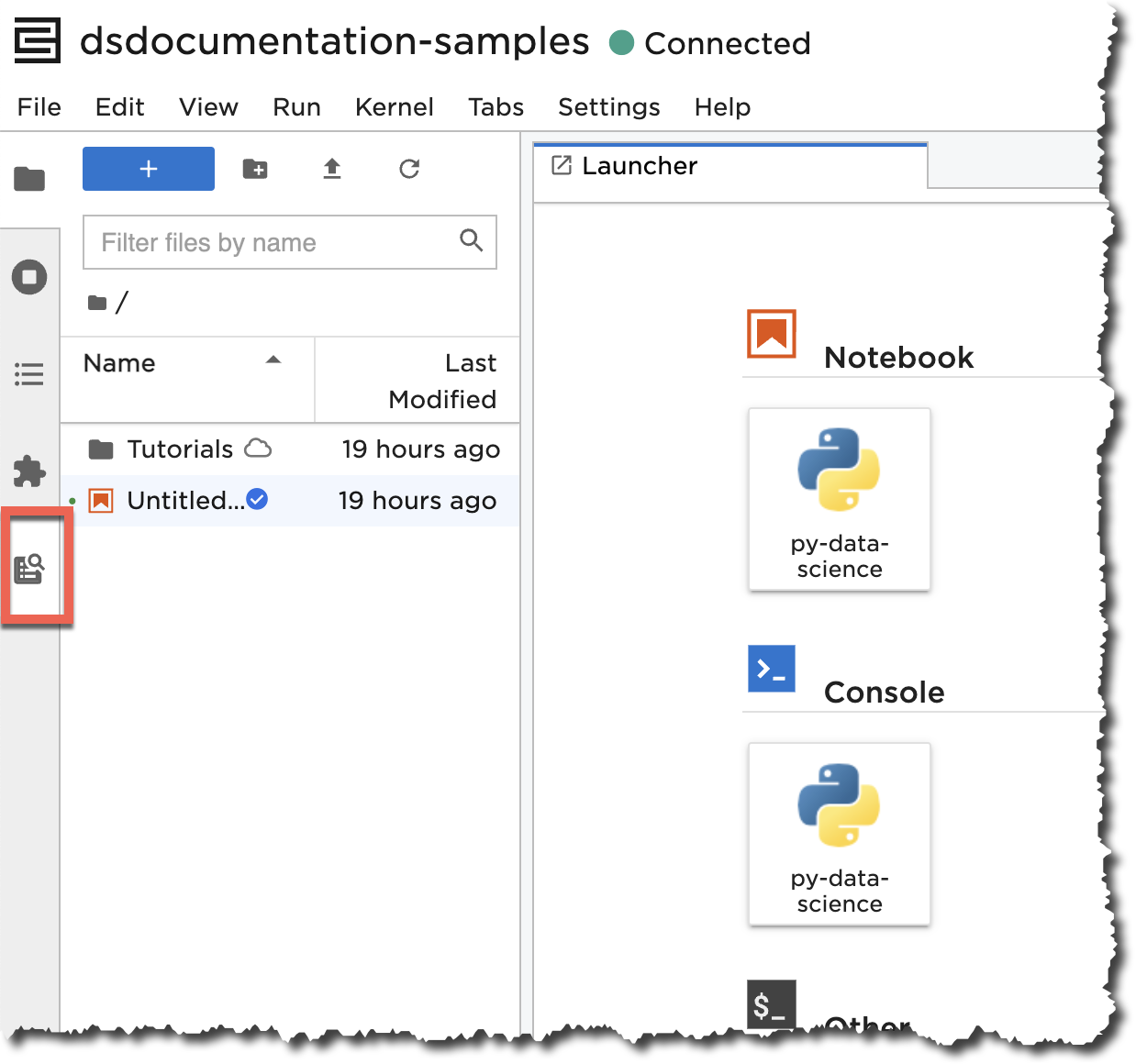
You can now access all code samples provided by C3 AI.
Insert code samples
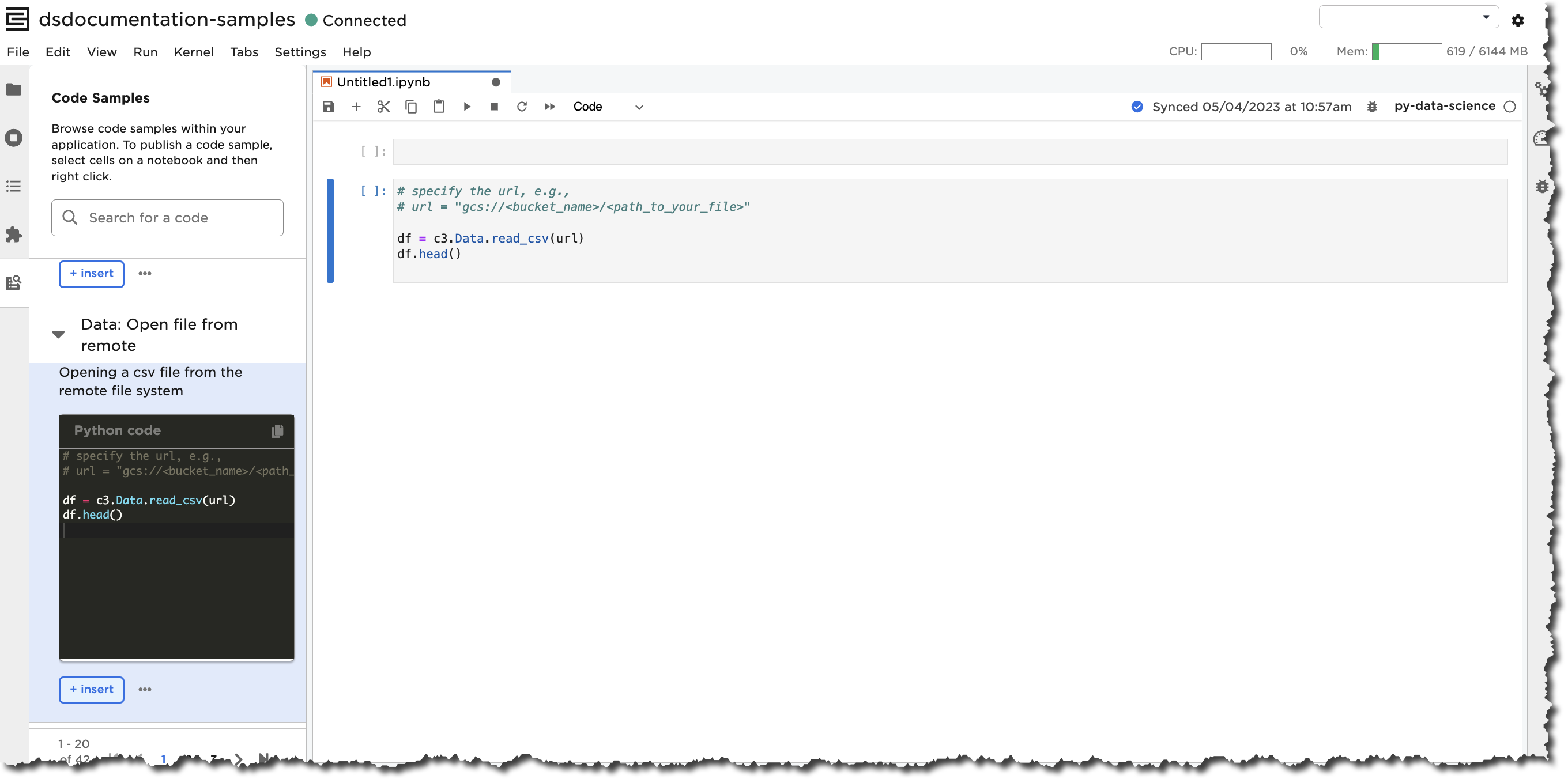
Instead of copying and pasting samples from the code sample menu, you can directly insert samples in your notebook. C3 Jupyter creates a new code cell for you wherever you insert a code sample.
Select insert to add a code sample to a notebook.
Edit code samples
If the generic C3 AI code sample doesn't suit your specific needs in Jupyter, you can edit the code sample to fit your use case.
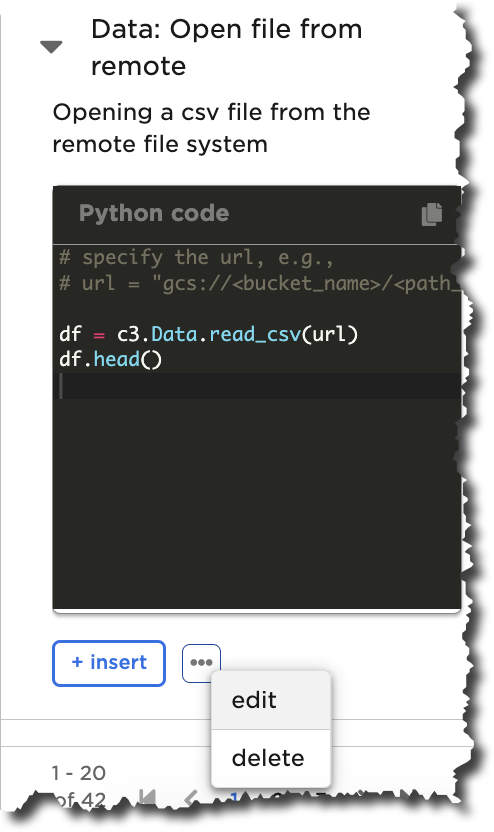
To edit your code samples, select the ellipsis icon in the code sample menu, and choose edit.
You can edit the Code Sample Name, Description, and the Code of the code sample.
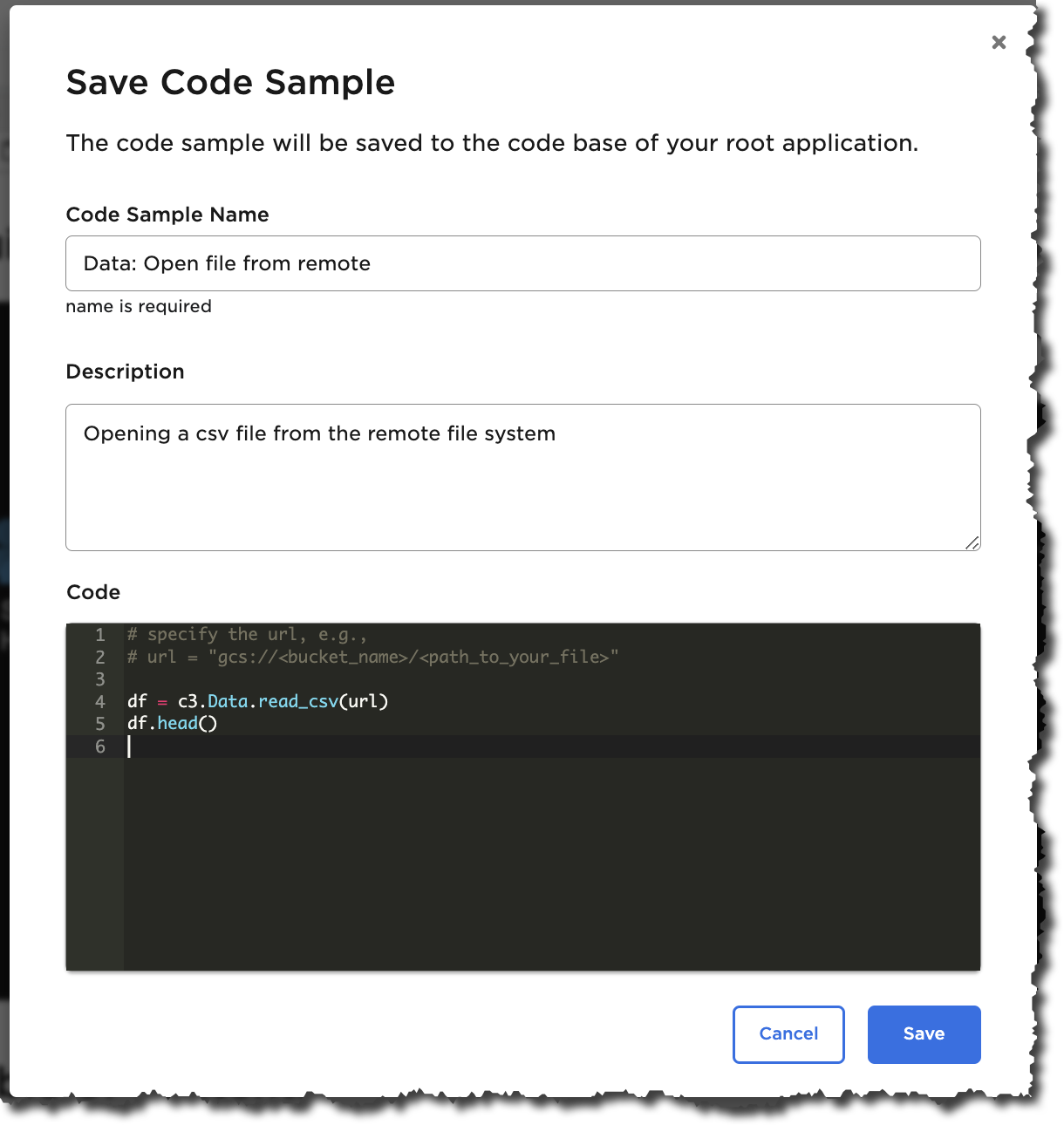
You can insert the edited version of the code sample the same way you insert generic C3 code samples.