Upgrade Your Environment and Application
You can upgrade your environment and application to apply version updates. Updating your application may fix existing bugs, or apply new features.
This topic covers how to upgrade an environment and application using C3 AI Studio. Your upgrade may require several steps. Check the upgrade path from your source version to the target version in Upgrade paths.
Prerequisites
You need the following to perform any task outlined in this document:
- Access to a C3 AI Studio cluster.
- A
StudioUserorStudioAdminrole. For more information about these roles, see C3 AI Studio Built-in Roles.
Upgrade an environment
In Single Node Environments (SNEs), upgrading the server version updates all applications in the environment.
Shared environments have multiple task nodes and may host multiple applications with distinct server versions.
Complete the following steps to upgrade an environment:
In C3 AI Studio, access the environment actions menu in one of the following ways:
- Home: Confirm that the target environment is selected in Current environment, then select the ellipsis menu (...) next to View details
- Envs: Select the ellipsis menu (...) on the target environment row.
- Environment Overview: Select the ellipsis menu (...) in the overview header.
In the actions menu, select Upgrade environment. The Upgrade environment workflow appears, prompting you to enter the new server version you'd like to use.
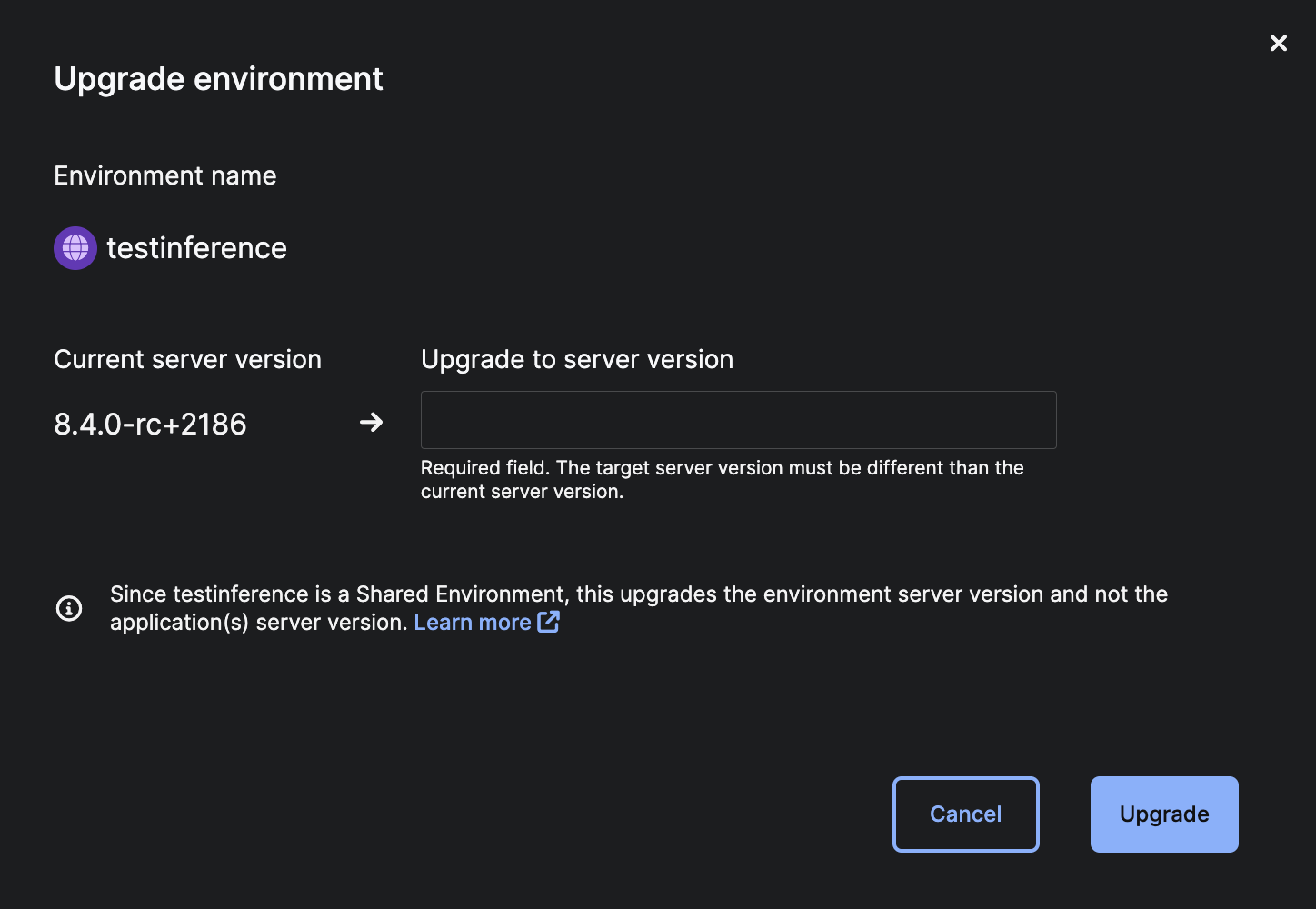
Enter the new server version and select Upgrade.
You can also downgrade a single node environment or application by using this workflow.
Upgrade an application
You can upgrade application packages using C3 AI Studio or the C3 AI Console.
Upgrade a single node environment application
In Single Node Environments (SNE), you can upgrade applications by upgrading the environment. Applications automatically use the same server version as the SNE because they share a single node.
Follow the steps in Upgrade an Environment to upgrade your SNE and SNE applications.
Upgrade a shared environment application
In Shared Environments (multi-node environments, or MNEs), applications do not automatically upgrade to the environment server version. You must specifically upgrade shared environment applications to a desired version.
- In C3 AI Studio, access the application actions menu in one of the following ways:
- Home: Select the ellipsis menu (...) on the target application card.
- Apps: Select the ellipsis menu (...) on the target application row.
- Application Overview: Select the ellipsis menu (...) in the overview header.
- In the actions menu, select Upgrade application. The Application upgrade modal appears.
- Enter the new package or server version and select Upgrade.
Upgrade an application in C3 AI console
To upgrade the C3 AI Server for any application, run the following code snippet in the environment console:
Env.forName('<envName>').upgradeApp(App.forName('<myApp>'), {"serverVersion": "0.0.0+00"})Where 0.0.0+00 is the desired server version (such as 8.9.0+1234). For compatible server versions, see "Cluster Version and Environment / Application Version Compatibility" in Supported Platform Versions.
Make sure the serverVersion includes a plus (+) instead of an underscore (_): for example, 0.0.0-rc+4.