Work in Multiple Chats
Each chat in your workspace runs its own agent, and the chat panel holds as many chats as you need. Using more than one chat keeps unrelated work apart, and lets you ask a question while a long change is still running.
Open a new chat, give that chat one subject, and track each chat's status from its own tab. Closing a tab keeps the conversation, so any chat can come back.
A question can come up while a change is still running. Ask how the application calculates days of supply in a second chat, and the agent keeps building your Coverage page in the first.
Start a new chat when the subject changes
A chat carries the whole conversation forward. Every message you send reaches the agent together with everything said in that chat already. The agent reads the whole conversation each time, which is why it can act on a request you made ten messages ago.
Sending the whole conversation each time is also what makes a long chat use more of your LLM budget. C3 Code measures usage in tokens, which count the text going to the agent and the text coming back. A short question at the end of a fifty-message chat sends all fifty messages again. The same question in a new chat sends only the question.
Start a new chat in any of these situations:
- You move to a different page, record, or feature.
- Your next request stands on its own, and the current chat has run long.
- A question arises that should not be added to a chat already building a change.
A chat holding one subject also keeps the agent's answers on that subject, with nothing from unrelated work mixed in.
Keep the original chat rather than closing the chat. That conversation holds the record of how the work was built, and you can reopen the conversation at any point.
For seeing what you have used against each quota, see My Usage and Cost.
Open a second chat
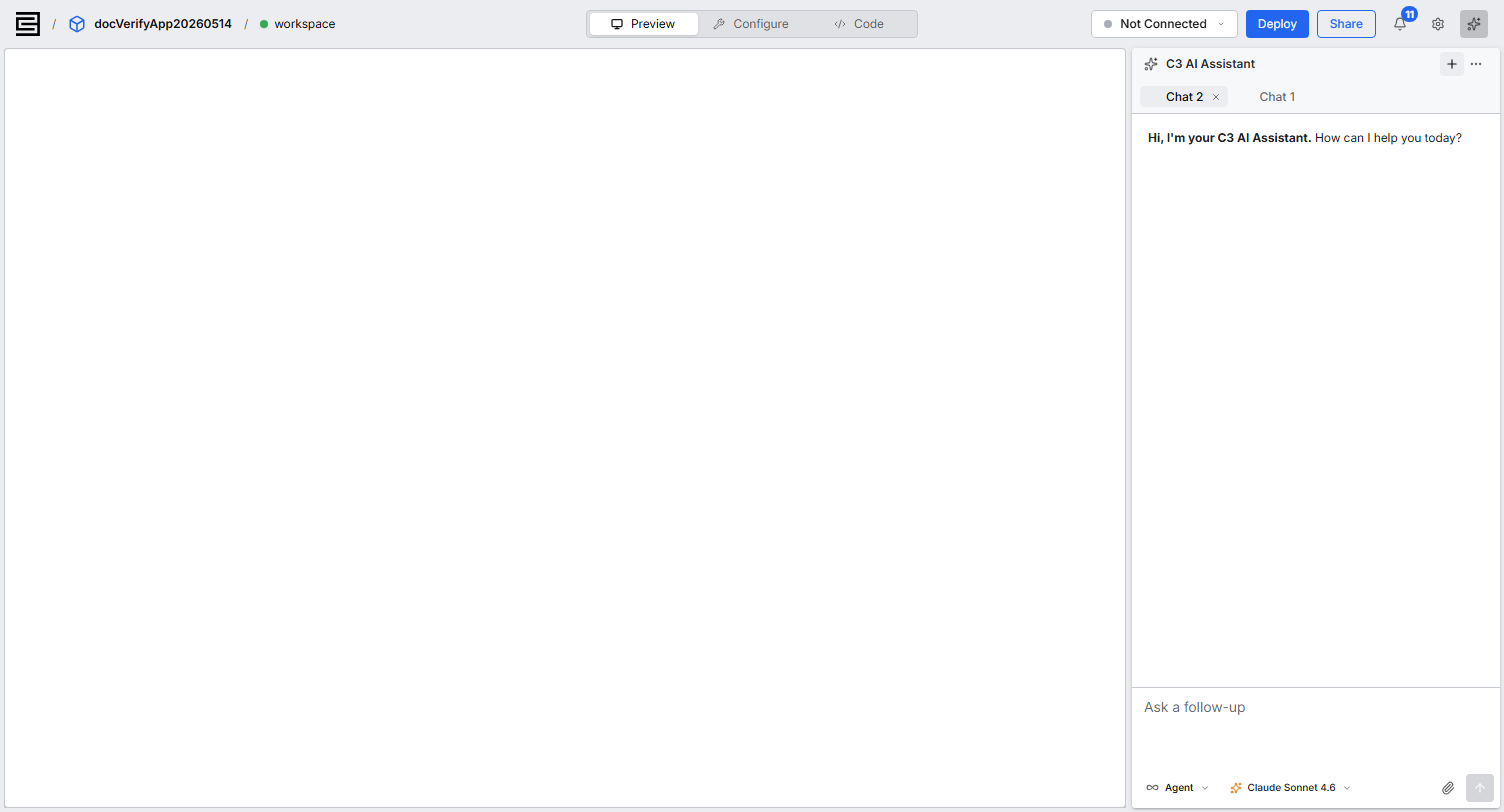
Select New chat in the chat panel. The new chat opens as its own tab in the tab strip.
A new chat starts under the placeholder name New Chat. Once the conversation has a few messages, C3 Code replaces that placeholder with a title drawn from what you asked. Double-click a tab to rename the chat yourself.
Run two chats at once
Each chat runs its own agent, so a request in one chat starts while another chat is still working. Send a long change, leave that change running, then open a second chat and fix a label in the meantime.
Both chats build the same application. Both chats write to the same files, read the same database, and feed the same preview. Give concurrent chats work in different parts of the application. Two chats editing different pages do not interfere with each other. Give a change that spans the whole application a chat of its own, and let that change finish before starting another.
Two agents editing the same file at once can overwrite each other. C3 Code warns you when you start typing in one chat while an agent in another chat is still editing. Dismissing that warning hides it permanently, so read the warning before you dismiss it.
Read what each chat is doing
Each tab reports its own state, so you can leave one chat working and watch that chat from another. Three indicators appear on the tab itself:
- Processing: the agent is working on that chat's request.
- New response available: the agent answered while you were in a different chat.
- Action needed: the agent asked a question and is waiting for you.
Watch for Action needed. The agent stops when it asks a question, so a chat that appears slow is sometimes a chat waiting for you.
Set the mode and model for each chat
The mode and the model belong to the chat rather than to the workspace. Each chat carries selectors of its own in the chat panel footer, and changing those selectors in one chat leaves every other chat unchanged.
That separation lets you split reading from writing. Ask mode answers questions and changes nothing. Keep one chat in Ask mode for questions about the code, and run Agent mode in another chat to make the changes. The Ask chat answers you while the work in progress stays untouched.
For writing a first prompt and refining what comes back, see Start from Scratch.
Reopen a chat you closed
Closing a tab keeps the chat and the full history of that chat, and shortens the tab strip to what you are working on now.
Select Search chats in the tab strip to bring a closed chat back. Search chats groups chats as Today, Yesterday, Previous 7 Days, and Older, and marks the chats already open as Currently open. Search by name to find any chat in the workspace. Selecting a closed chat reopens that chat as a tab, with the history intact.
The Chat actions menu downloads the open chat as a JSON file. Use that file to keep a transcript outside the workspace.
Where to go next
These pages cover the work you run across those chats: