Query Data Lakehouse Tables
The fastest way to query a Data Lakehouse table is the SQL Editor in C3 AI Studio. The editor runs in the browser, supports SQL with autocomplete, and tracks every run on the Spark Executions page. For programmatic workflows or cross-store queries, use the notebook paths documented at the bottom of this topic.
In C3 AI Studio: SQL Editor
The SQL Editor is the user interface for ad-hoc SQL. It is the right choice when you want a result in the browser without running a notebook.
- Open your application in C3 AI Studio.
- Select Data Lakehouse in the Data section of the side navigation.
- Select the SQL Editor tab.
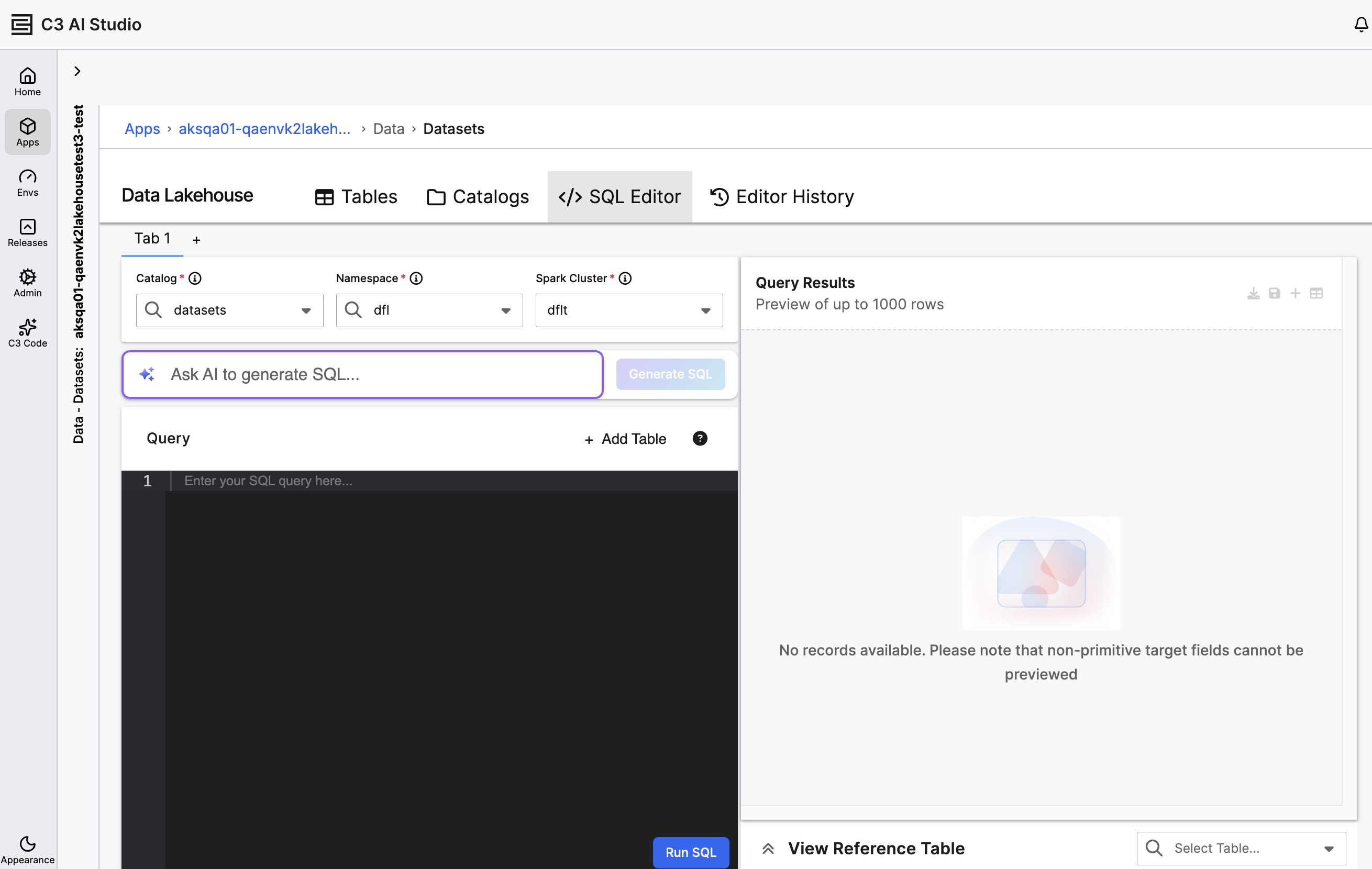
The editor requires three values:
- Catalog: The catalog that holds the table.
- Namespace: The namespace that holds the table.
- Spark Cluster: The cluster that runs the query. The default cluster is
dflt.
Use the View Reference Table panel to inspect a table before you query it. Pick a table from the Select Table... combobox and select View Reference Table — a modal opens with the schema, the current snapshot, partition expressions, and a 20-row data preview.
Enter your query in the editor area and select Run SQL. If the cluster is hibernated, the editor shows the banner Starting Spark cluster, query response will be available shortly and queues the query until the cluster is ready.
The results pane shows up to 1000 rows. The toolbar above the pane lets you download the result as CSV, save it as a new Lakehouse table, write it to the C3 File system, or switch to a chart view.
Generate SQL from a prompt
The editor has an Ask AI to generate SQL field at the top of the query area. Enter a natural-language description and select Generate SQL. The generated query appears in the editor; you can edit it before running.
Multiple query tabs
Select + Add tab above the filter panel to open a second query tab. The two tabs run independently against the same cluster.
Editor history
Every run is logged on the Editor History tab. The history grid shows the action, status, query text, user, submitted time, and elapsed time. To open the result of a past run, select the row's action button.
For the underlying execution telemetry, including filters by cluster and origin, see Monitor and Maintain the Data Lakehouse.
From a notebook
Use a notebook when you want to script a query, run from an external IDE, or join Lakehouse tables with other data stores. The notebook paths complement the SQL Editor — every run from a notebook also appears on the Spark Executions page.
Spark Connect with a three-part name
Use Spark Connect when you want a Python-native SQL surface or you need to write a query that the SQL Editor does not support (for example, DDL):
cluster = c3.SparkCluster.inst()
spark = cluster.sparkConnectSession()

spark.sql(
    "select asset, avg(activePower) as avgPower "
    "from datasets.dfl.turbineMeasurements "
    "where t >= '2026-01-01' "
    "group by asset"
).show()
The three-part name follows the pattern <catalog>.<namespace>.<table>. The unified Spark catalog routes the call to the correct Iceberg catalog automatically.
Spark Connect SQL supports DDL, so you can also create a table from a query:
spark.sql(
    "create table summaryTable "
    "partitioned by (bucket(4, asset)) "
    "as select asset, month(t) as ym, avg(activePower) as avgPower "
    "from datasets.dfl.turbineMeasurements "
    "group by asset, month(t)"
)
For in-platform workflows, cluster.sparkConnectSession() returns a ready-to-use session against the same cluster.
Data.SparkSession (Pandas-on-Spark)
Use Data.SparkSession when you want a Pandas-on-Spark API with C3 extensions. The session offers the same SQL surface as Spark Connect plus C3-specific helpers.
cluster = c3.SparkCluster.inst()
ss = cluster.dataSparkSession()

df = ss.load_table(table)
df[df["activePower"] > 2000].head(10)
To run SQL with bound DataFrames:
df = ss.sql(
    "select asset, avg(activePower) as avgPower from m group by asset",
    {"m": measurements_df},
)
The session also exposes ss.fetch(...), ss.evaluate(...), and ss.read_csv(...). See Transform Data Lakehouse Data with Spark.
C3 Execution Engine for cross-store queries
Use the C3 Execution Engine when you need to join a Lakehouse table with a Persistable Type or with a table in another datastore. The engine federates the query across stores; the SQL Editor cannot do this on its own.
turbine_spec = (
    c3.DataSession.TableSpec.builder()
    .sourceType("WindTurbine")
    .columns(["id", "location", "power", "manufacturer"])
    .build()
)
measurement_spec = (
    c3.DataSession.TableSpec.builder()
    .sourceType("datasets.dfl.turbineMeasurements")
    .build()
)

bindings = {"turbines": turbine_spec, "measurements": measurement_spec}
query = (
    "select t.location, avg(m.activePower) as avgPower "
    "from turbines t join measurements m on t.id = m.asset "
    "group by t.location"
)
result = c3.DataSession.executeQuery(query, bindings).read_pandas()
For Lakehouse tables, the sourceType is the three-part name <catalog>.<namespace>.<table>.
Filtered batch reads outside Spark
For server-side filtering and a streaming reader without Spark, use the Arrow iterator:
arrow_iter = table.readArrowIterator(
    c3.Filter.gt("activePower", 2000).and_().gt("t", "2020-12-30T23:59:31"),
    [],
    10000,
)
df = arrow_iter.read_pandas()
The iterator pulls Arrow batches of the size you set. Use this path for low-memory loops or for clients that already speak Apache Arrow.
Time travel
Each write to an Iceberg table produces a new snapshot. You can read any past snapshot from the SQL Editor using the Iceberg VERSION AS OF clause:
SELECT * FROM datasets.dfl.turbineMeasurements VERSION AS OF 806961822255923613The same clause works in a Spark Connect query.
From a notebook with the Python API:
spec = (
    c3.DataLake.Catalog.TableSpec.make()
    .withNamespace("dfl")
    .withIncludeSnapshots(True)
)
table = catalog.table("turbineMeasurements", spec)

snapshots = table.snapshots
last_week_snapshot = snapshots[5]

df_then = ss.load_table(table, last_week_snapshot)
See C3 Data Lake Snapshot Versioning and Management for the snapshot lifecycle.