Create Custom Types and Methods
You can use VS Code and C3 AI VS Code Extension (VSCE) features to extend your C3 AI application:
- Create custom Types and access the Type documentation.
- Add static or member methods to your custom Types.
- View documentation for custom or built-in Types.
- Create new application packages in your environment.
- Find errors in your code.
Prerequisites
Before you begin, ensure you have the following:
- Access to a C3 AI Studio cluster.
- A running single node environment (SNE).
- A basic C3 AI application in your SNE.
- A workspace with the C3 AI VS Code extension.
To create your SNE or development application, see any of the following links:
For an overview of development requirements, see Develop a C3 AI Application. If your organization is not yet a C3 AI customer, contact us for additional information.
Create a new custom Type
In the C3 AI Type System, a Type is analogous to a class or interface in traditional software development.
Follow these steps to add a custom Type to your application:
- Create a
srcfolder in your package, if one is not present.
As a best practice, create (or ensure you have) anentityfolder insidesrc. - Create a
<type name>.c3typfile in thesrc/entityfolder.
This is where you define the mixins, fields, methods, and annotations for the custom Type.
The following example creates a WindTurbine.c3typ file containing a WindTurbine Type definition:
The filename must be the same name as the Type it defines. Capitalization is important!
/**
* WindTurbine.c3typ
* Represents a single wind turbine in a wind farm
*/
entity type WindTurbine {

    // custom fields and methods will go here

}
You can configure Type behavior using the following attributes:
- Fields: Attributes associated with the Type.
- Annotations: Additional attributes and configurations for a field, method, or Type.
- Mixins: Attributes for reusing and inheriting properties from other Types.
For a deeper dive on Types, Type methods and runtimes, see any of the following:
- C3 AI Type System Overview
- Understand Type Methods and Functions
- Categories of Methods
- Making a Runtime
Create a custom Type method
A Type method can take arguments, perform logic, invoke changes, and return values.
You can add a Static or Member method to a Type. The following table briefly describes each:
- Static: Called on the Type. Inaccessible on Type instances.
- Member: Called on the Type instance. Can return data about a specific Type without using a query.
Follow these steps to create a custom Type method:
Declare a method signature as a field in the desired Type.
The signature defines the method's input, output, implementation language, and execution location:TypeScriptmethodName: function(inputVariableName: inputDataType): outputDataType implementationLanguage-executionLocationmethodName: The name of the method. For example,getInstanceNameinputVariableName: inputDataType: A method parameter and corresponding data type. For example,length: intdeclares anintparameter calledlength.outputDataType: The data type returned by this method. For example,intspecifies that a method returns a number.implementationLanguage-executionLocation: The method's runtime execution context. For example,js-clientspecifies a JavaScript implementation that will be run on the client.
Create
<TypeName>.<implementedLanguageExtension>file to implement the function.- This file must be saved in the same location as the Type's
.c3typdefinition file. - For example, a
WindTurbine.jsfile would contain JavaScript method implementations for aWindTurbine.c3typType definition in the same directory.
- This file must be saved in the same location as the Type's
The following sections demonstrate these steps in more detail using an example WindTurbine Type:
You can test method implementations in the JavaScript Notebook. To access a JavaScript notebook using C3 AI VSCE, see Overview of the C3 AI VS Code Extension.
Create a static method
Follow these steps to create a static method on the WindTurbine Type:
In the
WindTurbine.c3typfile, add the method signature as a field.- The following example declares a
randNumbermethod that generates and returns a random number.
It will take an integer argument calledmaxas the maximum value it can return. js-serverindicates this will be a JavaScript implementation that runs in the C3 AI server runtime.
Typeentity type WindTurbine { // ... /** * A static method that generates a random number. */ randNumber: function(max: int): int js-server }- The following example declares a
In the
srcfolder, create aWindTurbine.jsfile and implement the method as a function.
The following example uses JavaScript's built-inMath.randomfunction to return a random number:JavaScript// WindTurbine.js function randNumber(max){ return Math.floor(Math.random() * max); }Save the implementation and ensure your package is fully synchronized. Refer to Check file synchronization for more details.
In the JavaScript Notebook, test the new method to see the method output:
JavaScript// Outputs a random number between 0 and 100 WindTurbine.randNumber(100);Press
SHIFT+ENTERto execute the code cell. The output will be a random number from 0 to 99.
Repeat these steps to declare and implement more methods on the WindTurbine Type.
A Static method is not available on Type instances. Using the preceding example, the following will generate an error:
// Create a new instance of the "WindTurbine" Type
var myInstance = WindTurbine.make({ id: 123 })

myInstance.randNumber(); // <Returns an implementation error>Create a member method
Member methods are only accessible on Type instances. You create them using a similar process to static methods. This section adds a member method to the WindTurbine Type example.
Declare the method signature on the Type. Member method signatures must include the
memberkeyword.
This example declares a method that returns the ID of a WindTurbine Type instance:Typeentity type WindTurbine { /** * Returns the ID of the Type instance */ getInstanceId: member function(): int js-server }The
entitykeyword gives the Type additional built-in properties including anid.In the example,
js-serverindicates the function will be implemented in JavaScript that runs on the C3 AI server.If you don't have one yet, create a
WindTurbine.jsfile in the same directory as theWindTurbine.c3typextension.
Implement agetInstanceIdfunction in the WindTurbine.js file that returns theidof the object:JavaScript// WindTurbine.js // // Use the "this" keyword to access data from the created WindTurbine instance function getInstanceId(){ return this.id; }Save the implementation and ensure your package is fully synchronized.
To call the member method, create an instance of the Type in your JavaScript notebook and access the method using dot notation:
JavaScript// Create a WindTurbine with the ID "123" var myInstance = WindTurbine.make({ id: 123 }); myInstance.getInstanceId(); // returns the instance IDThe previous method call should return
123.
Create a new application package
A package is a way to bundle resources that can be used by other applications. To add a new package to your development environment, select Create New Package in the VS Code Extension sidebar.
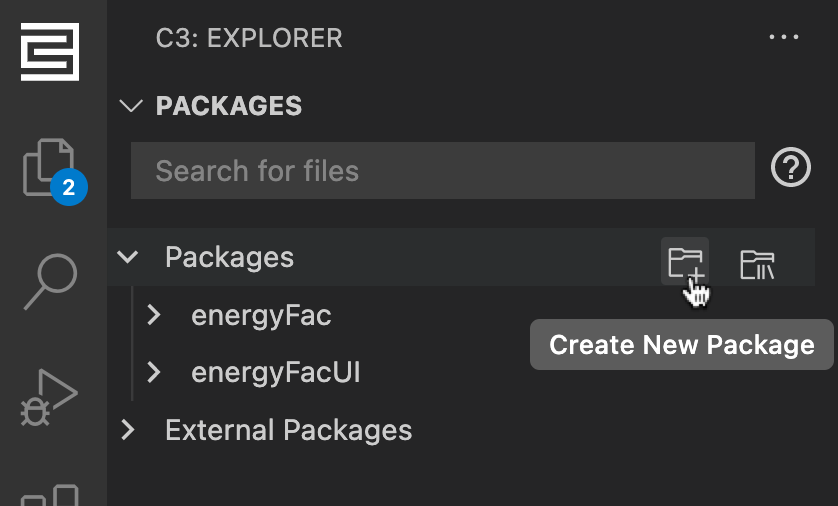
After creating the new package, you can extend it with custom Types. For more information on C3 AI application packages, see Package Management Overview.
Additional information
The following information may help you troubleshoot issues in your development environment. For more troubleshooting guidance, see C3 AI VS Code Extension Troubleshooting.
Access Type information
To access Type documentation within VS Code, enter the Type name (for example, WindTurbine) in the JavaScript Notebook and press SHIFT + ENTER. You can also use the c3ShowType function on any Type:
c3ShowType(WindTurbine)If a Type is in a different package in your development environment, change your notebook application context to access it. Use Select Application in the notebook window to reveal a package menu, then select the target package from the menu.

Check environment mode
The C3 AI VS Code Extension can only connect to a dev (single node) environment. If you cannot connect to an environment using VS Code, or the Open in VS Code action is unavailable in C3 AI Studio, you may have created a shared environment.
To see if your environment is in development mode, view the environment name under APPLICATIONS in the C3 AI VS Code extension sidebar.
The application mode should be visible as (dev).
You can also find this information in C3 AI Studio by taking the following steps:
- Navigate to the application. You can use any of the following methods:
- Select the application card from the C3 AI Studio homepage
- Select the application name from the list on the Apps page
- Select the application name from its parent environment overview page
- Locate the Application mode label in the Details section of the Application Overview page.
File synchronization
The following icons indicate whether a file or directory has been synchronized with the C3 AI server:
| Icon | Status | Description |
|---|---|---|
 | Un-synced | The file has not been uploaded to the server. Try making changes and saving the file again. |
 | Synced | The file has been uploaded to the server. |
 | Validated | The file has been sent to and validated by the server. If a validated file contains errors, the filename turns red. |
If your file is saved and shows a synced status when you expect a validated status, resynchronize your local package to the server by following these steps:
- Open the VS Code Command menu (
CMD+SHIFT+Pon macOS;CTRL+SHIFT+Pon Windows) - Select the
C3: Resync Local Packages with Servercommand.
A notification message will indicate when your package synchronization is completed.
If the file remains in a synced state, restart VS Code and reconnect to your environment.
View package errors
The C3 AI tab in the bottom panel of the C3 AI VS Code Extension shows the errors in your package. Keep this tab open during development to show any errors that emerge after you save your code. To go to the error in your code, select the error message.
To enable DEBUG mode, run the following in the application notebook, console, or the C3 AI VS Code Extension Read-Eval-Print Loop (REPL) feature:
Js.exec(`Pkg.Store.log().setLogLevel("DEBUG")`)See the "REPL" section in C3 AI VS Code Extension Features to learn more about using the REPL feature.