Connect Apps on Other Clusters
By default, an agent reaches C3 applications on its own cluster, authenticating as the user who is chatting. An application on a different cluster is invisible to it, because your user identity doesn't cross cluster boundaries. Connect an app on another cluster when an agent needs to work with an application that lives outside its own cluster.
A cross-cluster connection bridges that gap. An administrator sets one up once for a remote app, and after that any user can connect and use that app directly in a chat, with no extra setup on their part.
Manage cross-cluster connections on the Connect page (the Connect item in the left navigation), under the Cross-cluster tab.
How a cross-cluster connection works
The connection is a service account, not a per-user identity. Every cross-cluster call runs as that account regardless of which user triggered it, so the token should be minted with only the role or roles the agent needs.
The token itself is handled the way every credential in C3 AI Agentix is: encrypted at rest and never returned over the API. The agent never sees it either. The agent pod's proxy injects the token on every outbound call to the remote app, so it stays out of prompts, transcripts, and skill code.
See Connect Secrets for how C3 AI Agentix stores every credential.
Provision a connection
Provisioning is a two-step, administrator-only task (Agentix.AgentAdmin).
Step 1: Mint a token on the remote app
The exact steps are server-version-specific, so follow the remote app's own documentation.
- Open the remote app's Console.
- Choose Links → Documentation → Topics.
- Search for "Generate an Access Token" or "Build an OAuth Token API for your Application" and follow it.
Mint a long-lived token granting only the role or roles the agent needs.
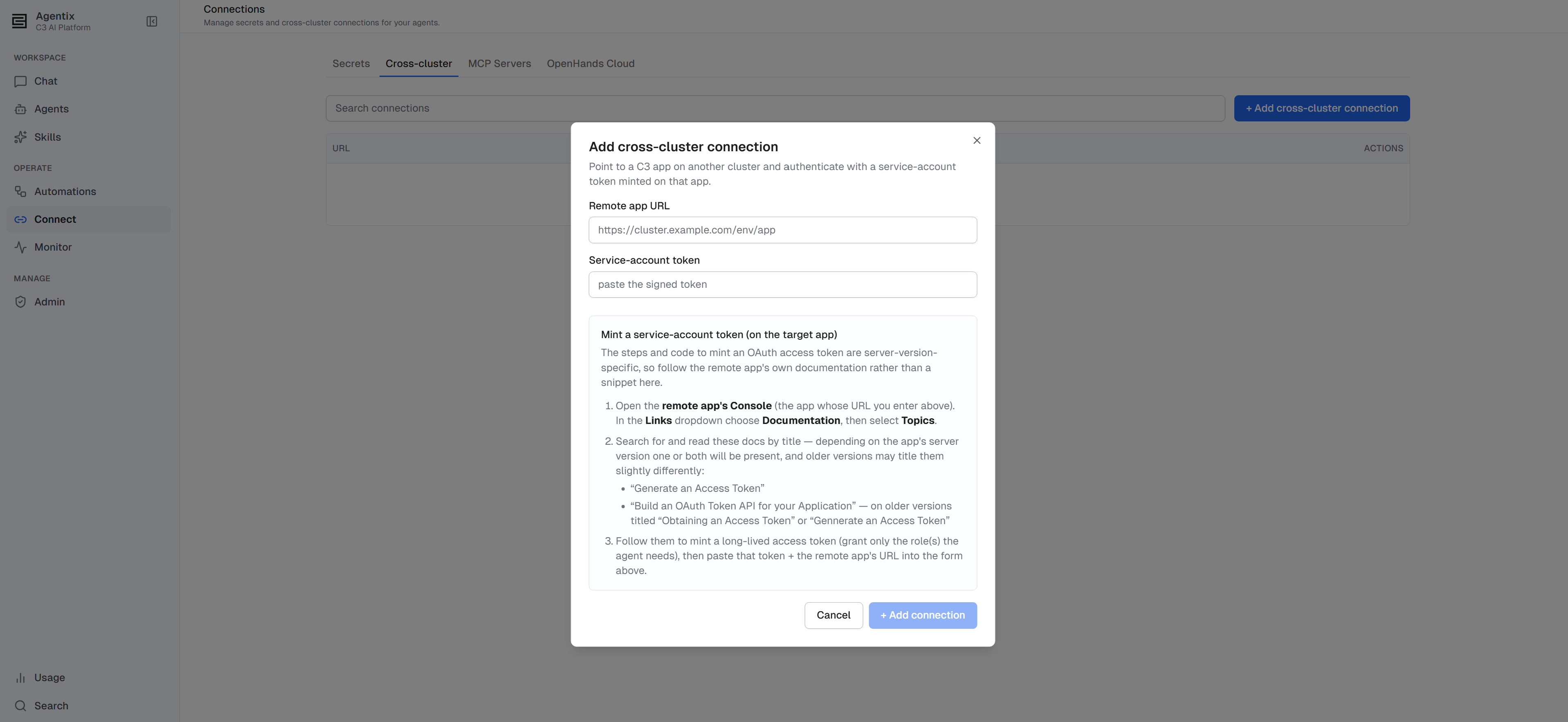
Step 2: Save it in C3 AI Agentix
Provide the remote app's URL and the token you minted:
- On the Cross-cluster tab, select Add cross-cluster connection.
- Enter the remote app's URL. Cluster (
/env/app), environment (/app), and vanity-URL shapes are all accepted. - Paste the token and select Add connection.
C3 AI Agentix validates the token live against the remote app and reads the app's real App ID directly from the remote cluster, so vanity URLs work too. If the token is expired, C3 AI Agentix rejects it at this step.
Manage connections
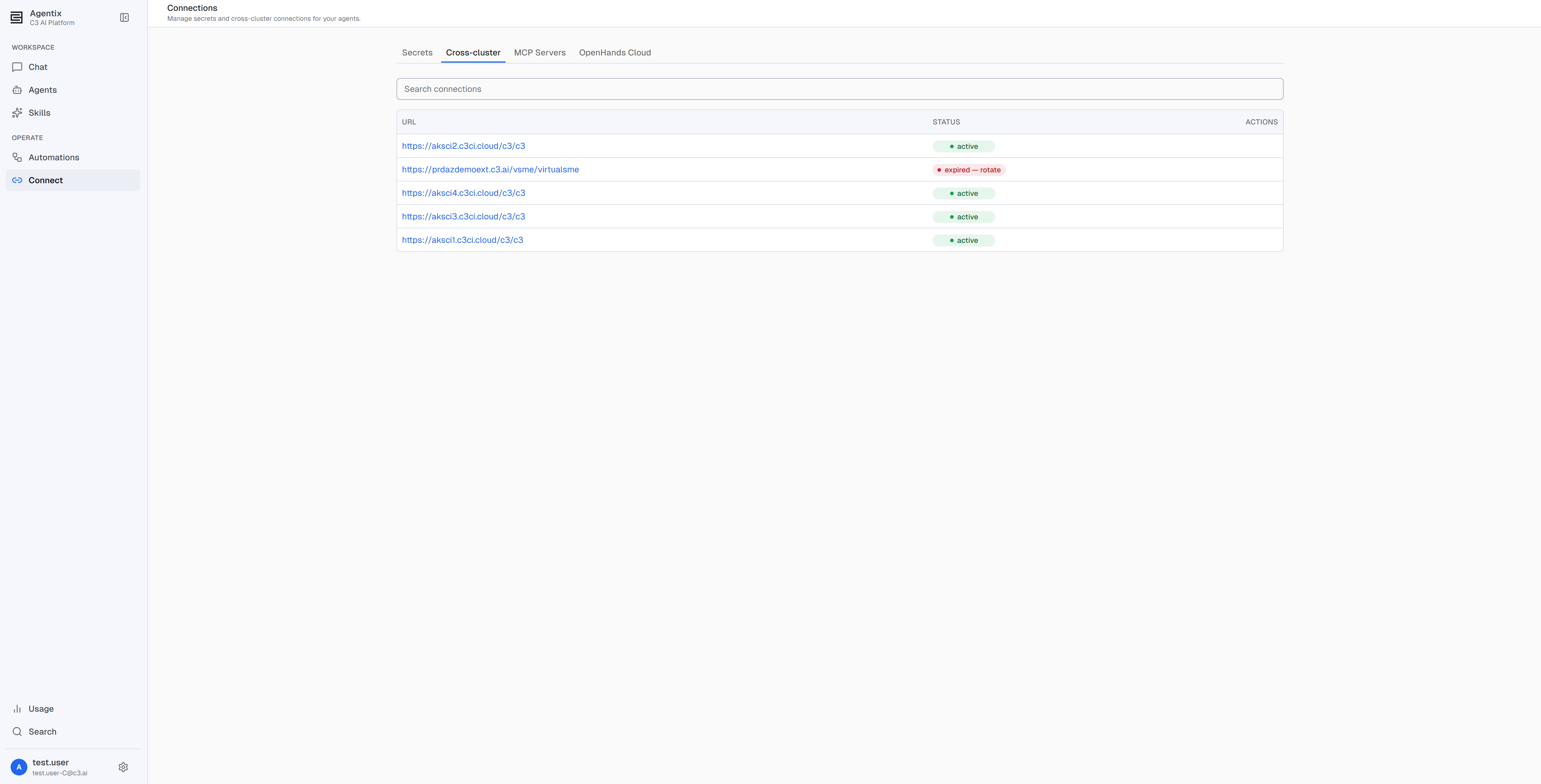
The configured apps appear in a list showing each app's URL and status.
- active: the stored token works.
- expired — rotate: the stored token has lapsed and needs a new value.
From the list you can:
- Test: send one authenticated request to the remote app to confirm the stored token still works.
- Clear: remove the connection.
To rotate a token, save the same URL again with a fresh value. C3 AI Agentix overwrites what's stored.
Use a connected app
After a connection is provisioned, using it needs no further administrator involvement. Any user can:
- Connect it in a chat by its App ID, exactly like a local app, and the agent queries it without ever handling the credential. See Have your first conversation.
- Set it as a default app on an agent, using Add external app and the App ID in
cluster-env-appform, so the agent is always tied to that app. See Set default apps.
Either way the agent authenticates through the service-account token; the user never needs the credential.
Permissions
Two roles govern cross-cluster connections:
Agentix.AgentAdmin: provision, rotate, test, and clear cross-cluster connections. Minting the token on the remote app also requires the appropriate role on that app.Agentix.User: use a cross-cluster app an administrator has already connected, in a chat or as an agent's default app.
For the full role ladder, see Roles and Permissions.
Where to go next
- Build an Agent: Overview — what a connection is and when an agent needs one.
- Connect Secrets — store the credentials a skill or script reads at runtime.
- Connect MCP Servers — extend an agent's tools to an outside service.
- Create and Configure an Agent — tie an agent to a remote app as a default app.
- Roles and Permissions — who can provision and use cross-cluster connections.