Unstructured Document Processing using Doc AI in Data Fusion
Data Fusion provides capabilities for processing unstructured documents and transforming their contents into information that can be used for search, retrieval, and structured data workflows.
Data Fusion supports two document-processing workflows: the Doc AI workflow and the existing unstructured document-processing workflow. You can select Doc AI for a new document-processing use case when the Doc AI service is deployed. The existing workflow remains available for backward compatibility with existing pipelines and for use cases that require capabilities not available through Doc AI.
When you configure a Source Collection, select the document-processing workflow to use under Processing Engine. Select Doc AI, or Mew3 for the existing unstructured document-processing workflow. The selected workflow determines how the documents are processed and which configuration options are available.
When a Source Collection uses the Doc AI workflow, you configure an Ingestion Strategy that determines how its documents are processed. The selected Ingestion Strategy and its configuration determine the operations Doc AI runs. Doc AI can parse document content, divide it into passages, and generate metadata and embeddings. Doc AI can also extract information into structured business entities.
Doc AI processes documents asynchronously. Data Fusion initiates processing, and Doc AI performs the configured processing operations and persists the results back to the application for downstream use.
Document processing workflow
On the Data Fusion canvas, the Doc AI workflow connects a Source System, Source Collection, Strategy, and Entity Type. Together, these components represent the source documents, their processing configuration, and the resulting output.
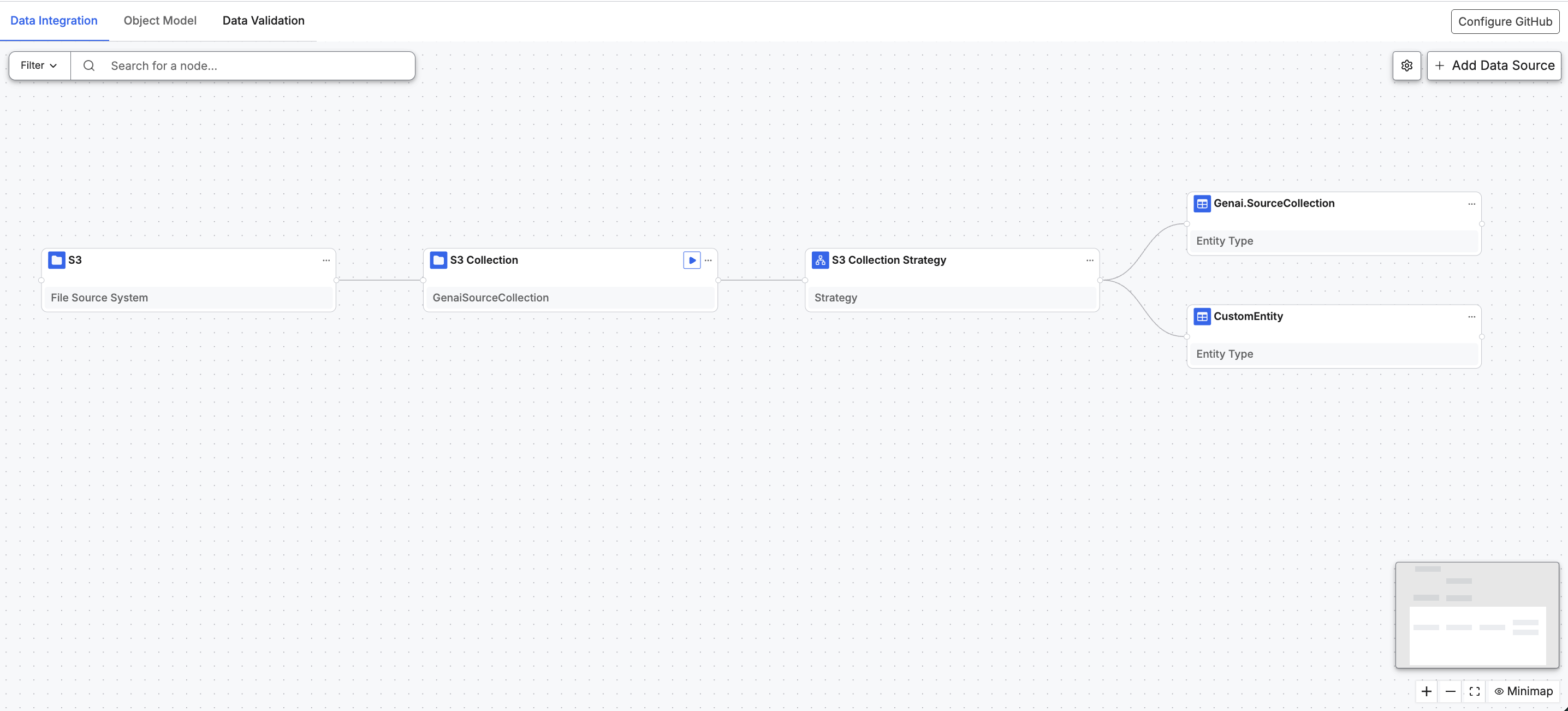
The following steps describe the document processing workflow:
- Configure a Source System. Connect Data Fusion to the location that contains the documents you want to process.
- Configure a Source Collection. Define the collection of documents to process and upload or synchronize documents from the source.
- Configure a Strategy. Associate a Strategy with the Source Collection and select the Ingestion Strategy that determines how Doc AI processes its documents.
- Start document processing. Initiate processing for documents in the Source Collection. Processing uses the configuration defined in the Ingestion Strategy.
- Monitor document processing. Track the processing status of individual documents before, during, and after processing.
- Review and use the processing outputs. The results depend on the selected Ingestion Strategy and its configuration. Results can include passages with metadata and embeddings. Results can also include extracted business entities for downstream workflows.
For information about the available processing approaches and how they affect the resulting output, see Ingestion Strategies. For detailed instructions for configuring and running the workflow, see Create a Document Processing Pipeline in Data Fusion.
Ingestion Strategies
An Ingestion Strategy determines how Doc AI processes documents and the outputs produced. You select an Ingestion Strategy in the Configure Strategy dialog, which determines the available processing settings.
Doc AI provides two out-of-the-box Ingestion Strategies, Passage-level extraction and Document-level extraction, described below. Your environment may also offer custom Ingestion Strategies defined by your application team.
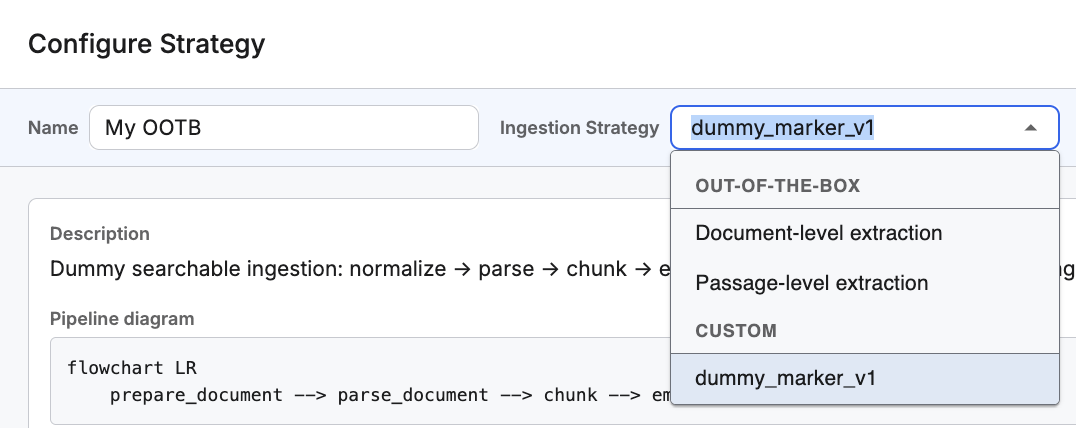
Choose an Ingestion Strategy
Use the following comparison to choose an Ingestion Strategy based on the processing and retrieval capabilities your workflow requires.
| Capability | Passage-level extraction | Document-level extraction |
|---|---|---|
| Processing behavior | Processes document content and divides it into source passages. | Examines a subset of the document's pages and extracts information that describes the document as a whole. Does not divide the document into passages. |
| Processing cost | Higher, and grows with document length, because every passage is parsed, tagged, and (optionally) embedded. | Lower, and roughly constant per document, because only a subset of pages is examined. |
| Retrieval cost | Lower and predictable, because retrieval reads only the passages relevant to a query. | Lower for filtering, counting, or listing documents by metadata; higher for questions about document content, which require reading full matching documents. |
| Creates source passages | Yes | No |
| Generates embeddings | Yes, unless disabled | No |
| Supports passage-based semantic retrieval | Yes, when embeddings are enabled | No |
| Supports document-scope metadata extraction | Yes | Yes |
| Supports passage-scope metadata extraction | Yes | No |
| Supports business entity extraction | Document scope, passage scope, or both | Document scope only |
| Best for | Precise, cited answers from specific passages within long documents. | Filtering, counting, or summarizing documents by metadata, or reading a few specific documents in full. |
| Weak for | Workflows that only need document-level metadata, since passage-level indexing adds unused processing cost. | Finding specific content buried in long documents, or aggregating values across many documents. |
If your workflow requires retrieving specific passages from document content, use Passage-level extraction. If your workflow only needs metadata or a summary describing each document as a whole, Document-level extraction provides this at lower processing cost.
Extraction scope within an Ingestion Strategy
Metadata and business entities can be extracted at different scopes depending on the selected Ingestion Strategy. Passage-level extraction can extract at document scope, passage scope, or both; selecting it does not restrict extraction to passage scope. Document-level extraction supports document scope only, because it does not create passages.
For more information, see Configure Tagging and Extraction.
Prerequisites
C3 AI provisions Doc AI for your environment. You do not need to configure models or a vector store. If Doc AI is not available in your environment, document processing cannot be started; contact your administrator. The source file system must support presigned URLs. A file without a presigned URL is marked failed. All language model and embedding calls route through the platform's centralized model gateway. You do not need model provider credentials. A vector store is provided for workflows that generate embeddings.
| Prerequisite | Requirement |
|---|---|
| Environment | Data Fusion on C3 Agentic AI Platform 8.12. |
| Document source | Access to a source system that contains the documents you want to process. See Supported Source Systems. |
| Document formats | Documents in a supported format: PDF, Word (.doc, .docx), PowerPoint (.ppt, .pptx), Excel (.xls, .xlsx), text (.txt, .html, .rtf), or image (.jpeg, .jpg, .png). |
| Document limits | Maximum file size is 1 GB. There is no page-count limit. Scanned and image-only documents are supported. Encrypted PDFs are supported only when they require no password or use an empty password. PDFs that require a password are not supported. |
| Permissions | Doc AI does not introduce additional permissions or roles. The permissions that apply are the same ones that govern the equivalent actions in Data Fusion. |
Supported Source Systems
A source system is the location that contains the documents you want to process with Doc AI. You connect Data Fusion to a source system, then define a Source Collection that identifies the documents to process from that source.
Documents become available for processing when you upload them to the Source Collection or synchronize them from the source system.
For information about connecting to and authenticating with a source system, see the Connector Reference Table. To set up a document source, see Create an Unstructured Source Collection. Follow its "Add an external file source system" and "Create the source collection" sections.