Monitor Pipeline Execution
After you run an Unstructured Data Integration (UDI) pipeline, you want to know when your documents are ready for search and which files need attention. A file is ready when it is indexed: the pipeline wrote its passages (the chunk text and the embeddings that search matches) to the vector store.
Two places on the Data Fusion canvas show progress. The View Run Status dialog counts the files at each pipeline stage and shows the job that is running. The Configure Runtime Parameters dialog lists each file with its status. When a file doesn't reach the indexed status, the tile it stops on points to the cause. The jobs pages in C3 AI Studio show the errors of each job.
The Data > Data Monitoring page does not show UDI runs. The Data Monitoring page covers structured pipelines only. For that page, see Monitor Your Data Pipeline.
Check a run's progress
Check how far a run has come from the source collection node:
Open the source collection node's menu (the three-dot button), and then select View run status. The View Run Status dialog opens with the collection name in its title.
Under File Processing Status, check the Files by pipeline stage tiles. Each tile counts the files that are at that stage now.
While the chunking job runs, a Chunking card shows its status, step, errors, and duration.
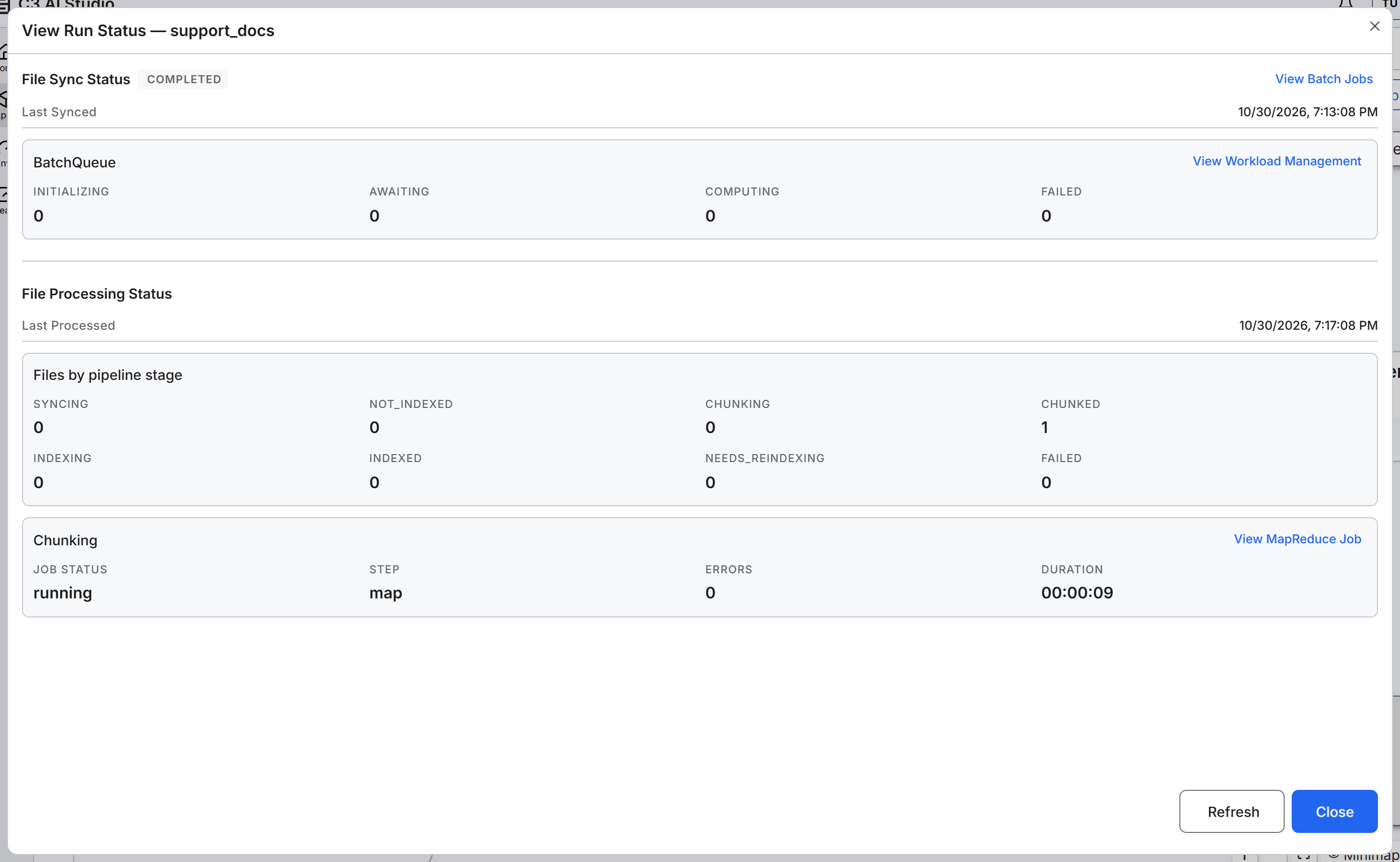
Select Refresh to update the dialog. The dialog does not update by itself.
When every file you ran is counted on the INDEXED tile, the run is complete and the files are ready for search. If files are counted on NOT_INDEXED, CHUNKED, or FAILED, see Troubleshoot files that are not indexed.
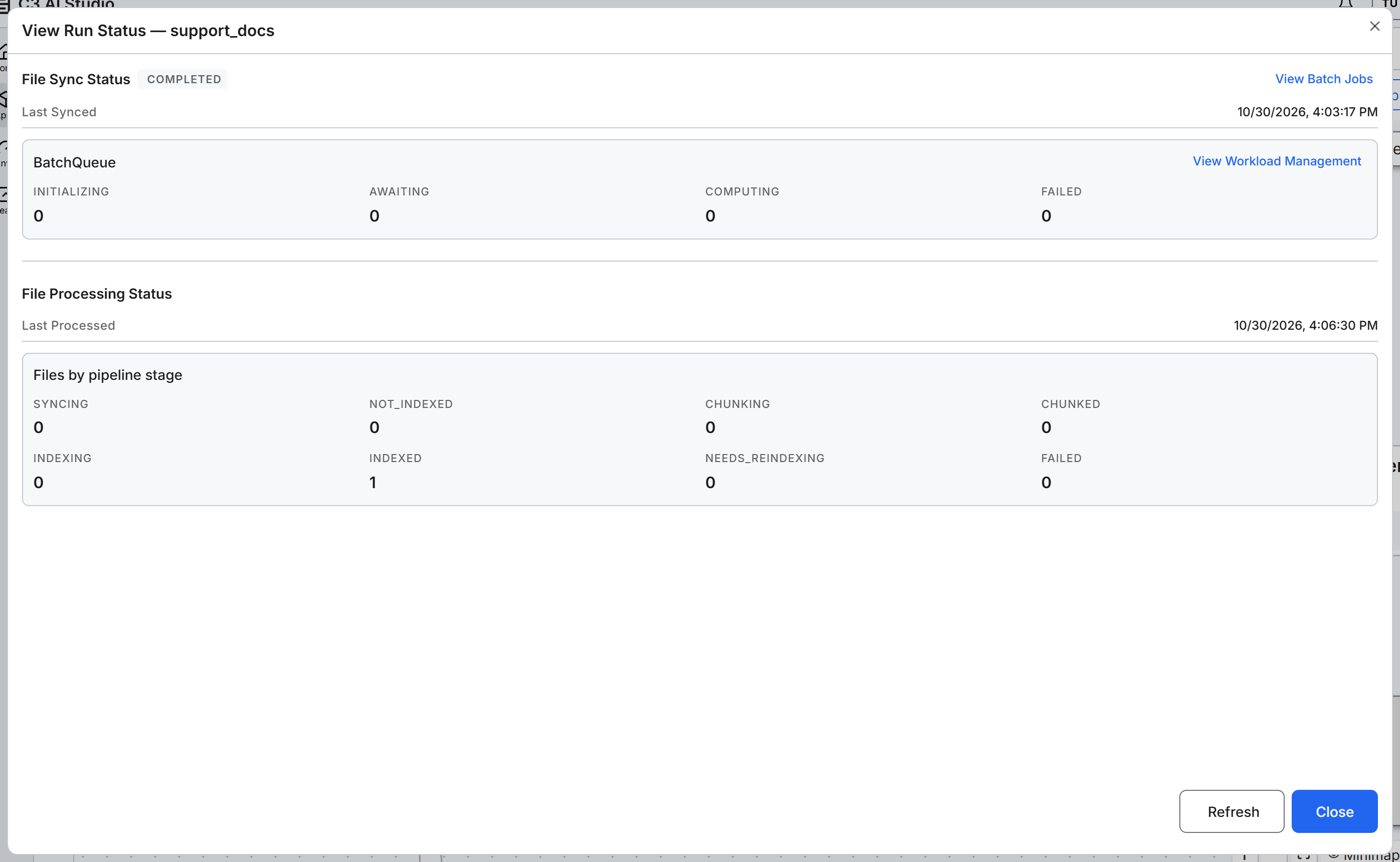
While the chunking job starts, a file may not appear on any tile. Select Refresh until it does.
Read the View Run Status dialog
The View Run Status dialog has two sections.
File Sync Status reports the sync, which lists the files in the collection's folder:
- Status badge: The state of the sync, such as COMPLETED, RUNNING, FAILED, IDLE, or UNKNOWN.
- Last Synced: When the last sync finished.
- View Batch Jobs: Opens the Monitoring > Jobs > Batch page, which lists the sync job.
- BatchQueue card: Counts the sync job's work items by state, on the INITIALIZING, AWAITING, COMPUTING, and FAILED counters. A work item is one unit of work that the job puts in a queue. View Workload Management opens the Workload Management page.
File Processing Status reports the processing of each file:
- Last Processed: When the latest chunking job finished. Last Processed shows
-until a chunking job completes, so it fills in before the files reach INDEXED. - Files by pipeline stage: Eight tiles, SYNCING, NOT_INDEXED, CHUNKING, CHUNKED, INDEXING, INDEXED, NEEDS_REINDEXING, and FAILED.
While a job runs, the dialog shows its progress:
- Chunking card: Shows the chunking job, which parses and chunks the files. JOB STATUS is one of
initial,running,completed,canceled, orfailed. STEP is one ofinitial,readInput,map, orreduce. ERRORS counts the job's errors, and DURATION shows how long it has run. To open the job, go to Monitoring > Jobs > MapReduce. - BatchQueue card for indexing: A second BatchQueue card can appear while another chunking job and an indexing job run at the same time. The second card counts the indexing job's work items.
Select Refresh to update the dialog, and Close to close it.
Check each file's status
The Configure Runtime Parameters dialog lists each file in the collection with its current status. To open the dialog without starting a run:
- On the source collection node, select the Execute pipeline (play) button. The Configure Runtime Parameters dialog opens.
- Find your files. To narrow the list, use Search files by path or name and the Size, Last Modified, Processing Status, and Encoding filters. The Processing Status filter groups statuses: Processing covers the in-progress statuses, and Not Processed covers Not Indexed, Needs Re-indexing, Archived, Needs Removal, and Deleted.
- Select Cancel to close the dialog without running the pipeline.
The table lists the files from the last sync. To see files that you added since then, select Sync Source Collection.
File statuses
The Status column shows one of these values. The View Run Status dialog has a tile for eight of the statuses:
| Status | Tile in View Run Status | Meaning |
|---|---|---|
| Not Indexed | NOT_INDEXED | The sync found the file, and the pipeline has not indexed it yet, or the file was removed from the vector store. |
| Syncing | SYNCING | The platform is reading the file's details from the source. |
| Chunking | CHUNKING | The Chunker is parsing the file and splitting it into chunks. |
| Chunked | CHUNKED | The file is chunked and waits for indexing. |
| Indexing | INDEXING | The Embedder is writing the file's passages to the vector store. |
| Indexed | INDEXED | The file's passages are in the vector store, and the file is ready for search. |
| Needs Re-indexing | NEEDS_REINDEXING | The file was indexed, and then its content changed, the embedding model changed, or its metadata changed while Document Tags is on. Run the pipeline on the file again. |
| Failed | FAILED | Chunking or indexing failed. |
| Processing | No tile | The file was added back to the pipeline, and the platform is deciding which steps to run again. |
| Removing | No tile | The platform is removing the file from the vector store. |
| Needs Removal | No tile | The file no longer exists at the source, and its passages are still in the vector store. To remove them, see Remove deleted documents from search. |
| Archived | No tile | The file no longer exists at the source, and its passages are no longer in the vector store. |
| Deleted | No tile | A user deleted the file. A deleted file can't be indexed. |
Troubleshoot files that are not indexed
Each entry starts with what you see on the Files by pipeline stage tiles.
Files stay on NOT_INDEXED after the run finishes. The run didn't include the files, for example because you ran Select files without them, or synced the files after you started the run. Run the pipeline again and include the files. For the steps, see Execute the Pipeline.
Files stop on CHUNKED. The pipeline has no Embedder, so it chunks files but doesn't index them. Configure the Embedder, and then run the pipeline again. See Configure the Embedder.
Files end on FAILED. Chunking or indexing raised an error. Common causes:
- The Chunker extracted no content from the file, for example from a file with no readable text. The file fails at chunking with the error "Chunking returned nothing". Check that the file opens and contains text, images, or tables that the Chunker extracts.
- The source collection's Processing Engine can't parse this file type. Files with an unsupported extension don't appear in the collection at all, because sync skips them.
- The large language model (LLM) client or the embedding model client limits the number of requests. Check the client in Model Hub > Clients, and then run the pipeline again on the failed files.
To see the error, check ERRORS on the Chunking card while the job runs, and open the job on the jobs pages afterward. After you fix the cause, run the pipeline again on the failed files.
Find the jobs behind a run
A run uses three jobs: a sync job, a chunking job, and a job that completes indexing. Find the jobs in C3 AI Studio:
- Monitoring > Jobs > MapReduce lists the chunking job.
- Monitoring > Jobs > Batch lists the sync job and the indexing job. The sync job shows your user in Started by, and the indexing job shows
worker. Filter the table by Job Type, Status, Started by, or Start time.
A Started by filter on your own user finds the sync job and hides the indexing job. A finished job shows Completed in the Status column.