Execute the Pipeline
After you configure a source collection, a Chunker, and an Embedder, your Unstructured Data Integration (UDI) pipeline is ready to run. Running the pipeline processes the files in the source collection, the folder of documents the pipeline reads. You also run the pipeline again after you add files or change the pipeline's settings.
Run the pipeline
Each run processes the files you choose in the Configure Runtime Parameters dialog. Start a run:
In C3 AI Studio, select Data > Data Fusion and find your pipeline's source collection on the canvas.
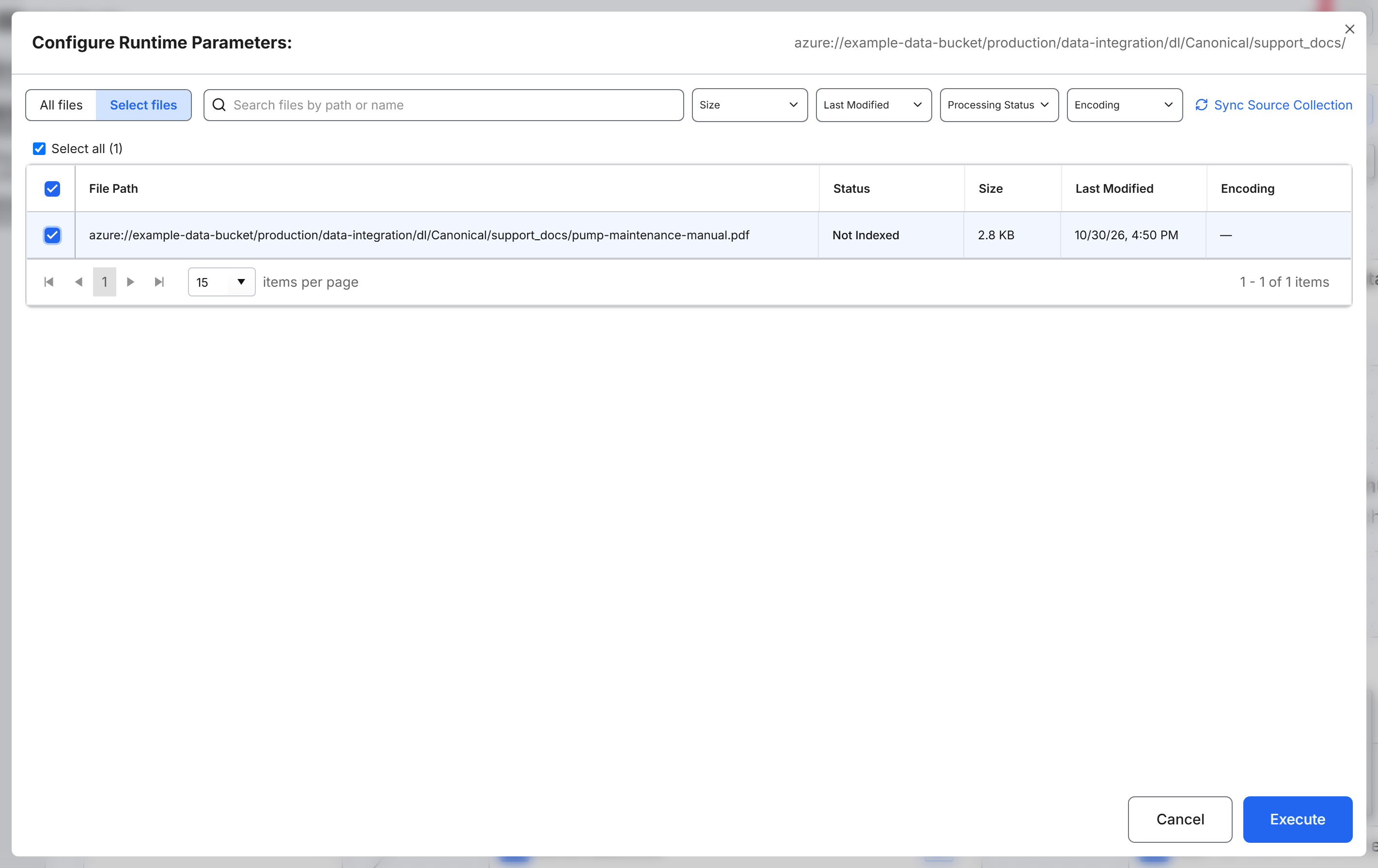
On the source collection node, select the Execute pipeline (play) button. The Configure Runtime Parameters dialog opens. The dialog shows the collection's path and the files that the last sync found.
Select Sync Source Collection. When the sync finishes, the table lists every file in the collection's folder. Opening the dialog doesn't sync the collection, so sync before every run after you add or remove files.
Choose which files to process:
- All files, the default, processes every file in the collection again, including files that are already indexed. Choose this option after a change that affects every file, such as a new Retriever ID or a new Metadata Tagger, or to refresh the whole collection. Files whose content and Chunker settings haven't changed reuse their earlier chunks, and the pipeline replaces their passages instead of adding duplicates.
- Select files processes only the files you select. Choose this option for new files, a test file, or a file that failed earlier. Select each file's checkbox, or select Select all. Execute stays unavailable until you select at least one file. To find files, use Search files by path or name and the Size, Last Modified, Processing Status, and Encoding filters.
Select Execute.
The dialog closes and the run starts. A Pipeline execution started message appears.
If the pipeline has no Embedder, the run chunks the files but doesn't index them. The files stop at the Chunked status, and search has nothing to query.
Follow the run
Two places show the progress of a run. To check the files in one collection, use View run status on the canvas:
- Open the source collection node's menu (the three-dot button), and then select View run status.
- Check the Files by pipeline stage tiles. When the INDEXED tile counts your file, the file is ready for search.
- Select Refresh to update the counts. The dialog does not update by itself.
For what each status means and how to troubleshoot failed files, see Monitor Pipeline Execution.
To inspect the jobs behind a run, open the jobs pages in C3 AI Studio:
- Monitoring > Jobs > Batch lists the job that syncs the collection's files and the job that completes indexing. The sync job shows your user in Started by. The indexing job shows
worker, so a Started by filter on your own user hides it. A finished job shows Completed in the Status column. - Monitoring > Jobs > MapReduce lists the chunking job, which parses and chunks the files.
Troubleshoot a run that lists no files
Each entry starts with what you see in the Configure Runtime Parameters dialog.
The dialog lists no files, or a file you uploaded is missing. The dialog shows the files from the last sync. Select Sync Source Collection. If the file is still missing:
- Select Cancel.
- Open the source collection node's menu (the three-dot button), and then select Sync source files. The sync runs in the background, and a Syncing source files message appears. In View run status, Last Synced shows when the sync finished.
- Select Execute pipeline on the node again.
If the table is still empty, the collection's folder has no files. Select the source collection node, add files with Upload files, select Save, and then sync again. For the steps, see Create an Unstructured Source Collection.
The dialog shows "No source files found in this collection. Upload or sync files first." You ran All files on a collection that has no synced files. Add files to the collection's folder, select Sync Source Collection, and run again.