Configure the Embedder
After you save the Chunker, the canvas shows an Embedder placeholder. The Embedder makes your documents searchable. The Embedder turns each chunk into an embedding, a list of numbers that represents the meaning of the text. Search uses embeddings to find passages with a similar meaning. The Embedder writes each passage, the chunk text with its embedding, to a vector store, which holds the passages that search reads. Without an Embedder, the pipeline chunks files but doesn't index them: they stop at the Chunked status, and search has nothing to query.
This page covers the Embedder node of a UDI pipeline. To have the platform embed a text field of your own entity Type with the @vector annotation, see Integrate an Embedder with Vector Store.
Configure the Embedder
Configure the Embedder after the Chunker, and after the Metadata Tagger if your pipeline uses one:
In C3 AI Studio, select Data > Data Fusion and find your pipeline's source collection on the canvas.
Select the Embedder placeholder, labeled Add embedder. The Configure Embedder dialog opens.
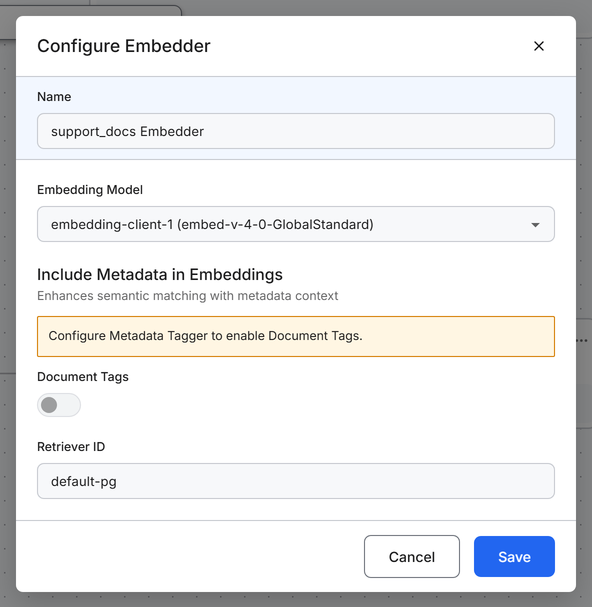
Keep or change the Name. The name is prefilled with
<collection name> Embedder, and the canvas node shows this name.In Embedding Model, select the model that creates the embeddings. The default varies by environment. Choose the model you plan to keep, because changing it later means embedding every document again. For the options, see Choose an embedding model.
Under Include Metadata in Embeddings, choose whether to turn on Document Tags. Turn on Document Tags to let tags from the Metadata Tagger influence which passages match a search. The toggle is available only when the pipeline has a Metadata Tagger. For details, see Include document tags in embeddings.
Check the Retriever ID. Keep the prefilled ID to add these passages to that vector store, or enter your own ID to keep them separate. For details, see Set the Retriever ID.
Select Save.
The canvas adds the passage node, labeled Genai.Vector.SourcePassage, after the Embedder. The passage node stands for the passages that the Embedder writes to the vector store. The pipeline is ready to run. For the next step, see Execute the Pipeline.
Choose an embedding model
The Embedding Model list shows the embedding models available in your environment. The list combines models that come with the platform and the embedding clients configured for your environment. To see or add clients, open Model Hub > Clients in C3 AI Studio. The page heading is Model Clients.
The default is your environment's default embedding model, for example embedding-client-1 (embed-v-4-0-GlobalStandard). The default and the other options vary by environment.
Choose the model that fits your documents and the search that reads them:
- Choose Multilingual E5 Large when your documents are in several languages and you want a model that comes with the platform.
- Choose an embedding client from a model provider, such as Cohere, Amazon Titan, or OpenAI, when your search service or your organization uses that model.
- Choose default (CONFIGURE ME) only after an administrator configures it. This client comes with the platform without a model set.
Pick the model you plan to keep. Changing the embedding model after a run marks every indexed file Needs Re-indexing, and the pipeline must embed those files again.
Include document tags in embeddings
The Document Tags toggle is under Include Metadata in Embeddings. The toggle adds each file's metadata (its file name and its tags) to the text before the Embedder creates the embedding. Tags come from the Metadata Tagger, so the toggle is available only when the pipeline has a Metadata Tagger. Without one, the dialog shows "Configure Metadata Tagger to enable Document Tags." Save a Metadata Tagger first, and then return to the Embedder to turn on the toggle. Choose whether to turn on Document Tags:
- Turn on Document Tags when your tags describe what a document is about, such as its topic or department. The tags then influence which passages match a search.
- Leave Document Tags off when you want matches based on the document text alone.
When Document Tags is on, a file whose metadata changes is marked Needs Re-indexing.
Set the Retriever ID
The Retriever ID names the vector store that this pipeline writes to, and search tools use it to find this pipeline's passages. The field is prefilled with the ID of an existing vector store in your environment, or with default-pg when none exists. The field can't be empty.
Pipelines that use the same Retriever ID share one vector store, and a search against that store returns passages from all of them. Choose the ID by how you want search to group your documents:
- Keep the prefilled ID when this pipeline's passages belong with the passages already in that store. Pipelines that share a store should use the same embedding model.
- Enter your own ID when search should return these documents separately, for example a
product_manualsstore and anemployee_handbookstore. You can also add a version, such aspolicies_v2, to build a new store without changing the one that search uses today.
A Retriever ID can be any text. IDs are easiest to reuse in search configuration when you follow these conventions:
- Use lowercase words separated by underscores, for example
quarterly_reports_2026. - Name the document set and a version, not the model, because the model can change.
Change the Embedder after a run
To change the Embedder's settings later:
On the canvas, select the Embedder node. The Update Embedder dialog opens with the saved settings.
Change the settings, and then select Save. The dialog saves every value it shows, so first check that Embedding Model, Retriever ID, and Document Tags match the settings you want. To keep the saved settings unchanged, select Cancel.
Run the pipeline again if your change affects indexed files:
- If you changed the embedding model, run the pipeline to embed the files marked Needs Re-indexing.
- If you changed the Retriever ID, run the pipeline on All files to fill the new vector store. Passages already in the old store stay there.
For the steps, see Execute the Pipeline.
To see which files need re-indexing, check the NEEDS_REINDEXING tile in View run status. The tile counts the files with the Needs Re-indexing status. For details, see Monitor Pipeline Execution.