Page Rank
Use Visual Notebooks to calculate the relative importance of a vertex in a network, using a page rank algorithm.
Configuration
| Field | Description |
|---|---|
| Name (Optional) default=none | A user-specified node name displayed in the workspace |
Page Rank Score default=page_rank_score | Name of the page rank score column Accept the default name for the page rank score column, or optionally enter a custom name. |
Page Rank default=page_rank | Name of the page rank column Accept the default name for the page rank column, or optionally enter a custom name. |
Reset Probability default=default | Probability of stopping at a given vertex This is the probability that the process of moving from vertex to vertex stops at any particular point. |
Limit maximum interations (default) default=20 | Number of iterations to perform Run the algorithm through a user-defined number of iterations. |
Iterate until convergence within set tolerance default=none | Run until tolerance is reached Run the algorithm until the difference between successive runs is less than or equal to a user-specified tolerance. |
Maximum iterations default=20 | User-supplied number of iterations Specify a fixed number of iterations for the PageRank algorithm to run. |
Node Inputs/Outputs
| Input | A Visual Notebooks Assemble Graph node |
|---|---|
| Output | Page-ranked vertices and edges, and corresponding page rank scores |
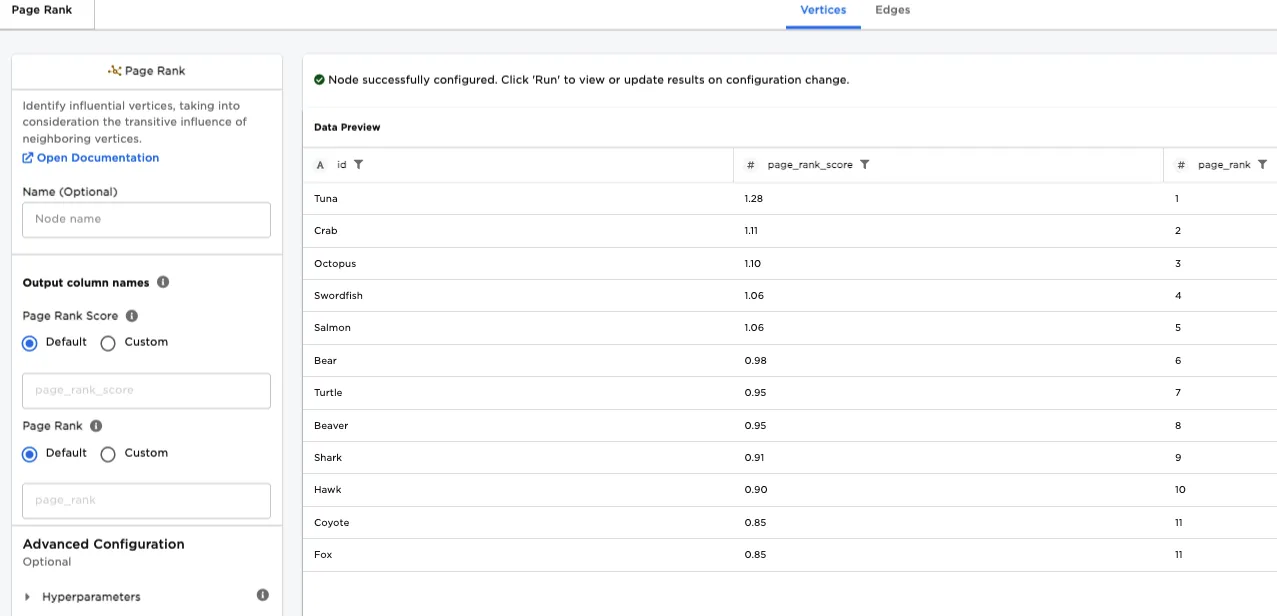
Figure 1: Example output
Examples
The term PageRank refers to an algorithm used to rank the importance of different webpages by assigning each webpage a score.
Two factors raise the PageRank score of a webpage:
- Many webpages link to the webpage.
- One or more webpages that link to that webpage have high scores themselves.
Although the PageRank algorithm was developed for webpages, it can be applied to any network containing vertices and edges. A vertex is a place in a network, while an edge is a path between two vertices. If a suburban neighborhood were modeled as a network, the vertices could be houses, and the segments of street that connect the houses could be edges.
In the examples that follow, we present a simplified, fictitious ecosystem of animals where each animal in the ecosystem consumes one or more other animals in the ecosystem. Then we analyze this data with a Page Rank node to determine which animals are most important to the ecosystem. The data is split into two files:
- A list of animals in the ecosystem, each of which functions as a vertex in the network (Figure 2).
- A set of pairs indicating which animals consume which other animals in the ecosystem, where each pair functions as an edge in the network (Figure 3).
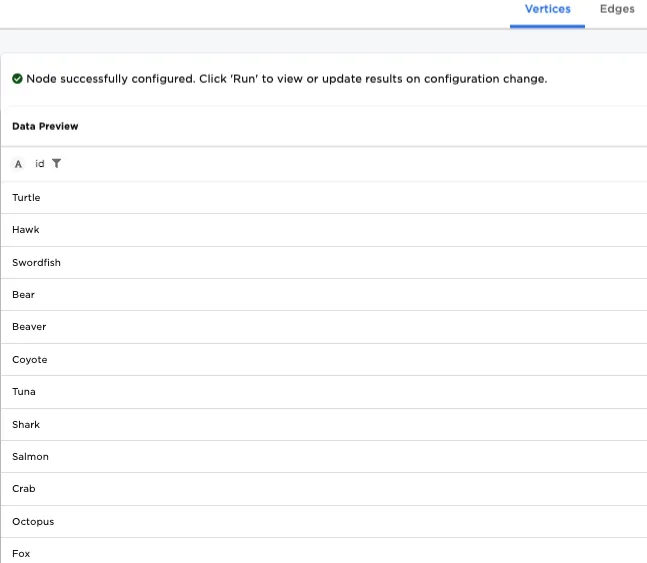
Figure 2 Animal input data
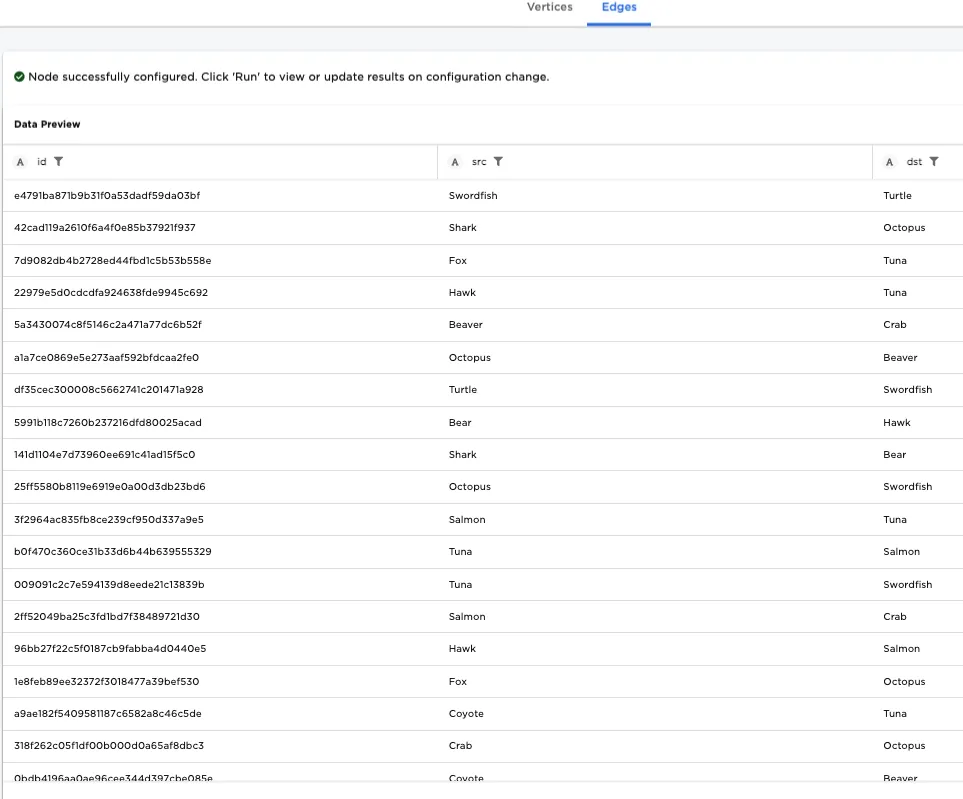
Figure 3: Food input data
For the first example, we determine the most important foods in the ecosystem by performing the following steps:
- Drag two CSV nodes onto the canvas. These are used to import the data.
- Drag an Assemble Graph node onto the canvas. This node transforms the data into vertices and edges.
- Drag a Graph node onto the canvas. The graph node enables us to visualize the vertices and edges of the ecosystem.
- Drag a Page Rank node onto the canvas.
- Download the animals data file, connect it to one of the two CSV nodes, and name the node
Animals. - Download the food data file, connect it to one of the two CSV nodes, and name the node
Food. - Connect the
AnimalsCSV node to the Dataset Vertices input on the Assemble Graph node. - Connect the
FoodCSV node to the Dataset Edges input on the Assemble Graph node. - Select the Assemble Graph Node.
- For Select Column with Vertex ids, select AnimalList. This specifies the vertices.
- Also within that node, for Select Source Columns, select Animal, and for Select Destination Column, select Food. This specifies the edges.
- Select Run to generate the vertices and edges within the Assemble Graph node.
- Connect the Page Rank node to the Assemble Graph node.
- Connect the Graph node to the Assemble Graph node.
While the Graph node is not required to generate results, it allows us to visualize the ecosystem. At this point, your graph should contain five nodes, as in the figure that follows.
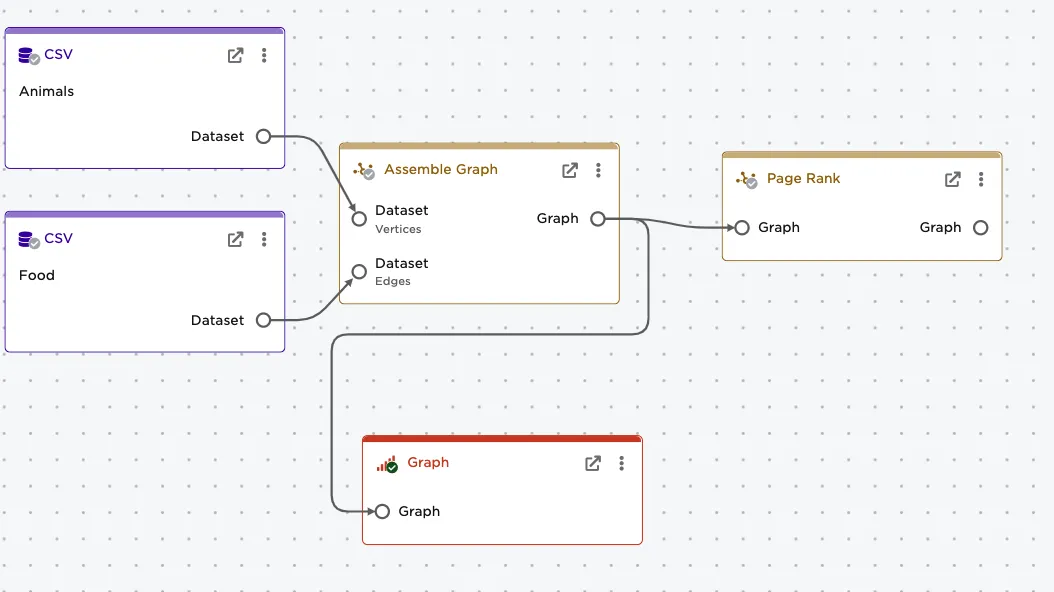
Figure 4: The Visual Notebooks canvas with nodes needed for examples
To start, we visualize our ecosystem as follows:
- Select the Graph node.
- Enable Show edge directionality. This enables you to see which animals consumes which other animal, since the arrow points from the eating animal to the animal being consumed.
- Select Run.
The Graph node allows us to see how each vertex is networked to the other vertices. In our example, this means that we can see which animals consume which other animals. Our graph shows that eight animals consume tuna, while nothing consumes coyote. (An arrow pointing from one animal A to animal B indicates that A consumes B.)
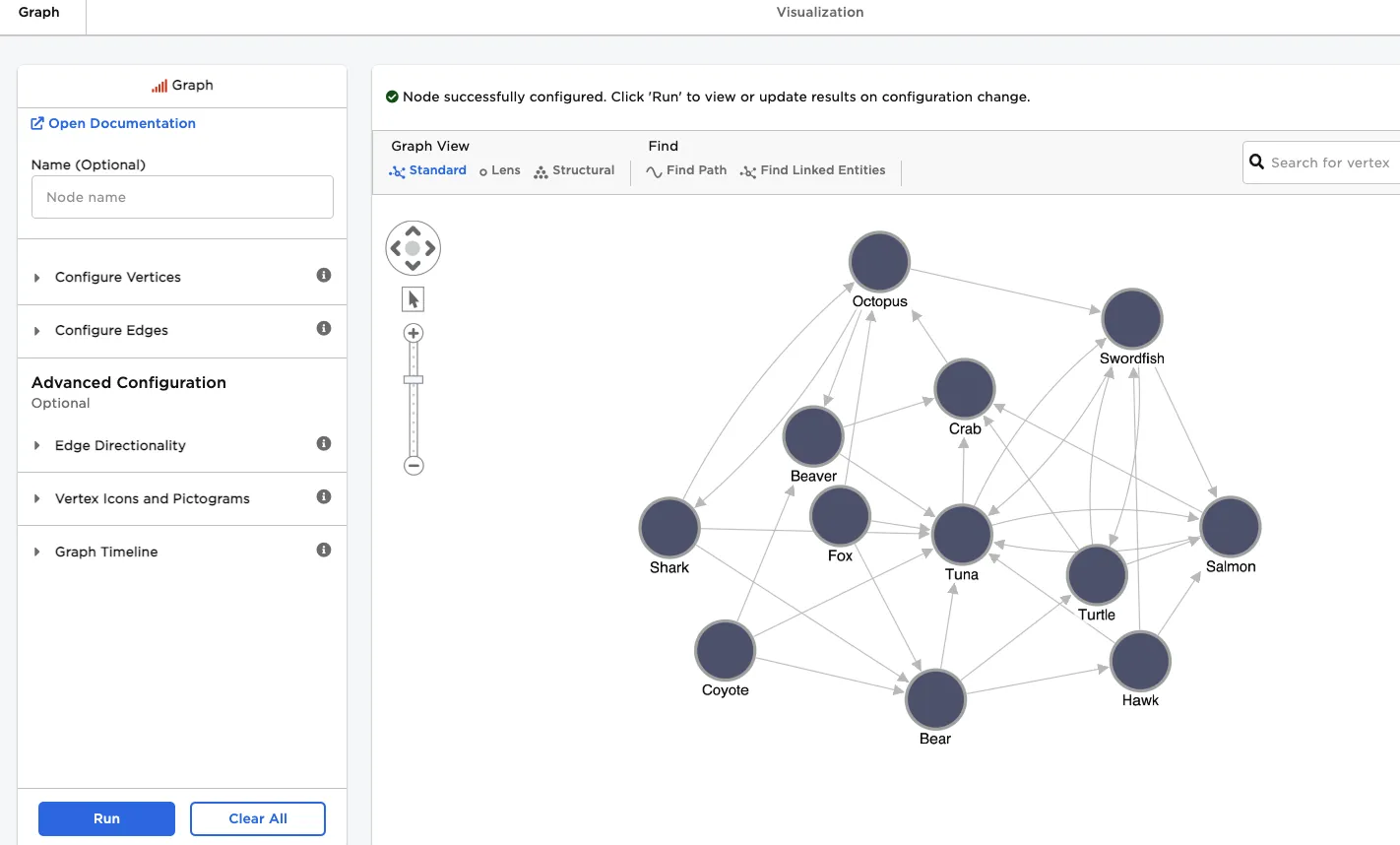
Figure 5: The ecosystem graphed
Now determine the most important food in the ecosystem by running the Page Rank node with the default settings, as follows:
- Select the Page Rank node.
- Select Run.
The results indicate that the top three most important foods in the ecosystem, along with their PageRank scores, are as follows:
- Tuna, 2.01
- Octopus, 1.97
- Crab, 1.85
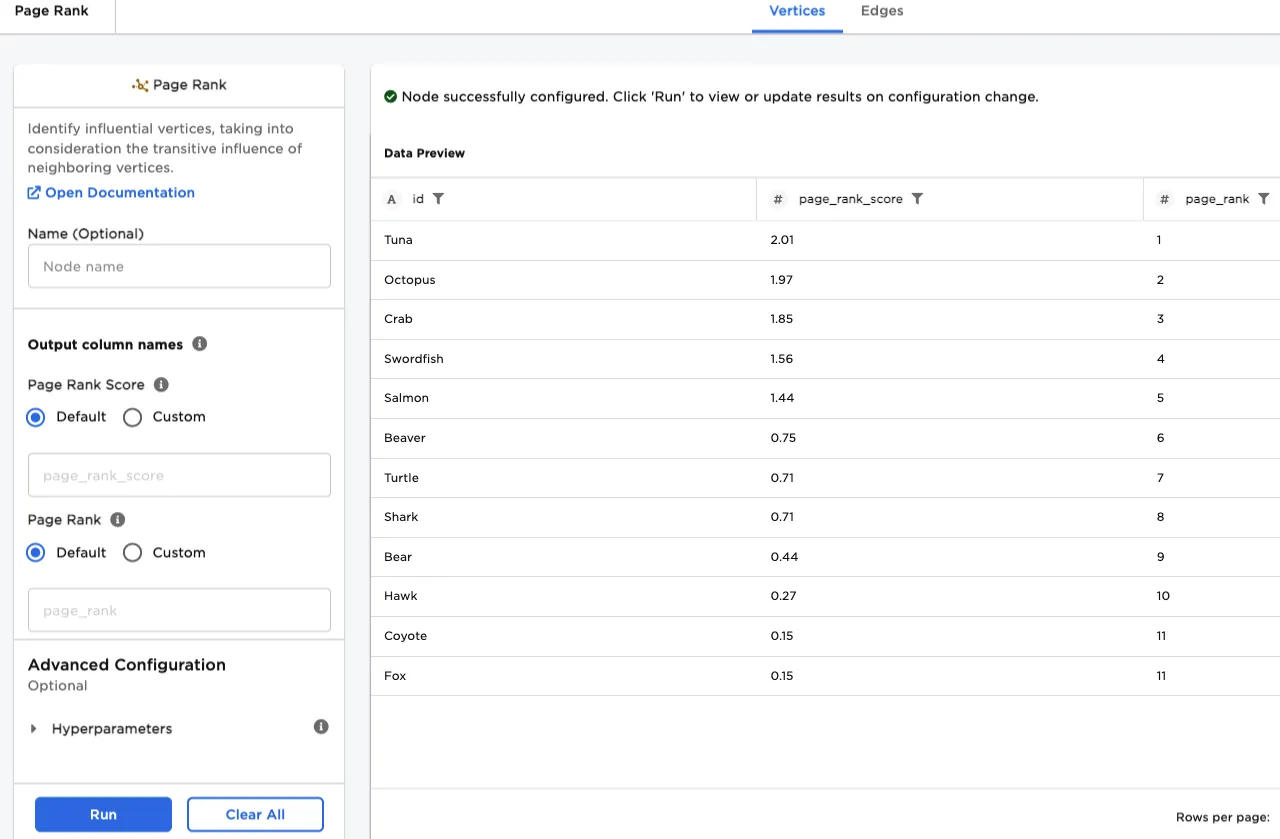
Figure 6: Ranking of most important foods in the ecosystem
The PageRank algorithm uses a reset probability, which is the likelihood that someone navigating from page to page looks at a particular webpage without clicking any links. In our ecosystem, the reset probability represents the probability that an animal at a given time does not consume another animal ever again. For our next example, we change the reset probability from its default level of .15 to a user-specified level of .85, by doing the following:
- For Reset Probability, enter
.85. - Select Run.
The results change so that the top three most important foods in the ecosystem, along with their PageRank scores, are as follows:
- Tuna, 1.28
- Crab, 1.11
- Octopus, 1.10
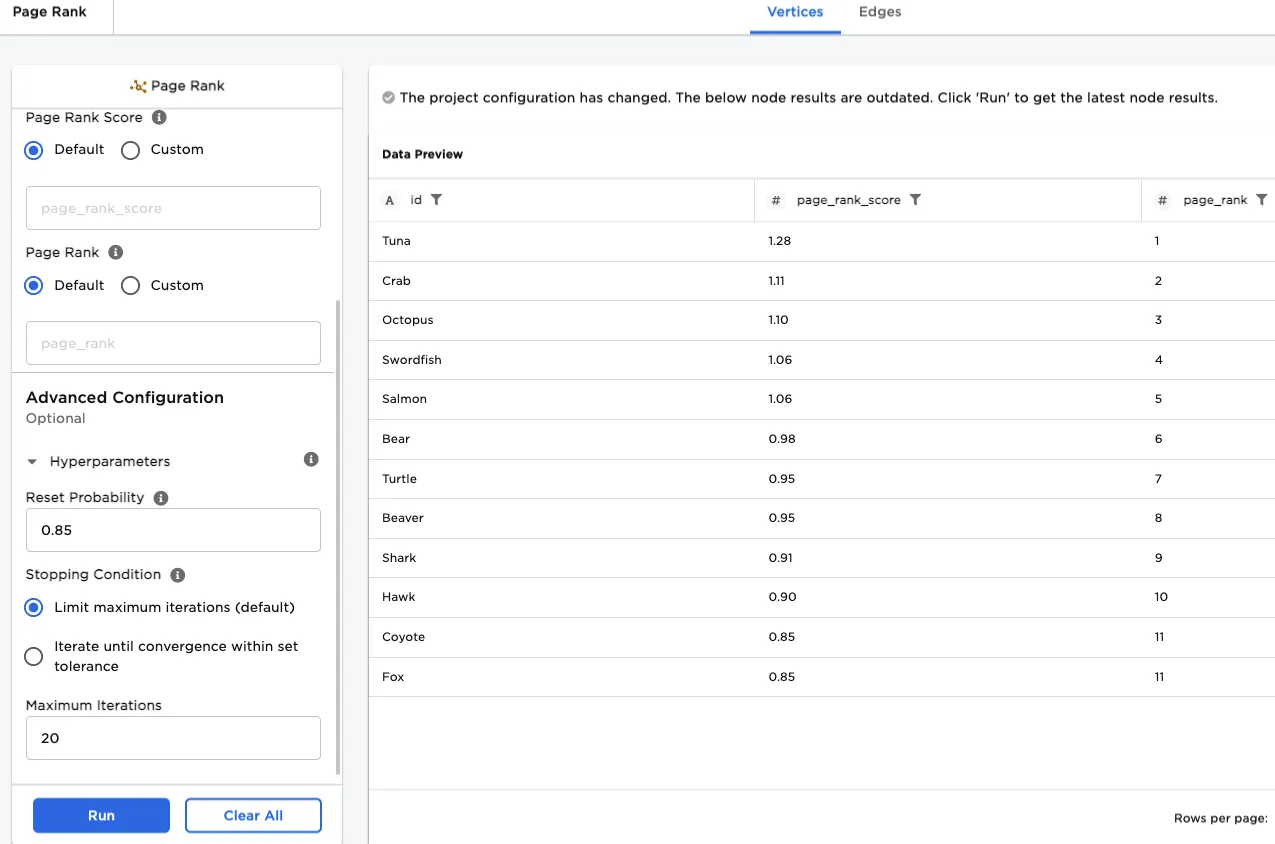
Figure 7: Ranking with reset probability of .85
For the final example, configure the Page Rank node to run 50 iterations instead of the default value of 20, by performing these steps:
- Change Maximum iterations from
20to50. - Select Run.
The results indicate no change in rank or score, which shows that 20 iterations were enough for the algorithm to generate accurate results.
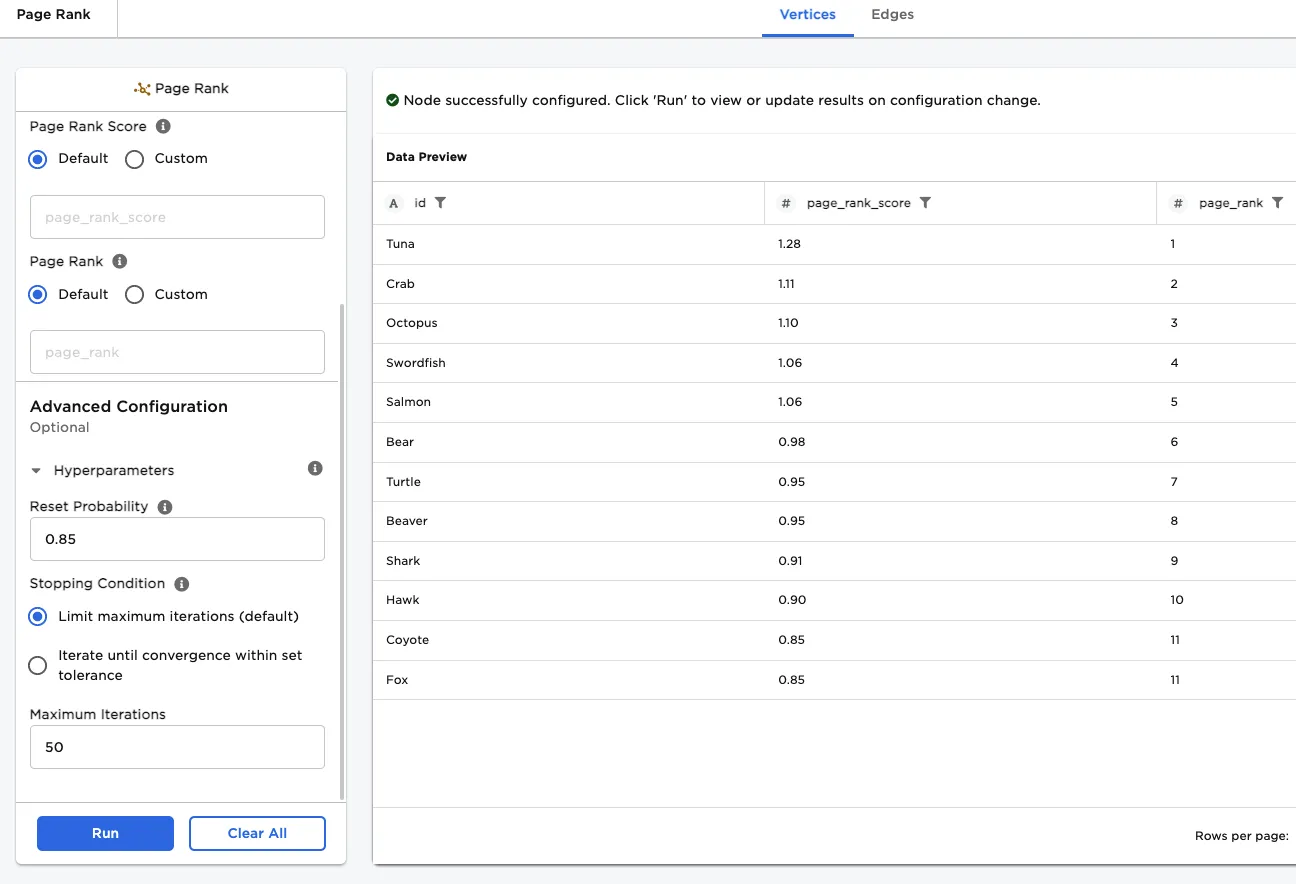
Figure 8: Page rank algorithm run through 50 iterations