Connectors
Your data or your tools often live outside C3 Intelligence: in a database, a cloud bucket, a model provider, or another C3 application. A connector gives the agents what they need to reach that service from their sandboxes, so you can ask about that data in plain words. A sandbox is the isolated computing environment where one agent runs, and the agent service, OpenHands, runs them.
A connector is a saved set of credentials for one type of service. When you add one, C3 Intelligence writes each field as a named secret in your account on the agent service, such as POSTGRES_HOST and POSTGRES_PASSWORD. Agents find the service by those names. C3 Intelligence offers 13 connector types, one connector per type.
To connect a service:
- Open the Connectors page.
- Pick a connector type and fill in its form.
- Make sure the agents can reach the service from where they run.
- Ask for the data in a conversation.
After that, you edit the connector when a value changes, and you delete it when agents no longer need the service. When an agent reports a connection problem, the reason it gives tells you what to fix.
Open the Connectors page
The Connectors page lists the connectors and secrets in your account. Open it from either place:
- In the sidebar footer, select Settings, then select Open Connectors on the Connectors card.
- In the sidebar, expand the Secrets tile and select Add connector. Select a connector in the tile instead to open its form directly.
The page has two lists:
- Recognised connectors: one card for each connector you have added, listing every field of its type and marking the ones you set. With none, it reads No connectors yet. Click Add connector to get started.
- Other secrets: secrets that belong to no connector type, listed by name.
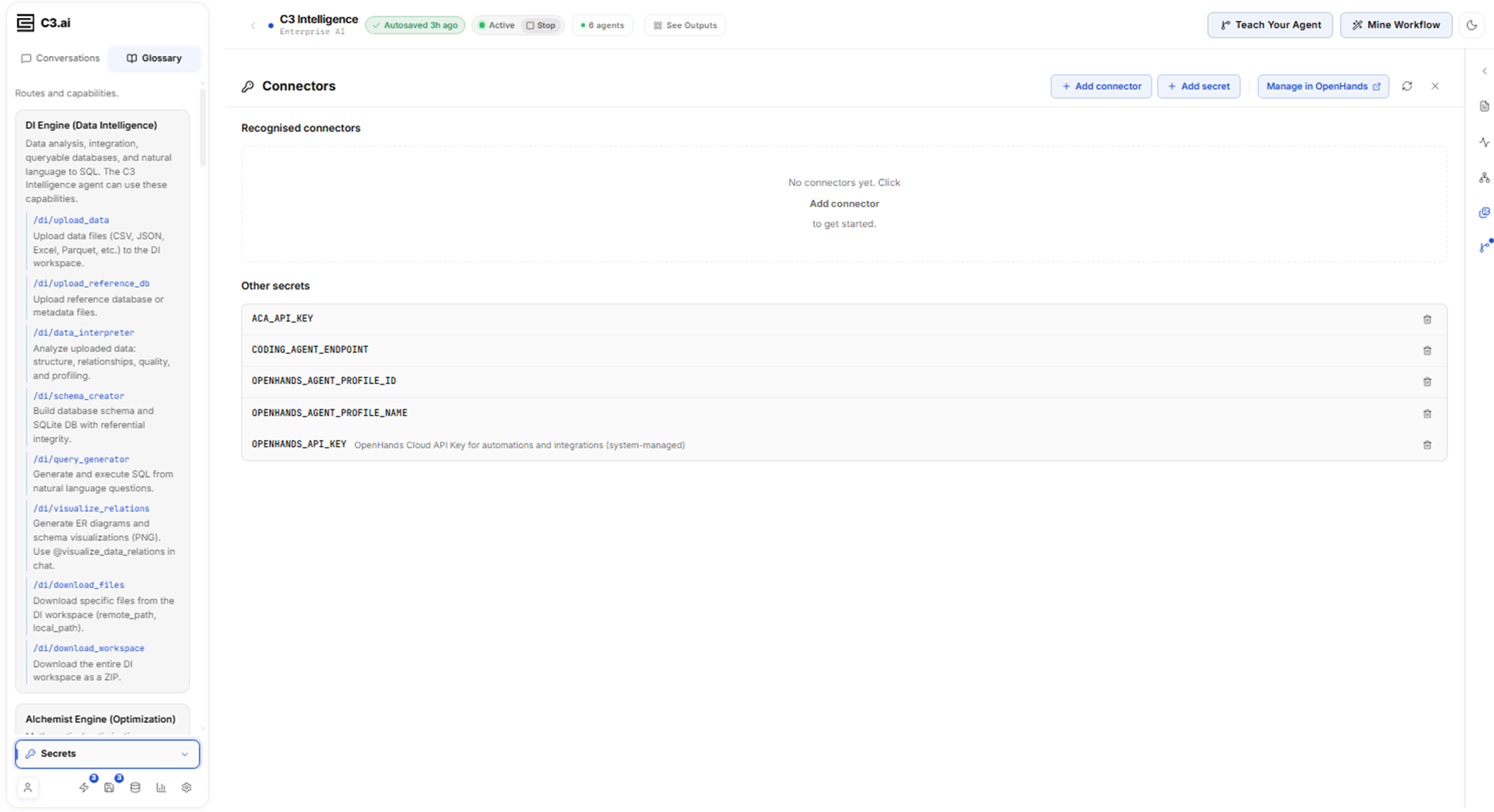
To add a single secret that no connector covers, see Credentials.
Pick a connector type
Select Add connector. The Add a connector page lists the 13 types:
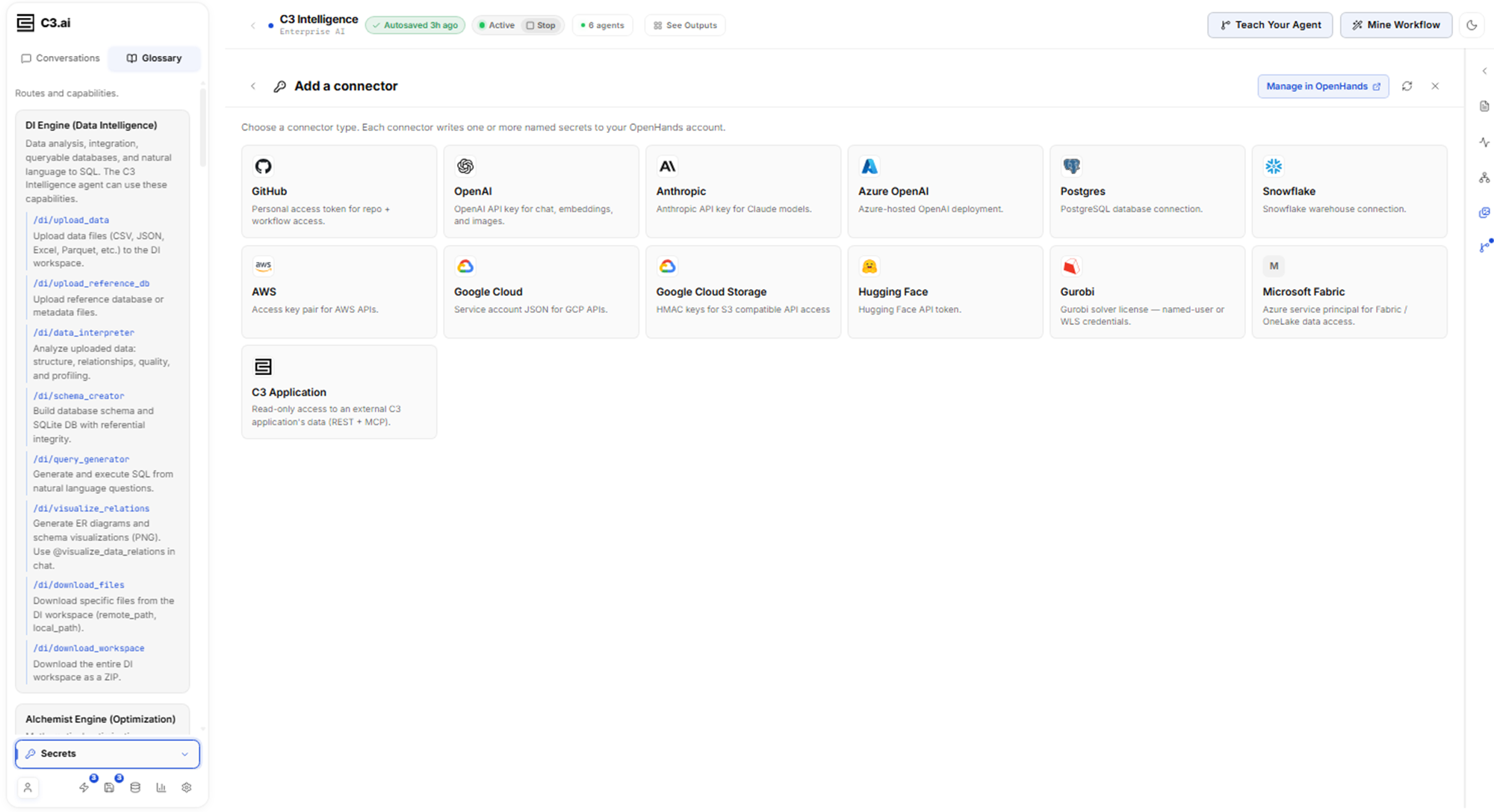
Pick the type that matches the service. A type you have already set up shows Already configured · edit, and picking it opens the existing connector. For what each type connects to and how agents use it, see Connectors Reference.
Fill in the connector form
The form asks for the fields of the type you picked, and each field becomes one secret:
- Enter a value in each required field, and in each (optional) field your service uses.
- If the form shows Where do I get this?, select it to open the provider's page for the key or token.
- Select Add connector.
The new card appears under Recognised connectors. Check that its count, such as 5/5 fields set, covers every field you meant to set. The connector's secrets are now in your account, and the agent service passes them into agent sandboxes.
Make sure the agents can reach the service
Agents call the service from their sandboxes, which run on the agent service, not on the system that serves C3 Intelligence. A service that you can open in your browser can still be out of reach for the agents. A C3 Application connector, for example, works only when that application accepts requests from the agent service's network.
Before you rely on a new connector, ask your administrator to confirm that the service accepts connections from the agent service. For a C3 Application connector, the orchestrator, shown as C3 Intelligence, runs a connectivity check from its sandbox before it reads data. It then reports whether the application is reachable.
Ask for data from the connected service
Name the service or its data in your request, the same way you name an attached file. Agents use the connector when the work needs it, and they ask before they use a stored credential such as a solver license.
A C3 Application connector gives read-only access. The orchestrator answers a simple lookup, such as a count of records, by itself. It hands analysis of that data to the DI Engine, the data agent. Agents never change data in the connected application. To generate the token in C3 AI Studio and add the connector step by step, see the C3 Application section of Connectors Reference.
Edit or delete a connector
Keep a connector current when a password or token changes:
- On the Connectors page, select the connector's card.
- Type a new value in each field you want to replace. Saved values cannot be read back, and a field you leave blank keeps its current value.
- Select Save changes.
To delete a connector, select the trash icon on its card, then select Delete connector. C3 Intelligence removes every secret the connector wrote from your account on the agent service, and the deletion cannot be undone.
Restore an agent's connection to the service
An agent reports a connection problem in its reply, with the reason it found:
- The agent reports that the credentials were rejected. The value in a field is wrong or has expired. Edit the connector with a new value, then ask again.
- The agent reports that the service is unreachable. The agent service's network cannot reach the service. Ask your administrator to allow connections from the agent service to it, then ask again.
- The agent says no connector is configured. The connector for that service does not exist in your account. Add it, then ask again.