Get Started with C3 Intelligence
You have access to C3 Intelligence and want to see what it does with real files before you bring your own data. In C3 Intelligence you describe a task in plain language, and AI agents write and run the code that does it. The fastest way to learn the loop is one complete request on sample data.
In this tutorial, you ask C3 Intelligence to describe seven factory data files and explain how they relate. You complete these steps, in order:
- Start a new conversation, or continue the one where you generated the sample data.
- Send one request about the seven sample files.
- Approve the plan that the orchestrator, the agent that coordinates the others, proposes.
- Read the reply and check it against what the files contain.
- Open the dashboard in full screen.
The run takes a few minutes, most of it while the agent works. At the end, you have a profile of the data and a dashboard you can reuse in the next tutorials.
Before you start
Check that you have access and the sample files:
- Access to C3 Intelligence. C3 Intelligence is available in C3 Code, the agentic app builder within the C3 Agentic AI Platform. In C3 Code, select Intelligence in the navigation menu. The item appears after an administrator sets up C3 Intelligence for your deployment.
- The seven Smart Factory sample files:
fault_events.csv,machines.csv,maintenance_log.csv,planning_inputs.csv,production_orders.csv,sensor_readings.csv, andtechnicians.csv. The files describe a fictional factory with eight machines over six months.
Generate the files first, as described in Generate the Sample Data. When you generate them in a conversation, continue in that conversation and go straight to Send the request.
Start a new conversation
A conversation is the chat where an analysis happens, and each one gets its own set of agents. To start a conversation:
- In C3 Code, select Intelligence in the navigation menu. The C3 Intelligence sidebar lists your conversations.
- Select New conversation in the sidebar.
- If a Choose agent runtime dialog opens, select the runtime your team uses. The dialog appears only when your organization offers more than one runtime.
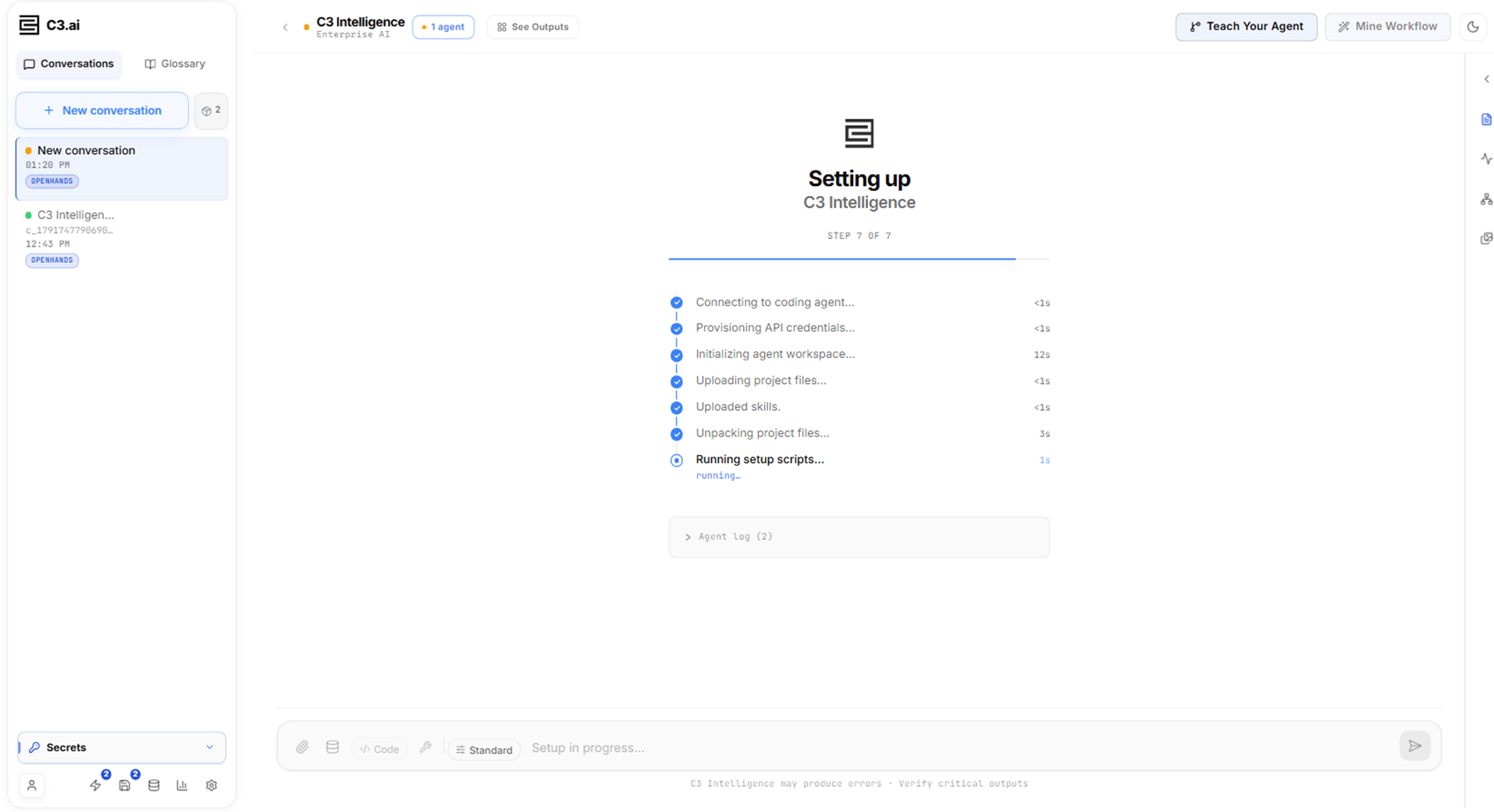
Wait while C3 Intelligence sets up the orchestrator, the agent that plans each request and hands the work to other agents. Setup takes a few moments:
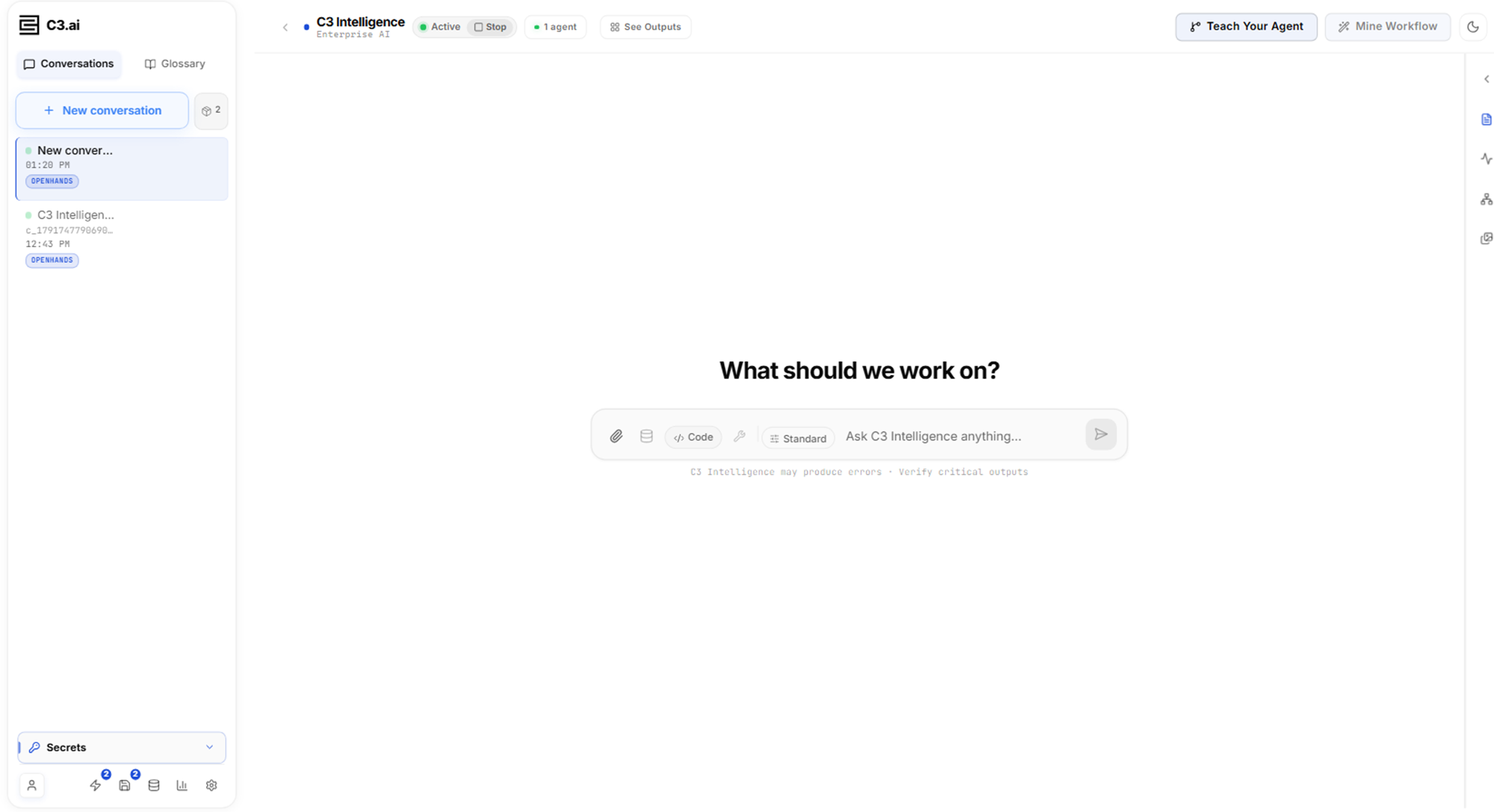
When setup finishes, the conversation shows What should we work on?, and the header shows 1 agent: the orchestrator, named C3 Intelligence:
Send the request
Your request goes in the message box. To send the request:
If you downloaded the files, select Attach files, the paperclip in the message box, and choose the seven CSV files. If you generated the files in this conversation, skip this step, and the agents use the files in the
smart-factory-datafolder.Copy this request into the message box:
Review these seven files. For each one, describe what it contains, how complete the data is, and the time period it covers. Then explain how the files relate to each other.
Select Send message.
With the files attached, the message box holds the seven files and your request:
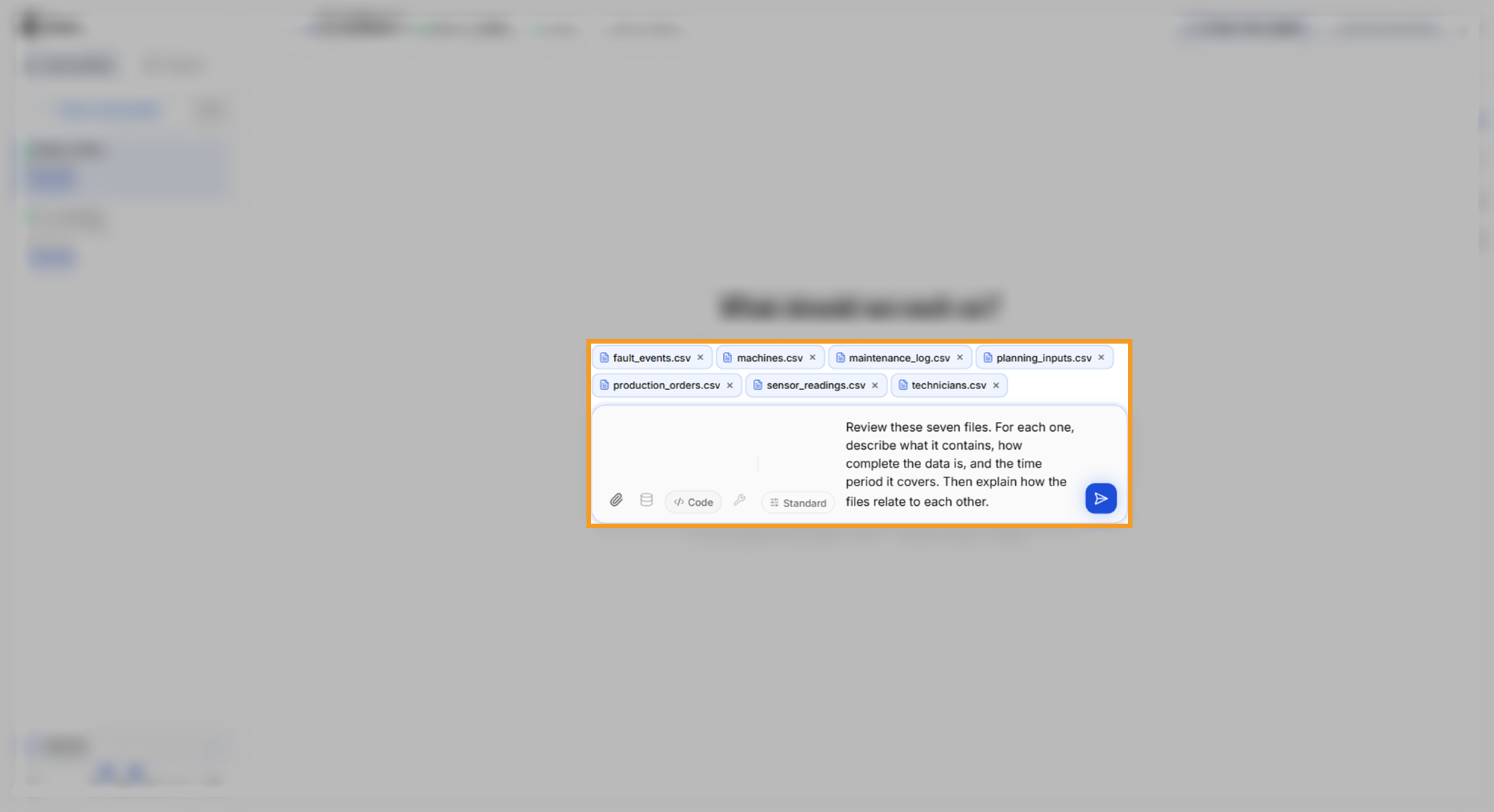
The request follows a pattern that works for any task. It states the outcome: a description of each file and of how the files relate. It sets the scope, these seven files, and lists what to return: contents, completeness, and time period. It names no method, so the agent chooses one and you check the result. For bigger tasks, also add a checkpoint, such as "show me your plan before you start".
Your sent message can show Files uploaded to this conversation only — Shared Storage is not configured. The files then stay in this conversation. With Shared Storage, which an administrator sets up, attached files become datasets in storage that every agent reads and you can reuse, as Conversation Features explains.
Approve the plan
The orchestrator replies with a plan instead of starting straight away. It routes the request to the DI Engine, the agent for data intelligence. The plan has three steps: upload the files to the DI Engine, run a data interpretation that profiles each file, and relay the findings to you.
Select the option that approves the plan, in the example run Yes, go ahead with Steps 1 & 2 now. Step 3 is the orchestrator's own summary of the findings, so approving the first two steps runs the whole request:
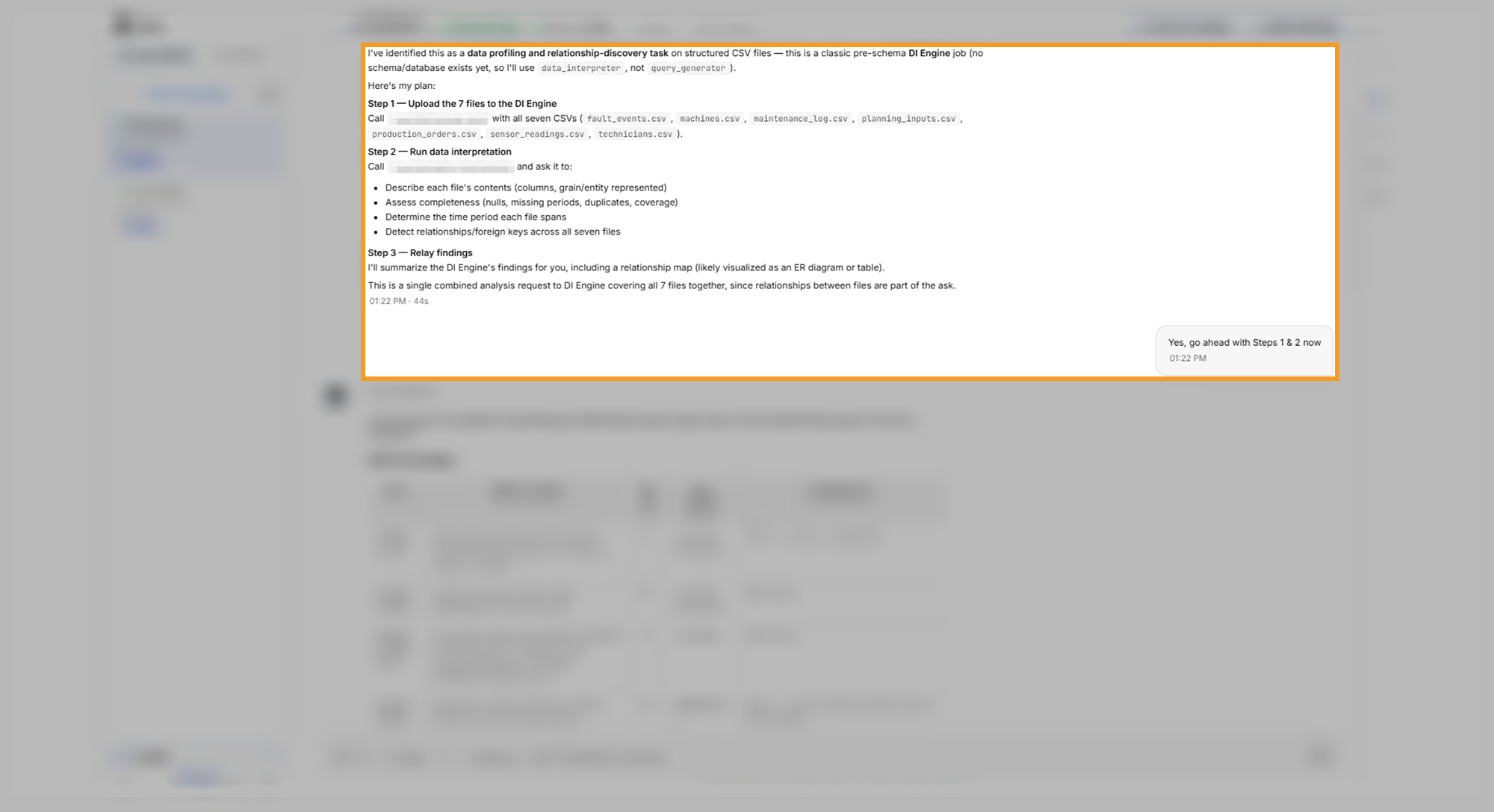
The orchestrator shows a plan when work takes a while, so you can correct the approach before the agent spends time on it. To change the approach, select the option that lets you specify something first, then type your change. For a short task, the orchestrator can start without a plan, and the reply arrives directly.
Read the reply
The DI Engine now writes and runs analysis code, which takes several minutes; in the example run, about ten. You can leave the page, and the reply waits in the conversation.
The reply starts with a per-file summary: what each file contains, its rows, its time period, and how complete it is:
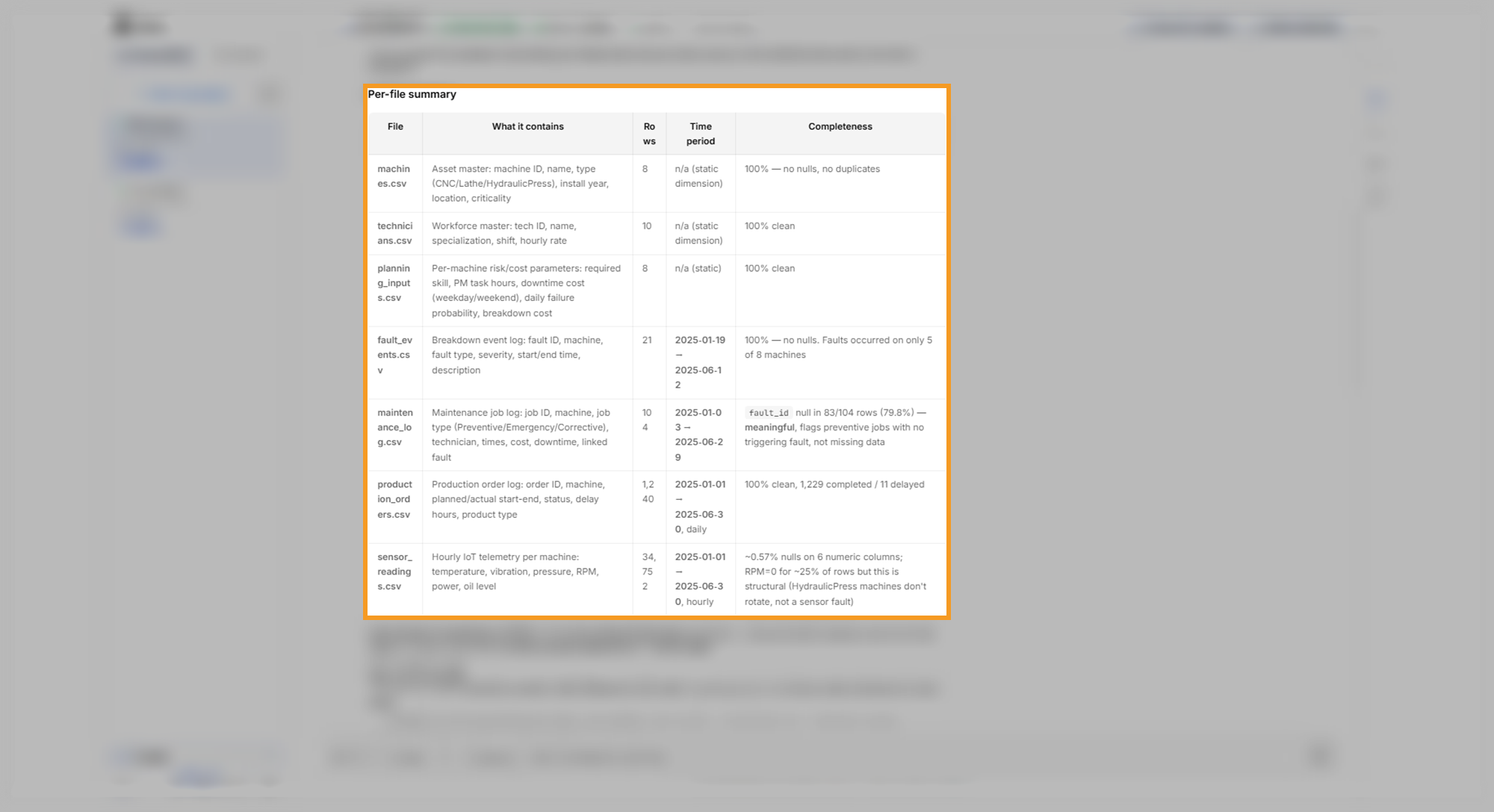
The rest of the reply explains how the files relate, describes the overall shape of the data, and lists statistical signals the DI Engine found. It ends with suggested next steps and a dashboard card, an interactive dashboard inside the chat:
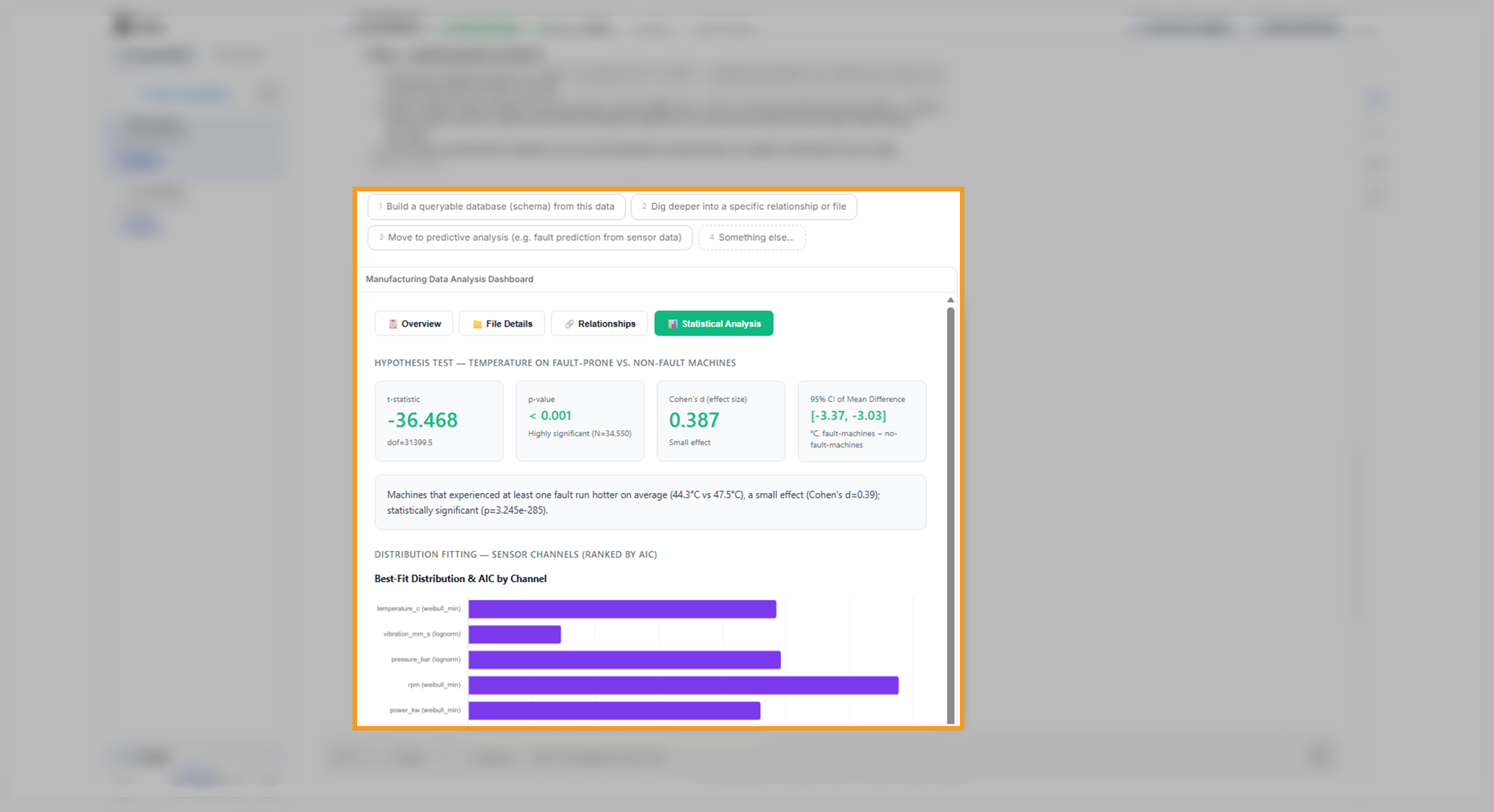
Check the reply against what the sample files contain:
- All seven files appear, and every date falls between January 1 and June 30, 2025.
machine_idlinks the machines to their faults, maintenance jobs, orders, readings, and planning inputs.- About 0.6% of the sensor readings have empty cells, and the reply reports them as nulls, meaning empty values.
- The chat and the dashboard show the same numbers. When a sentence in the chat or on the dashboard contradicts its numbers, rely on the numbers and ask the agent to fix the wording.
Open the dashboard in full screen
The dashboard card holds more than fits in the chat. To read it:
- Select Expand to full screen in the card's header.
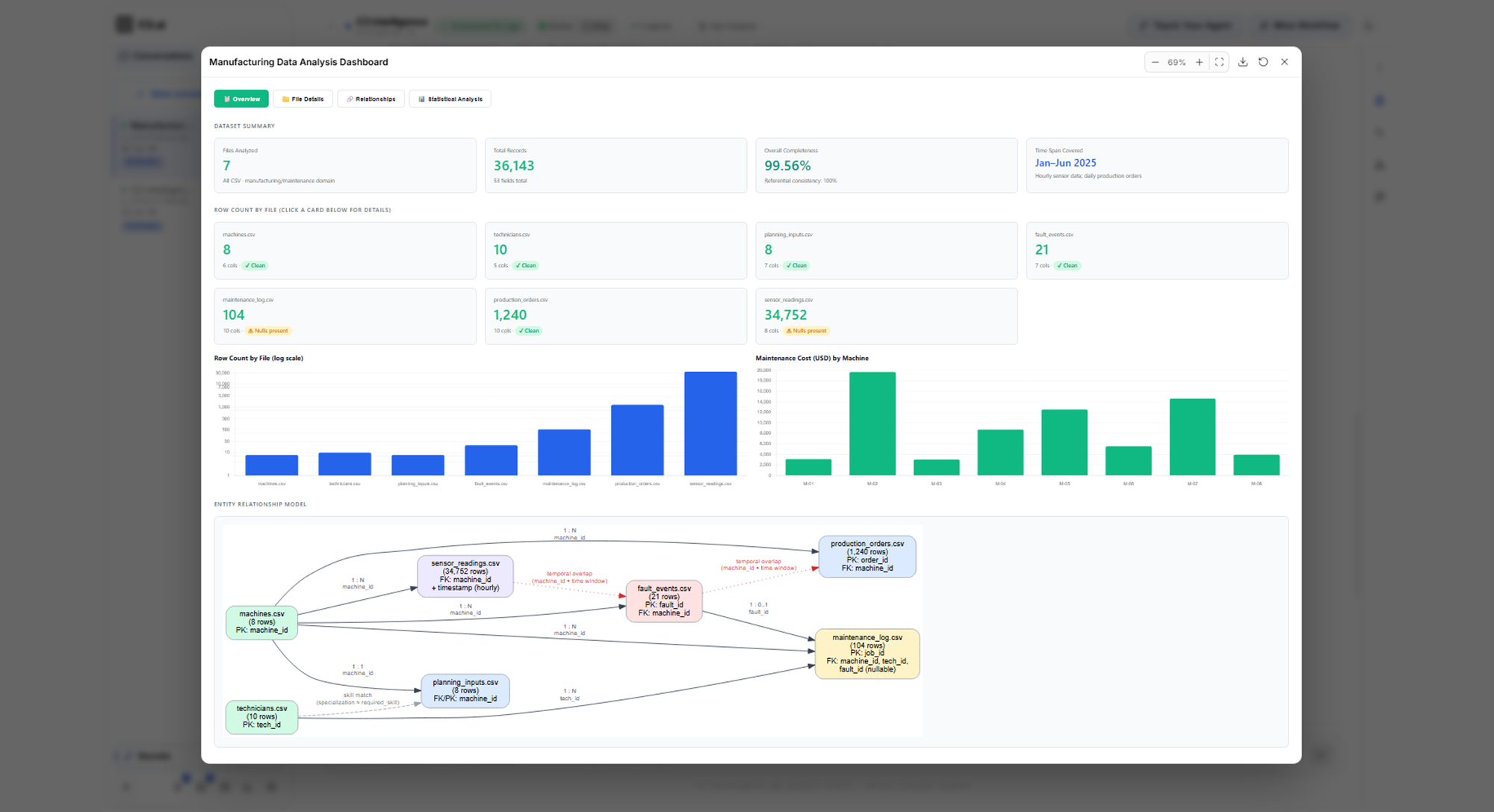
- Read the Overview tab: files analyzed, total records, completeness, time span, and a diagram of how the files connect.
- Select the File Details, Relationships, and Statistical Analysis tabs in turn.
- Select Close (Esc) to return to the conversation.
The Overview tab gives the whole profile on one screen:
You have finished your first request. While the conversation runs, it keeps the files, the DI Engine, and its results, so your next request in the same conversation builds on them. After a few hours without chat activity, C3 Intelligence stops the conversation and deletes the agents' sandboxes. Before a long break, hover over the conversation's card and select Save conversation.
Where to go next
- Analyze Data
- Connectors Reference, to analyze data in one of your C3 applications
- Build ML Models
- Build a RAG Knowledge Base
- Optimize Decisions
- Generate Code
- Conversation Features