Conversation Features
All work in C3 Intelligence happens in a conversation: one chat that holds an analysis from the first file you attach to the final report. Each conversation has its own files and its own team of agents. An agent is an AI assistant that writes and runs code for one type of task, such as analyzing data or building a model. The orchestrator, shown as C3 Intelligence, reads each request and hands the work to the agent that does that type of task.
Knowing how a conversation behaves lets you plan your work, find your results, and keep them. These behaviors shape every conversation:
- You start a conversation, attach files, and write a request.
- The agents route the work, show plans, offer options, and ask questions.
- Each agent works in its own sandbox, an isolated computing environment, and files move between agents for you.
- Logs, the right panel, and result cards let you follow the work and read the results.
- The @ commands and the Code and Planning modes steer the agents.
- The Resources popover shows the tokens and computing resources the conversation uses.
- C3 Intelligence saves, stops, and revives the conversation, and each card's title, ID, and status tell your conversations apart.
- Your attached files stay in this conversation unless an administrator sets up Shared Storage.
- The Glossary tab lists what each agent can do, and the Secrets tile holds your connectors.
Start a conversation and attach files
A new conversation starts with only the orchestrator; the other agents join when the work needs them. To start a conversation:
- Select New conversation in the sidebar.
- If the Choose agent runtime dialog opens, select the runtime your team uses. The runtime is the software that runs the orchestrator and every agent, and you cannot change it after the conversation starts. The dialog opens only when your organization offers more than one runtime. Your administrator can tell you which one to use, and each conversation's card names its runtime, such as OPENHANDS.
- Wait for Setting up to finish, which takes a few moments.
The conversation is ready when it shows What should we work on?:
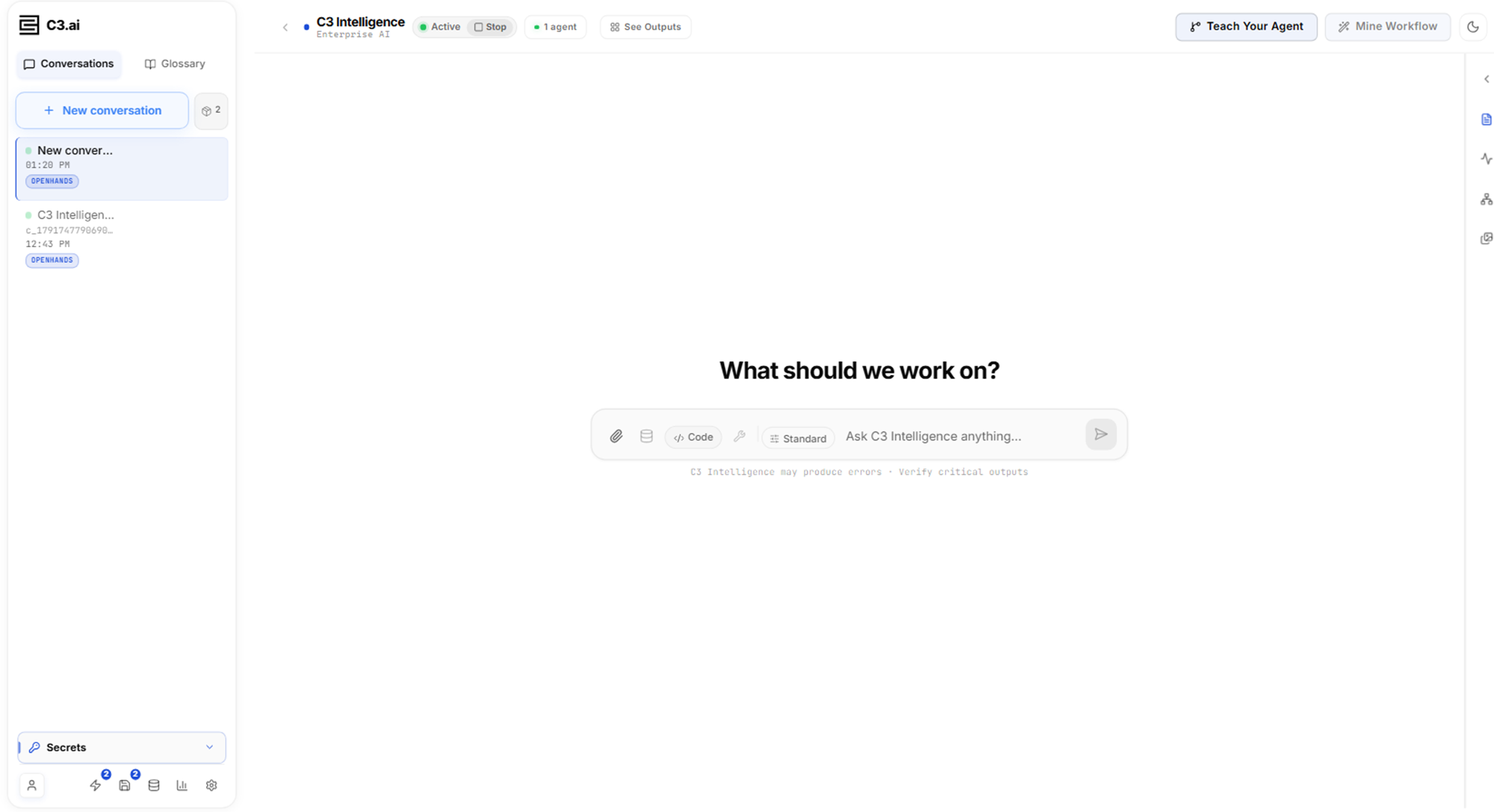
To give the agents data, attach the files with Attach files, the paperclip in the message box. To remove a file before you send, select its x. The files travel with your next message.
You can also drag files onto the chat, or paste an image into the message box.
C3 Intelligence can make errors, so check each result before you act on it. To give the chat more room, select Hide sidebar in the header. Switch to dark mode in the header changes the color theme.
Write a request that states the outcome
A request works best when it reads like a brief to a colleague. State the outcome you want, the scope, what to return, and any checkpoint, such as "show me your plan first". Leave the method to the agent, and check the result.
You do not need to name an agent. The orchestrator reads the request and routes the work, for example to the DI Engine for a data profile or to the Alchemist for a schedule. One request can involve several agents in turn.
To learn the prompt pattern step by step, see Get Started with C3 Intelligence.
Approve plans, pick options, and answer questions
Before work that is long or costly, the orchestrator or the agent shows a plan and waits for your approval. The example run is one Smart Factory conversation that profiles seven data files, then builds models, a knowledge base, a schedule, and a report. In that run, plans appeared before profiling the files, training models, forecasting, and building a schedule. Short requests, such as a ranking, ran straight away.
Most replies end with suggested next steps. Use them in one of these ways:
- Select an option to send it as your reply: an option that approves a plan starts the work.
- Select the last option, such as Something else..., to type your own answer.
- Ignore the options and type any request in the message box.
When a request is ambiguous, the orchestrator asks instead of guessing. In the example run, a request to rerun a schedule "assuming one technician is unavailable" brought back a question naming the technicians to choose from:
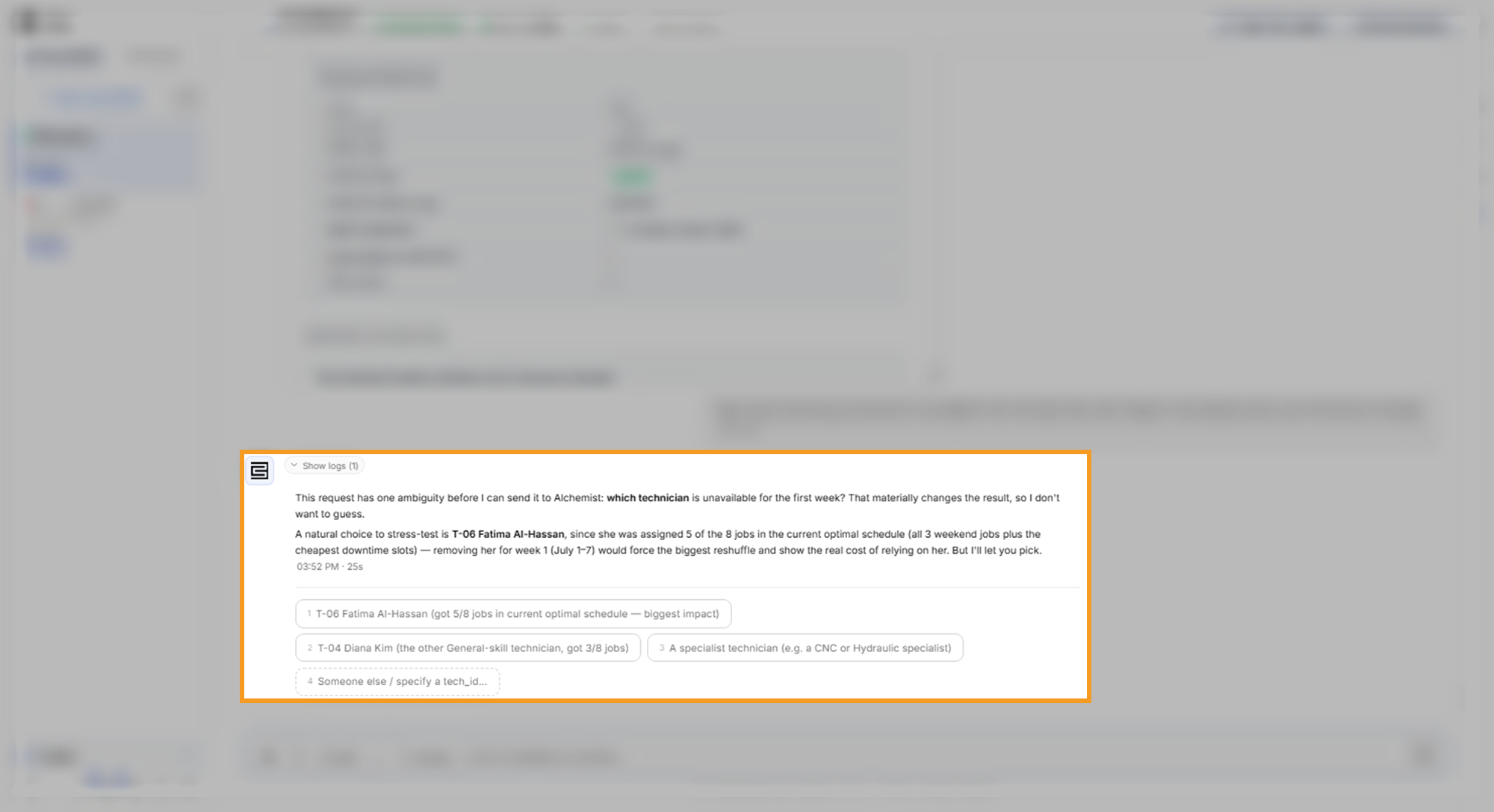
When an agent has several questions at one time, select Answer 3 questions one by one, where the count matches its questions. PROPOSED marks the agent's suggestion, and Use this accepts it. Skip leaves a question blank. Check your answers in Review, then select Send answers.
Read a plan or a proposal before you accept it. Each one states the assumptions the agent makes, and your knowledge of the business decides whether they hold.
Understand agents, sandboxes, and workspaces
Each agent works in its own sandbox: an isolated computing environment with its own files, programs, and memory. The agent's folder of files inside that sandbox is its workspace. Keeping agents apart means one agent's files and programs never interfere with another agent's work.
Agents start on first use. A new conversation shows 1 agent, the orchestrator. The count in the header grows as the work brings in more agents. In the example run, it reached 2 agents with the first data request and 6 agents by the report.
The agents and the work they cover are:
| Agent | Work it does | Learn more |
|---|---|---|
| C3 Intelligence | Plans each request, routes it, and relays the results | This page |
| DI Engine | Profiles data files, links them, runs statistics, and answers data questions | Analyze Data |
| ML Agent | Builds and compares prediction models, and forecasts readings with CHARM, a pre-trained time-series model | Build ML Models |
| RAG Agent | Builds a knowledge base from documents and answers with citations | Build a RAG Knowledge Base |
| RAI Engine | Finds past time-series events that resemble a new one, and classifies faults, from a library the agents can build from your data | Find Similarities with Time Series Data |
| Alchemist | Turns a decision into an optimization model and solves it | Optimize Decisions |
| Coding Agent | Writes and runs general code, such as a combined report | Generate Code |
The sandboxes belong to one conversation. A second conversation starts its own agents and does not see the first conversation's files. The number beside New conversation counts the agent sandboxes running across all your conversations.
When one agent needs another agent's results, the orchestrator transfers the files between their sandboxes, or, with Shared Storage, each agent reads them from storage. In the example run, the DI Engine packaged the cleaned data for the ML Agent. Later, the Coding Agent read results from three agents to build one report. You do not move these files yourself.
An agent sandbox can stop responding during long work. The orchestrator then asks before it resets that sandbox, because a reset deletes the agent's workspace files. In the example run, the DI Engine stopped responding during the report request. The orchestrator finished the report from DI Engine results it had already checked, and it reset nothing without your approval. It then offered the next step Try to recover the DI Engine session, where a session is the agent's running sandbox.
Follow the work with logs and the right panel
The agents keep working while you wait, and you can watch their steps. Select Show logs under a reply to see each step and the agent that ran it. Longer tasks also show the agent's checklist:
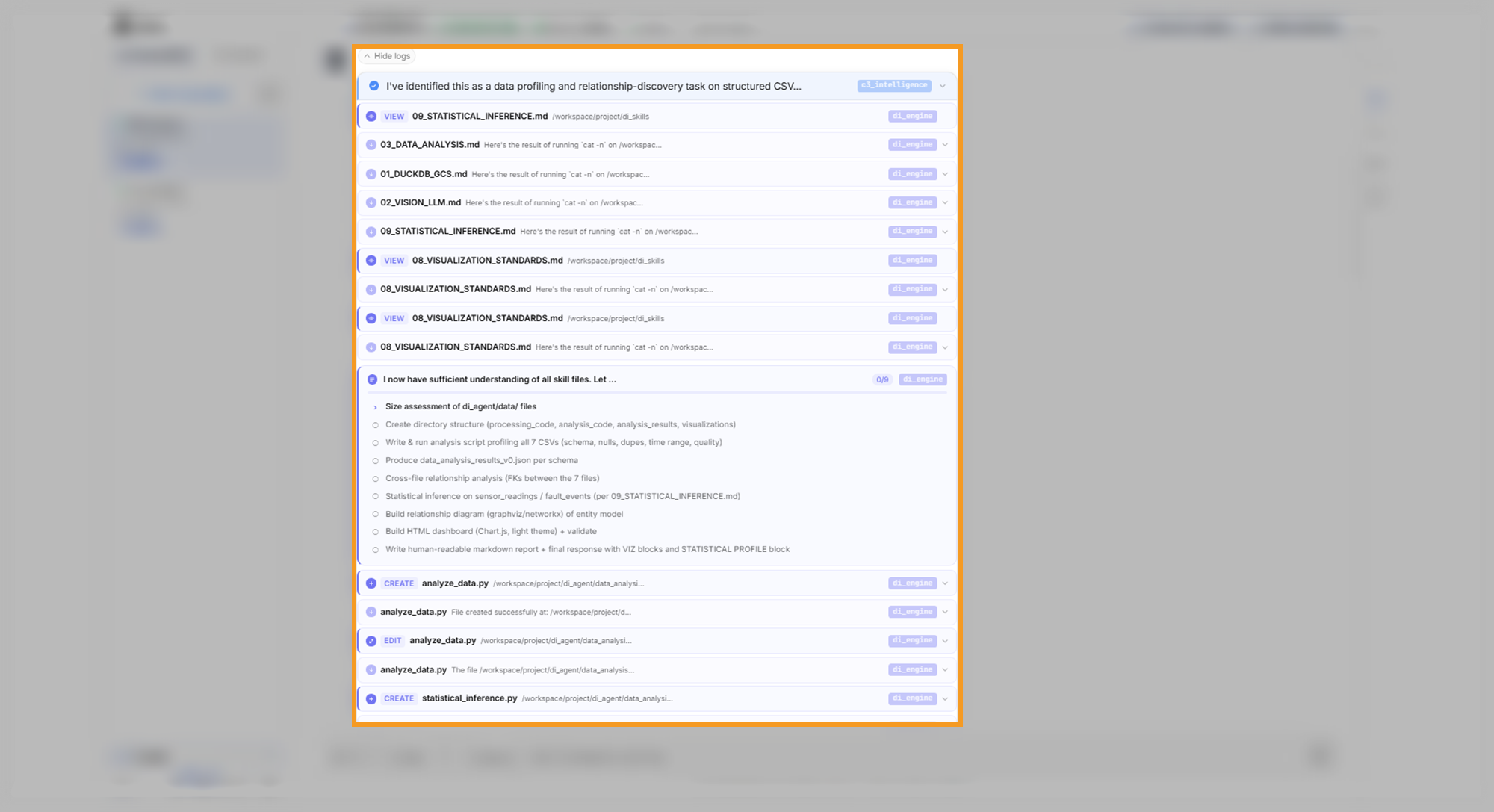
To see more of each agent's steps, switch Standard in the message box to Detailed.
While a reply is in progress, you can keep typing: Queue message sends your text when the current reply finishes. Until then, you can Edit, Move up, or Remove a message in the Queued list. Stop generating ends only the current reply, and the agents and their files stay. After that, the orchestrator treats your next message as a new request unless you ask it to continue. To shut down the whole conversation instead, use Stop in the header, as described in Stop and revive a conversation.
The right panel has four views:
- Files: the files in a workspace. The view opens on the orchestrator's workspace; use Select workspace agent to open another agent's files, such as the ML Agent's trained model.
- Processes: the background programs that keep the orchestrator running. Agent work, such as model training, appears in Show logs under the reply instead.
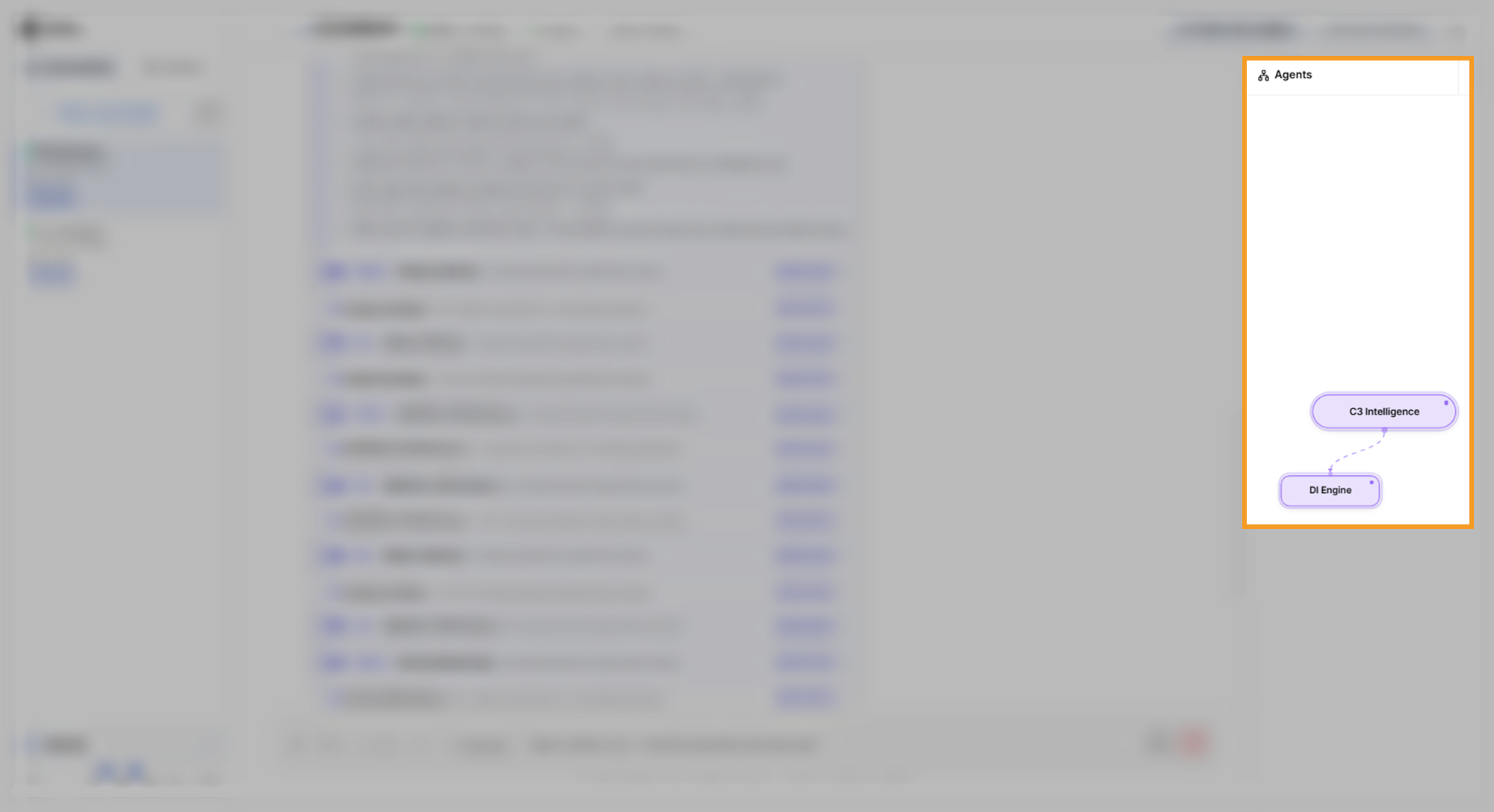
- Agent Tree: a diagram of the orchestrator and every agent in the conversation. The resource popover in the header also lists every active agent.
- See Artifacts: the gallery of artifacts, the dashboards and other files the agents produced. See Outputs in the header opens the same view.
In the Files view, you can Preview and Download each file. Attach a file uploads files straight into the workspace you are viewing, up to 25 MB at a time. For larger files, use Attach files in the message box.
The Agent Tree shows the DI Engine joining the orchestrator during the first request:
In the Artifacts gallery, Saved lists artifacts with a file you can download and open again. Live lists dashboards that exist only in the chat, with no file behind them. Download all as zip saves the artifacts on the current tab, and Jump to chat message takes you to the reply that holds a dashboard:
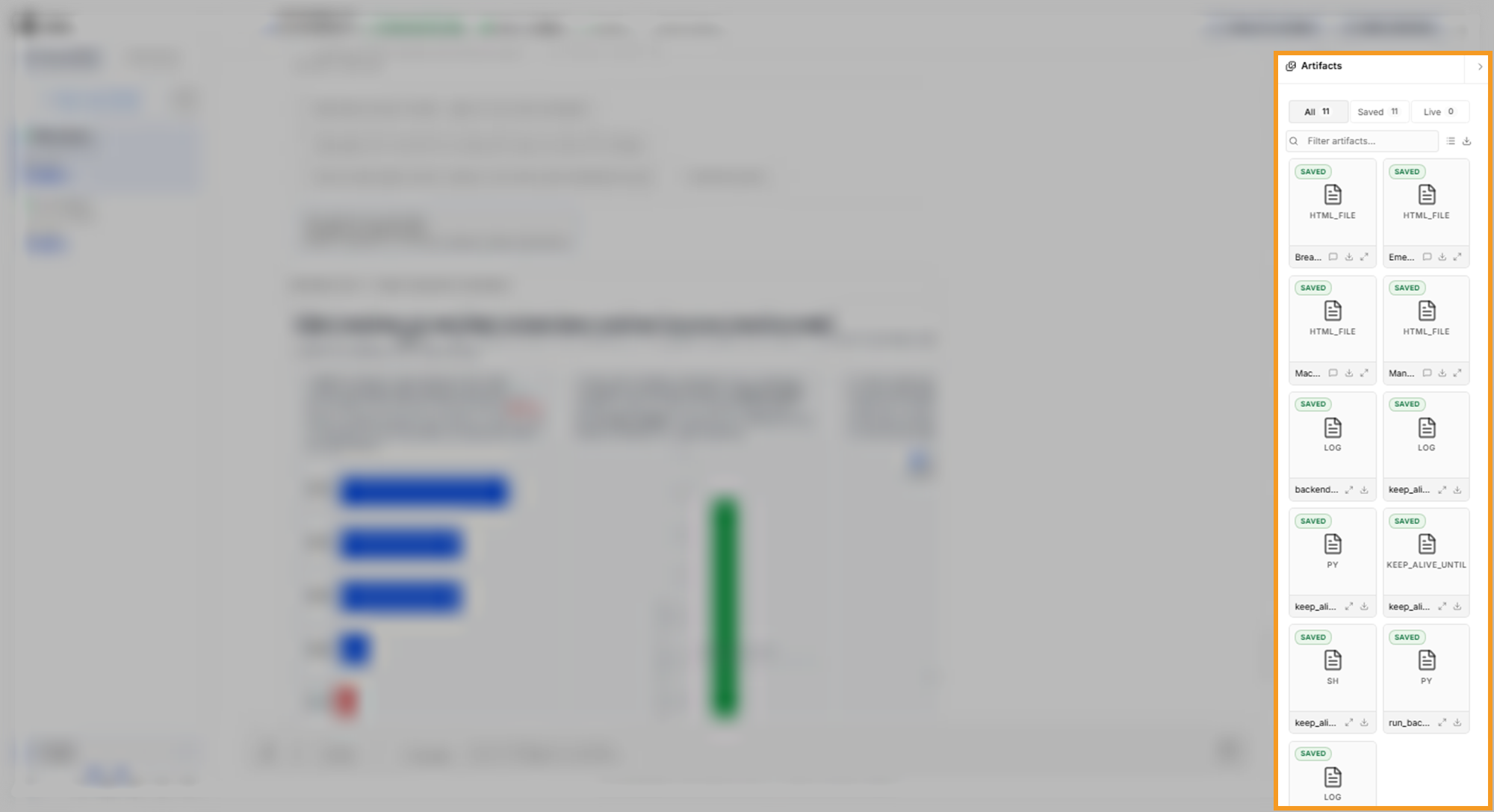
Some outputs, such as a trained model or a report, stay in the agent's workspace. To find one, open Files and select that agent's workspace, or ask the orchestrator for the file.
To give the chat more room, select Collapse panel.
Work with result cards
Agents return their results as text and tables in the reply and as result cards: interactive dashboards inside the chat, often with tabs. Each card has controls in its header:
- Minimize: fold the card down to its header.
- Expand to full screen: open the card over the conversation.
- Open in side panel (track interactions): open the card on the right, next to the chat.
- Reset to initial state: return the card to its first view.
- Download: save the card as HTML or PNG. Some cards offer Download image instead.
In full screen, you can also zoom the card and use Fit to page:
Fit to page picks a zoom for the current tab. A tall dashboard can fit at a small zoom, so zoom in to 100% and scroll inside the card to read it.
The side panel records what you select in the card but does not send it on its own. To pass your selections to the agents, select Send to agent:
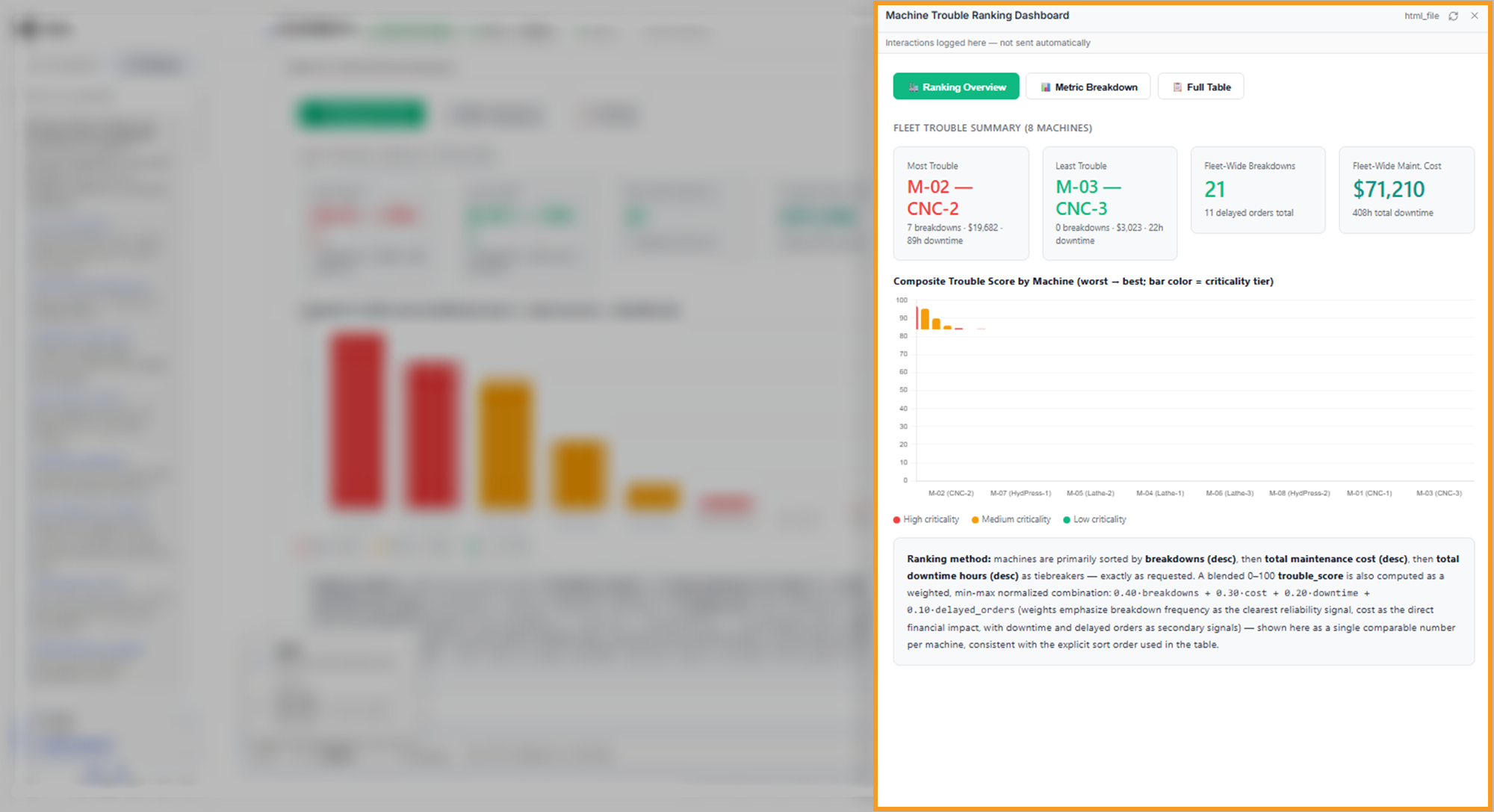
Under some replies, an action card such as Visualize ML experiments or Visualize optimization results offers a chart of the latest results. Selecting it sends that request for you.
An action card can start more work than the chart, and the orchestrator runs it without a plan. In the example run, Visualize schema relationships appeared after a data profile that built no schema, the map of how the data tables link. Selecting it had the DI Engine build the schema first and then draw the diagrams. To see the plan before such work runs, type the request yourself and ask for the plan first. If a card reports a script error over part of the chart, select Reset to initial state in the card's header.
The agent writes the chat text and builds the card in separate steps. Compare the numbers in the chat with the card, and read the assumptions the agent states, before you act on a result.
Use the @ commands and the modes
Type @ in the message box to list the commands. A capability is one action an agent offers, such as listing files or drawing a diagram, and a command runs one capability directly. For example, @c3_intelligence_list_files lists the files in the orchestrator's workspace. The Glossary tab names the command for each capability, such as @visualize_data_relations for a diagram of how your files relate:
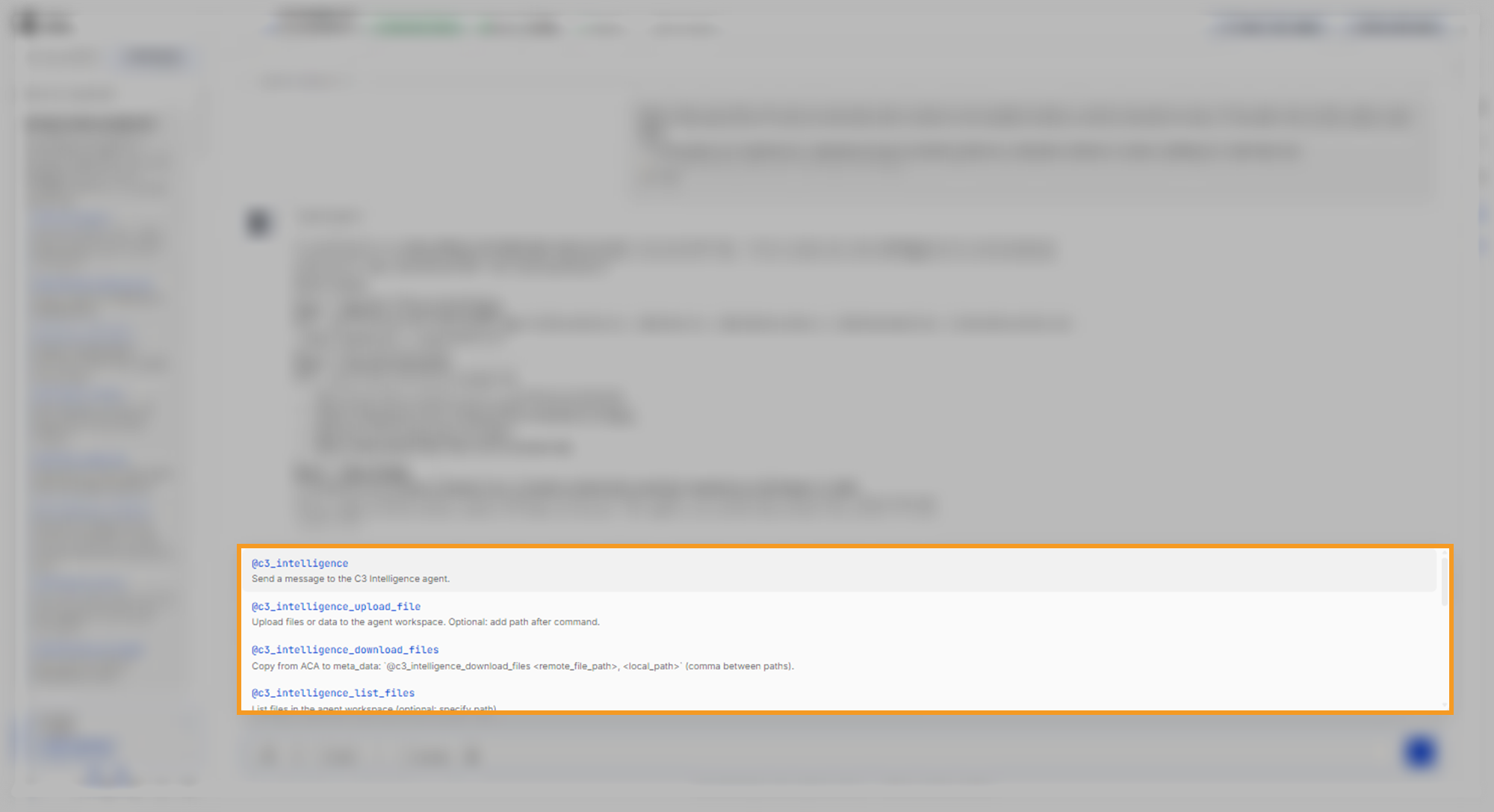
The @cleanup command resets the conversation: it deletes the agent sandboxes, including their workspace files, and the conversation keeps its ID. Use @cleanup only when you want to start the conversation's work over.
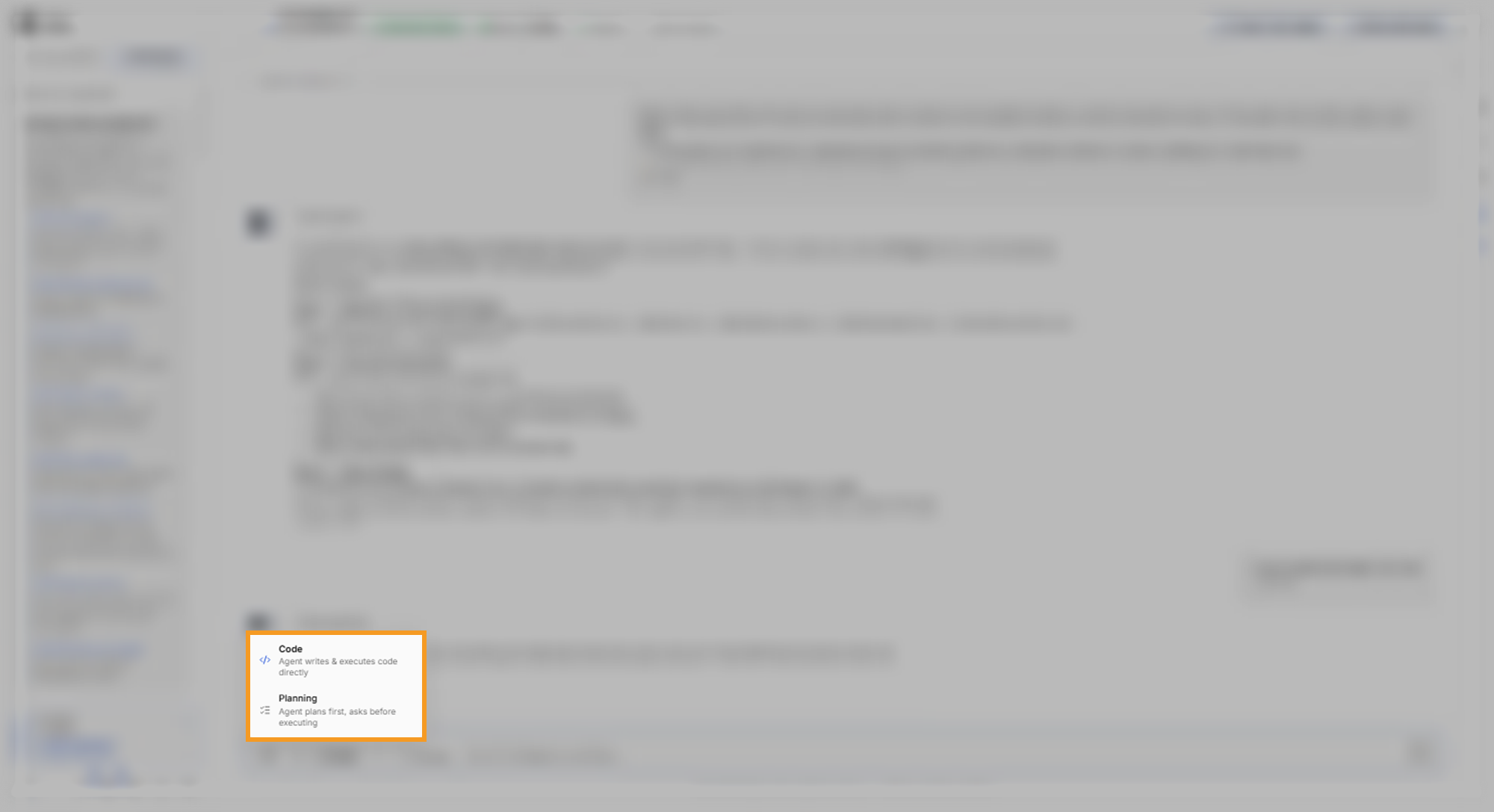
The mode menu in the message box, set to Code by default, sets how the agents act:
- Code: the agents write and run code directly, and still show a plan before long work.
- Planning: the agents discuss and plan only, write and run no code, and ask for your approval at each stage.
Use Planning mode to check the assumptions before a change to earlier work runs. A Planning mode reply runs nothing. It lists the assumptions to confirm, the risks the agent sees, and the steps it plans to run.
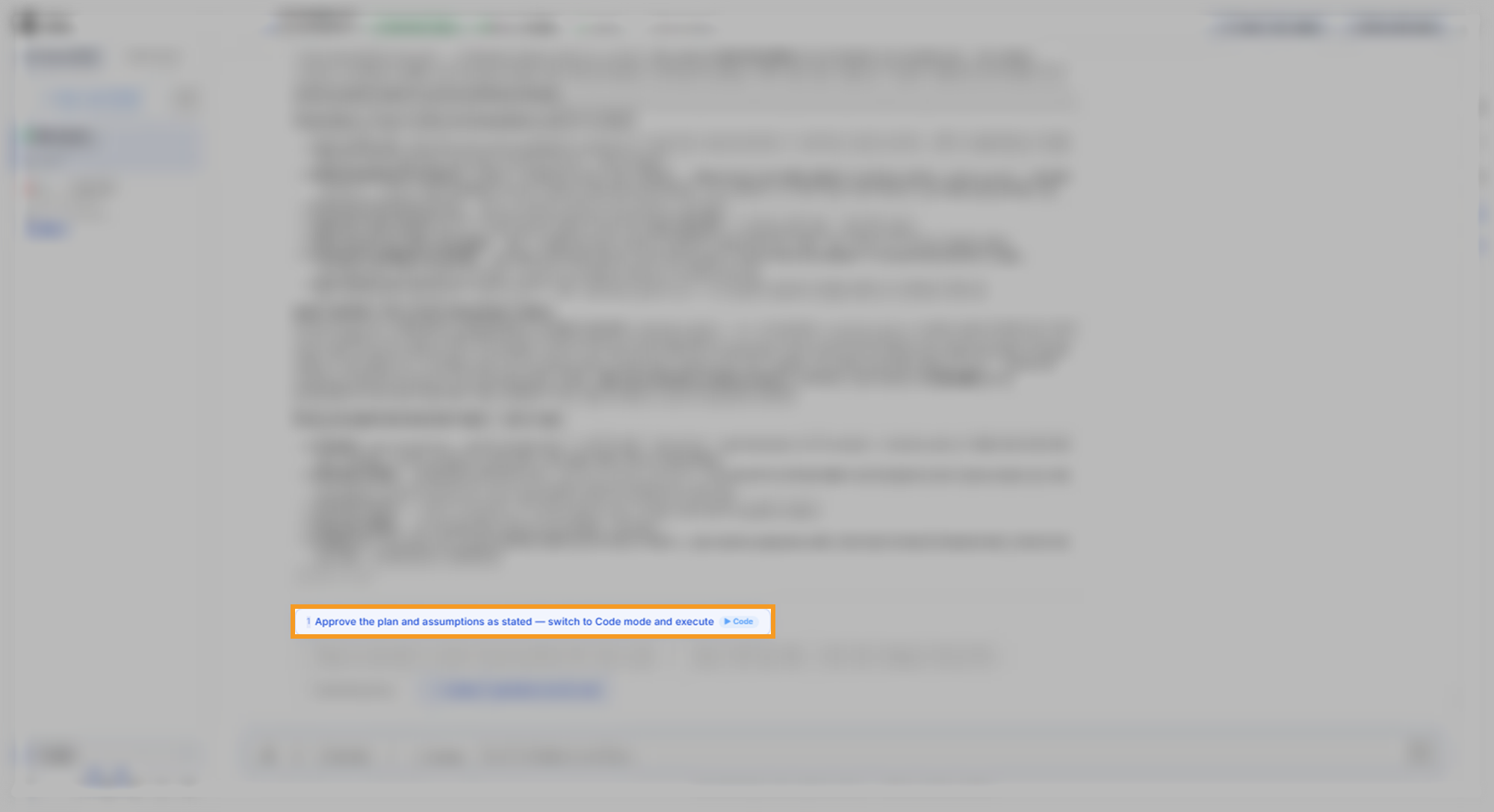
Selecting the option that approves the plan, or typing an approval such as "go ahead", switches the conversation to Code mode and starts the work:
To see a Planning mode request end to end, see Optimize Decisions.
Check tokens and resources
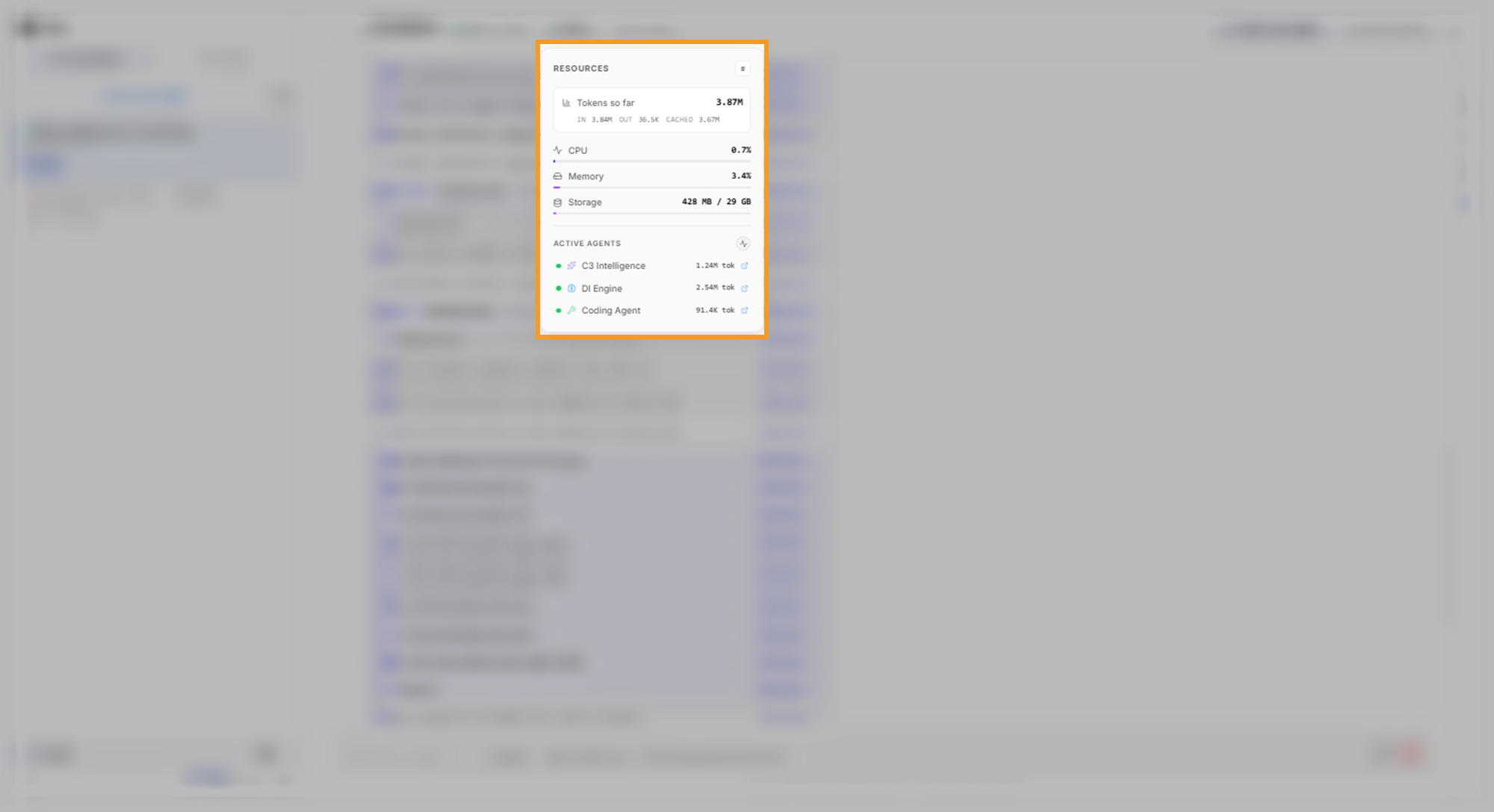
The agent count in the conversation header opens the Resources popover. Tokens measure how much work the AI models did, and the popover shows what the conversation has used so far:
- Tokens so far: the tokens that all agents in the conversation used. A token is a unit of text that an AI model reads or writes. The line under it splits them into IN, OUT, and CACHED.
- CPU, Memory, and Storage: the computing resources the sandboxes use.
- Active agents: each agent with its own token count.
For your token use over days and weeks, see My Usage.
Save a conversation and use snapshots
C3 Intelligence saves your conversation automatically, and the header shows when it last saved. Each save is a snapshot: a copy of the conversation at one moment. A snapshot holds the chat messages and, for each agent it captured, that agent's workspace files and event history. The event history is the record of each step the agent took. A snapshot can also hold the chat and the event histories without the workspace files.
Save a snapshot with your own title before you stop for the day, before you leave a conversation idle, and before you mine a workflow. Mining turns the conversation into a reusable workflow. To save a snapshot:
- Hover over the conversation's card in the sidebar and select Save conversation, or select Mine Workflow in the header, which saves the conversation first.
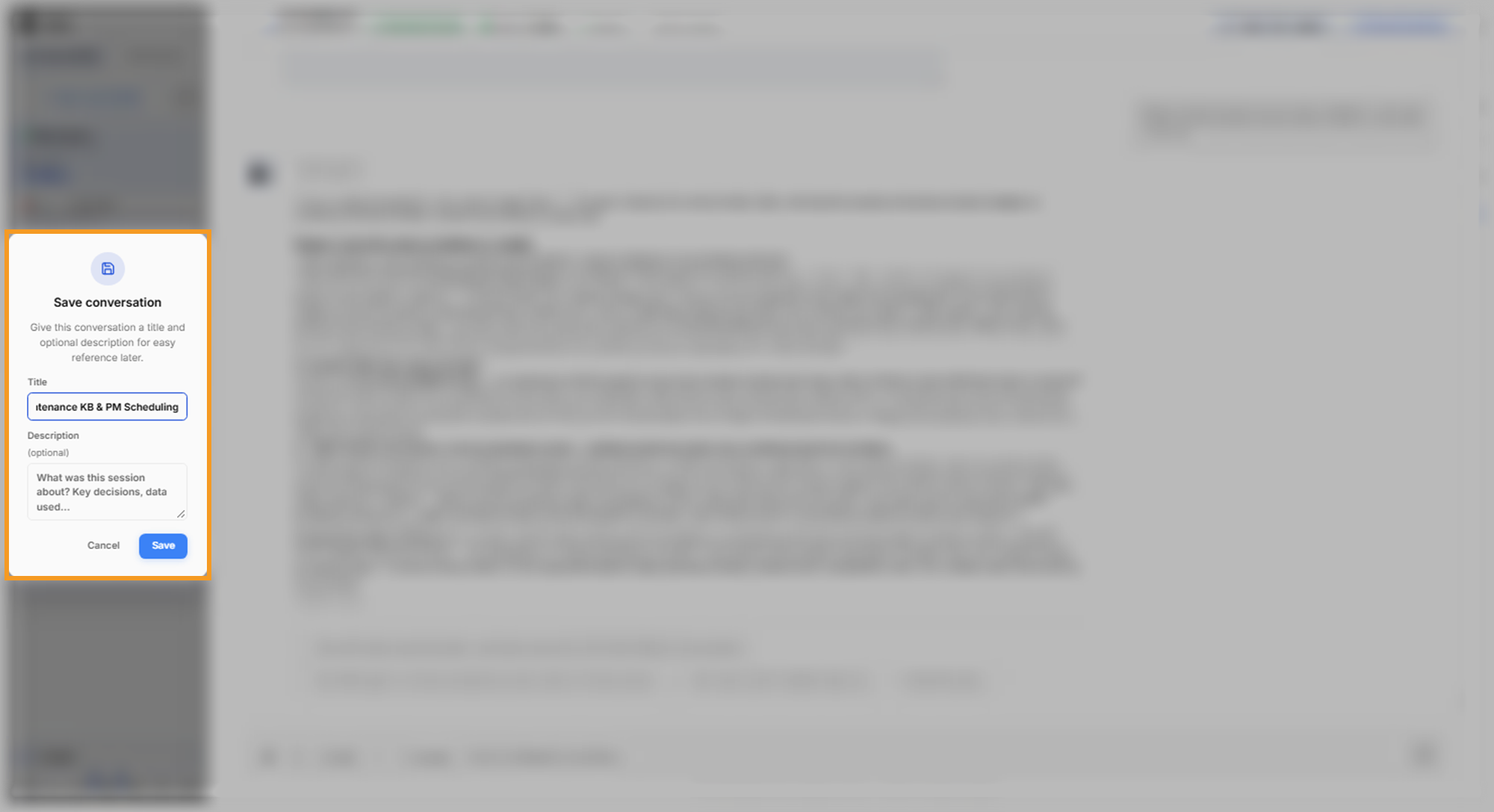
- Enter a Title and, optionally, a Description of the decisions and data.
- Select Save.
The Save conversation dialog opens in the sidebar:
After the save, check that every agent you used appears in the dialog with its workspace, which confirms that the agent's files are in the snapshot. In the example run, a save after a corrected schedule listed the three agents that had worked: C3 Intelligence, the DI Engine, and the Alchemist:
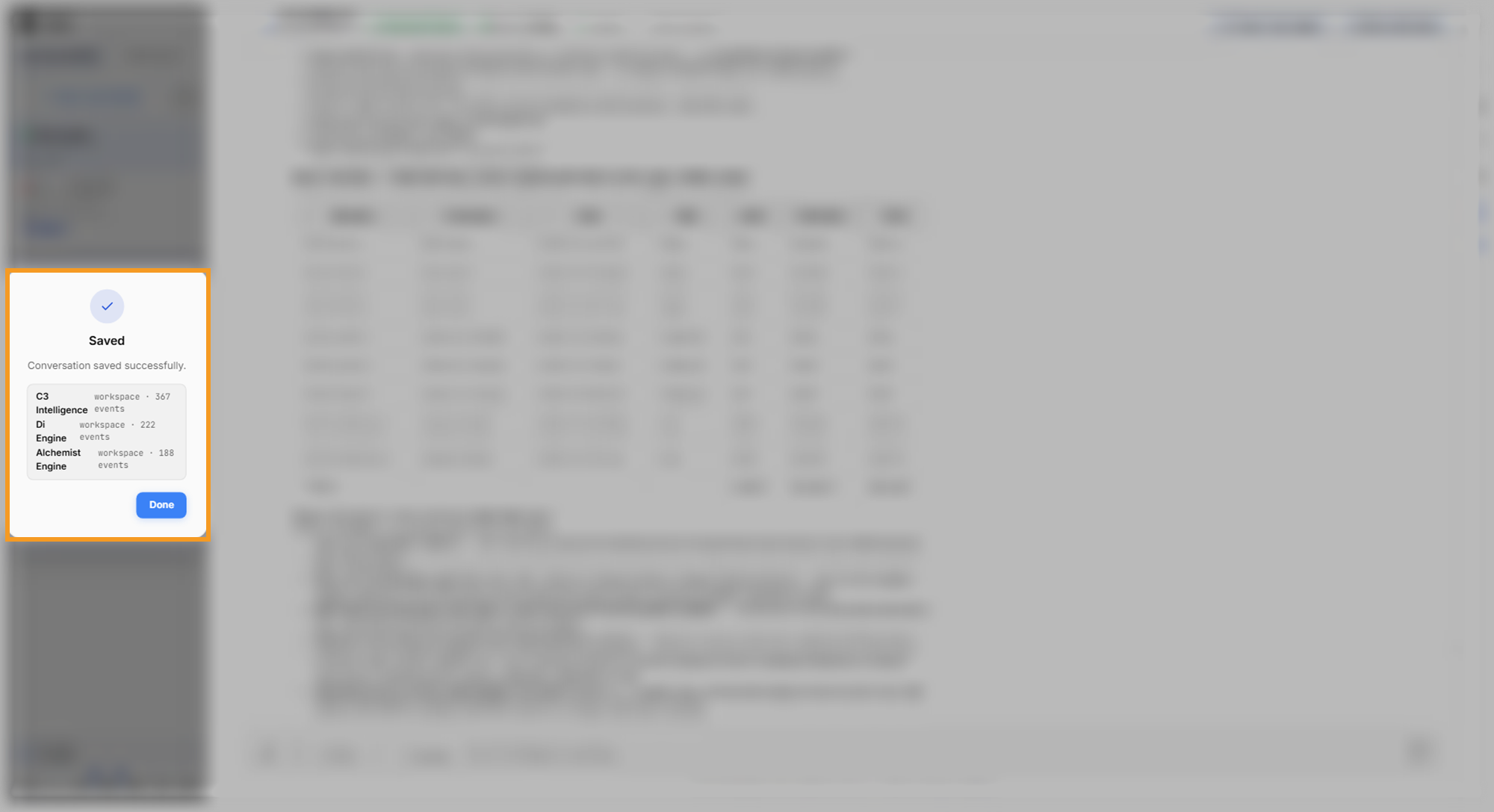
To delete a conversation, hover over its card and select Delete. The Delete conversation? dialog offers two paths:
- Save first: save a snapshot, then choose Proceed to delete or Cancel delete.
- No, just delete: go straight to the last step without a save.
Both paths end at Confirm deletion, where Delete removes the conversation and ends its agent sessions.
Saved Conversations, in the sidebar footer, lists every conversation with its snapshots. Expand a conversation to see each snapshot with its date, title, author, and number of agents. Automatic snapshots carry the AUTO label. Each snapshot offers three actions:
- Download: save the snapshot as a .zip file.
- Revive: rebuild a working conversation from the snapshot.
- Delete: remove the snapshot.
Before you revive a snapshot, check which agents' files it holds. Select the agent count on the snapshot, such as 6 agents, to see each agent it holds. An agent marked workspace has its files in the snapshot. An agent marked only events has its event history but no files.
Delete all snapshots for this conversation, the trash icon on a conversation's row, removes every snapshot of that conversation after you confirm.
To bring back a snapshot you downloaded, select Upload a conversation in the header while Saved Conversations is open, and choose the .zip file.
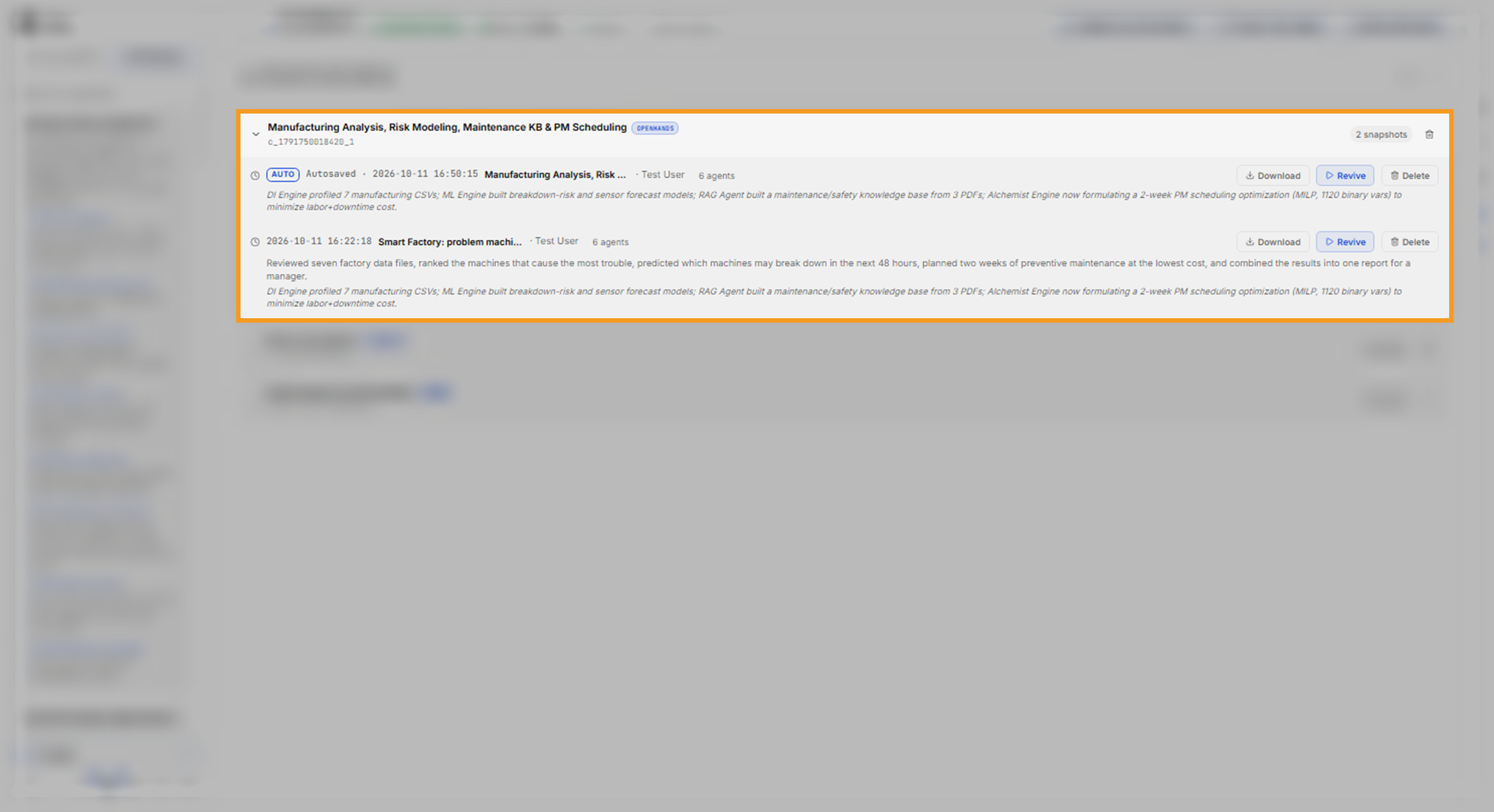
A row labeled DEMO is a sample conversation that ships with C3 Intelligence. Revive it to get your own copy to explore.
Find a conversation by title and ID
Each conversation has a title and an ID. A new conversation starts as New conversation, and C3 Intelligence replaces the title with a summary of the work after the first replies. To set your own title, hover over the card and select Rename. When you have more than three conversations, use Search conversations… to filter the list.
The ID, such as c_1791750018420_1, shows under the title in the sidebar and in Saved Conversations. Hover over the title to see the full ID. A revived conversation gets a new ID and its own card, so the ID tells the revived copy apart from the stopped original.
Each card shows the conversation's status:
- Ready for input: the conversation is live and waiting for your next message.
- Active: the agents are working on a reply.
- Starting…, Stopping…, or Reviving…: a change is in progress.
- Stopped: the sandboxes are shut down, and you can revive the conversation.
- Unavailable — cannot be restored: nothing is left to revive this card from, because it has no sandboxes and no snapshot.
The agent count on each card lists every agent and its status. A dash means the agent has no sandbox, and Stopped means its sandbox is shut down.
Stop and revive a conversation
Stopping a conversation frees its computing resources. Select Stop next to Active in the header, or on the conversation's card. Stop is unavailable while a reply is in progress, so let the reply finish or select Stop generating first.
Before you confirm, the Stop conversation? dialog tells you whether you can revive the conversation later and when the last save happened. When no snapshot exists yet, the dialog warns that stopping ends the conversation permanently. When C3 Intelligence can save the agents' work but not the chat history, the dialog warns that the revived conversation appears empty.
A stop works the same way whether you start it or C3 Intelligence does:
- If the chat has new messages since the last save, C3 Intelligence saves a new snapshot.
- It deletes every agent sandbox, including the workspace files inside it.
- The conversation shows Stopped, and the snapshot is all that remains of the work.
Revive becomes available after C3 Intelligence confirms the final save.
C3 Intelligence stops a conversation for you after about 3 hours without chat activity, and only when a snapshot exists to revive from. It never stops an idle conversation in the middle of a reply or while an agent is still running a task.
To continue a stopped conversation, select Revive in the header, on its card, or on a snapshot in Saved Conversations. Reviving works in these steps:
- C3 Intelligence creates a new conversation, with a new ID and its own card. The stopped original keeps its card.
- The orchestrator gets the chat history back, and each agent gets back whatever the snapshot captured for it.
- The orchestrator posts a revival report that lists each agent's state and where the work left off.
Reviving can take several minutes, and it always brings back the conversation history. Each agent's files come back when the snapshot captured them, which the snapshot's resource details in Saved Conversations show before you revive.
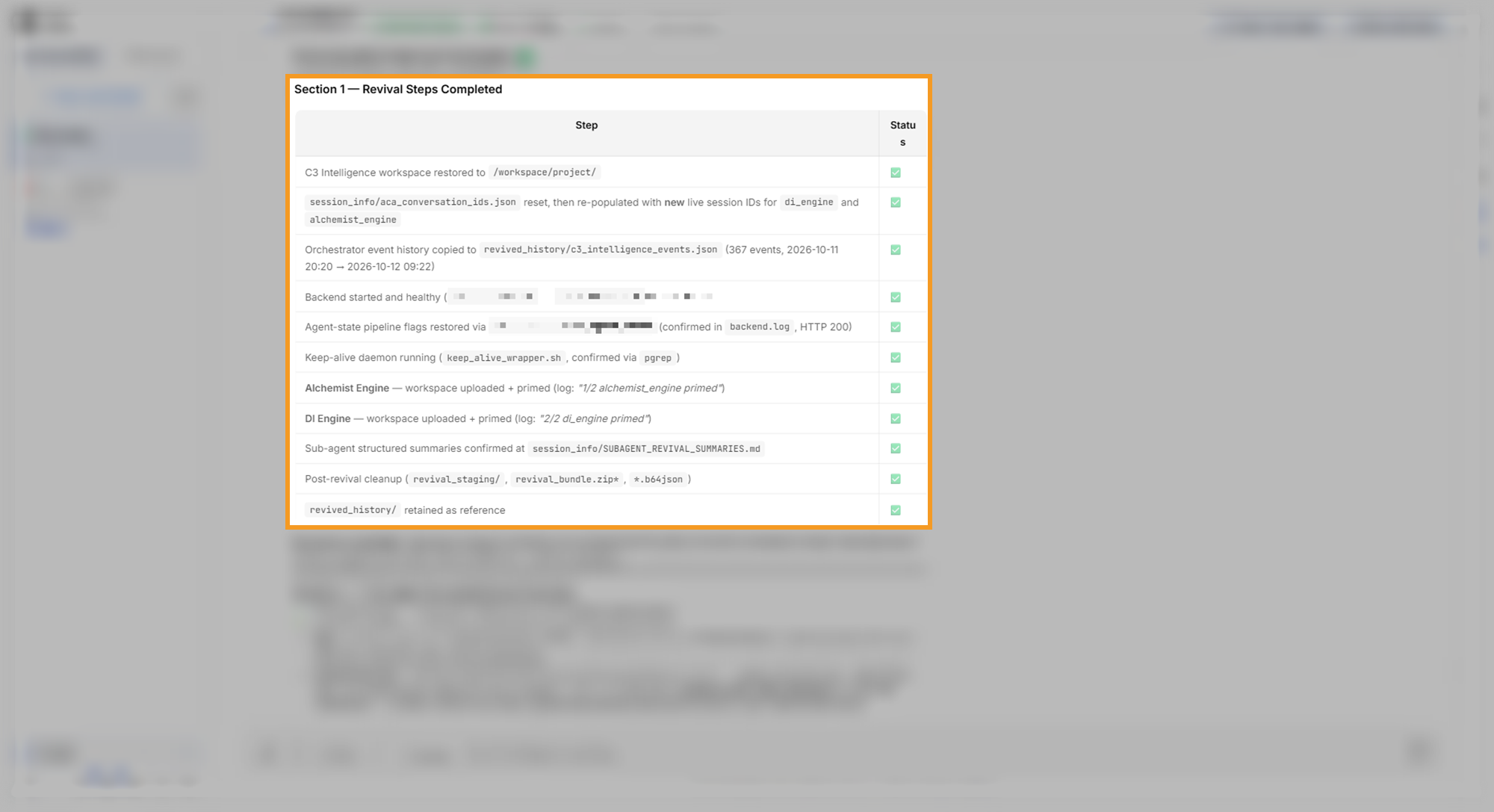
In the example run, a revive after a save brought back the workspaces of the DI Engine and the Alchemist, the agents that the save listed. The revived conversation showed 3 agents, and its revival report confirmed each restored workspace:
An earlier revive in the same run started from a snapshot that held no workspace files. It brought back only the chat history and started with 1 agent. Its revival report showed the data files and the report as missing:
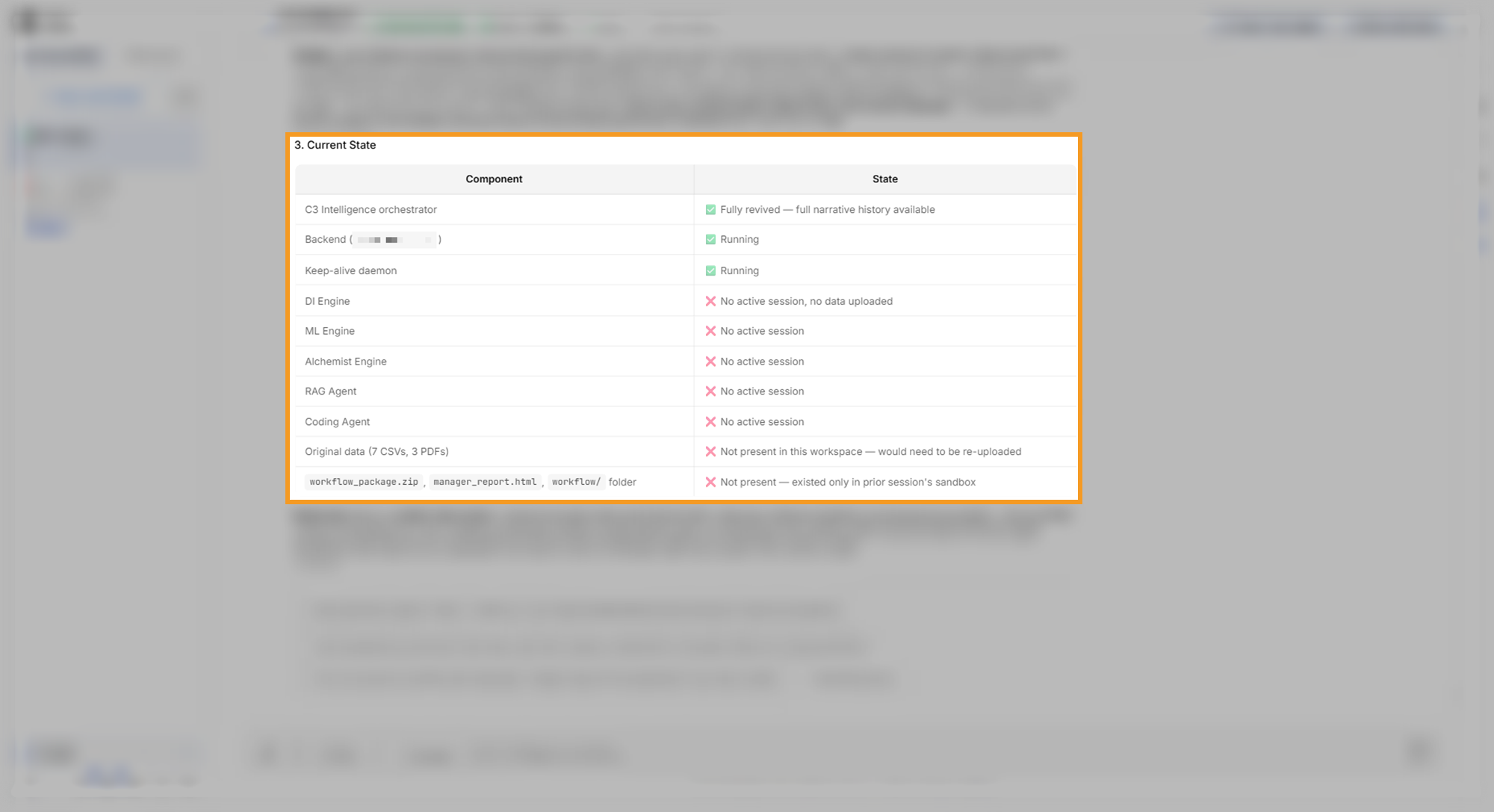
Read the revival report before you continue. An agent that reports no active session has no running sandbox yet, and it starts again on first use. When the report lists files as missing, rebuild the work in three steps:
- Attach the original files again.
- Ask the orchestrator which earlier results it can reproduce and which need a rerun, and ask to see its plan first.
- Approve the reruns you need, one step at a time.
In the example run, the orchestrator answered with a table of each earlier result, whether it could resume, and the rerun it needed. The agents then restarted one by one as each step used them:
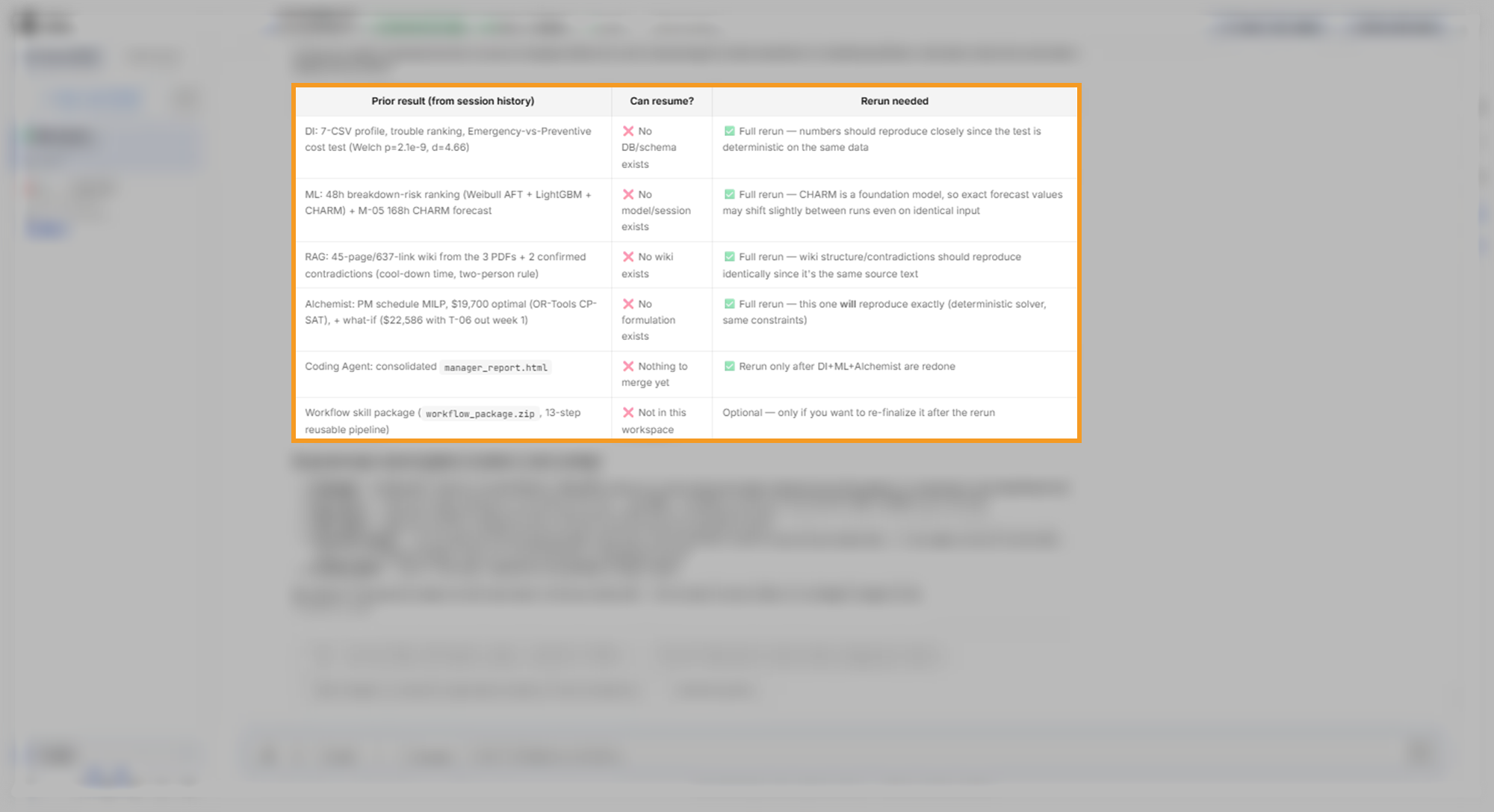
When the service is busy, a revive attempt can stop before it finishes. The setup screen then reports that the conversation is still restorable. The failed attempt's card in the sidebar shows Unavailable — cannot be restored, which refers only to that new attempt. The snapshot stays with the original conversation, so select Retry revive after a few minutes, or revive the snapshot from Saved Conversations.
Mining a workflow tests it in a separate test sandbox, and archiving the workflow needs that sandbox. A stop leaves the test sandbox running, but the runtime shuts it down after its own period without activity. Archive a tested workflow soon after testing. To learn how, see Run and Mine a Workflow.
Know where your files live
With Shared Storage, a cloud storage bucket for the whole deployment, each attached file becomes a dataset, a file kept in storage. The conversation keeps one copy of the file, and every agent reads that copy directly.
Shared Storage and the Dataset Library are beta features.
The orchestrator hands an agent a reference to the dataset instead of copying the file into the agent's workspace. Agents publish the data files they produce, such as cleaned data, as new datasets, so the next agent reads them by reference too. Datasets stay in storage, so they remain available after you revive the conversation.
Datasets belong to you, so you can reuse them across your conversations. The Dataset Library in the sidebar footer lists your datasets. Attach a dataset, the database icon in the message box, attaches one to another conversation without uploading it again.
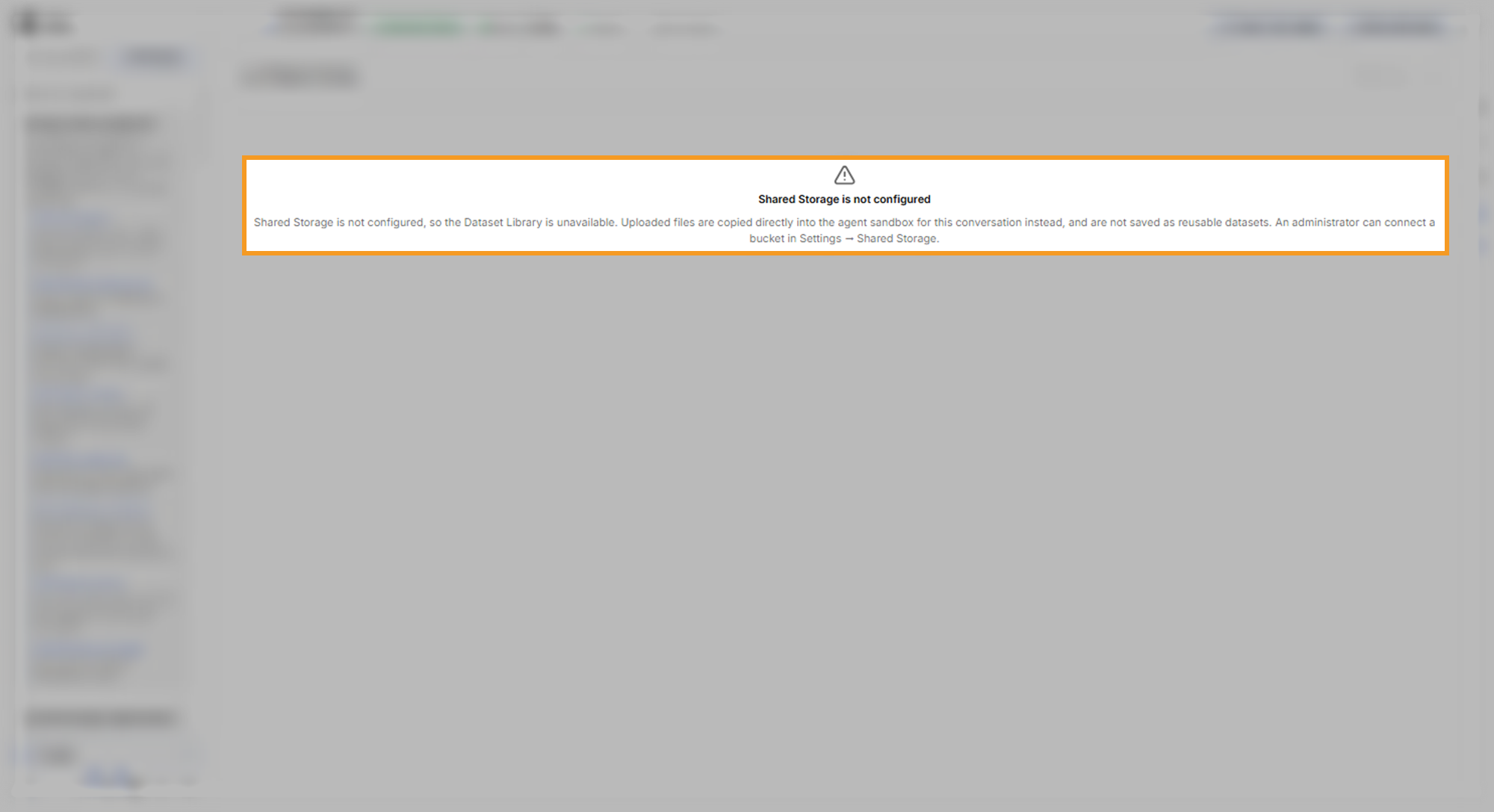
An administrator sets up Shared Storage for the deployment, and Settings shows whether it is connected. Without Shared Storage, C3 Intelligence copies each file into this conversation's sandbox, and the orchestrator transfers files between agent sandboxes. Your message then shows Files uploaded to this conversation only — Shared Storage is not configured. To use the same files in another conversation, attach them again there. The Dataset Library also explains that it is unavailable:
Look up capabilities and connectors in the sidebar
The Glossary tab, next to Conversations, lists each agent with a short description of what it does and the routes it offers. A route is a capability the orchestrator can call, such as /di/data_interpreter for profiling data. You never call a route yourself; the Glossary helps you see what you can ask for.
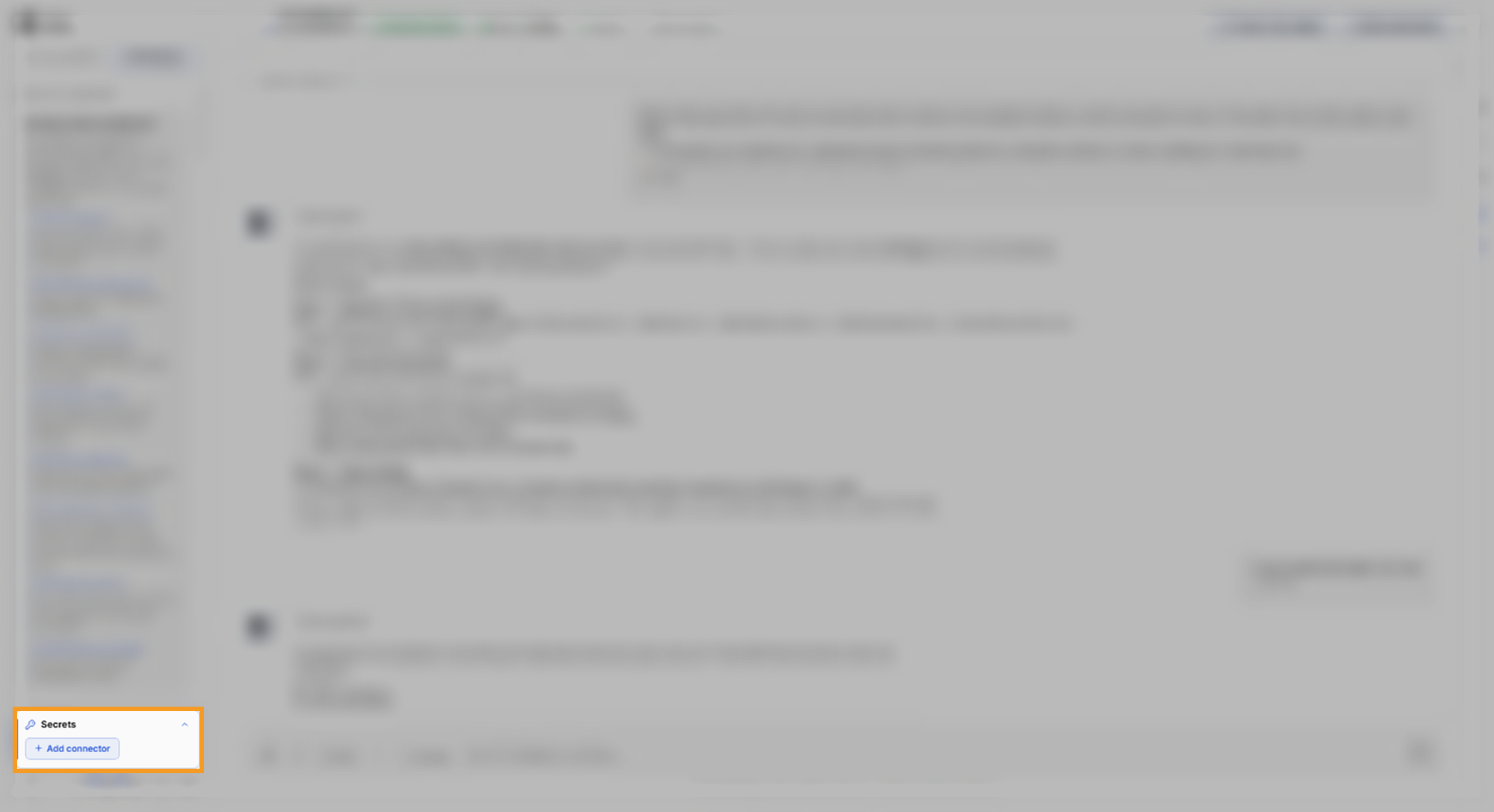
The Secrets tile at the foot of the sidebar lists your connectors and offers Add connector. A connector stores the credentials an agent needs to reach an outside service, such as a database. Agents ask before they use stored credentials:
To set up credentials and connectors, see Credentials and Connectors.