Create Intelligent Workflows
You have finished an analysis in a C3 Intelligence conversation, or your team runs a procedure every week. Now you want to repeat it on next month's data without typing every request again. An intelligent workflow does that. It is a saved, step-by-step version of the analysis that names the agent for each step. Each run takes new data and settings.
You can make a workflow in two ways, and both end on the Intelligent Workflows page:
- Mine a conversation: turn a finished conversation into a workflow, then check it in a test run.
- Teach your agent: describe a workflow from scratch and answer the builder's questions.
On that page, each workflow shows what it holds: its steps, the data it expects, and the versions you can deploy.
What an intelligent workflow holds
A workflow records what to do, in which order, and how to check the result, so a later run can repeat the work on different data. Each workflow holds these parts:
- Steps: the tasks in order, each assigned to an agent. For example, the DI Engine profiles data, and the Alchemist Engine solves optimization problems such as schedules. A decision step sends the run down one of two paths, for example re-solving the schedule when a technician is unavailable.
- Inputs and outputs: the data the workflow expects, such as fault records or a technician roster, and what it produces, such as a ranking.
- Parameters: the values you choose for each run, such as a start date and a planning period.
- Code and instructions: the code each step runs and a description of the step, so a run does not start from nothing.
- Checks and preferences: checklists a run verifies its results against. A short preferences file records how you worked while you made the workflow, such as approving a plan before models run.
The Workflow Builder is the agent that turns your conversation or your description into these parts.
Mine a conversation or teach from scratch
Choose by what you already have. Mining starts from work the agents have already done, and teaching starts from your description of work that nobody has run yet.
Mine a conversation when a conversation has produced results you trust. The builder drafts the steps from what the agents did and asks a few questions. It then gathers each agent's code into a test sandbox, a fresh workspace. There a sandbox agent reruns each step and compares the results with the conversation's. The finished workflow shows MINED WORKFLOW on its card. A mined workflow repeats the assumptions made in its source conversation, so correct those in the conversation before you mine it.
Teach your agent when you can describe a procedure but have no conversation that ran it. The builder asks one question at a time about the goal, the inputs, the outputs, the steps, and the rules the workflow must respect. It writes only the domain knowledge you give it, and it marks each gap with a placeholder for you to fill. The finished workflow shows CONSTRUCTED WORKFLOW on its card.
When both routes are open to you, mine the conversation. Its steps already ran on real data, and the test sandbox confirms the workflow reproduces those results before you archive it.
Find your workflows
The Intelligent Workflows page lists every workflow you can run, including two demo workflows that come with C3 Intelligence. Open the page with the lightning icon in the sidebar footer. Each card shows the workflow's name, its number of steps and runs, and its type:
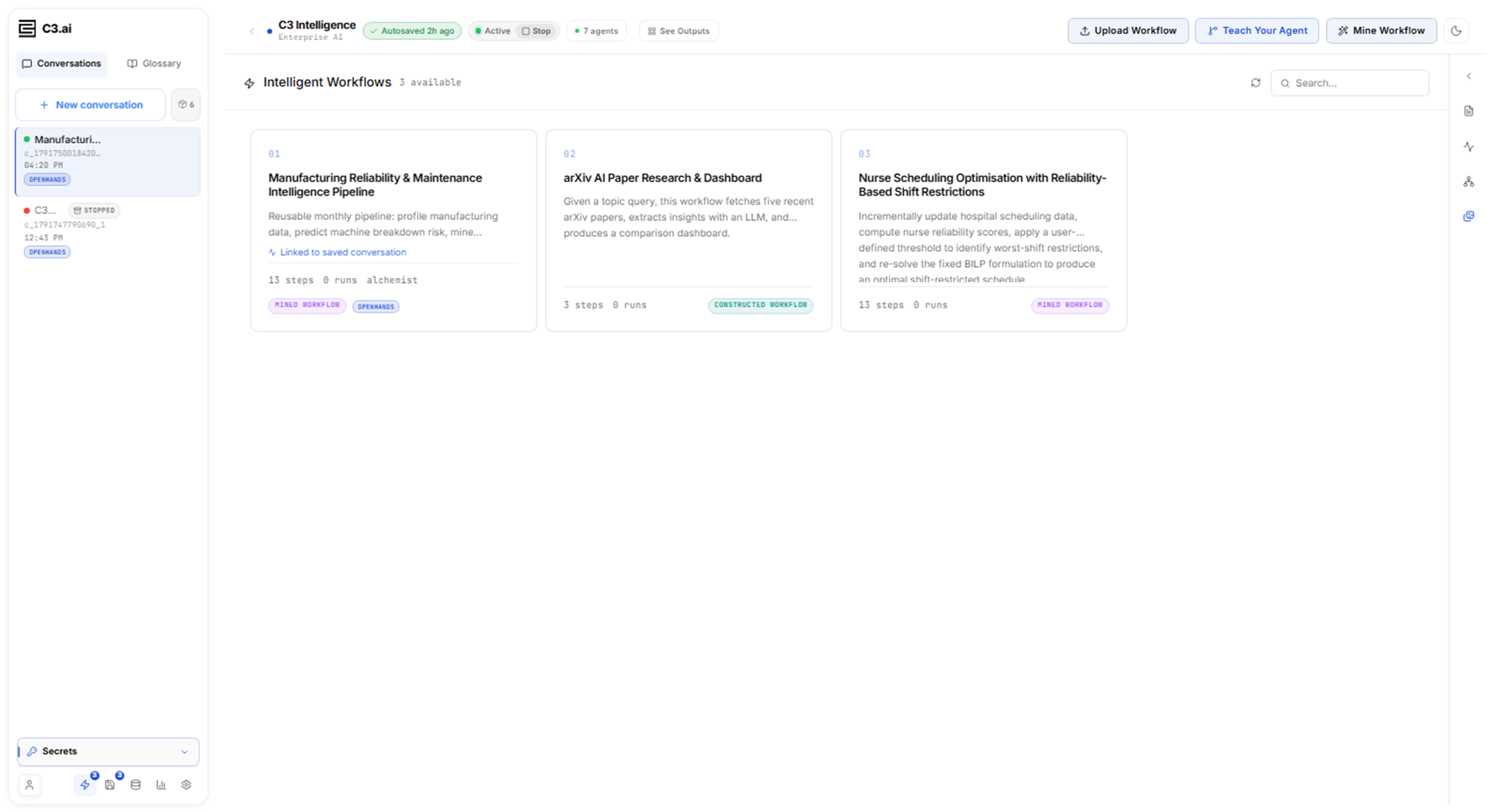
Type in the search box to filter the cards by name or description. Upload Workflow imports a workflow that someone downloaded as a .zip file, which is how you share a workflow with another user. The Upload Archived Workflow dialog asks for the Workflow archive (.zip) and a Workflow name. Remove workflow, the trash icon on a card, deletes the workflow after you confirm.
Open a workflow
Select a card to open the workflow. Four tabs organize it:
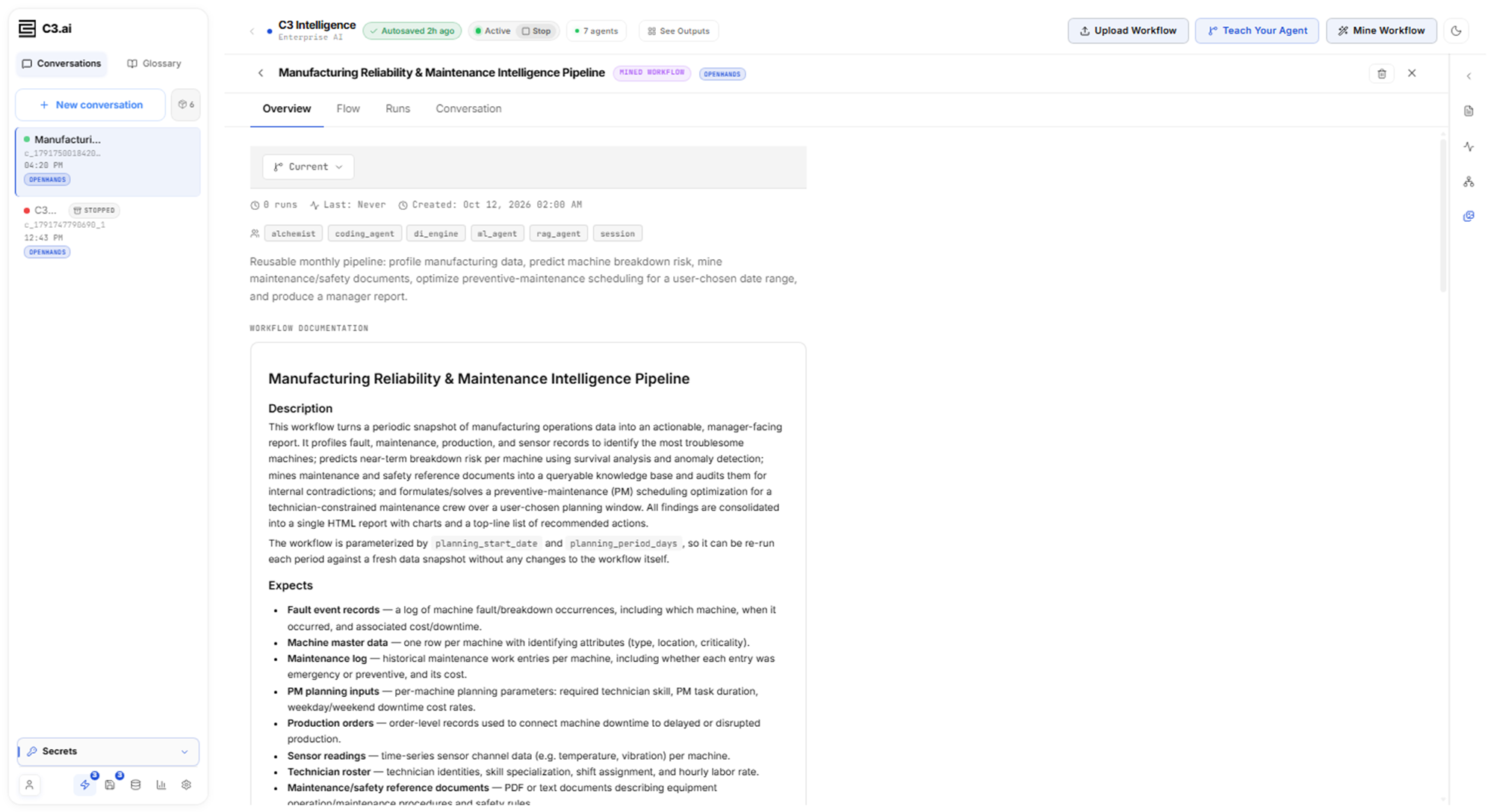
- Overview: the description, what the workflow expects and produces, a summary of each step, the number of runs, and the creation date. The Current menu switches between saved versions.
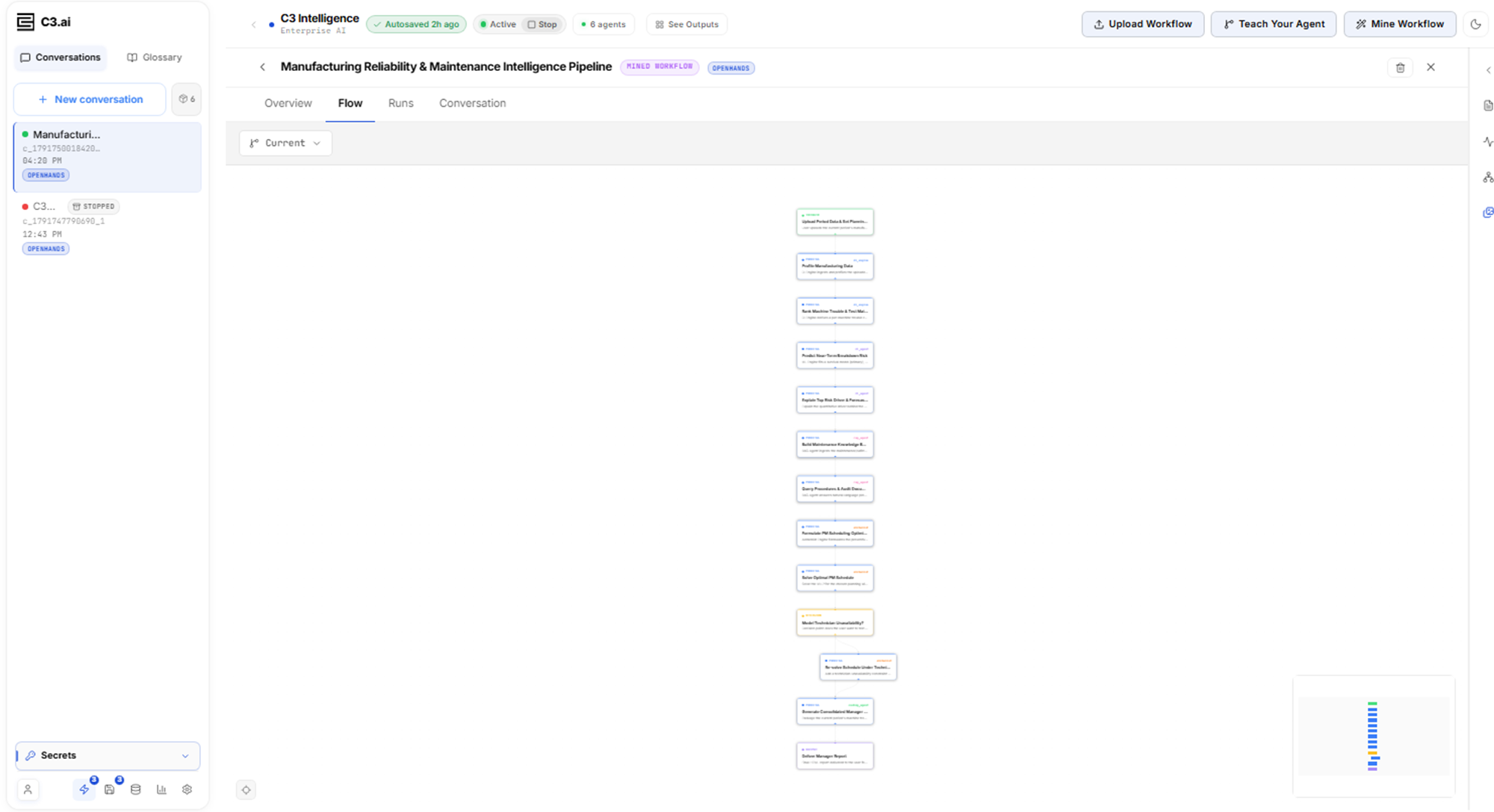
- Flow: a diagram of the steps, including any decision steps. Select a step to see its details.
- Runs: the saved versions of the workflow, each with Download and Deploy. Deploy starts a sandbox where an agent runs that version on the data you give it.
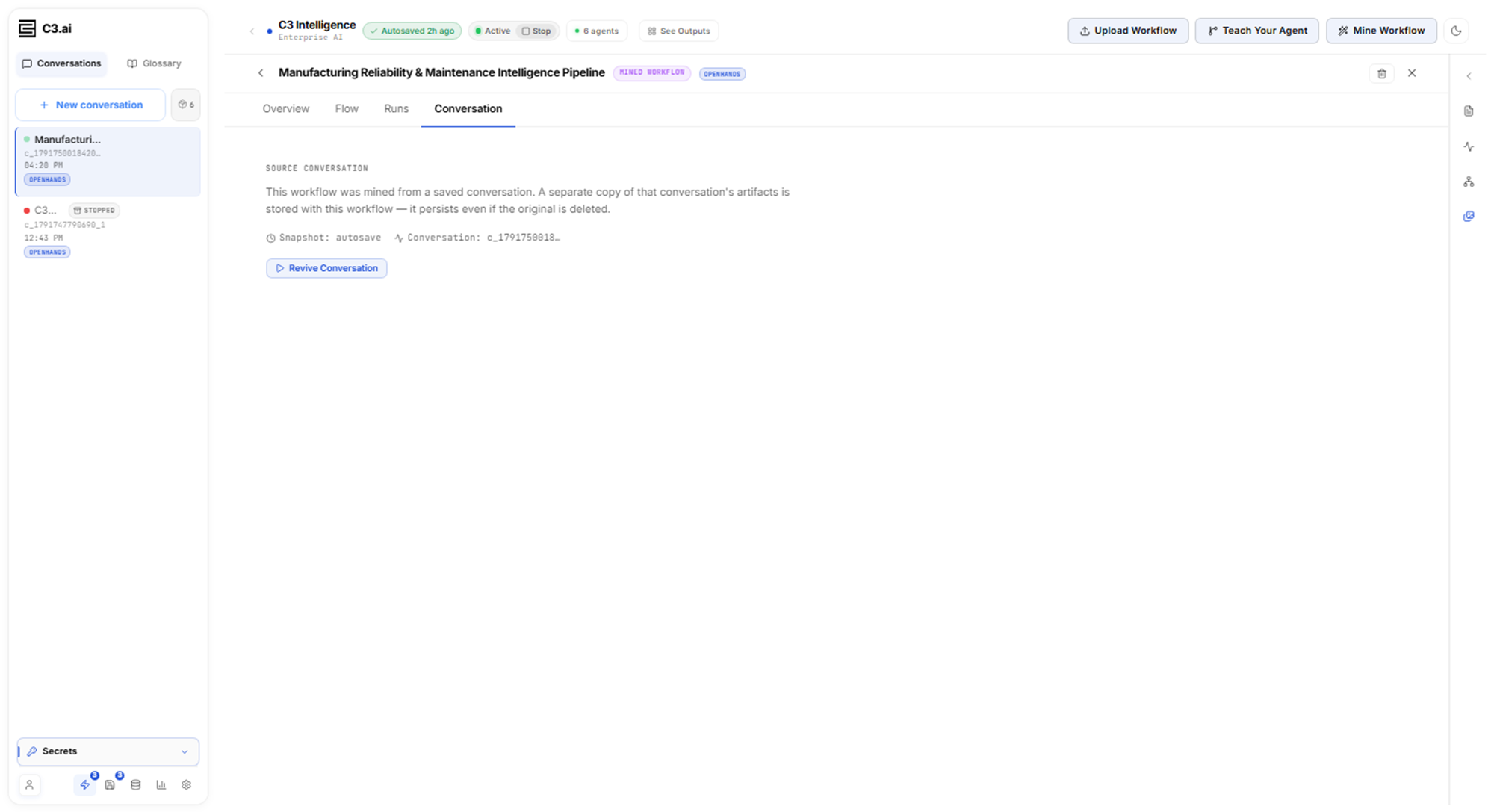
- Conversation or Origin: where the workflow came from. A mined workflow shows its source conversation, and a constructed workflow shows the session that taught it.
The Overview tab is where you check what a run needs before you deploy the workflow:
The Flow tab shows the order of the steps and where the run can branch:
A mined workflow keeps its own copy of the source conversation's artifacts, so the workflow still works if you delete that conversation. Select Revive Conversation on the Conversation tab to restore the source conversation in the main chat and continue the analysis:
On a constructed workflow, the Origin tab replaces Conversation. Select Open in Workflow Builder there to reopen the teaching session and change the workflow.