Add Plugins
After you attach skills to an agent, some behavior still depends on the model choosing to apply it. A plugin makes that behavior run in every conversation. A plugin is a bundle of files that you upload once and attach to the agents that need it. It can carry hooks, skills, and supporting files such as prompts and configuration. A hook is JavaScript code that runs at a fixed point in every conversation, such as when a user sends the agent a message or before the agent uses a tool.
A plugin and a skill differ in when their behavior runs. The agent loads a skill only when it matches the task, so a skill can go unused on a turn that needs it. A hook runs every time its point in the conversation arrives. Use a plugin when a behavior must apply every time, for example blocking destructive shell commands or adding customer-specific context to every request. Use a skill for a procedure the agent picks up on demand. See Create and Attach a Skill.
To add a plugin, write its hooks, package its files, upload the bundle on the Plugins page, and attach the plugin to an agent. You attach a plugin either to the agent's definition, the saved configuration that every user of the agent shares, or to your own sessions, meaning your own chat conversations with the agent. An administrator can then promote a plugin you wrote to Global so your whole team can use it. After that, you find, review, replace, or delete plugins on the same page, and Global plugins travel with an agent you export. When a plugin or hook doesn't run, C3 AI Agentix shows no error, so check the common causes in Troubleshoot plugins.
Understand what goes in a plugin
A plugin bundle is a folder of files. C3 AI Agentix delivers the whole folder to each chat session that uses the plugin, and acts on four kinds of content in it:
| In the bundle | What C3 AI Agentix does with it |
|---|---|
An entry file at the top of the bundle, or the files in hooks/ | Loads them as native OpenCode plugin code. The hooks run at fixed points in the session, such as before the agent uses a tool. |
A skills/<skill-name>/ folder | Makes the skill available to the agent under <skill-name>, like any attached skill. |
An agentix.requiredFeatureFlags list in package.json | Holds the plugin back until every listed feature flag is on in the environment. |
Any other file, such as config.json, prompts, or scripts | Delivers the file unchanged. The plugin's own code and skills read it. |
A small plugin with one hook looks like this:
command-guard/
  hooks/
    pre-tool-use.js
  config.json
  README.md
Keep these rules in mind when you build a bundle:
Harness: the harness is the agent runtime that runs each conversation, shown on an agent's detail page. Plugins support the OpenCode harness, and a plugin runs only on agents that use the same harness.
Metadata: you enter the plugin's name, description, harness, and scope when you upload it, so the bundle itself holds only the plugin's files.
Components: C3 AI Agentix loads hooks, skills, and files. It stores other component types, such as commands, subagents, and MCP server definitions, without loading them. To give an agent tools from an outside service, add an MCP connection.
Entry file: C3 AI Agentix loads one entry point per plugin and checks for it in this order:
index.jsorindex.tsat the top of the bundle, or the file named by theexports,module, ormainfield of the bundle'spackage.json.plugin.js,plugin.ts,<plugin-name>.js, or<plugin-name>.tsat the top of the bundle.- Every
.jsand.tsfile inhooks/, combined into one plugin.
When a bundle has an entry file from the first or second step, C3 AI Agentix ignores the
hooks/folder, without a warning. Either import your hook files from the entry file, or leave the entry file out and put every hook inhooks/.File references: refer to other files in the bundle by paths relative to the referencing file. Keep the plugin's own name out of every path, because a copy of the plugin can carry a different name.
Feature flags: a feature flag is an environment setting that releases a feature when an administrator turns it on. A plugin that depends on a feature can list its flags in
package.json, and the plugin stays hidden until every listed flag is on.Skill names: a skill inside a plugin uses its folder name. When another skill uses the same name, the agent receives only one of them:
- When two plugins attached to the agent each contain a skill with the same name, the agent receives the skill from the plugin whose name comes first alphabetically.
- When a plugin contains a skill with the same name as a skill attached to the agent, the agent receives the attached skill.
- When a Personal plugin contains a skill with the same name as a Global or C3-shipped skill in the Skills catalog, the plugin's skill doesn't load, even if the agent doesn't use the catalog skill. Skills in Global and Bundled plugins skip this check.
A plugin skill that loses a name clash fails silently. C3 AI Agentix still copies the skill's files into the conversation, along with the rest of the plugin. It leaves the skill out of the list of available skills that the agent reads when a conversation starts, so the agent never knows the skill exists and never uses it. You see no error or warning, and the plugin's upload, attachment, and detail page all look normal. If a skill from a plugin never runs, check whether another skill with the same name is attached to the agent, ships in another attached plugin, or exists in the Skills catalog. Then rename the skill's folder in the plugin and upload the plugin again.
Hook code runs as trusted code inside the agent's session, with no separate sandbox, time limit, or resource cap, and it can make network requests. Attaching a plugin to an agent runs its author's code in every session that uses the agent. Review a plugin's files before you attach it, and limit Global uploads to authors you trust.
Write a hook
A hook file is a JavaScript module that default-exports one OpenCode plugin function. The function returns an object whose keys are OpenCode event names, such as tool.execute.before, and whose values are the handlers that run on those events. C3 AI Agentix loads the file with OpenCode's own plugin loader, so the OpenCode plugin API applies in full. For the list of events and the arguments each handler receives, see Plugins in the OpenCode documentation.
This hook stops the agent from running rm -rf / through its shell tool:
// hooks/pre-tool-use.js
const BlockRootDelete = async () => ({
  'tool.execute.before': async (input, output) => {
    if (input.tool !== 'bash') return;
    const command = output?.args?.command;
    if (typeof command === 'string' && /\brm\s+-rf\s+\/(\s|$)/.test(command)) {
      throw new Error('Blocked: this command deletes the filesystem root. Choose a more specific path.');
    }
  },
});

export default BlockRootDelete;
Follow these rules when you write a hook file:
- Default export: export the plugin function as the file's default export. C3 AI Agentix loads each file in
hooks/through its default export, so a file with only a named export doesn't load. - Export only the plugin: OpenCode calls every function a plugin module exports as a plugin, so keep helper functions unexported.
- Block by throwing: to stop a tool call, throw an
Errorfromtool.execute.before. OpenCode cancels the call and passes the error message to the agent, so write the message for the agent: say what was blocked and what to do instead. Returning a value such as{ decision: "block" }has no effect, because that convention belongs to Claude Code hooks. - One handler per event: when a plugin has several files in
hooks/, C3 AI Agentix combines their handlers. If two files handle the same event, only the handler from the file whose name sorts last runs, so keep all the handlers for one event in one file.
Understand plugin scopes
A plugin's scope decides who can see and use it, and who can change it. The Plugins page shows the scope as a badge on each plugin.
- Personal: only your own chat sessions receive it. Any user can upload a Personal plugin. App administrators also see every user's Personal plugins on the Plugins page and can promote any of them to Global.
- Global: available to everyone in the cluster. Only administrators can upload, replace, or delete a Global plugin.
- Bundled: shipped with C3 AI Agentix and available to everyone. Bundled plugins are read-only for every user, administrators included. An agent administrator can copy one to an editable Global plugin from inside a chat, through the plugin's own settings. The Plugins page has no option for this.
- Shared: a read-only copy that arrived with an agent someone shared with you. The detail page marks it with a Shared badge. To get an editable copy, clone the agent.
Plugin names are unique across scopes. An upload fails if its name already belongs to a plugin in a different scope. For example, uploading a Personal plugin will fail if a Global plugin with the same name already exists. However, two users can still have Personal plugins with the same name.
Upload a plugin
Package the plugin before you upload it. Zip the plugin's folder itself, such as <plugin-folder-name>/ containing hooks/. C3 AI Agentix removes the outer folder and keeps everything inside it. To upload a folder instead, drag the plugin's folder onto the upload area.
A plugin must stay within these limits:
- Files: 200 files or fewer.
- File size: 1 MB or less per file.
- Total size: 25 MB or less across all files.
- File types:
.js,.ts,.mjs,.mts,.cjs,.cts,.jsx,.tsx,.py,.md,.json,.jsonc,.yaml,.yml,.toml,.txt,.env,.cfg,.ini,.sh,.bash,.gitignore,.css, and.html.
To upload a plugin:
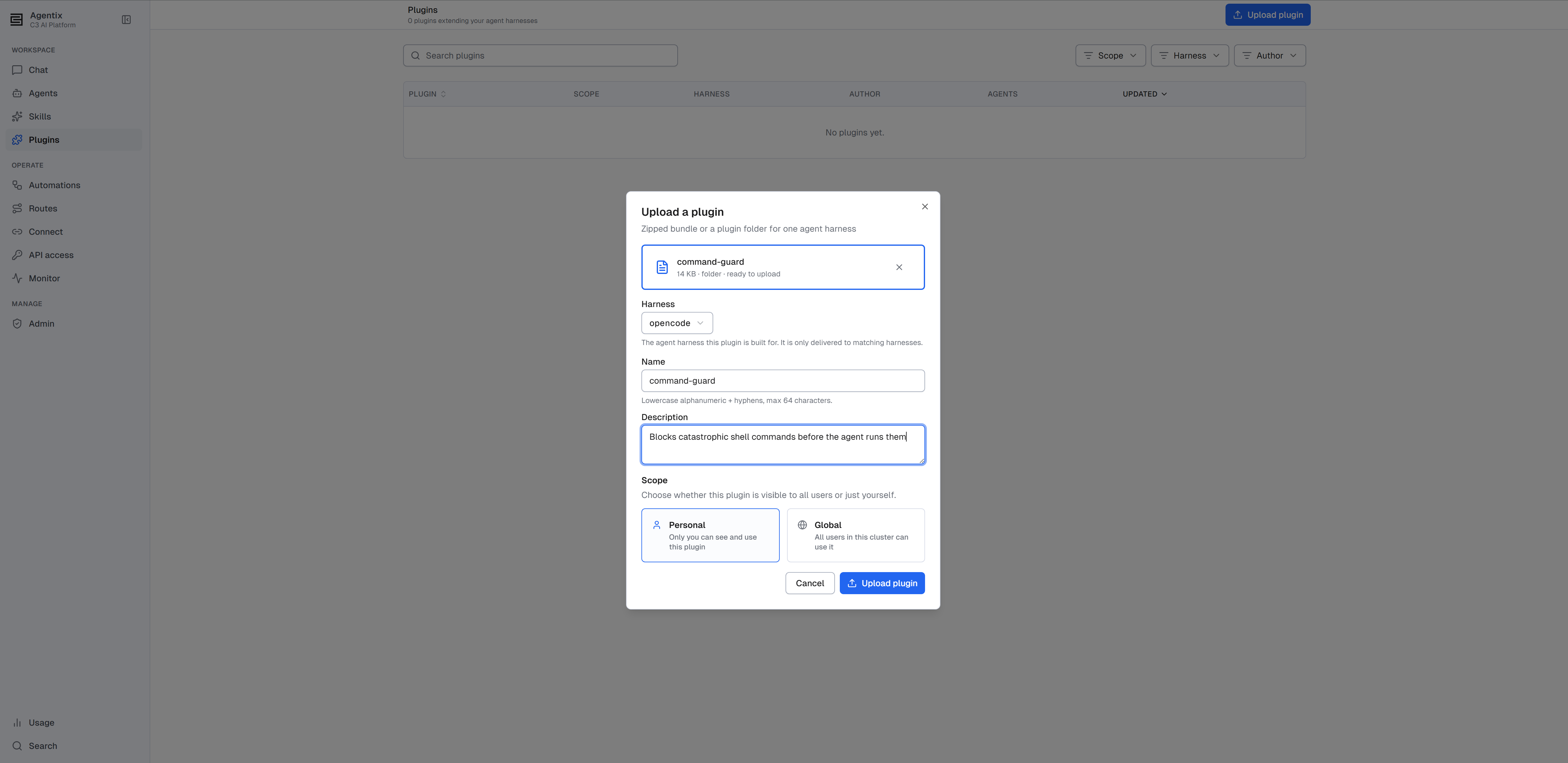
- Open Plugins from the left navigation and select Upload plugin (top right). The Upload a plugin dialog opens.
- Drop your
.zipfile onto the upload area, or select the area to browse for it. To upload a folder, drag it onto the area. The dialog shows the file's name and size. - Check the Harness. It is set to
opencode, the harness plugins support. - Check the Name. C3 AI Agentix fills it in from the file or folder name. A name uses lowercase letters, digits, and hyphens, starts with a letter or digit, and has 64 characters or fewer. If a plugin with this name already exists in the same scope, the upload replaces it without asking. See Replace or delete a plugin.
- Enter a Description (optional). The description appears under the plugin's name in the plugin list.
- Set the Scope. Administrators choose Personal or Global. Every other user uploads at Personal scope, and the dialog shows them no scope choice.
- Select Upload plugin. C3 AI Agentix validates the bundle and saves it. The dialog closes, and the plugin appears in the list.
Find a plugin
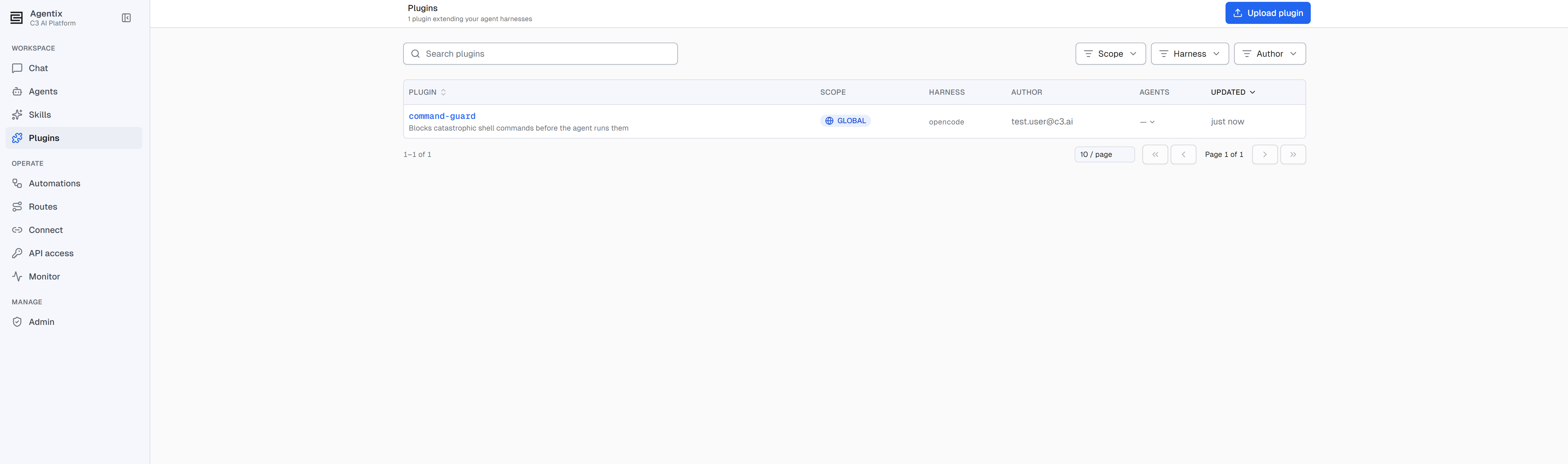
The Plugins page lists the plugins you can see: your own Personal plugins, every Global plugin, and the Bundled plugins available in your environment. If you have the Agentix.AppAdmin role, the list also includes every other user's Personal plugins. You can promote those from their scope badge. The header shows the total count.
View a plugin's details
Select a plugin's name to open its detail page.
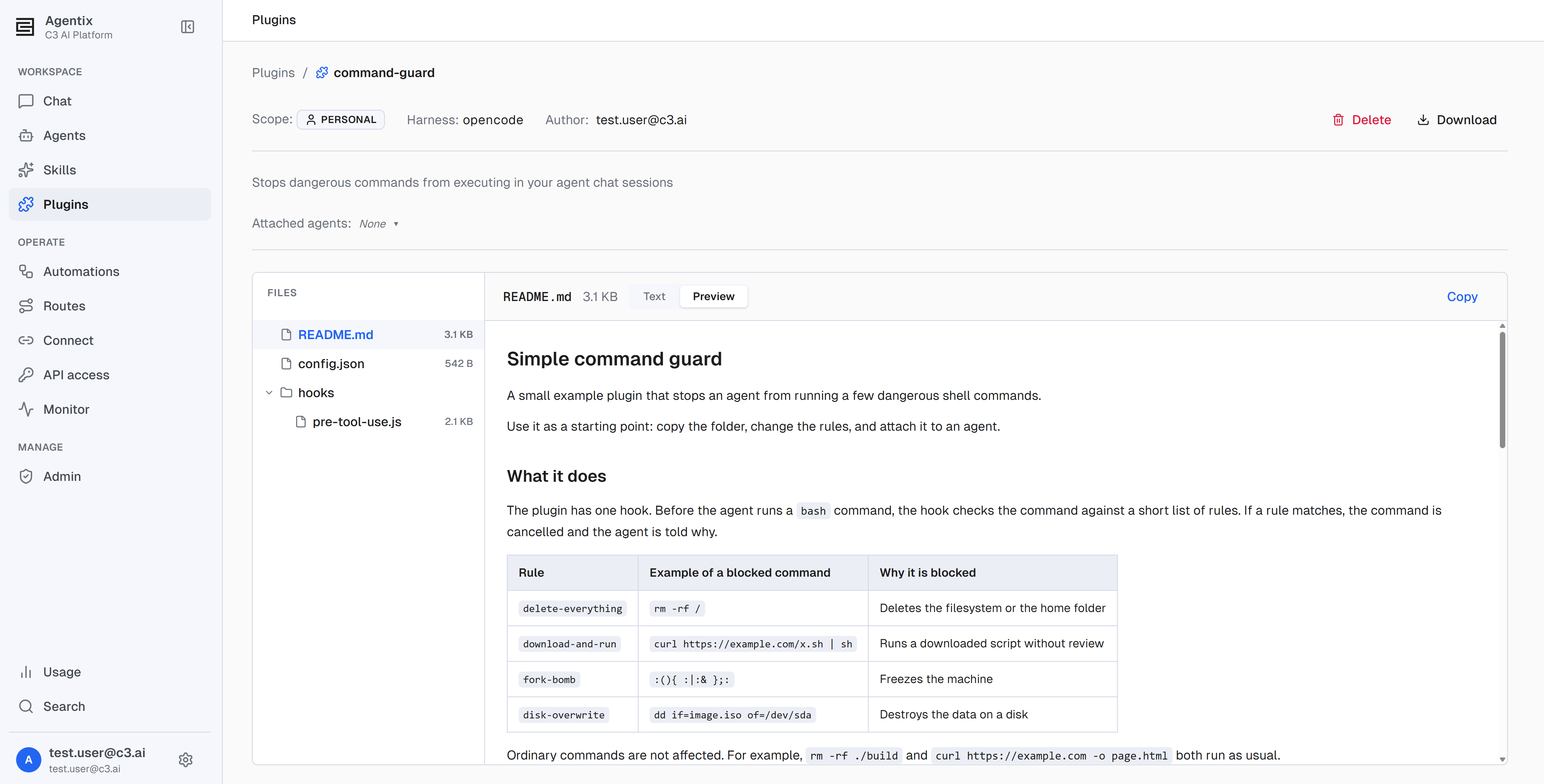
The detail page shows:
- Scope, Harness, and Author: the plugin's metadata.
- Description: the summary entered at upload.
- Attached agents: the agents the plugin is attached to. Select the list to attach or detach agents. See Attach a plugin to your own sessions.
- Files: the bundle's file tree. Select a file to read it. Markdown files open in Preview. Select Text to see the source, or Copy to copy the file's contents. The page URL updates to point at the selected file, so you can share a link to it.
- Download: saves the whole bundle as a
.zipfile. Download a plugin to review it offline or to start a copy of your own. - Delete: removes the plugin. See Replace or delete a plugin.
Attach a plugin to an agent
A plugin takes effect when you attach it to an agent. Attaching turns the plugin on for that agent, and detaching turns it off.
You can attach a plugin in two ways:
- To the agent's definition: every user of the agent gets the plugin. You attach it from the Plugins card on the agent's detail page, in edit mode. This path needs the
Agentix.AgentAdminrole and an agent that isn't protected. The change takes effect after you select Save on the agent. - To your own sessions: only your conversations with the agent get the plugin. You attach it from the Agents column on the Plugins page, or from Attached agents on the plugin's detail page. Any user can do this, on any agent. The change takes effect immediately.
Use the agent's definition to give a team agent a behavior everyone needs. Use your own sessions to try a plugin, or to add a Personal plugin that only you need.
A plugin change applies to new conversations. C3 AI Agentix fixes a conversation's set of plugins when the conversation starts. Attaching, detaching, replacing, or deleting a plugin leaves conversations already in progress unchanged. Start a new chat to pick up the change.
Attach a plugin to an agent's definition
Attach the plugin from the agent's editor, then save the agent:
- Open the agent from Agents and select Edit to enter edit mode.
- On the Plugins card, select Attach plugin. The Attach plugin panel opens.
- The panel lists the plugins you can attach: plugins you can see that match the agent's harness and aren't attached yet. Each row in the panel shows the plugin's version and scope. Plugins uploaded through the Plugins page all show version 1.0.0. Use the search box to filter by name.
- Select one or more plugins.
- Select Attach. The plugins join the agent's Plugins card.
- Select Save to keep the change. Until you save, the attachment is only staged.
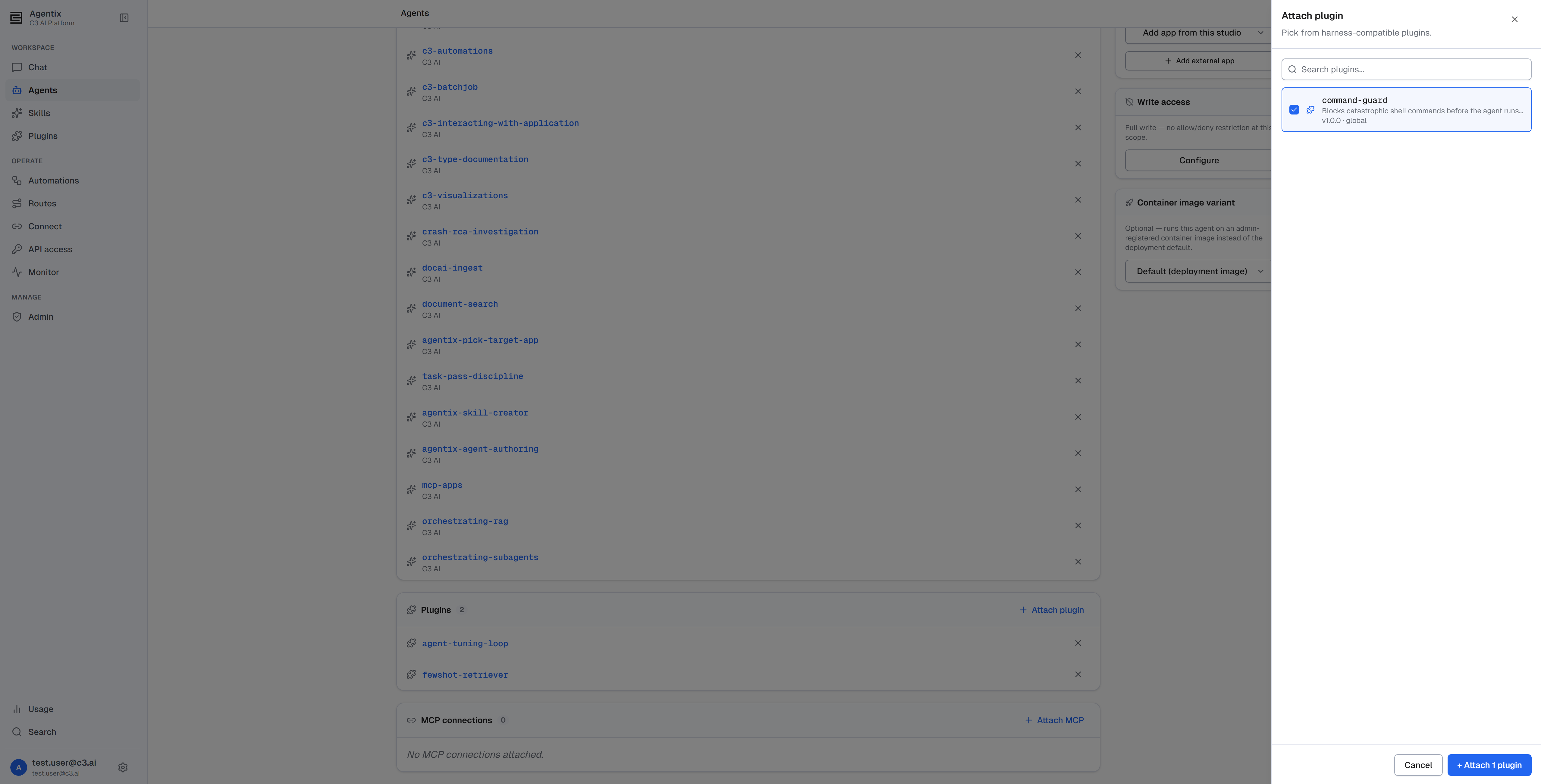
The panel lists your Personal plugins too. Only your own sessions receive a Personal plugin, so attach a Global plugin when every user of the agent needs it. To share a Personal plugin, promote it to Global first.
Attach a plugin to your own sessions
Attach the plugin from the Plugins page. Each change saves immediately:
- Open Plugins from the left navigation.
- In the plugin's row, select the cell in the Agents column. The Assign agents list opens.
- Use the search box to find an agent by name, or select All agents to select every agent at once.
- Select an agent's checkbox to attach the plugin for your sessions. Clear the checkbox to detach it.
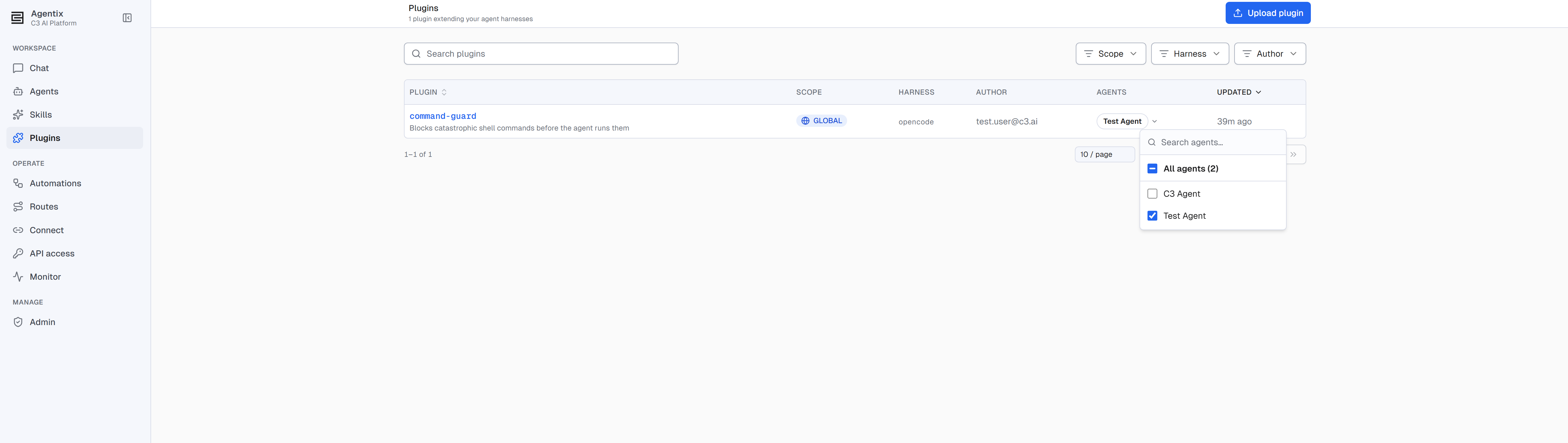
Agents that carry the plugin in their definition appear selected and locked. The agent's author manages that attachment, so you can't remove it from this list.
If the plugin's harness doesn't match any agent, the list shows No compatible agents (harness mismatch).
The Plugins card on an agent's detail page lists only the plugins in the agent's definition. Plugins you attach to your own sessions appear in the Agents column of the Plugins page and under Attached agents on the plugin's detail page.
Detach a plugin
Detach a plugin the same way you attached it:
- From the agent's definition: in edit mode, remove the plugin from the agent's Plugins card, then select Save. Every user of the agent loses the plugin in new conversations.
- From your own sessions: open the plugin's Assign agents list and clear the agent's checkbox. This removes only your own attachment.
Share a plugin with your team
A plugin you upload starts as Personal. To make it available to everyone in the cluster, an administrator with the Agentix.AppAdmin role promotes it to Global.
To promote a plugin:
- On the Plugins page, select the plugin's Personal scope badge. Only administrators see the promotion option. Administrators can promote any user's Personal plugin, not only their own.
- Select Global. A confirmation dialog titled Promote to GLOBAL appears: "Promote "[name]" to GLOBAL scope? This action is irreversible — the plugin will become visible to all users."
- Select Promote to GLOBAL.
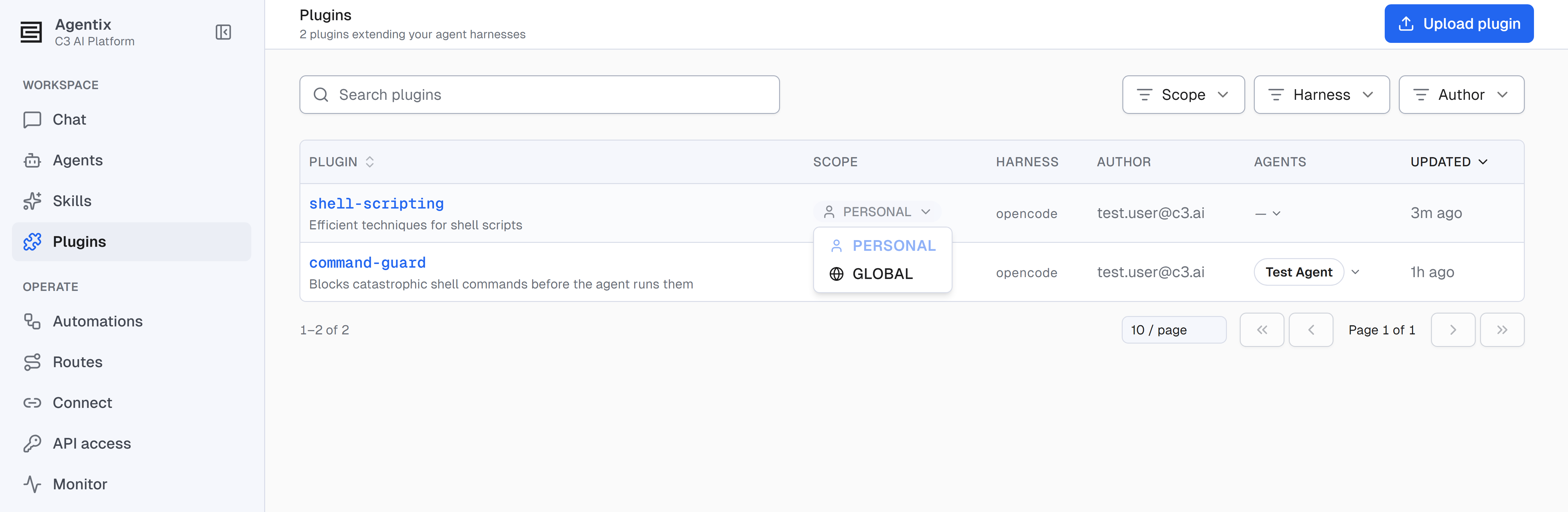
A few rules apply to promotion:
- One-way: a Global plugin can't return to Personal scope. Promote a plugin only when you intend to share it for good.
- Unique names: promotion fails if another user has a Personal plugin with the same name. Personal plugins aren't allowed to be promoted to Global if another user has a Personal plugin with the same name. Ask that user to delete or rename theirs, then promote again.
- Attachments keep working: C3 AI Agentix attaches plugins by name, and promotion keeps the name. Agents that carried the Personal plugin carry the Global plugin after promotion.
Replace or delete a plugin
C3 AI Agentix has no in-place editor for plugin files. To change a plugin, edit the files on your computer and upload the bundle again with the same name and scope. The new upload replaces the plugin's files and description, and new conversations pick up the change. To start from the current version, select Download on the plugin's detail page.
An upload that uses the name of an existing plugin in the same scope replaces that plugin immediately, without a confirmation. C3 AI Agentix keeps no earlier version, so download a copy first if you might need it. Every upload through the Plugins page records version 1.0.0, so the version number can't tell two uploads apart. Replacing a Global plugin changes it for every agent that uses it and for every user, starting with each user's next new chat.
To delete a plugin:
- Open the plugin's detail page and select Delete.
- In the Delete plugin? dialog, select Delete plugin. C3 AI Agentix removes the plugin permanently and returns you to the Plugins page.
The Delete button appears only on plugins you can manage: your own Personal plugins, and every Global plugin for administrators. Bundled and Shared plugins are read-only and have no Delete button.
Plugins in exported agents
When you export an agent, the export handles each attached plugin by scope:
- Global: the export carries the plugin's files.
- Bundled: the export carries the plugin's name. Since bundled plugins are included in every environment, the target environment supplies its own copy.
- Personal: the export leaves the plugin out and shows a warning. To move a Personal plugin with an agent, promote it to Global before you export.
A plugin that arrives through an import is a read-only Shared copy in the target environment. See Export and Import Agents.
Troubleshoot plugins
Find the message or behavior you see, then apply the fix listed with it.
Upload errors
If an upload is rejected, the Upload a plugin dialog shows one of these messages:
- "Upload must include at least one file." The archive or folder is empty. Add the plugin's files and upload again.
- "Invalid plugin name …" Use only lowercase letters, digits, and hyphens, and start the name with a letter or digit.
- "Plugin name must be 64 characters or fewer." Shorten the name.
- "Harness is required." Select a harness.
- "Plugin contains unsupported file types …" Remove the listed file types from the bundle. See Upload a plugin for the supported types.
- "Unsupported file type. Please upload a .zip archive or drag a folder." Upload a
.zipfile, or drag a folder onto the upload area. - "File exceeds maximum size of 50 MB." Reduce the archive's size. The plugin must also stay within the 25 MB total limit.
- "Failed to publish plugin." The server rejected the plugin. The error box shows the reason, with a button to copy it. A common reason is a name that a plugin in another scope already uses. Another is a bundle over a limit: a file larger than 1 MB, more than 200 files, or more than 25 MB in total.
A plugin is missing from the Plugins page, or opens "Plugin not found"
The plugin lists feature flags that must be on before it runs, and at least one of them is off. While a flag is off, C3 AI Agentix hides the plugin from the Plugins page and the Attach plugin panel, and leaves it out of new conversations. An agent's Plugins card can still list the plugin, and selecting it opens a Plugin not found page. The attachment stays in place, and the plugin appears and runs in new conversations after an administrator turns the flags on.
A hook doesn't run
C3 AI Agentix shows no error when a hook fails to load, so check these causes in order:
- The conversation started before the change. A conversation keeps the plugins it started with. Start a new chat after you attach, replace, or detach a plugin.
- The plugin isn't attached for this agent and user. On the Plugins page, open the plugin's Agents list and check that the agent is selected. Plugins attached to your own sessions don't appear on the agent's Plugins card.
- The harness doesn't match. The plugin's harness must match the harness on the agent's detail page.
- The
hooks/folder is missing. When every file in a.zipsits inside one folder, the upload removes that folder. A zip that holds onlyhooks/therefore loses it, and the plugin doesn't load. Open the plugin's detail page and check that the file tree showshooks/. If it doesn't, zip the plugin's outer folder and upload again. - An entry file hides the
hooks/folder. If the bundle hasindex.js,index.ts,plugin.js,plugin.ts, or<plugin-name>.jsat the top level, or apackage.jsonthat names an entry file, C3 AI Agentix loads only that file. Import your hook files from it, or remove it. See Understand what goes in a plugin. - The hook file has no default export. Export the plugin function with
export default. See Write a hook. - Two hook files handle the same event. Only the handler from the file whose name sorts last runs. Move both handlers into one file.
Confirm that a hook loaded
The chat doesn't list the plugins a conversation loaded, so test the hook by its effect. Start a new chat with the agent and do something that triggers the hook. For a hook that blocks a tool, ask the agent to run a command the hook blocks: the agent reports the hook's error message, and the command doesn't run. For an automation, the run's detail page lists the plugins in its Plugins row.
The Attach plugin panel shows "No compatible plugins found"
The panel lists only plugins that match the agent's harness and aren't attached to it yet, either in its definition or for your own sessions. Check that the plugin is built for the agent's harness, and check the agent's existing attachments on the Plugins page.
A plugin's skill doesn't appear or never runs
Another skill with the same name took priority, and C3 AI Agentix showed no message. See Skill names in Understand what goes in a plugin.
Permissions
Three roles decide what you can do with plugins:
Agentix.User: upload, replace, download, and delete your own Personal plugins, and attach any plugin you can see to your own sessions with any agent.Agentix.AgentAdmin: also attach and detach plugins on an agent's definition, which changes the agent for every user.Agentix.AppAdmin: also upload Global plugins, promote Personal plugins to Global, and replace or delete Global plugins.
Bundled and Shared plugins are read-only for everyone, whatever their role. For the full list of roles, see Roles and Permissions.
Where to go next
- Create and Attach a Skill: write a skill for a procedure the agent picks up on demand.
- Create and Configure an Agent: the full agent editor, including the Plugins card.
- Export and Import Agents: move an agent and its Global plugins to another environment.
- Roles and Permissions: who can upload, share, and attach plugins.