Execute the Pipeline
After your Unstructured Data Integration (UDI) pipeline has at least a source collection, a Chunker, and an Embedder, you can run it. Execution syncs the source collection with the inbox, picks files to process, and submits a background batch job.
Open the runtime parameters
On the canvas, select the green Execute button on the source collection node. The Configure Runtime Parameters dialog opens.
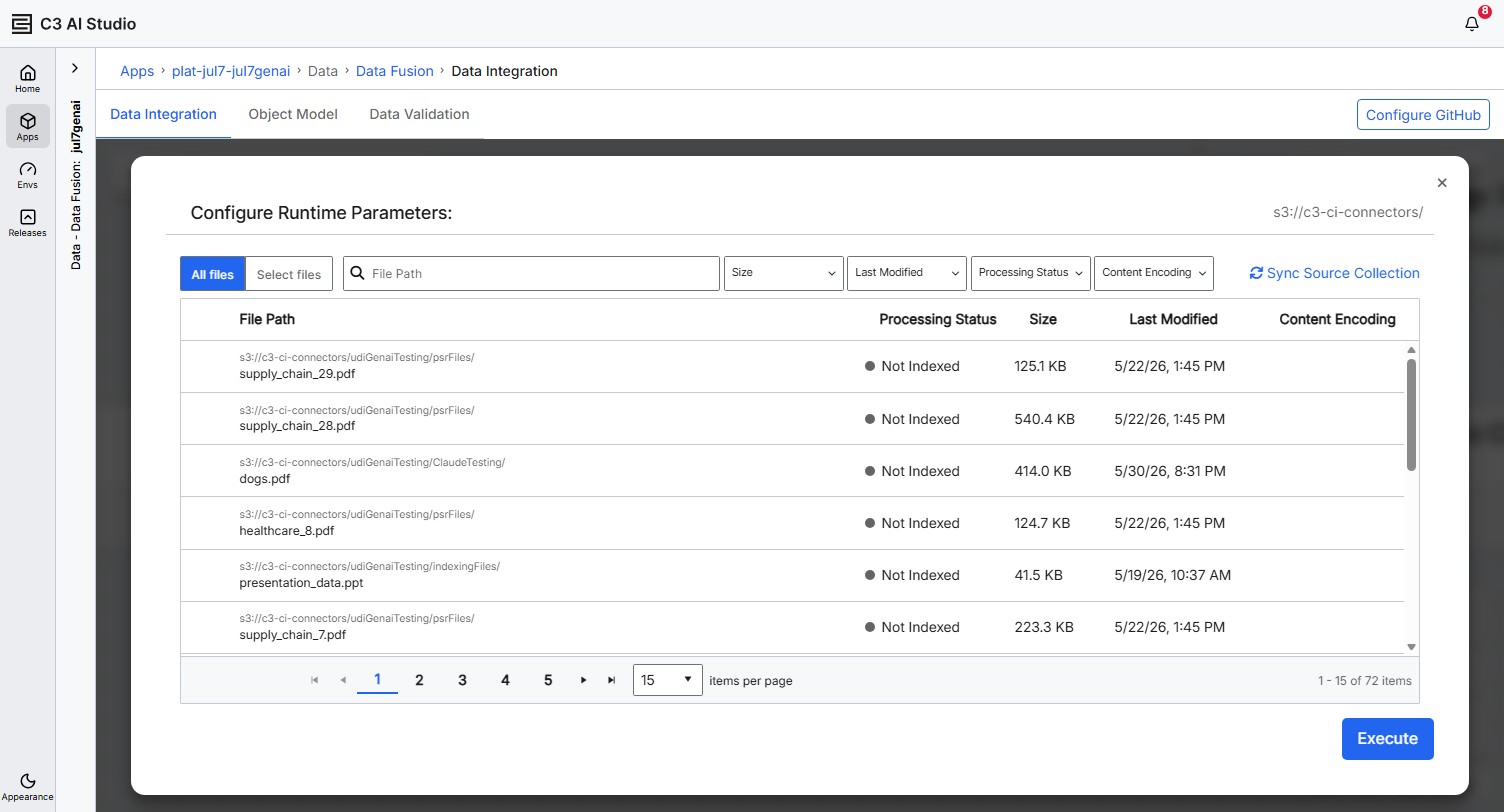
The Execute button opens a configuration dialog; it doesn't start the run immediately. You start the run by selecting the Execute button at the bottom of the dialog.
Sync the source collection
The dialog syncs the source collection when you open it. Wait for the row count in the bottom-right footer to stabilize before starting Execute.
If the file table stays empty after the sync completes, select Sync Source Collection at the top-right of the dialog to trigger a manual sync. If the table still shows no records:
- Cancel the dialog.
- On the source collection node, select the Open menu (⋯) kebab and select Sync source files. This queues a background sync you can wait on without blocking the dialog.
- Reopen the runtime parameters dialog.
If Execute is disabled or fails with the red banner "No source files found in this collection. Upload or sync files first.", the source collection has no registered files. Return to the source collection setup, tick the Select file checkbox next to each file you want the pipeline to process, save, then sync.
Sync before every run when files have been added to or removed from the inbox since the last execution.
Choose what to execute
The dialog has two tabs at the top: All files and Select files.
Use the All files tab when:
- You want the pipeline to process every file in the inbox, subject to its current status.
- You're catching up after a sync, or running a scheduled refresh.
Use the Select files tab when:
- You only want to process a subset, such as one file, a test set, or files you uploaded since the last run.
- You want to re-run a specific file that failed earlier.
On the Select files tab, select the checkbox next to each file you want to include.
Execute
Select the Execute button at the bottom of the dialog.
The dialog closes and the platform submits a batch job. The batch job processes selected files in parallel, end to end: parse, chunk, optionally tag and extract, embed, and persist.
Submitting a run doesn't display a confirmation toast. The dialog closes silently. To confirm the run started, navigate to Monitor > Workload Management > Jobs > Batch and look for the most recent row in your name.
Watch progress
To watch progress without leaving the canvas, open the source collection's Open menu kebab and select View run status. The modal shows live job status, queue counters, and file counts by pipeline stage. See Monitor Pipeline Execution for the modal walkthrough.
Find your run
To inspect the underlying batch job, navigate to Monitor > Workload Management > Jobs > Batch and filter by Started by = your user. The Run ID, Status, and Elapsed time columns confirm the execution. For the full layout of the Jobs Batch page, see Monitor Pipeline Execution.