Bring Your Data to C3 Intelligence
You have data to analyze, and it lives on your computer, in a database, in a cloud bucket, or in another C3 application. The C3 Intelligence agents, AI assistants that write and run the code for each stage of an analysis, can take your data in five ways. Pick the way that matches where the data is and how often you plan to use it:
- Attach files to a message, for files on your computer.
- Upload a file into one agent's workspace, to give one agent a specific file.
- Reuse datasets from the Dataset Library, for files you use in more than one conversation.
- Connect a database or another system, for data that stays where it is.
- Generate data in the conversation, for sample or synthetic data.
Whichever way you choose, the agents work on your data inside their sandboxes. A sandbox is the isolated computing environment where one agent runs, and each agent keeps its files in a workspace, its own folder in that sandbox. Shared Storage, a cloud storage bucket that an administrator connects for the whole deployment, adds the Dataset Library and lets your files outlast one conversation.
Choose how to bring in your data
Find the row that matches where your data is, then read that section:
| Way | Use it when | Where the data stays | Size |
|---|---|---|---|
| Attach files to a message | The files are on your computer and you need them in this conversation | In the conversation, or in Shared Storage when it is connected | Up to 5 GB per file with Shared Storage; without it, batches over 25 MB upload in parts |
| Upload into an agent's workspace | One agent needs a file in its workspace, such as a script for the Coding Agent | In that agent's workspace | Up to 25 MB at a time |
| Reuse datasets from the Dataset Library | You use the same files in several conversations | In Shared Storage, available to all your conversations | Up to 5 GB per file |
| Connect a database or another system | The data lives in a database, a cloud bucket, or another C3 application | In the source system | Set by the source system |
| Generate data in the conversation | You need sample or synthetic data | In the workspace of the agent that created it | Not applicable |
Each conversation starts its own agents. With Shared Storage, your files carry over to your other conversations. Without it, files you attach or upload stay in one conversation, and connectors are the way to reach the same data from several conversations.
Attach files to a message
Attaching is the quickest way to give the agents files from your computer. To attach files:
- Select Attach files, the paperclip in the message box, and choose one or more files.
- Type your request, then select Send message.
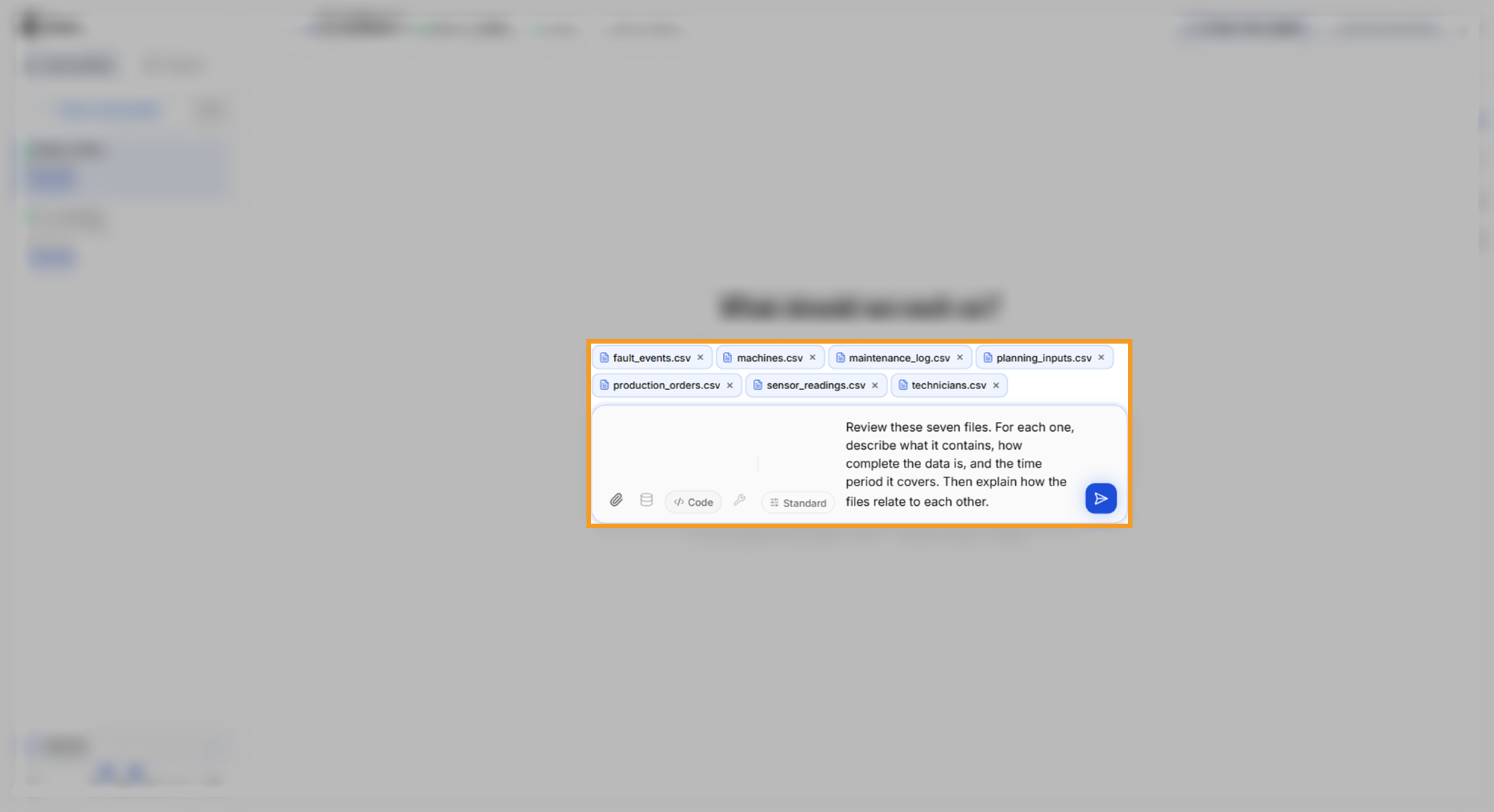
The orchestrator, the agent that plans each request, passes the files to the agent that handles the request. With Shared Storage connected, each attached file becomes a dataset in the Dataset Library, which every agent reads from storage and you can reuse later. Without Shared Storage, C3 Intelligence copies each file into the conversation's sandbox, and the message notes that the files belong to this conversation only. A batch of files larger than 25 MB then uploads in parts.
The agents accept any file type. They read data files, such as CSV, JSON, Excel, and Parquet files, and documents, such as PDF files.
Upload a file into one agent's workspace
Upload a file straight into an agent's workspace when one agent needs it, such as a script for the Coding Agent to run. To upload the file:
- In the right panel, select Files.
- Select Select workspace agent, the icon beside the Files title, and choose the agent.
- Select Attach a file, at the foot of the view, and choose the file.
This upload takes up to 25 MB at a time. For a larger file, the panel asks you to use Attach files in the message box, which uploads larger files in parts.
Reuse datasets from the Dataset Library
A dataset is a file kept in Shared Storage, and every agent in a conversation reads the same copy directly. The orchestrator hands an agent a reference to the dataset instead of copying the file into its workspace. Agents publish the data files they produce, such as cleaned data, as new datasets, so the next agent reads them by reference too.
Shared Storage and the Dataset Library are beta features.
The Dataset Library keeps your datasets for all your conversations. Upload a file one time, then attach it to any of your conversations without uploading it again.
The library needs Shared Storage. An administrator sets up Shared Storage for the deployment, and Settings shows whether it is connected. The bucket can be on Google Cloud Storage, Amazon S3, or Azure Blob Storage. Until Shared Storage is connected, the library explains that it is unavailable:
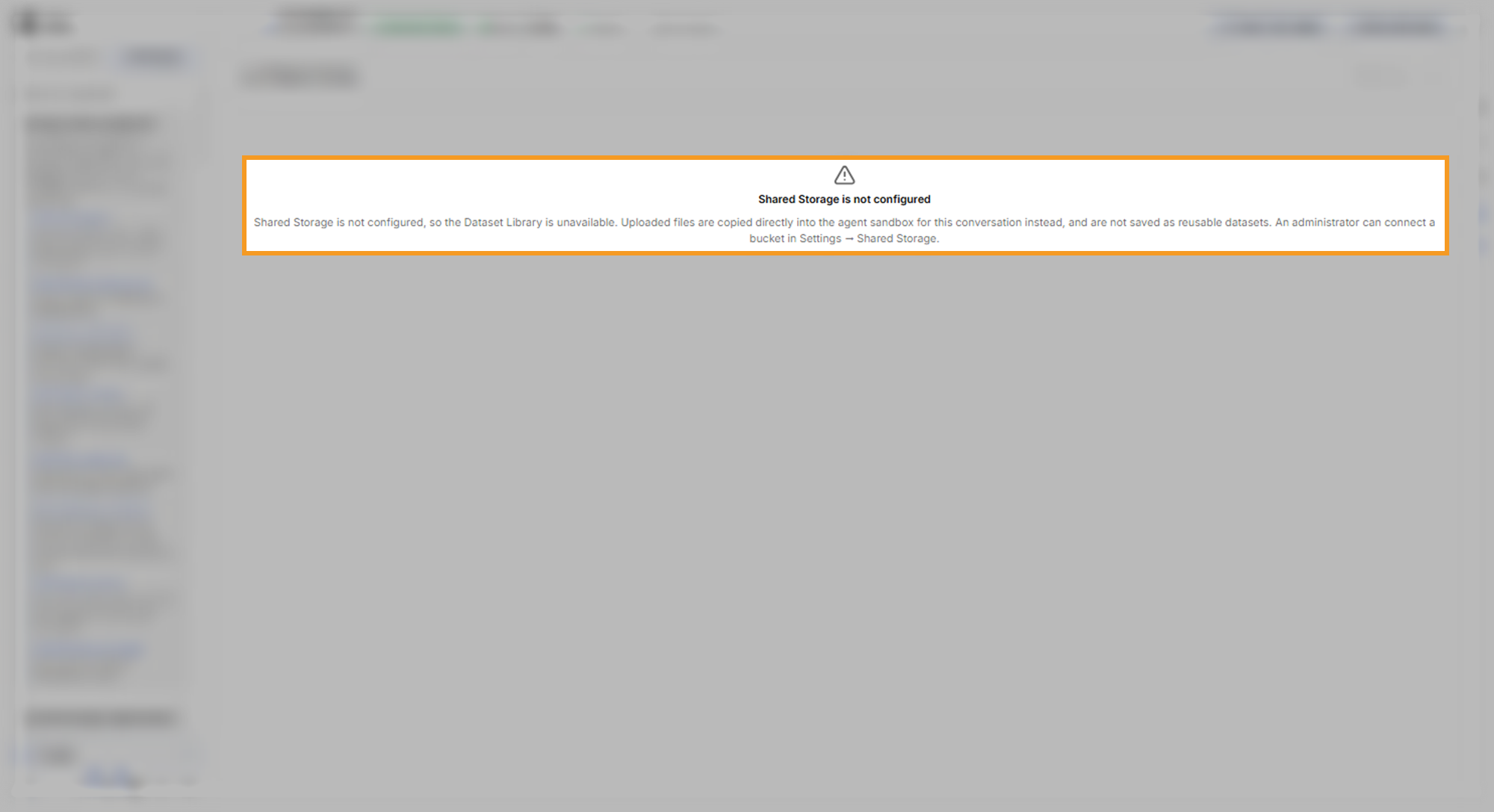
With Shared Storage connected, add a file to the library and attach it to a conversation:
- Select Dataset Library, the database icon in the sidebar footer.
- Select Upload and choose a file of up to 5 GB. The library lists the file with its type, size, and status.
- In a conversation, select Attach a dataset, the database icon in the message box, and choose the dataset.
Attach a dataset lists only datasets that finished uploading. With none ready, it reads No ready datasets yet. Upload one from the Dataset Library first. Agents can also save the files they produce to the library, so their results are available in your other conversations.
Connect a database or another system
A connector lets the agents read data where it lives, without uploading it. A connector is a saved set of credentials for one type of service, and agents use those credentials when your request asks for that service. These connector types reach data sources:
- C3 Application: records in one of your C3 applications, with read-only access. To generate the token in C3 AI Studio and add the connector, see the C3 Application section of Connectors Reference.
- Postgres: a PostgreSQL database.
- Snowflake: a Snowflake warehouse.
- AWS: AWS services, such as files in Amazon S3.
- Google Cloud Storage: files in a Google Cloud Storage bucket.
- Google Cloud: Google Cloud services, through a service account.
- Microsoft Fabric: data in Microsoft Fabric and OneLake.
- Hugging Face: content on Hugging Face, with your API token.
- GitHub: files in GitHub repositories.
The other connector types give the agents access to AI models and to a solver license. The Add a connector page lists all 13 types:
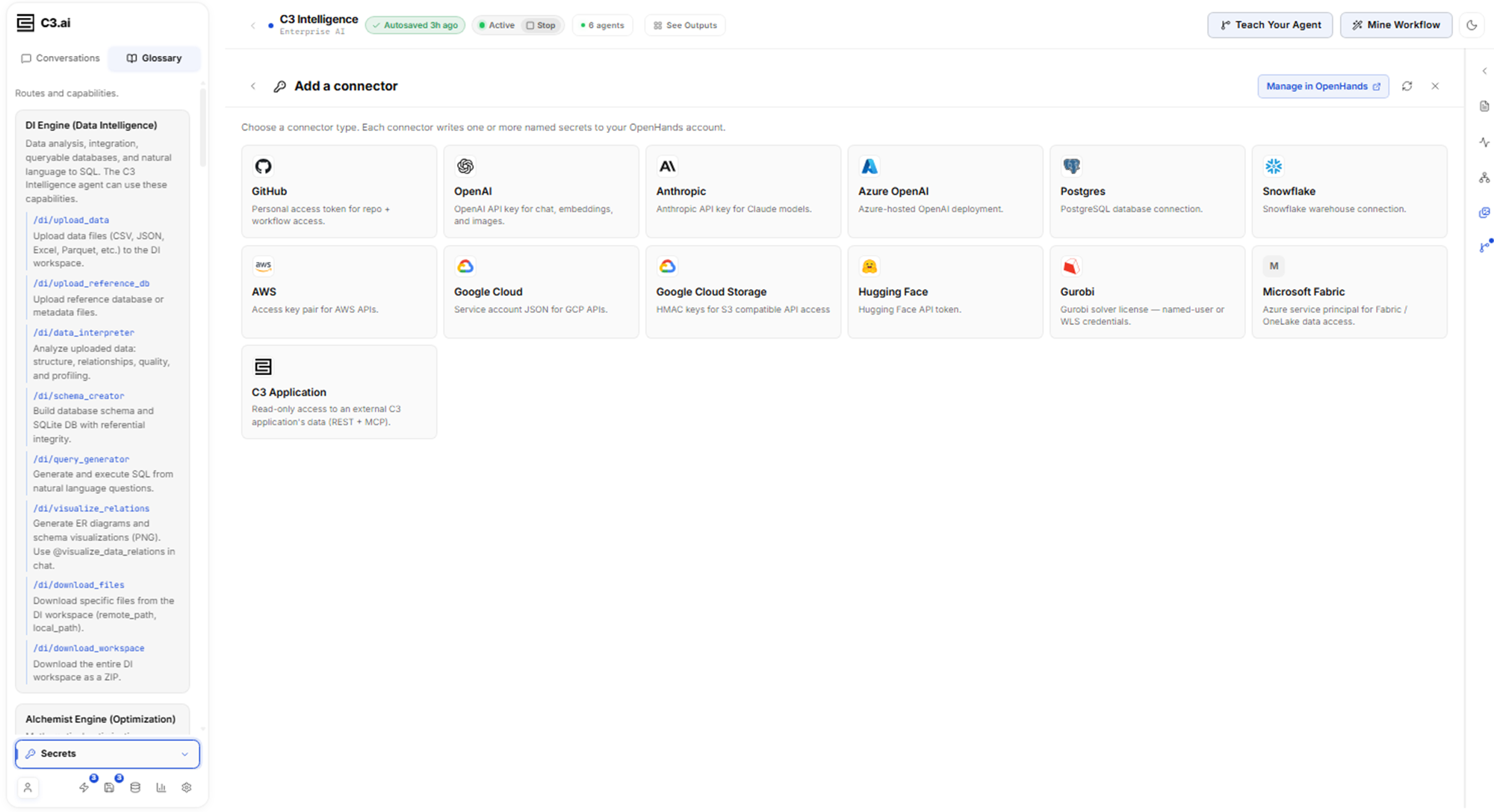
After you add a connector, ask for the data in plain words, such as "Count the open work orders in the C3 application." Agents ask before they use a stored credential. The agents run on the agent service, OpenHands, so the source system must accept connections from it.
To add a connector, see Connectors. For each type's fields, see Connectors Reference.
Generate data in the conversation
An agent can create data for you, such as a sample dataset to practice on or synthetic records to test a model. Describe the files you want, and the agent writes and runs the code that builds them. The Coding Agent writes general code, so it suits this work. You can also name another agent, or leave the agent out and let the orchestrator choose.
The files land in the workspace of the agent that created them. The orchestrator moves files between agents, so the next request in the same conversation can analyze the files without a download or an upload. To keep a copy, download the files from the Files view.
To generate the Smart Factory dataset that the tutorials in this guide use, see Generate the Sample Data.