C3 AI Agentix Release Notes
C3 AI Agentix
Version 1.0.2 is the first general release of C3 AI Agentix: agentic AI for the applications you already run, with governed autonomy built in. Ask a question in plain language and get a grounded answer from your live data, with the evidence behind it. When the agent needs to change something, it stops and asks you first, so autonomy is earned, not assumed.
You open C3 AI Agentix, pick or build an agent, connect one or more C3 applications on your estate, and hold a conversation. The agent reasons over your request, calls tools, and reports back in a single workspace.
See Overview for the eight concepts this page uses throughout, and Quick Start to hold your first conversation and build your first custom agent.
Release highlights
C3 AI Agentix arrives ready to work across the following areas, all grounded in the applications you already run:
- Chat with an agent: Hold a conversation in one workspace, with every write action paused for your approval before it runs.
- Build an agent: Create or clone an agent, write its instructions, attach skills, and connect it to what it needs to reach.
- Automate tasks: Schedule an agent to run a job on its own, or start a schedule directly from a chat.
- Embed an agent: Add a chat widget to a C3 application, or drive the agent directly through the versioned Agent REST API.
- Manage agents: Administer agent services, the model catalog, and observability, and track usage for your whole deployment or for yourself alone.
Chat with an agent
The chat page is where you talk to your live data in plain language. Ask a question, watch the agent reason and run tools against your connected applications, and read its answer, with the evidence behind it.
Capabilities:
- One workspace for the conversation: Type a question in the composer, the message box at the bottom of the page, and read the agent's answer in a single scrolling message stream.
- Approve or deny each action: The turn pauses before the agent writes, updates, or changes anything, and you choose Allow once, Always allow, or Deny. Reading your data runs automatically.
- Workspace and files: Every session has its own file area. Preview a file inline, download it, drag files into the workspace, or move them between folders.
- Model and reasoning effort: Pick the large language model (LLM) and a reasoning effort, how much work the model puts into an answer, for the current turn from the composer.
- Manage your sessions: The Chats sidebar lists every conversation, grouped by recency. Rename or delete any one, or download it as a Markdown file. Each conversation is one session.
See Quick Start for the full layout, the composer controls, and how to connect an application to a chat.
Build an agent
An agent is a declarative, reusable configuration of an LLM, skills, and connected apps, ready to act on your estate. Create one from scratch or by cloning an existing agent, then configure it on its detail page.
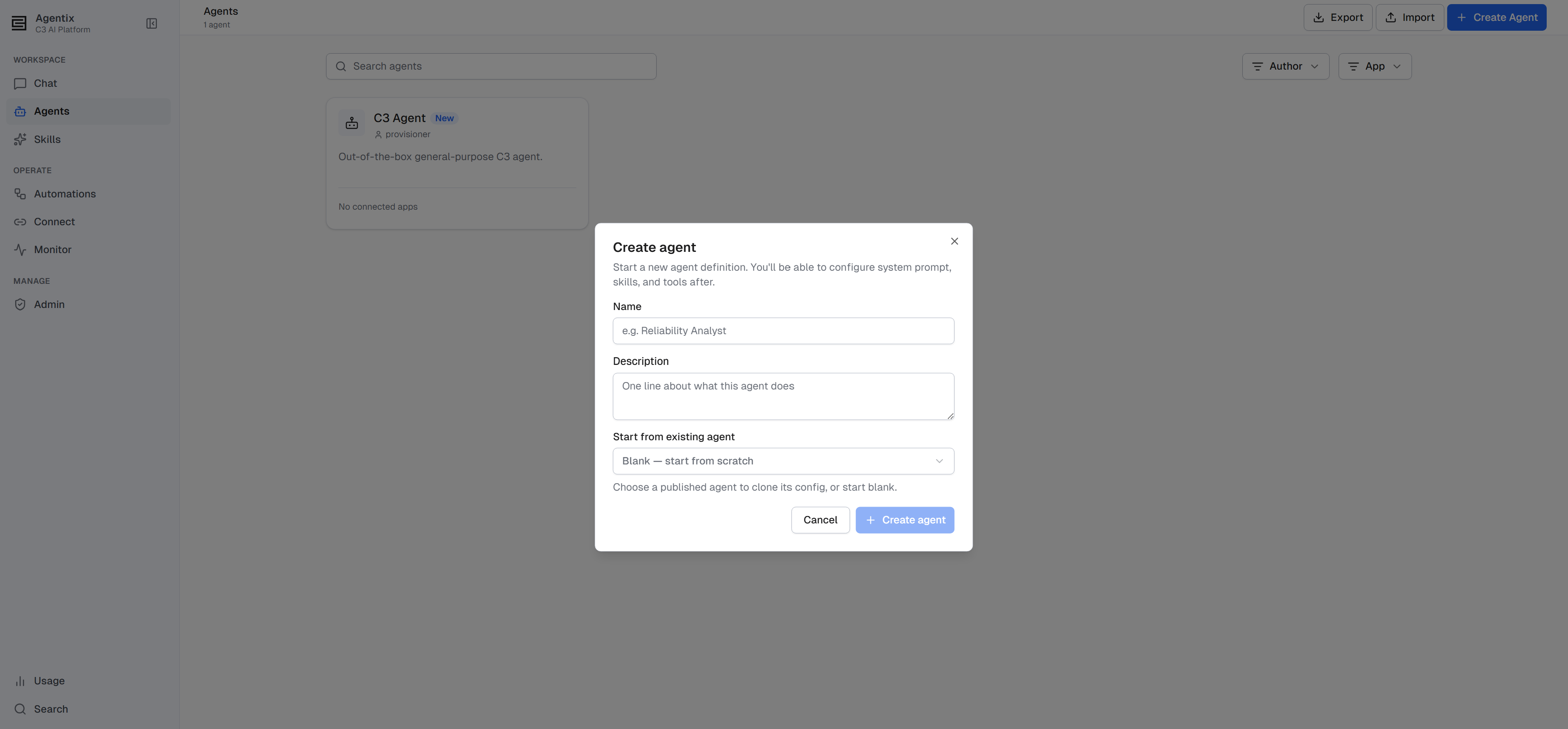
Capabilities:
- Agent gallery: Browse the agents already in your environment before you create or clone one.
- Write agent instructions: Describe the agent's role and the tools it should use, and leave out step-by-step scripts, since the agent works out the steps itself. Watch it work in a real conversation, then revise the instructions from what you saw.
- Model and access: Choose a model and reasoning effort, and set the agent's write access.
- Publish an agent: Make an agent available in your other connected C3 applications.
Skills
A skill is a reusable bundle of instructions and scripts an agent invokes for a repeatable task. C3 AI Agentix ships with a catalog of these skills at Global scope, ready to attach to any agent you author.
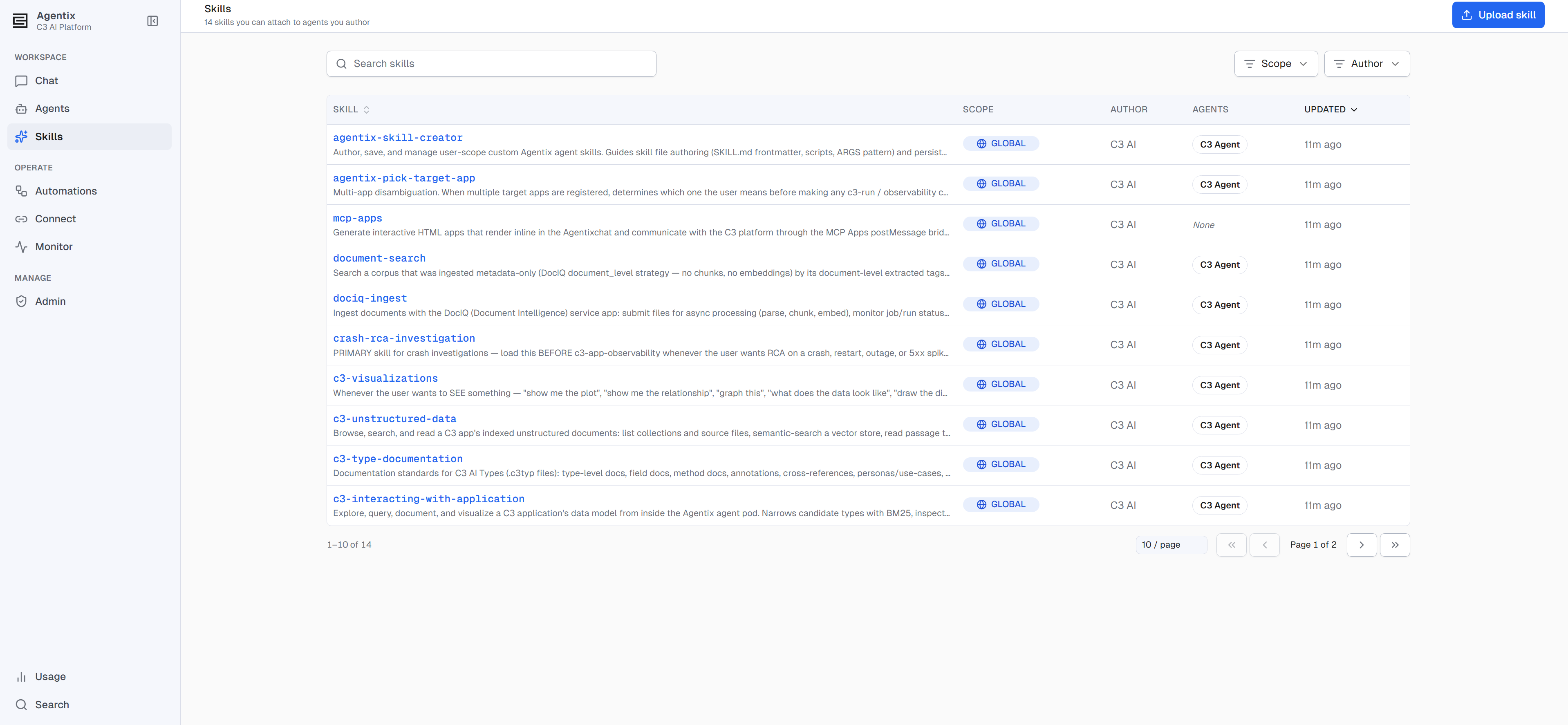
- Create, upload, and attach: Write a custom skill, package it, and upload it at Personal scope, where only you can use it. Then attach it to an agent from its detail page or inline from the catalog.
- Promote to Global: As an administrator, promote a Personal skill to Global scope so everyone in the environment can use it.
Connections
A connection is how an agent reaches a system beyond its host application: another cluster, an MCP server, a hosting service, or a stored credential.
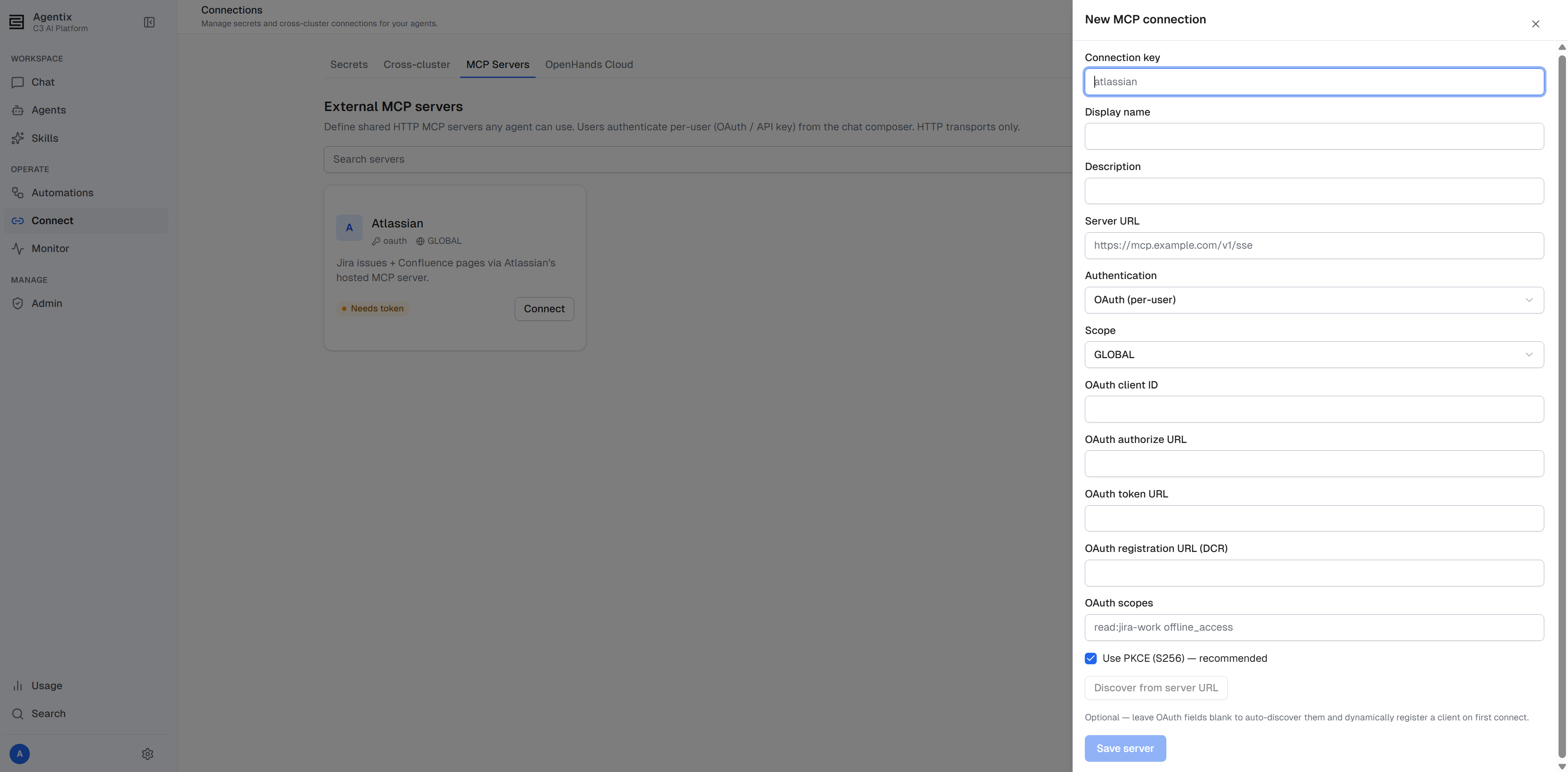
- Connect an application: Connect a chat to one or more C3 applications by app ID, and the agent queries them over REST while you talk to it.
- Cross-cluster connections: As an administrator, set up a service-account connection to a remote application. After that, each person connects to it with their own sign-in.
- MCP connections: Connect to MCP servers, such as Jira or GitHub, with your own per-user authentication, so the agent acts as you.
- OpenHands Cloud connections: Run an agent's conversations on the third-party OpenHands Cloud under your own account and API key. This replaces the managed pod, the container that normally hosts your session.
- Secrets: Store encrypted secrets that reach a session as environment variables, kept out of any prompt or transcript, at Personal or Global scope.
See Overview, Create and Configure an Agent, and Create and Attach a Skill.
Automate tasks
An automation puts an agent to work on its own, on a recurring or on-demand trigger. The interface calls each one a schedule.
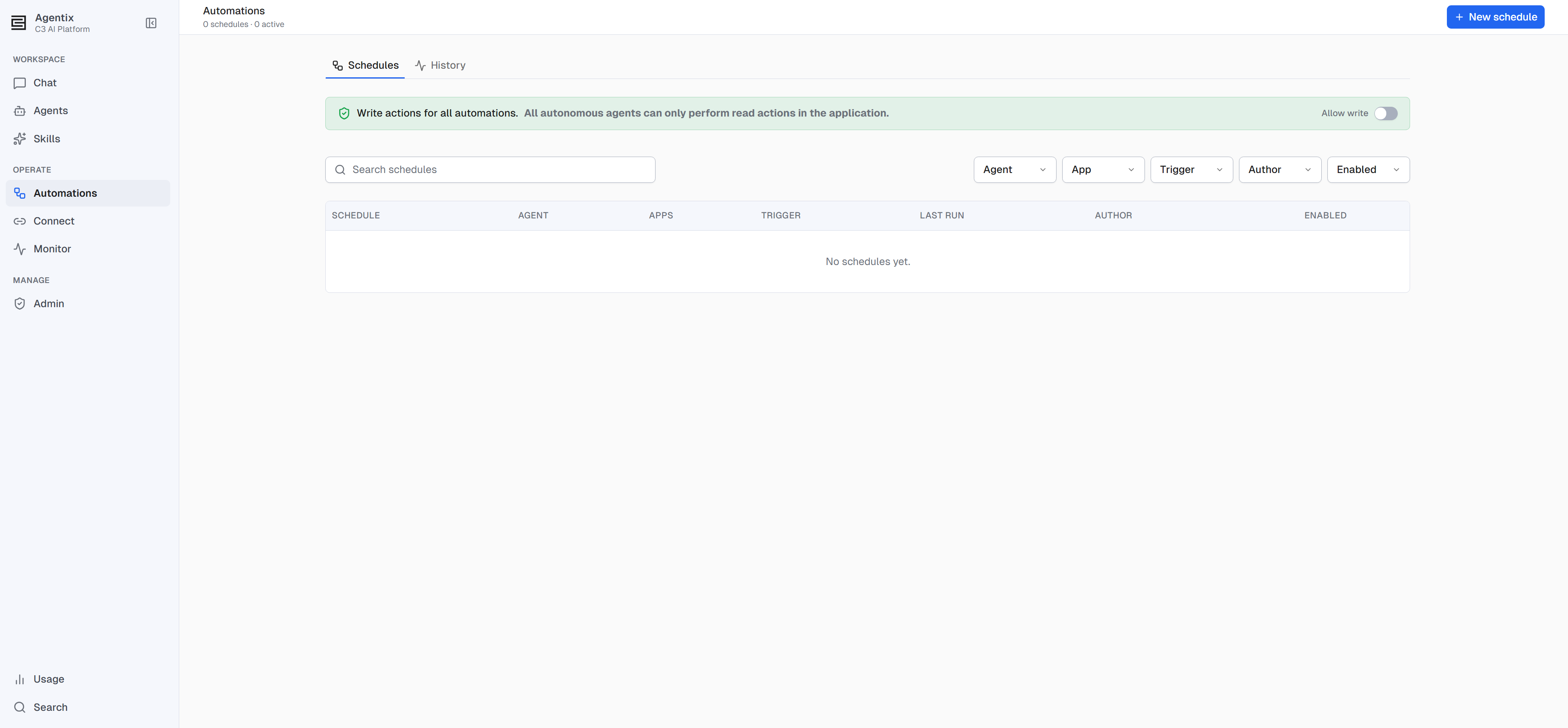
Capabilities:
- Read-only by default: An automation runs unattended, so every run reads without writing until an administrator turns on Allow write for the app and grants it to the schedule.
- Run history and artifacts: Each run produces a summary and artifacts you can review and download.
- Start an automation from a chat: Start scheduling directly from an existing conversation. The agent asks what to run, on what trigger, and against which applications, and builds the schedule from your answers.
- Manage a schedule: Edit the trigger, run it on demand, review its run history, or delete it.
See Overview for what an automation is made of, and Create and Schedule an Automation for both ways to start one.
Embed an agent
C3 AI Agentix puts an agent where your work already happens. Embed a ready-made chat widget in your own application, or drive it directly through the Agent REST API.
Capabilities:
- Chat widget: Add a drop-in chat component to a C3 application on the same cluster, with no server-side integration to set up.
- Agent REST API: A versioned REST API covers session lifecycle, messaging, the event stream, files, and discovery.
- Authentication: Authenticate a headless caller with the
client_credentialsflow, or a signed-in person withauthorization_codeand PKCE, so the call acts as them. - Session lifecycle: Create a session, then check its status, send prompts, and read replies. Exchange workspace files, and list, stop, resume, or delete sessions at any point.
See Embed an Agent, Developer Docs, and C3 AI Agentix Agent REST API.
Manage agents
Administration splits into running the fleet and giving everyone visibility into their own usage. Four tabs make up the Admin page: Agent Services, LLM service, Observability Service, and Upgrades. Monitor and My usage are separate destinations in the navigation, open to every user for their own activity.
Three roles set what someone can do: Agentix.User, Agentix.AgentAdmin, and Agentix.AppAdmin, each including what the one before it grants. See Roles and Permissions.
Agent services
Manage the list of active or dormant agent sessions
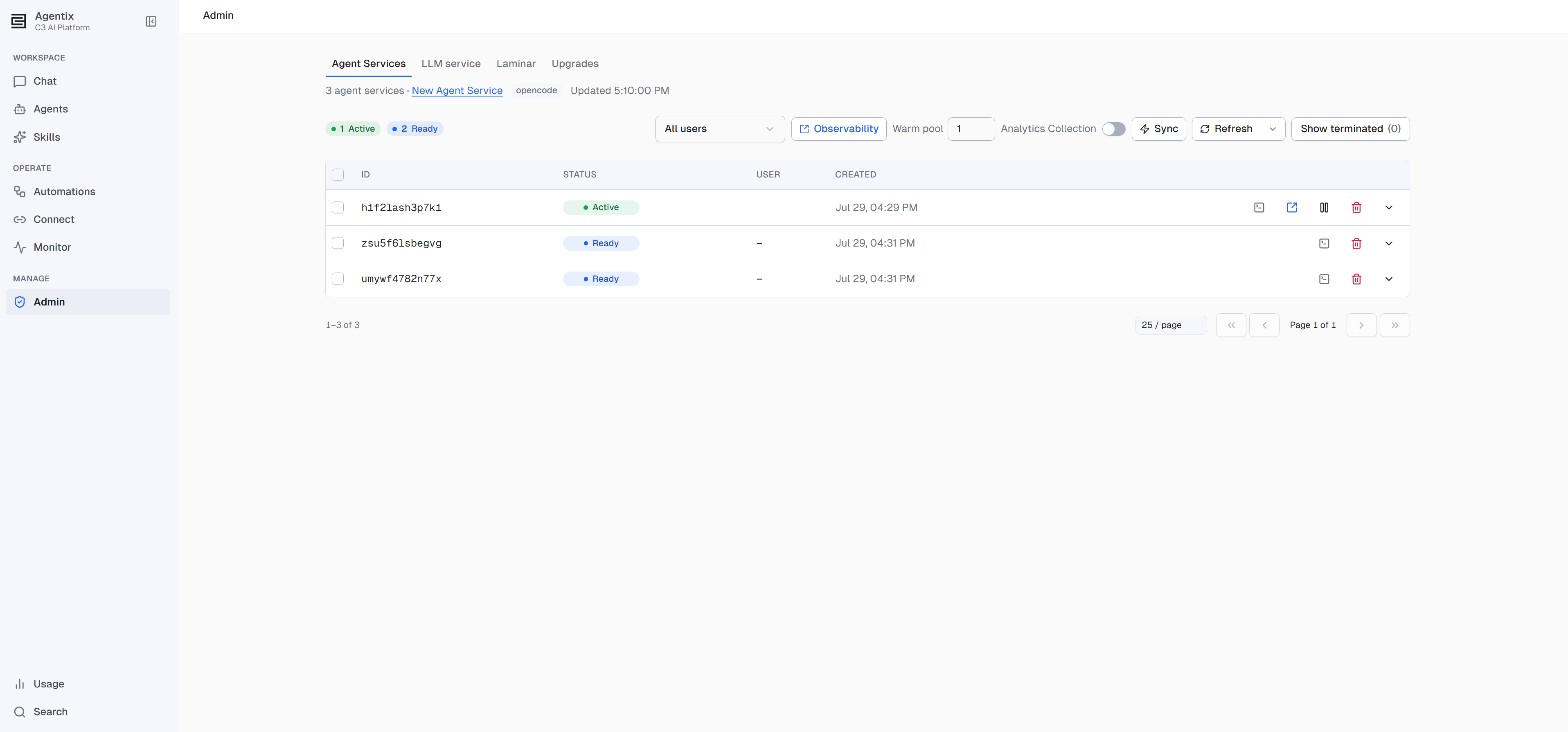
- Service lifecycle: Manage the lifecycle of the pods that host agents and chats. View the fleet or a single pod's detail, and stop, resume, or terminate a service.
- Fleet diagnostics and capacity: Diagnose a problem that affects agent services across the whole fleet, and size the warm pool that keeps new chats starting fast.
- Analytics and skill learning: Turn on analytics collection, and cap how much skill learning happens across your deployment. Skill learning is the product reviewing chats and suggesting skill improvements for you to apply.
LLM service
The LLM service tab holds the catalog of models available to your agents.
- Curate and set defaults: Enable or disable a model, and set the default for new chats, the judge model, and the write-access baseline every agent inherits.
- Check health: Check the model service's health and its logs.
Observability
The Observability Service tab shows the health of the tracing backend that every Monitor number and every trace depends on.
- Check backend health: Confirm the Observability Service is running before you rely on Monitor's numbers or a trace.
Upgrades
The Upgrades tab manages the application's own version, independent of anything running inside it.
- Check and upgrade now: See the current version and whether a newer one is available, and select Upgrade now to move to it immediately. Any agent service running at the time pauses and resumes automatically after the application restarts.
- Schedule upgrades: Turn on Automatic upgrades and choose a cadence, daily, weekly, monthly, or a cron expression, so new versions install automatically on that schedule.
Monitor
An administrator is able to view all agent usage metrics across their application
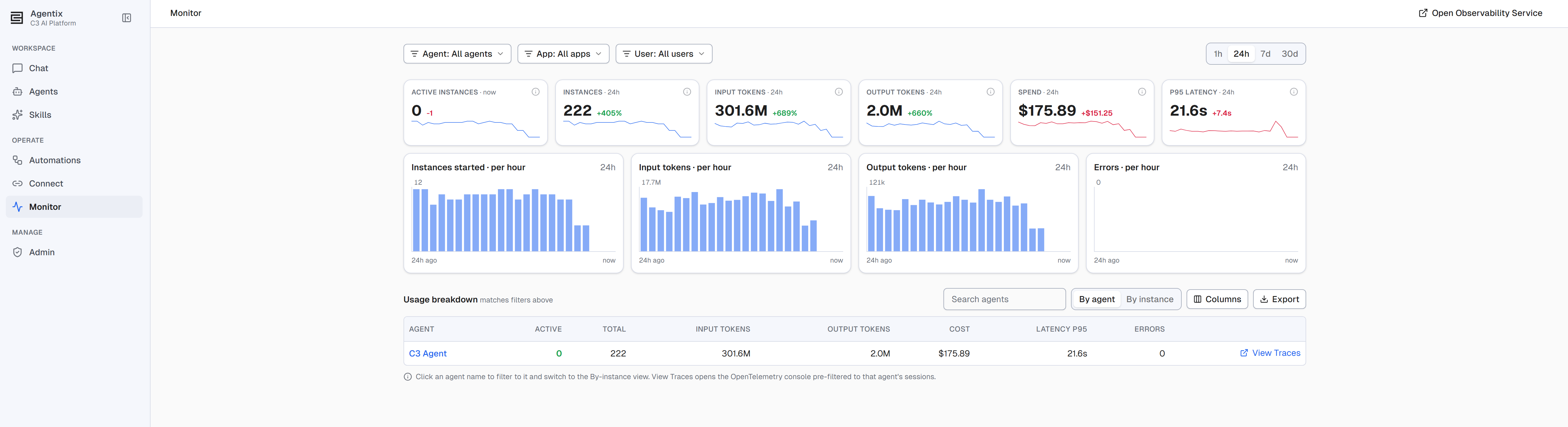
- Team-wide dashboard: Track instances, tokens, spend, latency, and errors across every agent, filtered by agent, application, user, and time range. Switch between By agent and By instance, and select Export for the numbers. Drill from an aggregate number down to a single trace.
My usage
View trends in your own agent usage
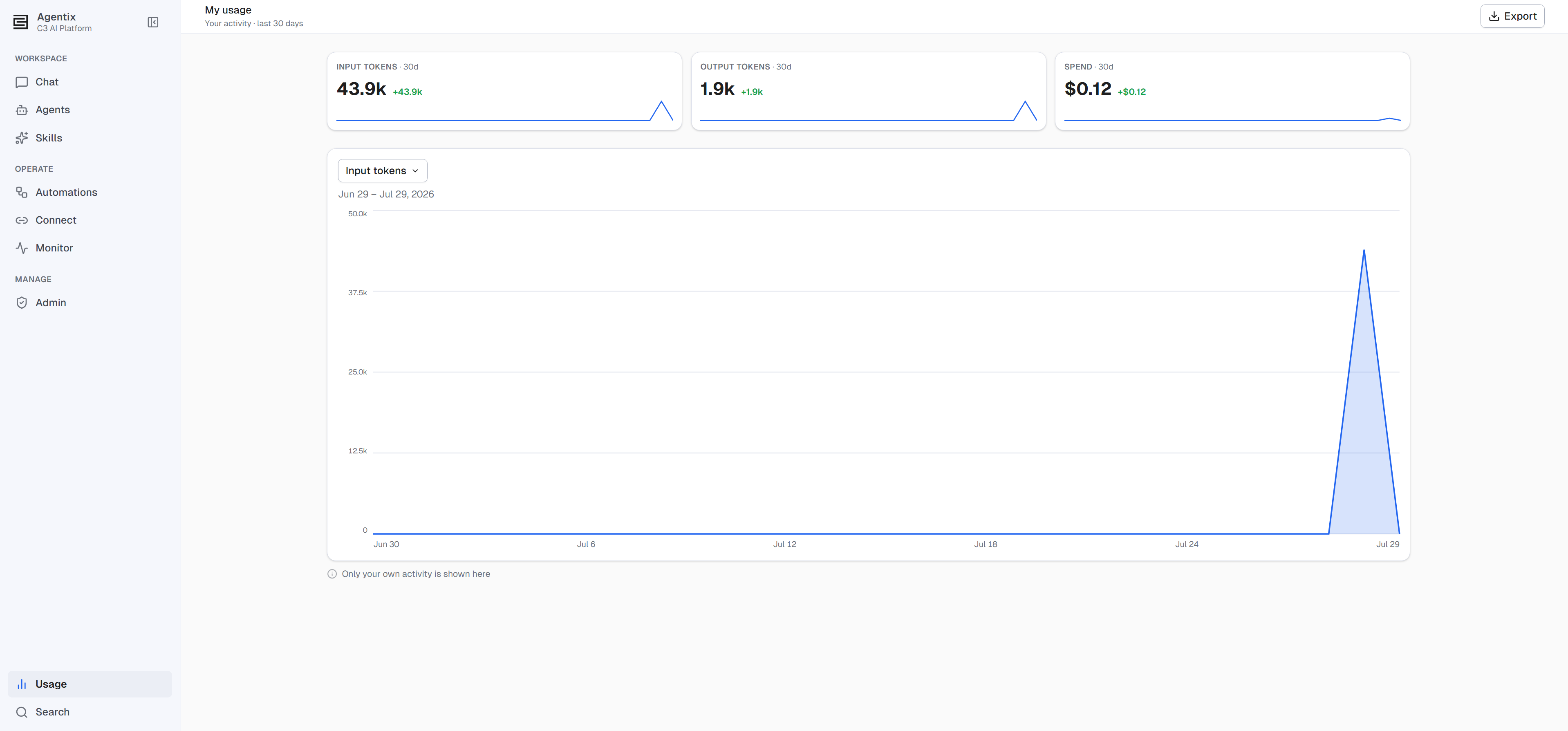
- Your own activity: Review your input tokens, output tokens, and spend on a switchable chart, and select Export to download the numbers.
See also: